

How to connect a custom domain
Serve MangoMap from your own URL, such as maps.yourcompany.com. Add the DNS record at your registrar first, then turn on the domain in MangoMap.
A custom domain serves your MangoMap account at your URL, such as maps.yourcompany.com. Visitors see your URL instead of the MangoMap URL. To send every visitor to your domain, also turn on Remove Mango branding.
Before you start
- You need to be the account owner. Only the user with the
Ownerrole can open theDomain & whitelabelpage. - Have the domain you intend to use. A subdomain like
maps.yourcompany.comis the typical choice. Localhost and non-public hosts are rejected. - Have access to your DNS registrar or domain settings console.
Set up DNS first
Before you touch MangoMap, create the DNS record at your registrar.
Add one DNS record at your registrar. The record type and value depend on whether you’re using a subdomain (like maps.yourcompany.com) or a root domain (like yourcompany.com).
| Domain type | Record type | Value |
|---|---|---|
Subdomain (e.g. maps.yourcompany.com) |
CNAME |
mangomap.com. or mangomap.com |
Root domain (e.g. yourcompany.com) |
A |
174.129.28.51 |
Some registrars require a trailing . on the CNAME value (mangomap.com.); others reject it. Use whichever form your registrar accepts.
DNS changes can take minutes or hours.
Check propagation before you continue
DNS is ready when several public resolvers return the same new record.
For a subdomain, you want to see the CNAME target resolve to mangomap.com or mangomap.com.. For a root domain, you want to see the A record resolve to 174.129.28.51.
To check this:
- Paste your domain into dnschecker.org and pick the record type (
Afor a root domain,CNAMEfor a subdomain). - Or run
digagainst two public resolvers, Google (8.8.8.8) and Cloudflare (1.1.1.1), and compare the answers. Replacemaps.yourcompany.comwith your domain. For a subdomain:
$ dig +short maps.yourcompany.com CNAME @8.8.8.8
mangomap.com.
$ dig +short maps.yourcompany.com CNAME @1.1.1.1
mangomap.com.
For a root domain, ask for the A record:
$ dig +short yourcompany.com A @8.8.8.8
174.129.28.51
When the same value shows up across the public resolvers you checked, the DNS is ready and you can continue.
Open the Domain page
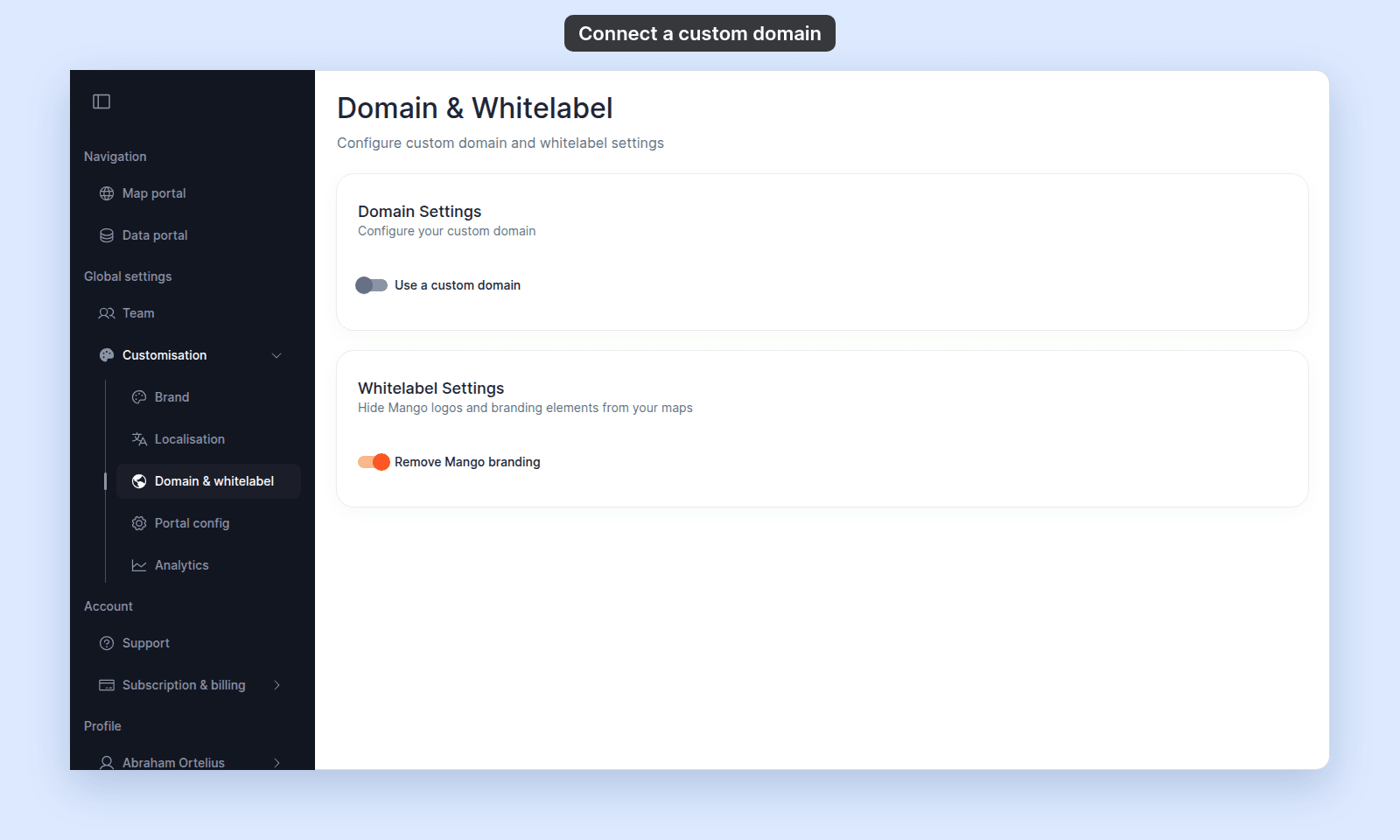
In the admin sidebar, open Global settings > Customisation > Domain & whitelabel.
Turn on custom domain and enter your host
In Domain Settings, turn on Use a custom domain. The toggle only shows the Custom Domain field. Nothing is saved until you click Connect.
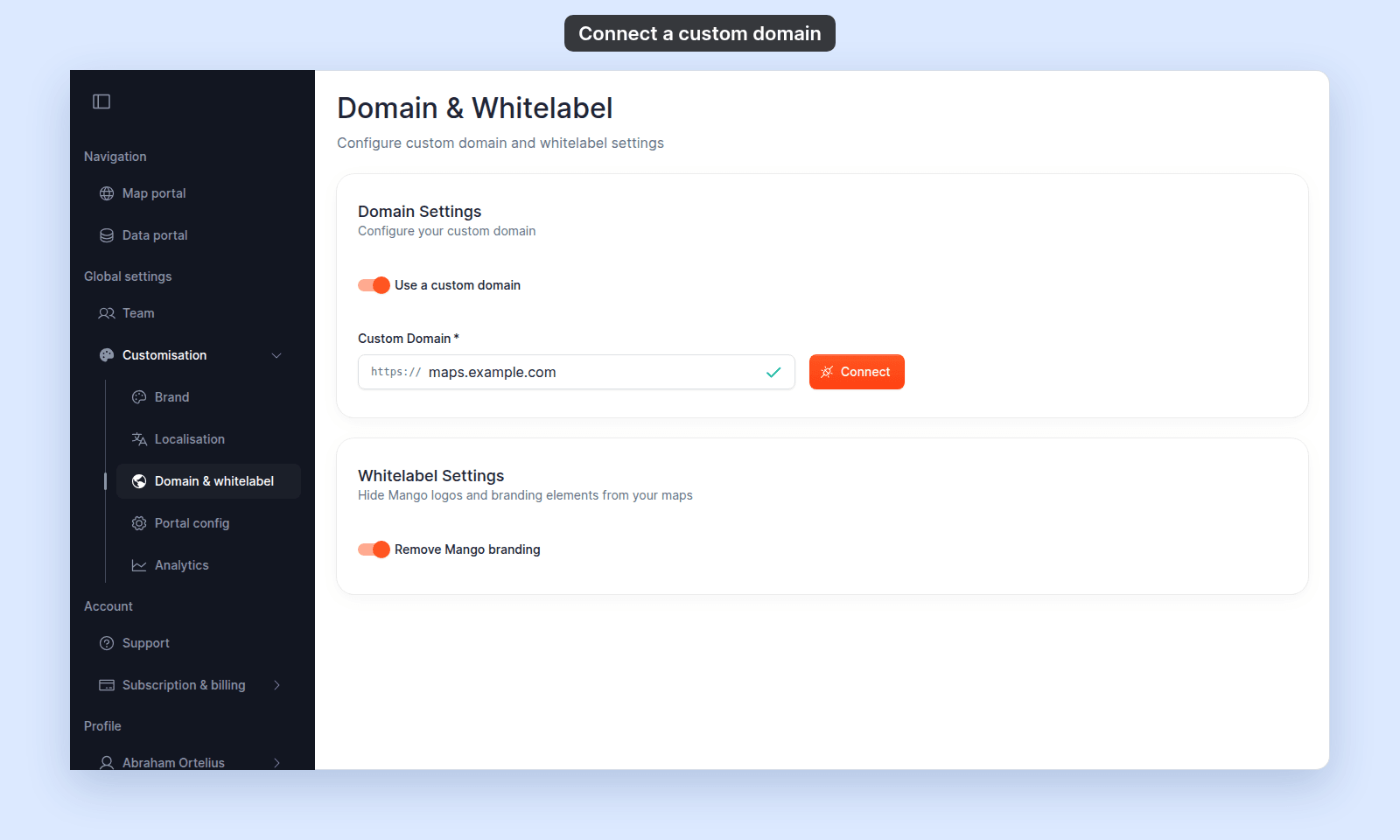
Type your domain into Custom Domain. Use a fully qualified host like maps.yourcompany.com, without https://.
MangoMap validates the host as you type. A valid host gets a green check and the Connect button. If the format is invalid, fix it before you connect and refer to the troubleshooting section below if you need help.
Connect the domain
Click Connect. When MangoMap accepts the domain, the field shows it as connected. MangoMap does not check DNS when you click Connect. The domain loads only when the DNS record resolves to MangoMap.
Disconnect the domain
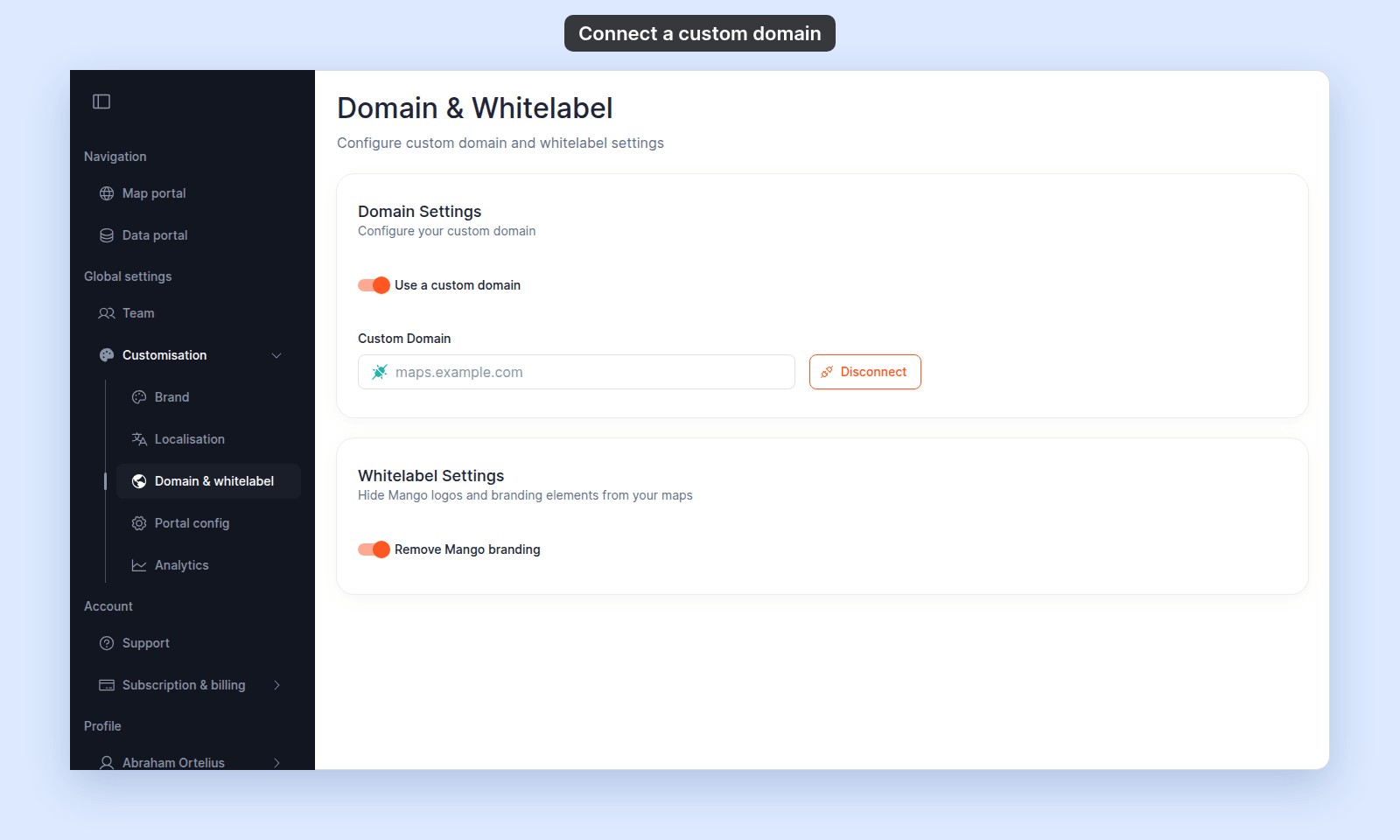
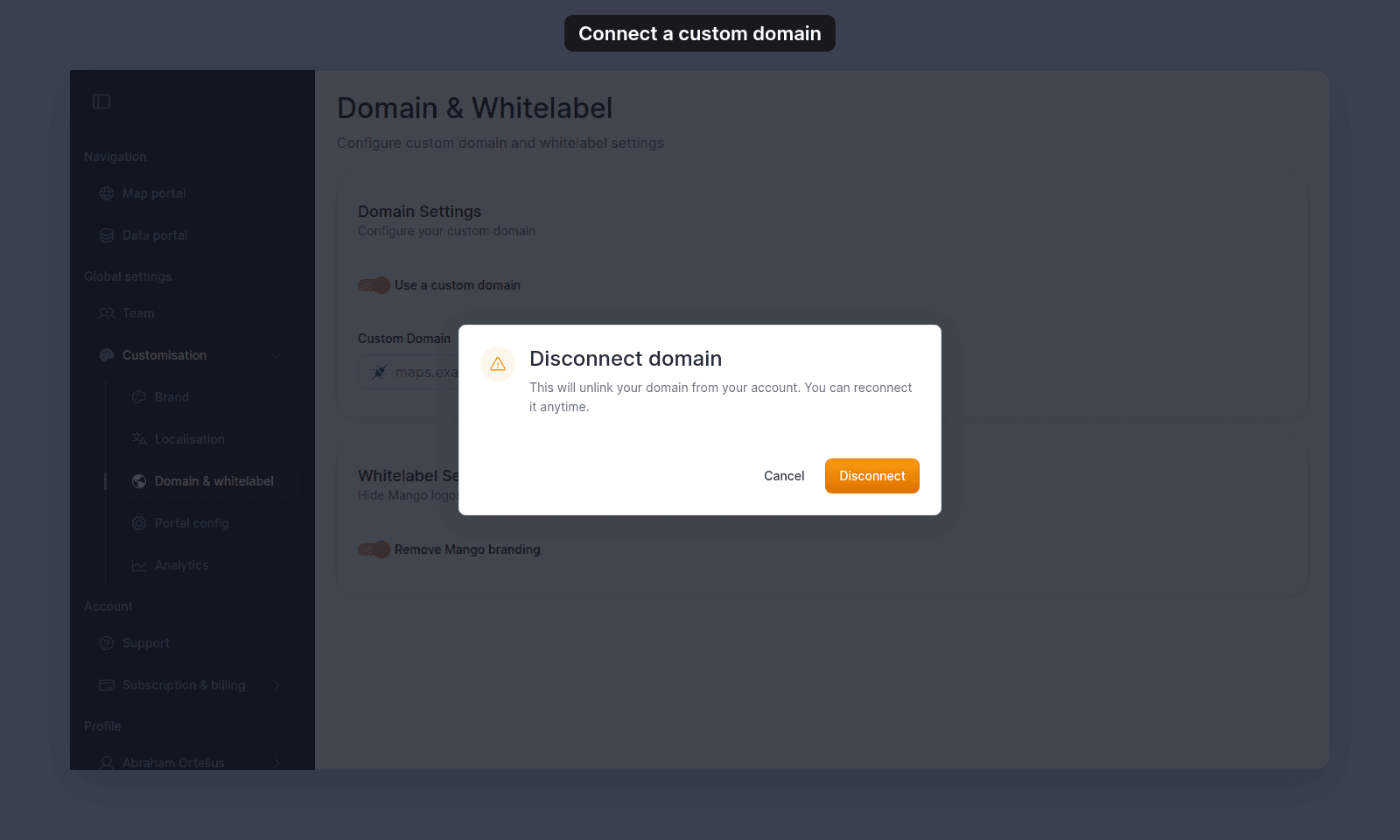
To unlink the domain from your account, click Disconnect and confirm the prompt. Turning off Use a custom domain opens the same prompt. The domain field is cleared. Visitors hitting the old domain stop seeing your account.
What changes when the domain is connected
- Your domain without a path opens your Map portal. For example,
maps.yourcompany.comgoes tomaps.yourcompany.com/<account-slug>/maps. - Every account page works on your domain, from maps and datasets to settings pages such as
BrandandProfile. Each user still sees only what their role lets them see. - Users who sign in at
maps.yourcompany.com/<account-slug>/sign-instay on your domain. When they sign out, they go back to that sign-in page. - A path for a different account on your domain shows a “page not found” error.
What else changes depends on the Remove Mango branding toggle:
Remove Mango branding on |
Remove Mango branding off |
|
|---|---|---|
A visitor who is not signed in opens a mangomap.com/<account-slug>/... link |
Goes to the same path on your domain | Stays on mangomap.com |
| Share and bookmark links that MangoMap gives you | Use your domain | Use mangomap.com |
Signed-in members of the account who open a mangomap.com link stay on mangomap.com.
Troubleshooting
The Domain page is blocked
You are not the account owner. See The Customisation menu is blocked.
The domain is connected in MangoMap but the URL does not load
The DNS record is missing, mis-configured, or still propagating. See A custom domain is not connecting.
Validation rejects a domain
Match the format maps.yourcompany.com. Trim any https:// prefix; MangoMap adds it. Local hosts and IP addresses are rejected.
Related
- How to remove Mango branding - the other toggle on this page.
- Customisation menu reference
- How customisation works in MangoMap