

How to configure the portal
Set the public portal name, default layout, default map and data sort order, banner, footer, and navigation. Changes save as you go.
The public portal — the page visitors see when they land on your account without picking a specific map — gets its name, default layout (List or Grid), default sort order, banner, and footer from Portal config. Changes save automatically as you type.
Before you start
- You need to be the account owner. Only the user with the
Ownerrole can open thePortal configpage. - Have the copy ready: portal name, banner title and body, footer text.
- Decide between
ListandGridfor the default layout. Visitors can switch between them, but the default is what they see first. - Decide how the
MapsandDatapages sort when a visitor opens them. If you don’t set a sort, they sort byTitle (A-Z).
Open the Portal config page
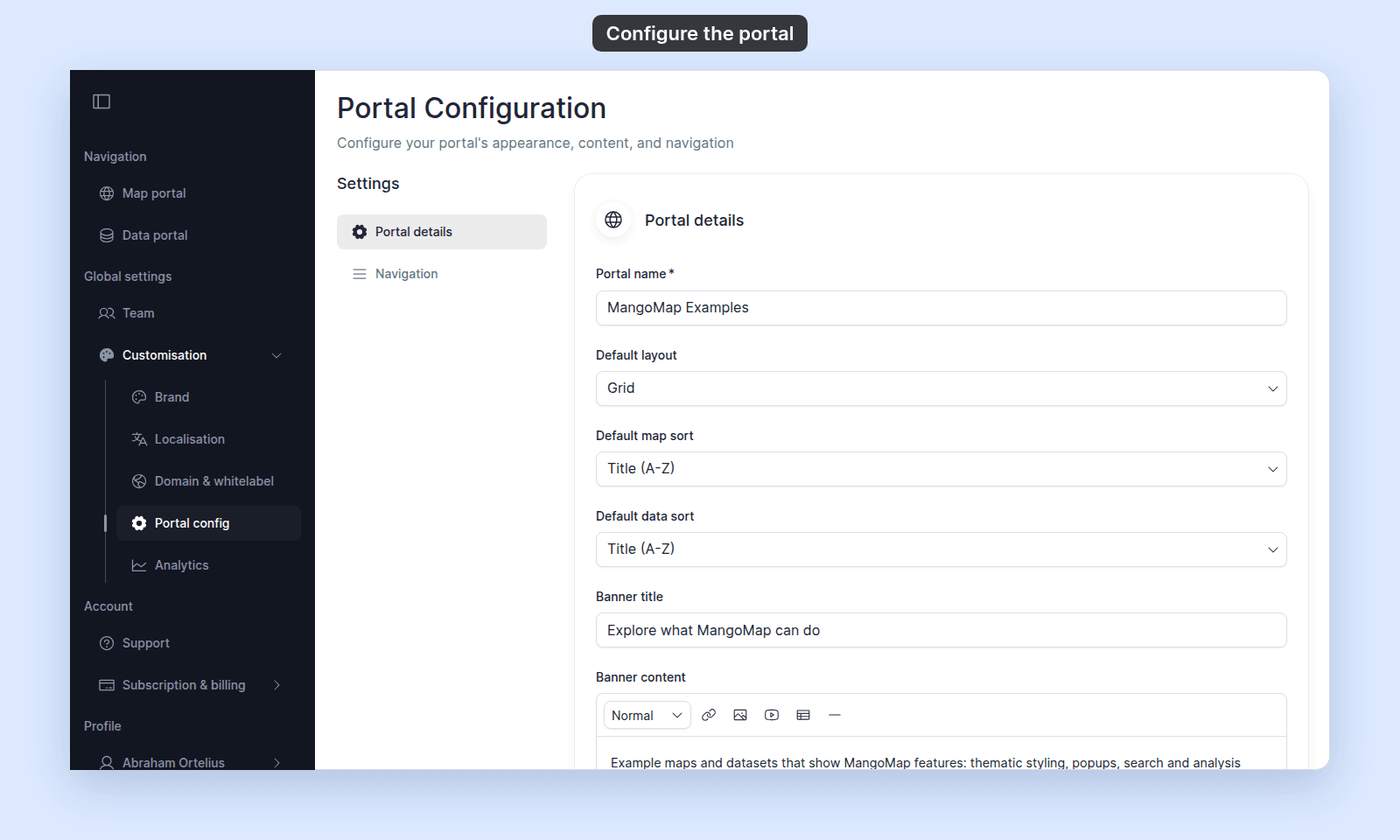
In the admin sidebar, open Global settings > Customisation > Portal config.
Set the portal name and default layout
In Portal details, edit Portal name. The field is required. Enter the name visitors should see.
The portal name appears in the portal’s header. An empty name shows up as a blank header.
Open the Default layout menu and pick one:
List— maps are shown as a vertical list.Grid— maps are shown as cards arranged in a grid.
The choice is the default. Visitors can switch between layouts on the portal itself.
Set the default sort order
Open the Default map sort menu and pick the order for the Maps page.
Open the Default data sort menu and pick the order for the Data page. It also offers Size (smallest first) and Size (biggest first).
The default applies to the public portal and to the signed-in Maps and Data pages. A viewer who picks a different sort keeps their own choice for the rest of the session.
Edit the banner and footer
The banner is the prominent area at the top of the portal.
In Banner title, type the headline.
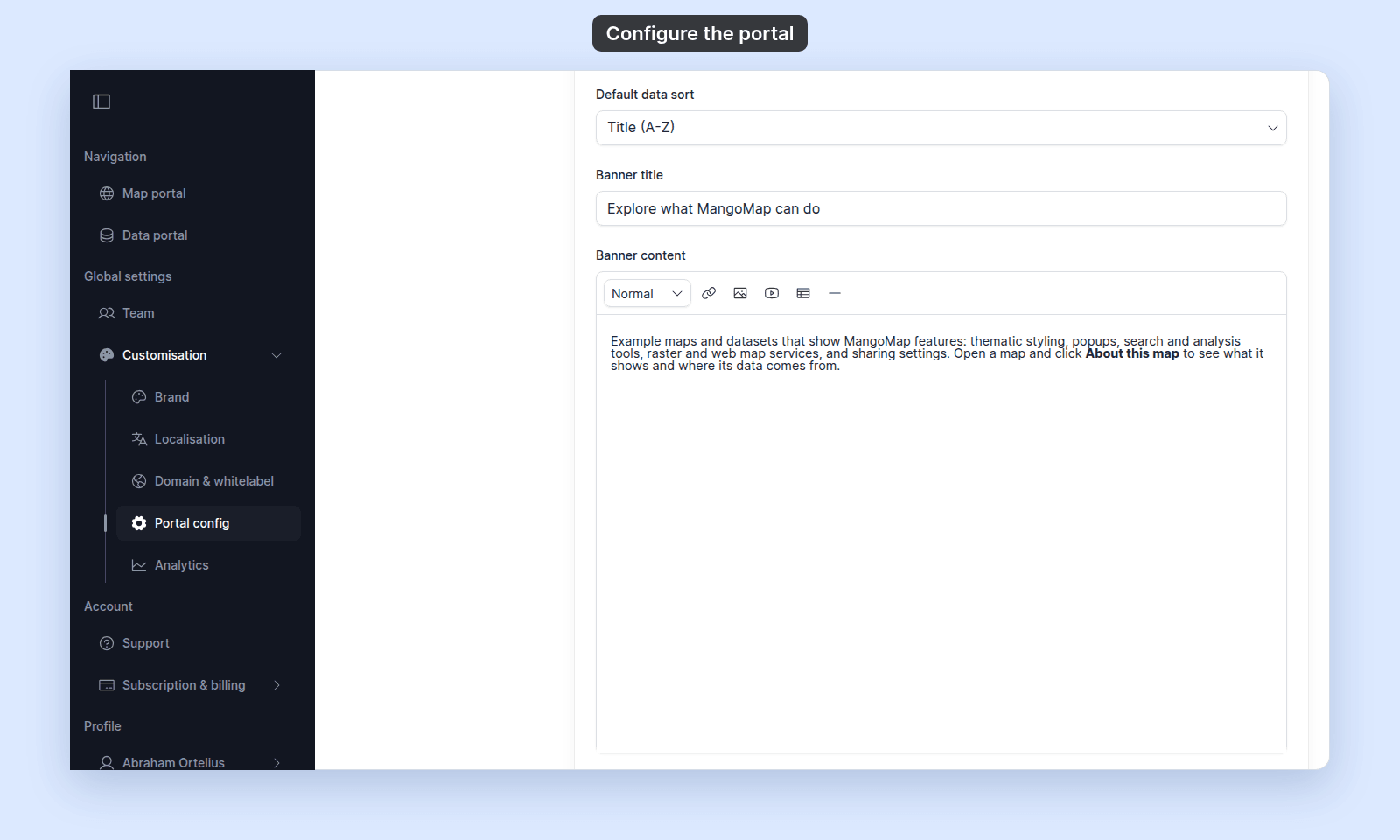
In Banner content, type the body copy. The field is a rich-text editor — it supports headings, bold, italic, strike, blockquote, bullet lists, ordered lists, links, images, YouTube embeds, tables, text alignment, horizontal rules, undo, and redo.
In Footer, type the text shown at the bottom of every portal page.
Configure navigation
The Navigation section in the side nav holds the navigation builder for the portal’s header. Toggle Use navigation on, then add items in the builder.
The editor is the same builder used for a map’s custom navigation menu. Every change (toggle, add, edit, drag-reorder, enable, delete) saves immediately. The portal’s item-type set is a subset of the map’s:
Link— an external URL.Email Link— a pre-filled email.Modal— a dialog with rich-text content.Terms Modal— a terms-of-service or legal-notice dialog.
Save the changes
The portal page saves automatically. You do not need a Save button. Each field shows its own save state.
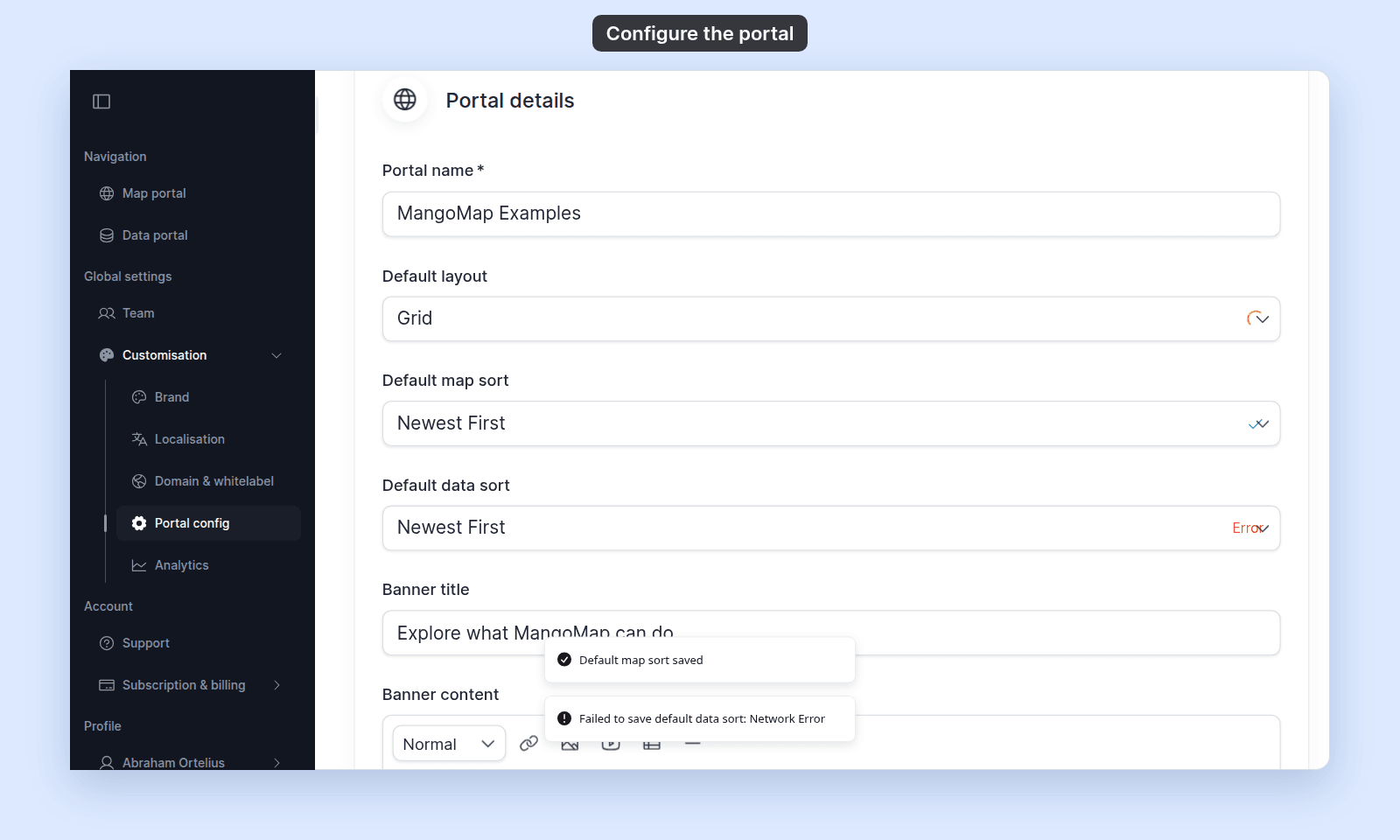
If a save fails, reload the page to return to the last saved state and try again.
Troubleshooting
The Portal config page is blocked
You are not the account owner. See The Customisation menu is blocked.
The portal shows a blank header
The Portal name field is empty. Set it.
A change doesn't appear on the portal
Reload the portal page to see the latest values.
You want to change wording that isn't on this page
Use Localisation to override built-in labels. See How to localise the text on your portal, maps, and dataset pages.
Related
- Customisation menu reference
- How to set your brand logo and colours - the logo shown on portal pages.
- How to localise the text on your portal, maps, and dataset pages - for words MangoMap controls, not your own copy.