

A custom domain is not connecting
Visitors see an error or a blank page on your custom domain. Check the DNS record at your registrar first, then check the Domain & whitelabel page.
You connected a custom domain on the Domain & whitelabel page, but visitors hitting the domain see an error or the page does not load. Usually MangoMap is connected, but your registrar has a missing, wrong, or pending DNS record. Less often, MangoMap rejects the domain value.
The diagram shows the order to check, and the fix at each step.
Most likely cause: DNS is not pointed at MangoMap
The domain loads only after the DNS record at your domain registrar is in place and has had time to propagate. MangoMap does not check DNS when you click Connect, so the green plug can show while the record is missing. Typically that record is a CNAME for a subdomain like maps.yourcompany.com, or an A record for a root domain. Without that record, the browser cannot resolve the domain and the page never loads.
To verify:
-
Open the
Domain & whitelabelpage. TheCustom Domainfield shows the connected value with a green plug icon. The MangoMap side is fine. -
Check the DNS record. The simplest check is to paste your domain into dnschecker.org and pick the record type (
Afor a root domain,CNAMEfor a subdomain). The expected value is174.129.28.51for anArecord, ormangomap.comfor aCNAME. If the result is empty or points somewhere else, the DNS is the issue. On the command line,diggives the same answer. Replacemaps.yourcompany.comwith your domain:$ dig +short maps.yourcompany.com CNAME mangomap.com.
To fix:
- Add or update the DNS record at your registrar to point the domain at MangoMap. For a subdomain, use a
CNAMEtomangomap.com.(ormangomap.comif your registrar rejects the trailing.). For a root domain, use anArecord to174.129.28.51. See How to connect a custom domain for the full DNS table. - DNS changes can take minutes or hours. Wait, then test again.
Less common: DNS has changed but the change has not propagated
If you just added or changed the DNS record, browsers may still be using the old answer. Different ISPs and DNS resolvers cache for different durations.
To verify:
-
Open dnschecker.org, enter your domain, and pick the record type. The page checks resolvers in many locations at once and shows which ones see the new value and which ones don’t. Mixed results mean propagation is still in progress.
-
Or, on the command line, ask Google’s resolver (
8.8.8.8) and Cloudflare’s resolver (1.1.1.1). If the answers differ, propagation is in progress:$ dig +short maps.yourcompany.com CNAME @8.8.8.8 $ dig +short maps.yourcompany.com CNAME @1.1.1.1 -
Wait, then test again.
Less common: the domain in MangoMap is the wrong host
The domain you typed into Custom Domain must exactly match the host you configured at your registrar. A mismatch (e.g. maps.yourcompany.com in MangoMap but gis.yourcompany.com in DNS) means MangoMap can’t recognise the request.
To verify:
- Open the
Domain & whitelabelpage. Read theCustom Domainvalue carefully. - Check the record at your registrar.
To fix:
- If MangoMap has the wrong host, click
Disconnect, type the correct host, and clickConnect. - If your registrar has the wrong host, fix it there.
Less common: MangoMap rejected the domain
When you typed the domain, MangoMap may have shown a validation error. A rejected domain shows a red warning icon in the field, and Connect does not appear.
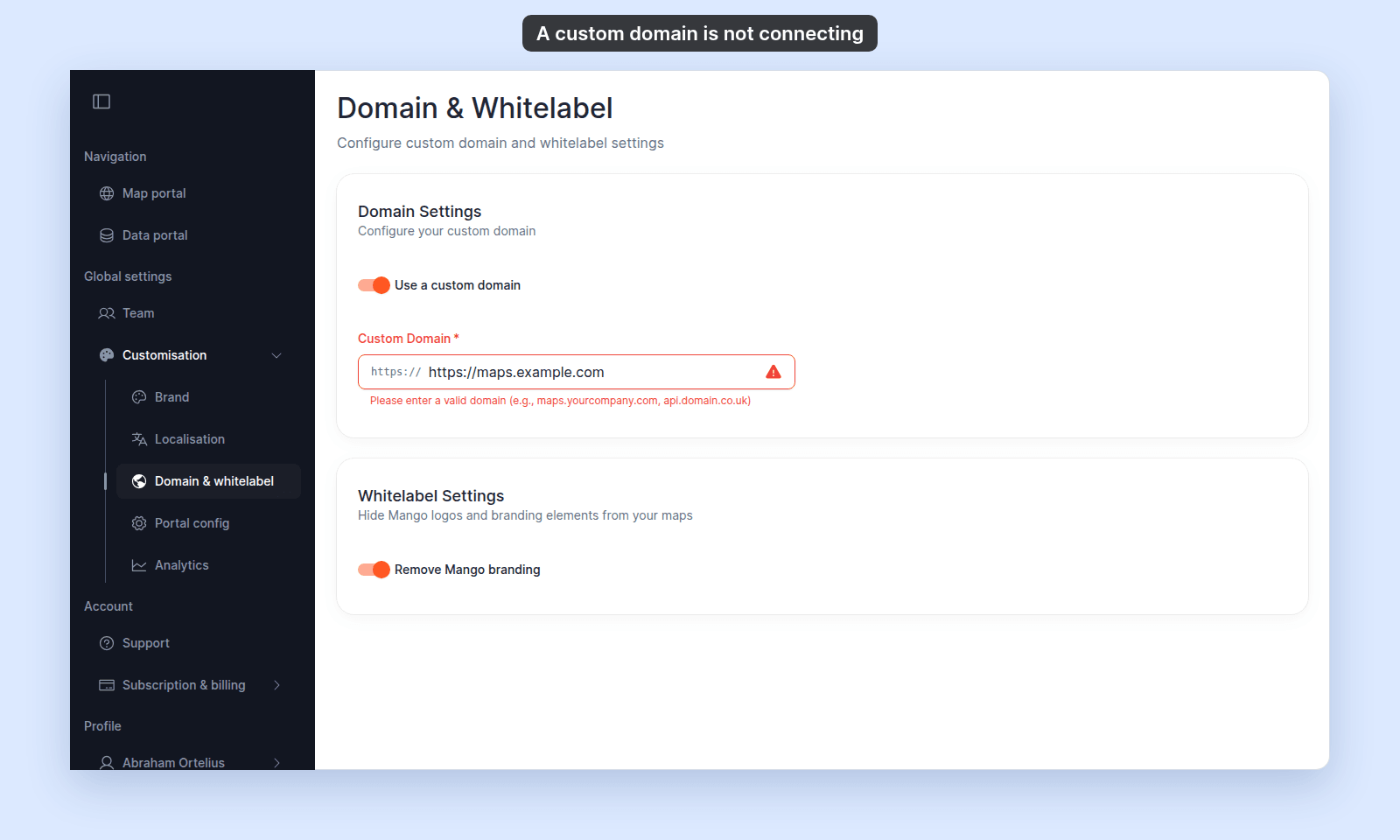
| What you see | Cause |
|---|---|
Please enter a valid domain (e.g., maps.yourcompany.com, api.domain.co.uk) |
The text is not a plain host. It starts with https://, has a space, or has no dot (such as localhost). |
Invalid domain format |
The text starts with a protocol other than https://, such as http://. |
| The red warning icon with no message | The host contains localhost, such as maps.localhost.com. Use a public domain. |
In each case, the connect did not happen. Re-type the domain as a plain host, such as maps.yourcompany.com. A valid host gets a green check and the Connect button. Click Connect again.
If none of these checks
Ask support to check your account, the connected domain, and the DNS resolution from MangoMap’s side. Include the domain, your account name, and a dig output if you have one.