

How to set up Advanced Search on a map
Let viewers filter one layer by attribute conditions, see matches in a list, and export CSV, Shapefile, or KML files.
Advanced Search lets viewers filter one layer by attribute conditions, see matches in a list, and export CSV, Shapefile, or KML files. Add it from the map’s Extensions page. Each instance targets one layer. To search across several layers, use the Search tool’s data search, and for spatial-plus-attribute use the Query tool.
See it on an example map
Open the Singapore Search & Query Lab. Open the Find buildings tool from the toolbar. Set a class and a minimum height, then run the search. The tool lists the buildings that match.
Before you start
- You need edit access to the map.
- The map needs at least one vector layer (point, line, or polygon). Raster and WMS layers can’t be searched.
- Choose one target layer. If you need to search multiple layers, the Search tool’s data-search option spans all indexed layers — see
/docs/map-extensions/set-up-search. - Decide which attribute fields viewers should be able to filter on. The fewer you expose, the easier the panel is to use; the more you expose, the more flexible. Usually include the 3–5 most useful fields and skip the rest.
Open the Extensions page
From the map’s admin sidebar, click Extensions. The Advanced Search card is in the row below Search.
Enable Advanced Search
Click the Add button on the Advanced Search card. The Advanced Search settings page opens.
Configure the tool name and description
At the top of the page:
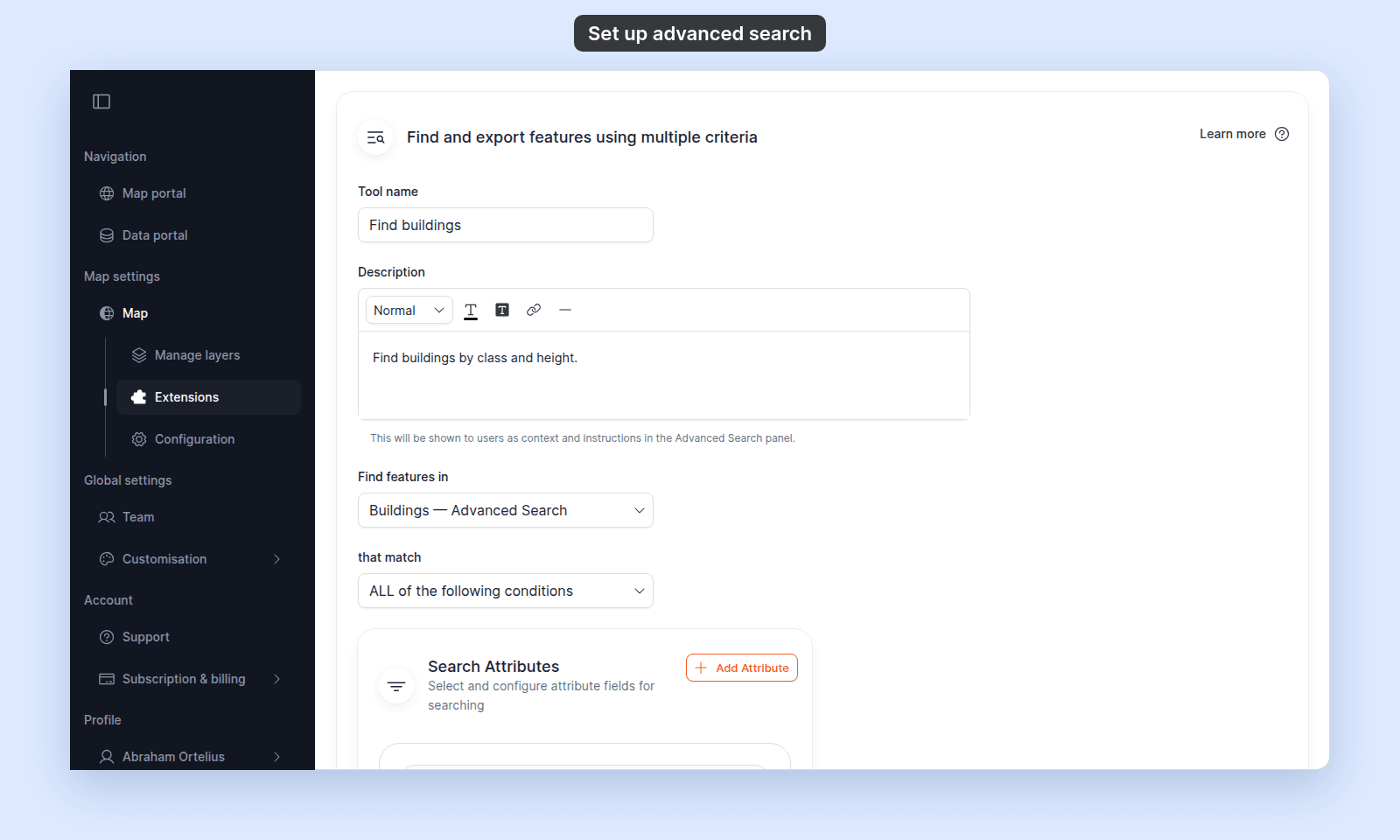
Tool name— the heading viewers see at the top of the Advanced Search panel. Change it to something map-specific (“Find a parcel”, “Look up an asset”) so viewers know what the panel does quickly.Description— a rich-text field rendered above the search inputs in the panel.
The rich-text editor supports bold, italic, strikethrough, headings, paragraphs, bullet / ordered lists, links, text alignment, blockquote, horizontal rule, text colour, and background colour.
Pick the target layer
The Find features in dropdown lists every vector layer on the map. Pick the one you want Advanced Search to filter.
Switching the layer clears any attributes you’d already added. Pick the layer before configuring attributes.
Pick the match condition
The that match dropdown picks how multiple attribute conditions combine:
ANY of the following conditions— features that match at least one condition appear in the results (logical OR).ALL of the following conditions— features that match every condition appear in the results (logical AND).
Pick ALL when each condition narrows the search. Pick ANY when conditions are alternatives — for example, “status is closed OR status is pending”.
Add and configure search attributes
Click Add Attribute to add a row for each field viewers can filter on.
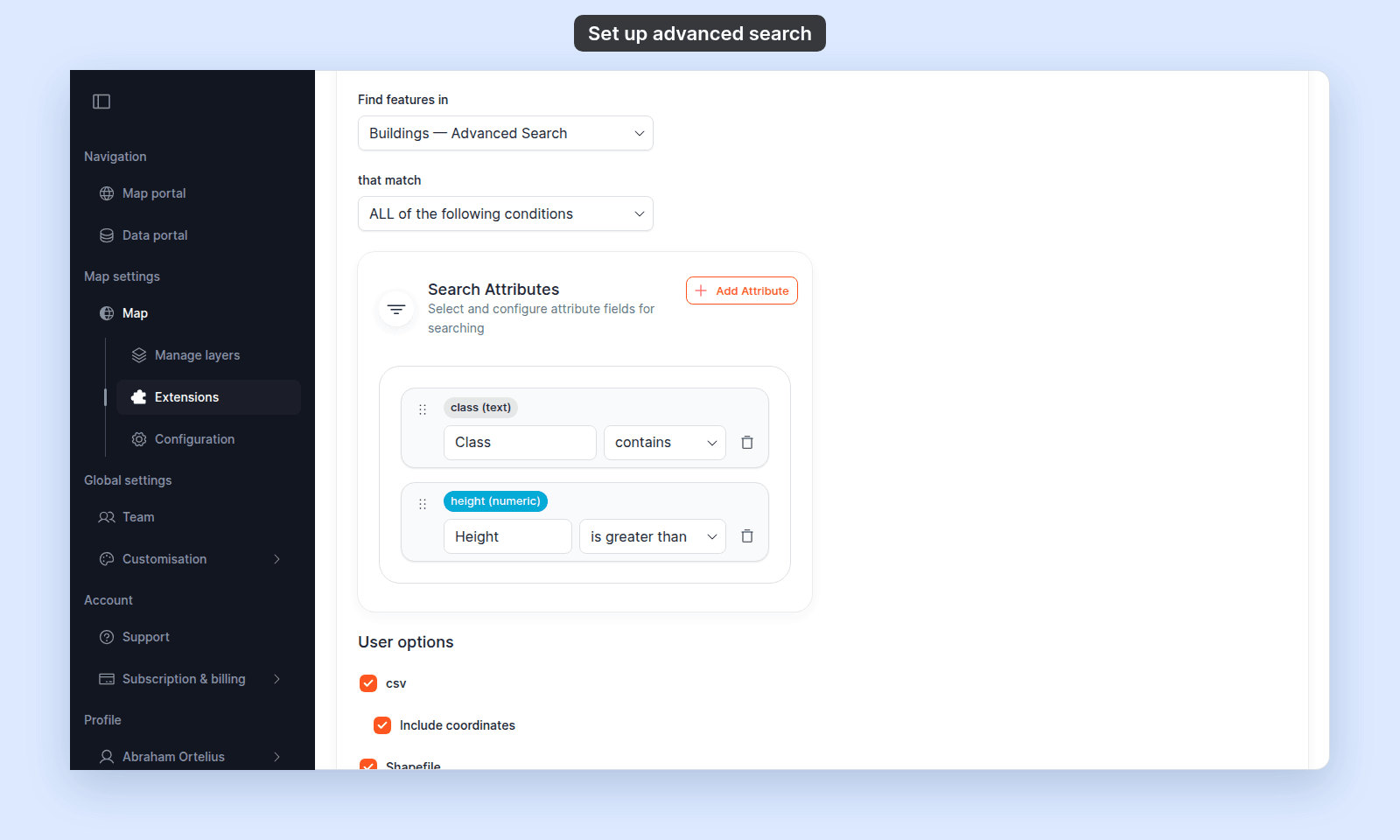
In each row:
- Drag the handle to reorder the rows. Viewers see the inputs in this order.
- Type a label. Viewers see the label, not the source field name. For example, type “Site area in m²” for
area_m2. - Pick the operator that viewers use. The choices depend on the field type:
- Text fields:
equals to,is not equal to,contains,does not contain. - Numeric fields:
equals to,is not equal to,is greater than,is less than.
- Text fields:
- Click the delete icon to remove the row.
Pick export formats
The User options section controls what viewers can export from the results panel:
csv— comma-separated values. The most universal format.Include coordinates— appendslat, loncolumns to the CSV. Only available whencsvis checked.Shapefile— ESRI Shapefile (zipped).KML— Google Earth–compatible KML.
Each is a checkbox. Download results on the results panel offers only the formats you tick. If none are ticked, viewers can run searches but can’t export.
Save
Click Save changes at the bottom of the page.
The page returns to the map view. Changes are lost if you leave before clicking Save changes.
(Optional) Set Advanced Search to open on load
Back on the Extensions page, the Advanced Search card now shows Settings, Remove, and an Open on load chip with a dashed outline. Click the chip to make Advanced Search the panel that opens automatically when viewers first open the map. The chip changes to Opens on load (filled, primary colour).
Only one tool can be Open on load at a time — setting it on Advanced Search clears it from any other tool.
For a map where search is the main task, Open on load opens the panel at once.
Verify the result
Open the map in a viewer-state session (a new tab or incognito window). The Advanced Search panel should be accessible from the toolbar — or already open if you set Open on load. Confirm:
- The tool name and description match what you configured.
- Each attribute you added shows as an input, in the order you set, with the label you chose and the operator you allowed.
- Running a search returns matches from the layer you targeted, and the map highlights them.
Download resultsoffers the formats you ticked.
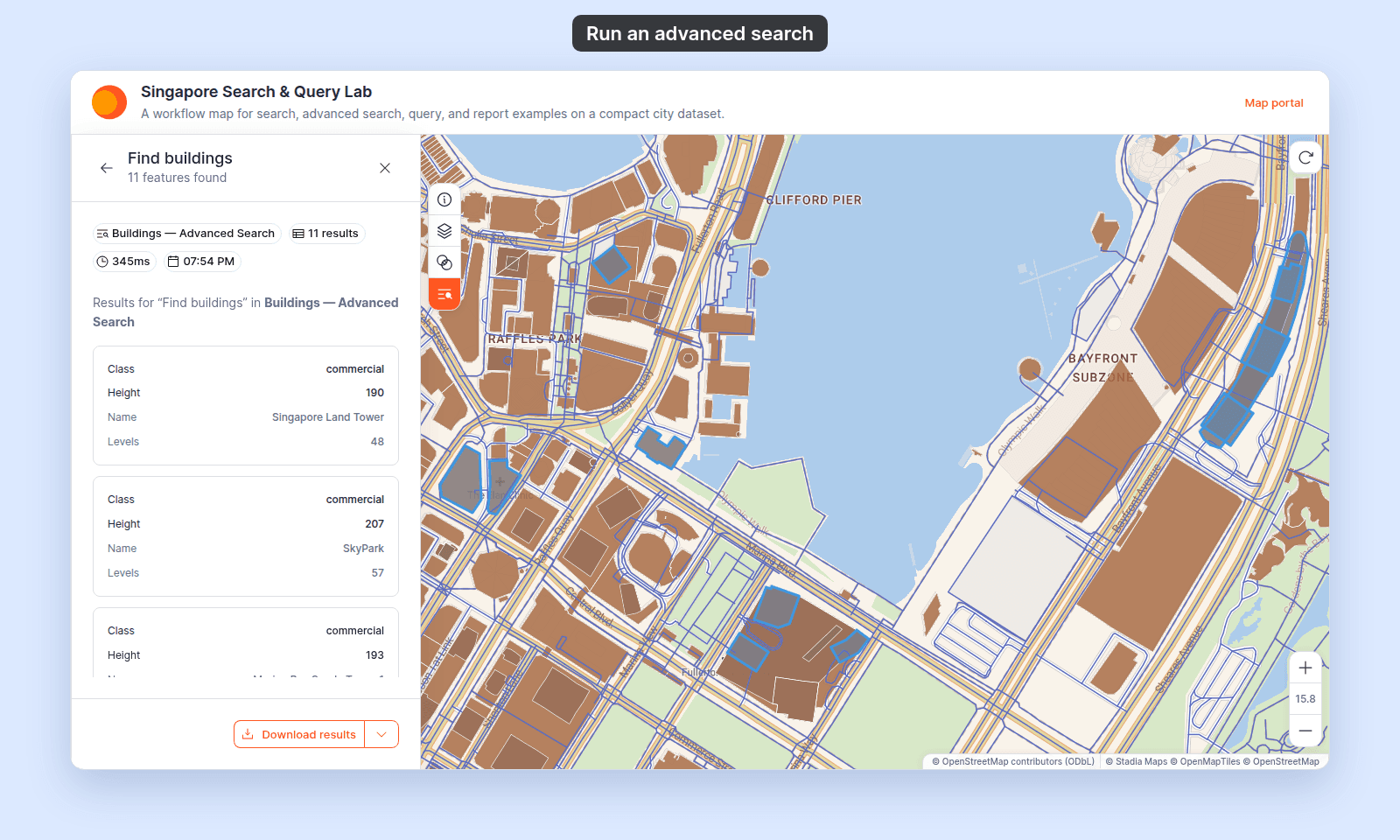
If a configured attribute doesn’t appear, return to the settings page. If results look wrong, verify the operator on each row.
What this doesn’t cover
- Search across multiple layers — Advanced Search is one layer per tool. For spanning multiple layers, see the data-search option in
/docs/map-extensions/set-up-search, or the Query tool’s per-dataset configurations in/docs/map-extensions/set-up-the-query-tool. - Spatial filtering (filter by drawing on the map) — Advanced Search is attribute-only. For spatial + attribute combined, use the Query tool (
/docs/map-extensions/set-up-the-query-tool). - Per-feature popup content — Advanced Search opens the layer’s existing popup when a viewer clicks a result. Configure the popup in Configuring popups.
- Custom export columns or formats — the export uses the layer’s attribute set as-is. There’s no per-tool column picker.