

Extensions page reference
Look up every tool on a map's Extensions page: its label, what it does, whether it starts enabled, and if it supports Open on load.
Every tool listed on a map’s Extensions page, with its UI label, description, supported actions, whether it starts enabled on a new map, and whether it supports Open on load. The page is reached from the admin sidebar → Extensions.
For the page layout, Add / Settings / Remove semantics, and the Open on load model, see How the Extensions page works in MangoMap.
Card-level controls
Each tool row on the Extensions page has these controls. Which are present depends on whether the tool is on and whether it supports settings or open-on-load.
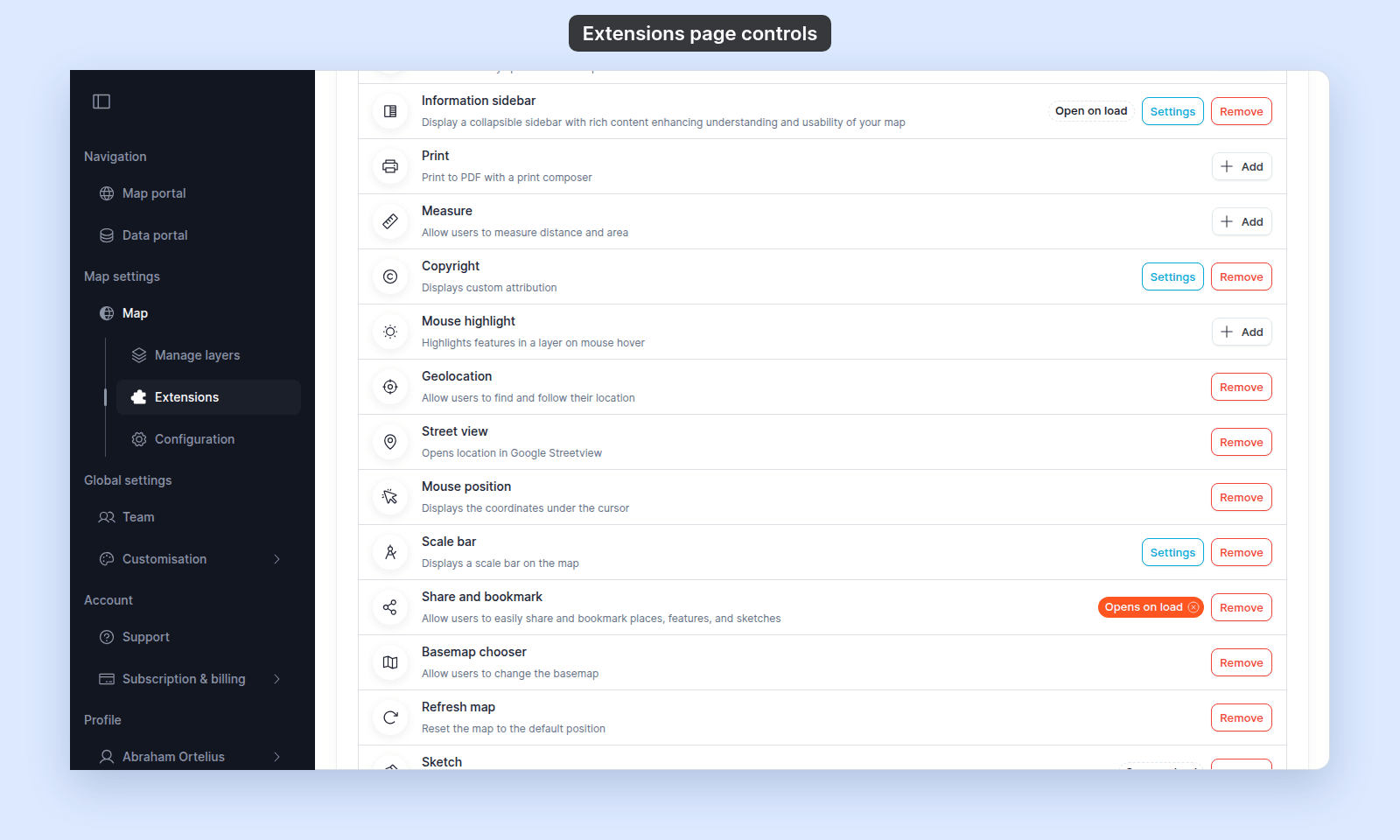
| Control | When it shows | What it does |
|---|---|---|
Add |
Tool is off | Turns the tool on. For tools with settings, opens the settings page first. For pure toggles, enables immediately. |
Settings |
Tool is on and supports configuration | Opens the tool’s settings page. |
Remove |
Tool is on | Turns the tool off. Most configurable tools delete their saved configuration when removed, so re-adding starts from defaults; Information sidebar keeps its content. |
Open on load (dashed outline) |
Tool is on and supports being default-open | Click to make this tool the panel that opens when viewers first open the map. |
Opens on load (filled, primary) |
Tool is currently set as default-open | Click to clear; viewers will land on no panel open. |
Only one tool can be the default-open tool at a time. Setting Open on load on a second tool moves the chip and clears the first.
Tool list
The 19 shipping tools, in the order they appear on the Extensions page.
| Tool | Description (on the card) | Has settings | Default on new map | Open on load |
|---|---|---|---|---|
Legend |
Display a legend to help users interpret symbols, colors, and data on the map, enhancing understanding and usability | Yes | Yes | Yes |
Search |
Full text address search, data attribute, and coordinate search | Yes | Yes | No |
Advanced Search |
Find features in a layer by one or more attributes | Yes | No | Yes |
Query |
Find features by attribute and location | Yes | No | Yes |
Proximity Analysis |
Find features by spatial relationships | Yes | No | Yes |
Information sidebar |
Display a collapsible sidebar with rich content enhancing understanding and usability of your map | Yes | No | Yes |
Print |
Print to PDF with a print composer | Yes | No | No |
Measure |
Allow users to measure distance and area | Yes | Yes | No |
Copyright |
Displays custom attribution | Yes | No | No |
Mouse highlight |
Highlights features in a layer on mouse hover | Yes | No | No |
Geolocation |
Allow users to find and follow their location | No | No | No |
Street view |
Opens location in Google Streetview | No | No | No |
Mouse position |
Displays the coordinates under the cursor | No | No | No |
Scale bar |
Displays a scale bar on the map | Yes | No | No |
Share and bookmark |
Allow users to easily share and bookmark places, features, and sketches | No | Yes | Yes (as bookmarks) |
Basemap chooser |
Allow users to change the basemap | No | Yes | No |
Refresh map |
Reset the map to the default position | No | Yes | No |
Sketch |
Create and share overlays and annotations | No | No | Yes |
Map Help |
Show a help dialog explaining how to pan, zoom, and interact with the map | No | Yes | No |
Settings page navigation
Each tool with a Settings button routes to its own settings page within the Extensions area.
To configure another tool, return to the card grid and open it. The Extensions item stays visible in the admin sidebar.
Save behaviour by tool
The settings pages don’t share one save model. The per-tool how-to in this set states which applies; the table below is a quick scan.
| Tool | Save model |
|---|---|
Legend |
Save changes button at the bottom |
Search |
Implicit per-field save (each toggle / dropdown / list saves on change, with a save indicator) |
Advanced Search |
Save changes button |
Query |
Tool-level: Save Changes button. Per-query: Save Changes button with validation (Measurement unit is required) |
Proximity Analysis |
Tool-level: Save Configuration button. Per-config: Save Changes button with validation (Measurement unit is required) |
Information sidebar |
Save changes button; both Title and Content are required to save |
Print |
Save changes button |
Measure |
Save changes button; unsaved-changes guard with Save & leave / Cancel / Leave without saving |
Copyright |
Save changes button |
Mouse highlight |
Save changes button on a one-field settings page (layer to highlight on hover); no unsaved-changes guard |
Scale bar |
Add turns the tool on in Metric; Save changes button to change units |
What this reference does NOT cover
- Per-tool settings detail — the fields, defaults, and choices inside each settings page. Those live in the per-tool how-to.