

Report templating syntax
Look up the report template syntax shared by the Query and Proximity Analysis tools: aggregate variables, equations, and operators.
Query and Proximity Analysis reports use the same syntax. This page lists the syntax you can use in a report template — aggregate variables, equations, and the operators inside them. For the per-tool setup flow, see How to set up the query tool and How to set up proximity analysis.
What a report is
A report is formatted text that renders after a viewer runs the Query or Proximity Analysis tool. The content can mix plain text, formatting (headings, lists, links), aggregate variables that read across the result set, and equations that combine those aggregates.
The diagram follows one report from the tool’s results to the text the viewer reads.
Both tools use the same editor and syntax — anything in this page works in either tool’s report.
Aggregate variables
| Syntax | {field_name:function} |
| Where | Anywhere in the report body |
Insert with the variable button in the toolbar, or type the syntax directly.
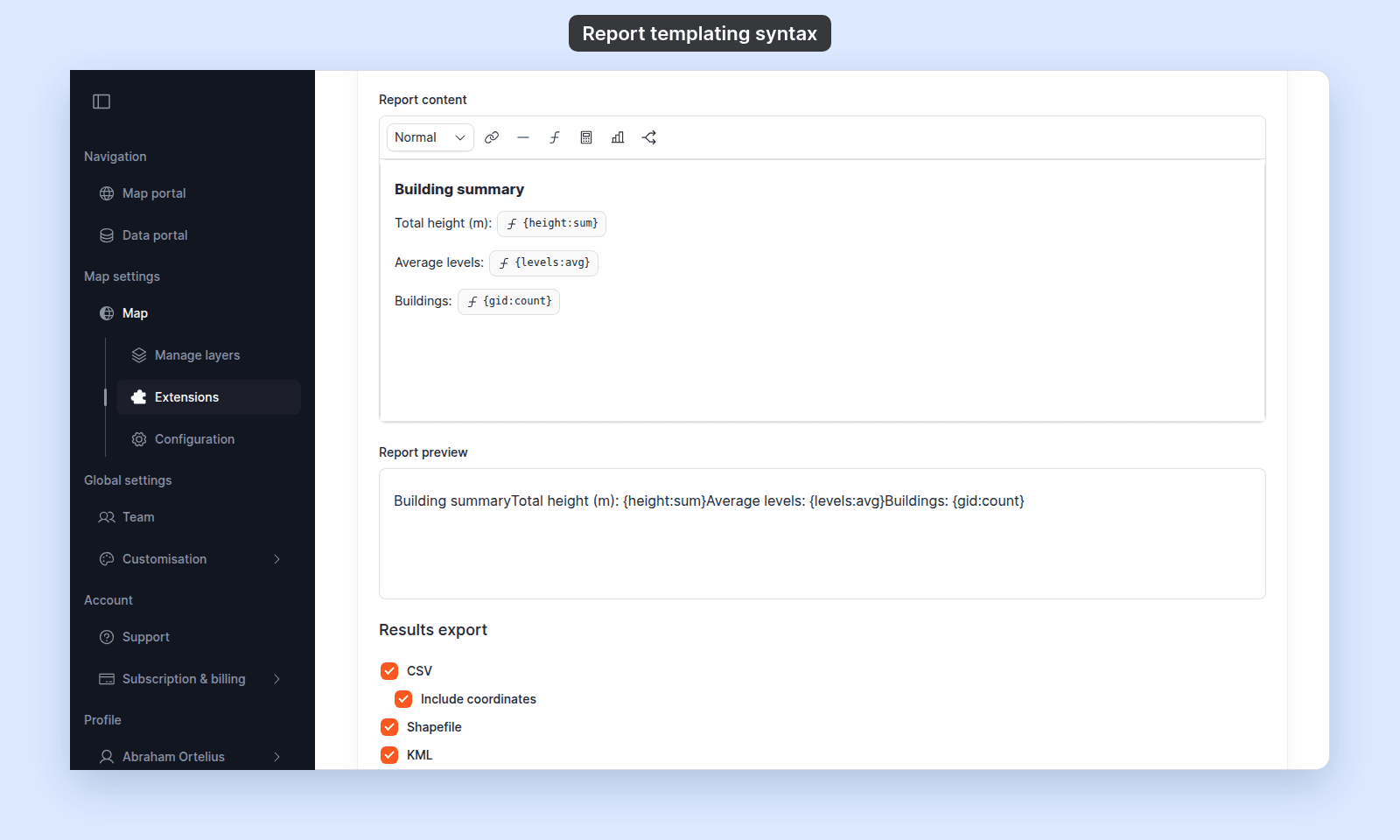
Aggregates operate on the result set — the features returned by the tool’s spatial selection and attribute filters — not the entire layer. Reports do not support single-feature variables; every field reference must include an aggregate function.
Available functions:
| Function | Returns |
|---|---|
sum |
Sum of every result feature’s value for the attribute |
avg |
Mean across every result feature |
count |
Count of distinct non-null values across the result set |
min |
Minimum value |
max |
Maximum value |
median |
The median (50th percentile) |
For example, in a report on a parcels layer: {land_value:sum} returns the total land_value across the parcels in the result set; {lot_size:median} returns the median lot size.
count quirk
count returns the number of distinct values, not the number of features. {gid:count} returns the number of features (because gid is unique per row), but {state:count} returns the number of distinct states in the result set, not the row count. Use a uniquely-valued field (typically gid) when you want a feature count.
Equations
| Insert with | Insert equation in the report editor toolbar |
| Where | Inline in the report, alongside aggregate variables and plain text |
Click Insert equation and type an expression to compute a value from one or more aggregate variables.
Operators in the expression:
+— addition-— subtraction*— multiplication/— division(...)— grouping
For example, the equation {land_value:sum} / {lot_size:sum} computes the layer-wide average land value per unit of lot size across the result set.
Reports calculate equations the same way as popups. Every operator, function, and formatting method in Calculator formula syntax also works in a report equation, such as {land_value:sum}.toLocaleString().
In the report editor, the equation editor preview has no sample values. It shows No sample value for {field:function}, such as No sample value for {land_value:sum}.
Moving from v3? In v3, you typed equations into the report as #{...}#. In v4, typed #{...}# stays as plain text and does not calculate. Click Insert equation and type only the expression.
Mixing variables, equations, and prose
A typical report layout:
**Selected parcels:** {gid:count}
**Total land value:** ${land_value:sum}
**Median lot size:** {lot_size:median} m²
**Average value per m²:** $<equation>
For <equation>, click Insert equation and type {land_value:sum} / {lot_size:sum}.
Missing values
Aggregates default to 0 when no values are present for the field across the result set.
A report fails when a placeholder names a field that the layer doesn’t have, or uses sum, avg, min, max, or median on a text field. Only count works on text fields. The Query tool then shows an error instead of results, and Proximity Analysis shows its results with no report.
In an equation, such a placeholder shows Missing: and its name, such as Missing: land_vlaue:sum. An equation that cannot calculate, such as one that divides by zero, shows Error.
Differences from popup equations
The Calculator popup and the Custom popup also insert equations with Insert equation, but they evaluate per feature, not per result set. Consequently:
- Aggregate variables (
{field:function}) are not available in popups — they only work here, in Query and Proximity Analysis reports. - Single-feature variables (
{field_name}) are not available in reports — popups use them; reports require an aggregate.
See Calculator formula syntax for the per-feature equation reference.
Related
- How to set up the query tool — the per-tool setup that includes the report-template field.
- How to set up proximity analysis — same model for proximity reports.
- Calculator formula syntax — per-feature equation syntax for popups.