

How to set up Mouse highlight on a map
Colour a feature when a viewer hovers over it. Pick one vector layer to highlight, which helps viewers identify features on dense maps.
Mouse highlight colours a feature when a viewer hovers over it. This helps viewers identify features on dense maps. You pick one layer to highlight; hovering any feature in that layer highlights it. Add it from the map’s Extensions page and choose the layer.
See it on an example map
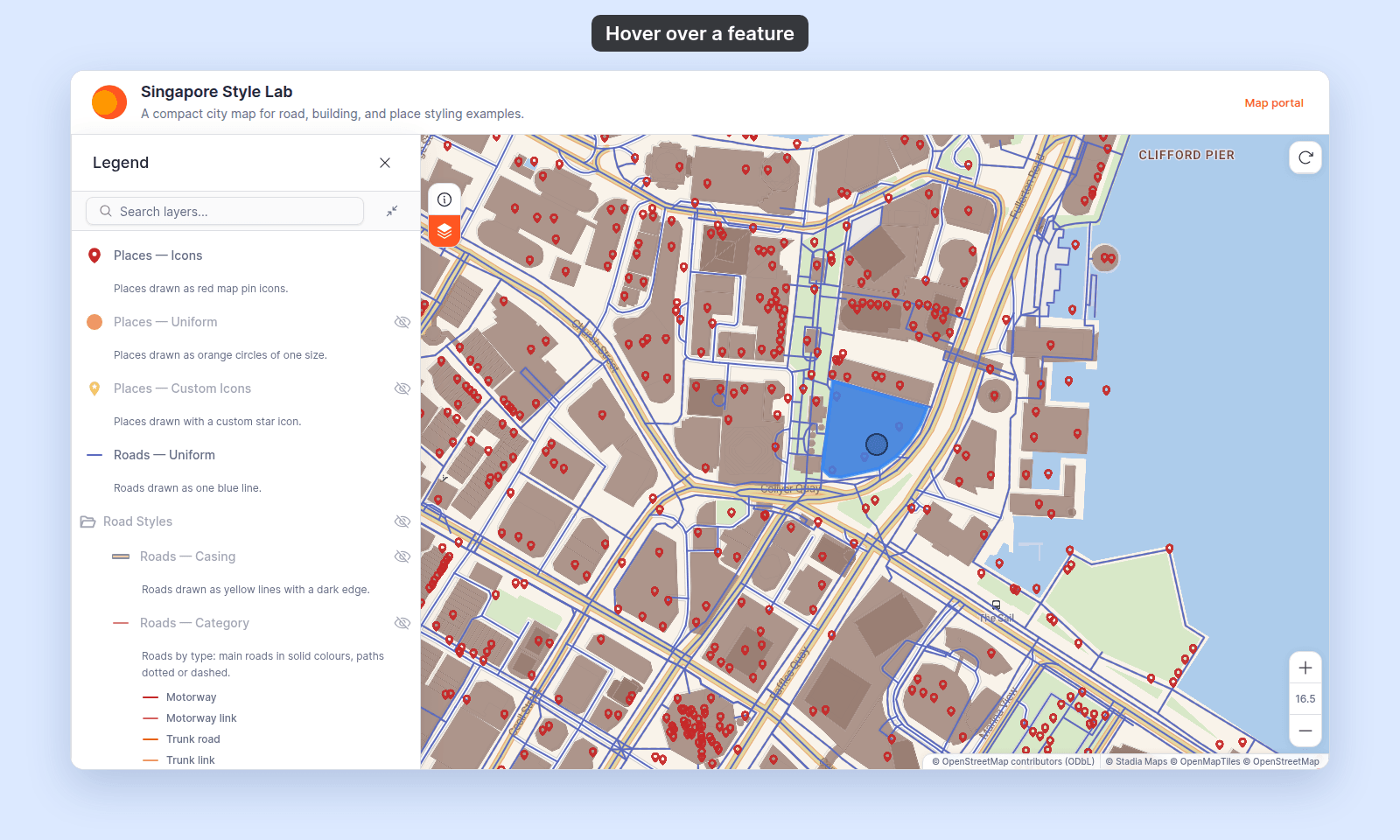
Open the Singapore Style Lab. Zoom to level 14 or closer. Move the mouse over a building. The Hover Highlight layer shows the building in blue.
Before you start
- You need edit access to the map.
- Decide which one layer should highlight on hover. Mouse highlight targets a single layer — you can’t highlight more than one.
- The layer must be a vector layer. Heatmap, raster, and WMS layers aren’t eligible and won’t appear in the layer list.
- Mouse highlight is a hover effect, so it’s a pointer interaction — it shows on desktop with a mouse or trackpad. There’s no hover on touch devices.
Open the Extensions page
From the map’s admin sidebar, click Extensions. The Mouse highlight card is in the row below Copyright.
Enable Mouse highlight
Click the Add button on the Mouse highlight card. This opens the Mouse highlight settings page — the tool isn’t active until you pick a layer and save. You can also reach this page later with the Settings button on the card.
Choose the layer
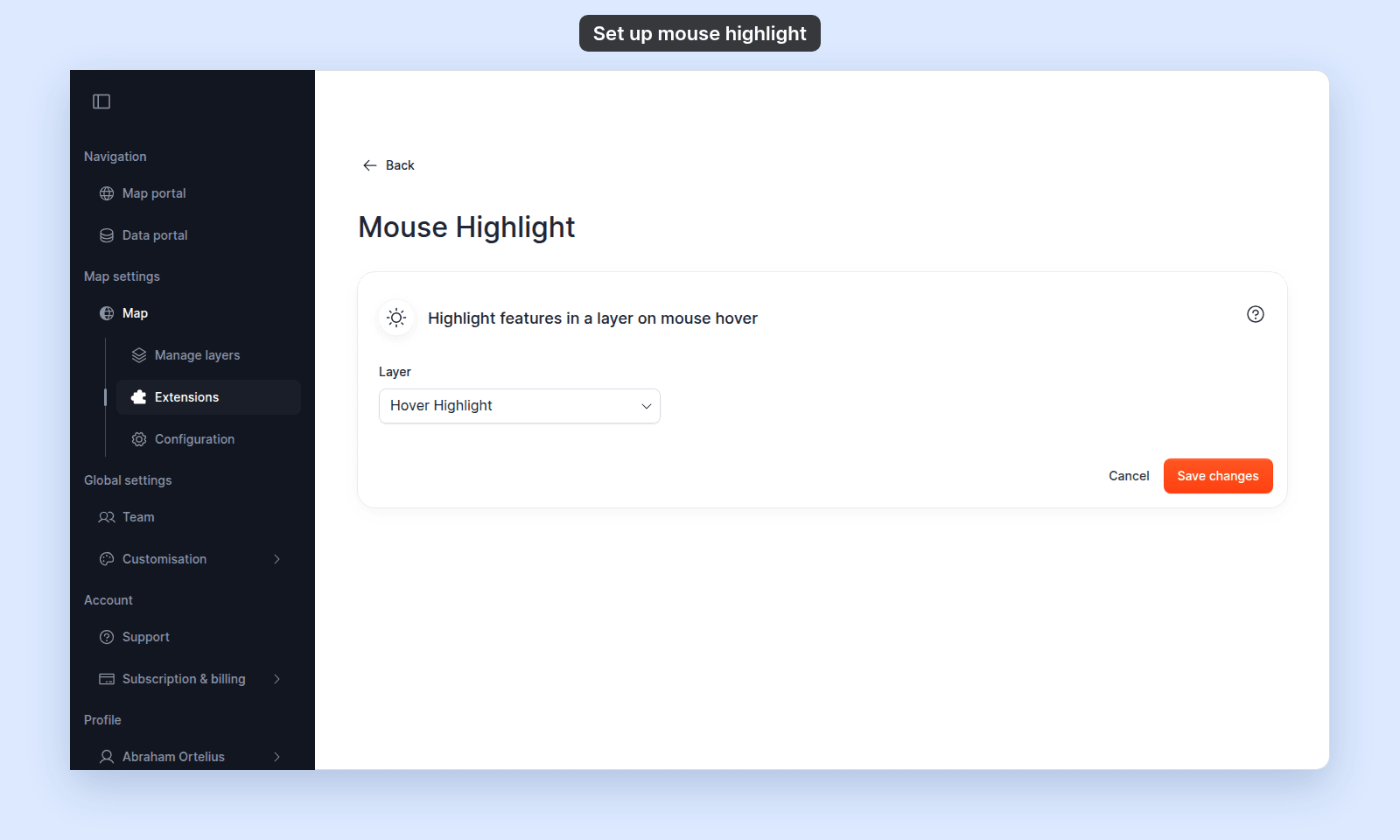
The settings page has one field — Layer, a dropdown that reads Select layer until you choose one. It’s required: the Save changes button stays disabled until a layer is selected.
Open the dropdown and pick the layer whose features should highlight on hover.
Save
Click Save changes. To change the layer later, click Settings on the Mouse highlight card, pick a different layer, and save again.
Verify the result
Open the map in a viewer-state session (a new tab or incognito window). Move the cursor over a feature in the layer you chose. Confirm:
- Hovering a feature in the target layer highlights it; moving off clears the highlight.
- Features in other layers don’t highlight.
Removing Mouse highlight
To turn it off, click Remove on the Mouse highlight card. The hover highlight stops for viewers.
Unlike most tools, Remove here deletes the configuration rather than keeping it for next time — re-adding Mouse highlight starts with an empty Layer field, so you’ll need to pick the layer again.
What this doesn’t cover
- Highlighting more than one layer — Mouse highlight targets a single layer per map. There’s no multi-layer option.
- Customising the highlight colour or style — the settings page has only the
Layerfield; the highlight appearance isn’t configurable. - Opening on load — Mouse highlight is a hover behaviour, not a panel, so it doesn’t support
Open on load. - Click-to-select or popups — highlighting on hover is separate from what happens on click. For click behaviour, see Configuring popups.