

How to set up the Information sidebar on a map
Give viewers a collapsible rich-text panel for methods, data sources, notes, images, videos, and links. Each map can have one sidebar.
The Information sidebar gives viewers a collapsible rich-text panel for methods, data sources, project notes, contact details, images, YouTube videos, tables, links, and buttons. Add it from the map’s Extensions page; Each map can have one sidebar. Empty content leaves the tool off, so enter at least one character before saving.
See it on an example map
Open the Information Sidebar Showcase. The About this map sidebar is open when the map loads. It shows text, a picture, a table, and links.
Before you start
- You need edit access to the map.
- Have your content ready (or at least the structure). The tool has only two required fields: title and content. Plan a short outline before you edit.
- If you’re embedding images, have the source URLs (or the files ready to upload). The editor supports image embeds and uploads — see the configure step for the full extension list.
- If you’re embedding YouTube videos, have the YouTube URLs ready. The editor accepts public YouTube URLs.
Open the Extensions page
From the map’s admin sidebar, click Extensions. The Information sidebar card is in the row below Proximity Analysis.
Enable the Information sidebar
Click the Add button on the Information sidebar card. The Information sidebar settings page opens.
Set the title
The first field is Title. Required. Defaults to Map information. Change it to something map-specific that previews the content (“About this map”, “How to use this tool”, “Project briefing”, “Data sources”).
The title is shown at the top of the sidebar viewers open.
Compose the content
Below the title, the Content field is a rich-text editor. Required — saving with empty content leaves the tool disabled.
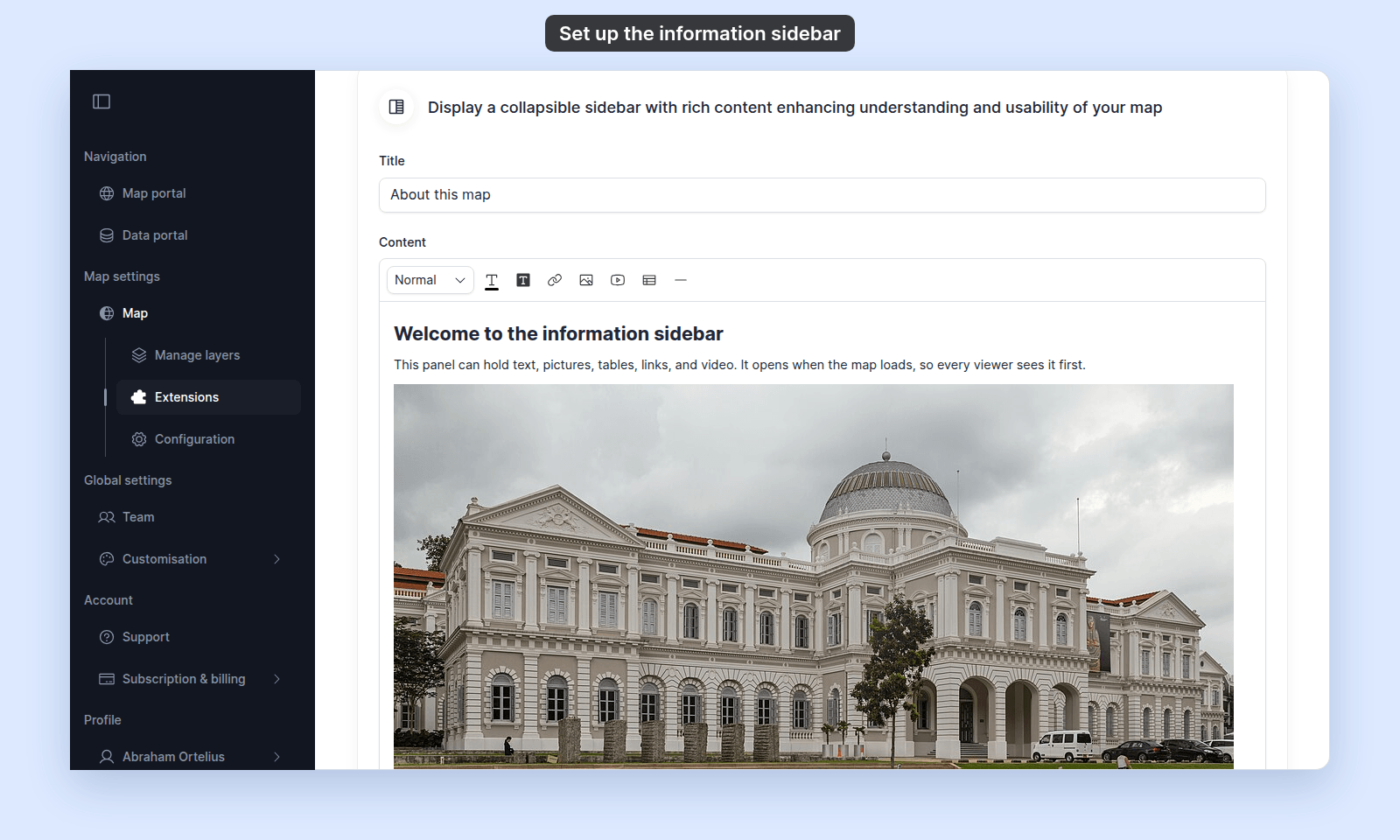
The toolbar has:
- Text formatting — bold, italic, strikethrough, text colour, background colour.
- Block formatting — headings (multiple levels), paragraphs, blockquote, horizontal rule.
- Lists — bullet (unordered) and numbered (ordered).
- Alignment — left, centre, right.
- Embeds — links, images (upload or URL), YouTube videos (paste a YouTube URL), tables.
For long-form content with sections, use headings to break it up — the sidebar scrolls, and section headings make it skimmable.
For inline images, picking the image extension opens an upload / URL picker.
For tables, the table extension inserts an editable grid — useful for a data-sources matrix or a key.
Save
Click Save changes at the bottom of the page.
The page returns to the map view. If you didn’t enter any content, the tool stays off. Re-open the settings page and add content to enable it.
(Optional) Set the Information sidebar to open on load
Back on the Extensions page, the Information sidebar card now shows Settings, Remove, and an Open on load chip with a dashed outline. Click it to make the sidebar the panel that opens automatically when viewers first open the map. Only one tool can be Open on load at a time.
For public maps where the sidebar has key information, Open on load shows it before viewers explore.
Verify the result
Open the map in a viewer-state session. The Information sidebar’s button should appear in the toolbar — or the sidebar should be open if you set Open on load. Click the button to open it. Confirm:
- The title at the top of the sidebar matches what you configured.
- The content renders with formatting intact — headings, bold / italic text, lists, blockquotes.
- Inline images load.
- Links work and open the right target.
- Tables render with the cell content you entered.
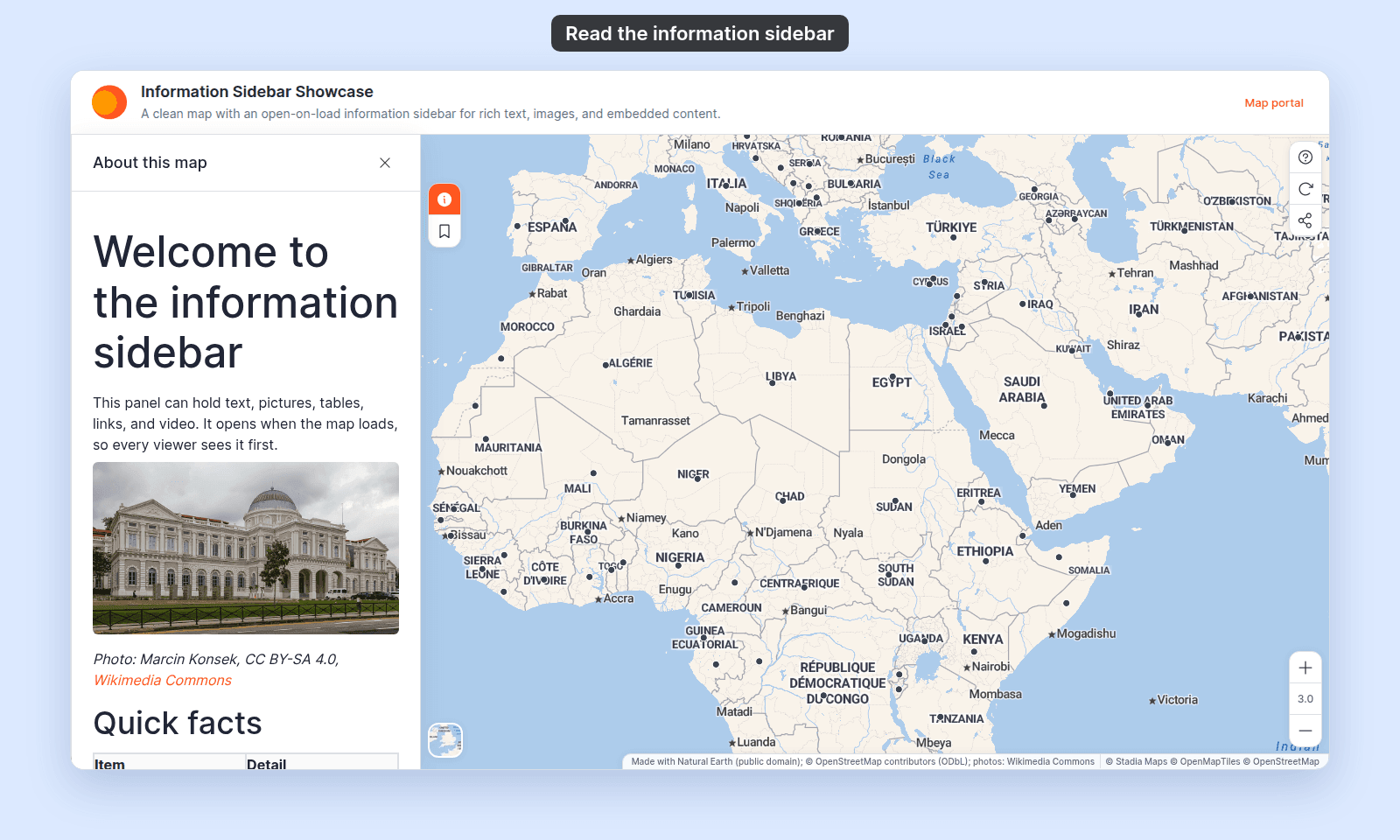
Two kinds of content do not show in the sidebar for viewers at this time,: embedded YouTube videos and interactive buttons. To share a video or a page, add a link to it. If an image doesn’t load, check the file uploaded successfully or the URL is reachable.
Editing later
The Information sidebar is one of the most-edited tools as a map evolves — new contact, updated methodology, new attribution. To edit:
- From the Extensions page, click
Settingson the Information sidebar card (it showsSettings/Removeonce enabled, notAdd). - Edit the title or the content in the rich-text editor.
- Click
Save changes.
To remove the sidebar from the map entirely, click Remove on the card. The content is not deleted — re-adding the tool later restores it. To clear the content, edit it to empty (the tool becomes inactive even with the row present).
What this doesn’t cover
- Multiple sidebars — only one Information sidebar per map. For multiple pieces of content, use one sidebar with sections (headings), or combine with the map’s custom navigation menu (link out to additional modals or pages). See How to build a custom navigation menu.
- Account-wide content — the sidebar is per-map. For account-wide context (terms, contact, branding), see Customisation.
- Per-layer info — the sidebar is map-level. For per-feature context, use popups; see Configuring popups.