

How to enable Refresh map on a map
Turn Refresh map on or off for a map. It returns viewers to the saved initial view in one tap, but does not reload new data.
Enabled by default Refresh map is on for new maps. It returns viewers to the saved initial view in one tap. Open it from the map’s Extensions page to change whether it’s available. It resets the view only. Viewers must refresh the browser to load newly imported features.
See it on an example map
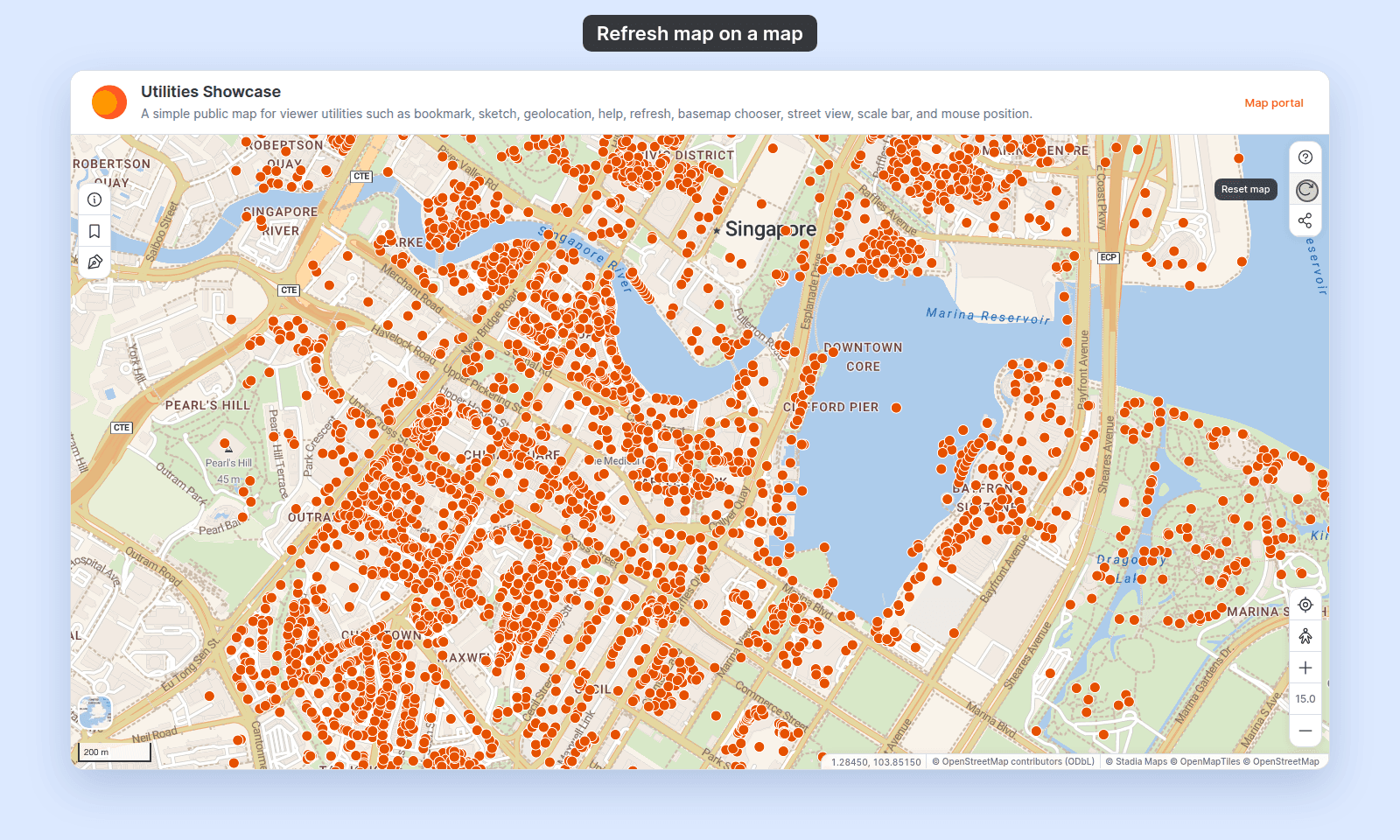
Open the Utilities Showcase. Pan and zoom the map away from the start view. Click the Reset map button in the toolbar. The map jumps back to the start view.
Before you start
- You need edit access to the map.
- Refresh map has no settings.
- Set the map’s initial view first if you haven’t — see How to set the initial map view. Refresh map sends viewers back to whatever’s saved there.
Open the Extensions page
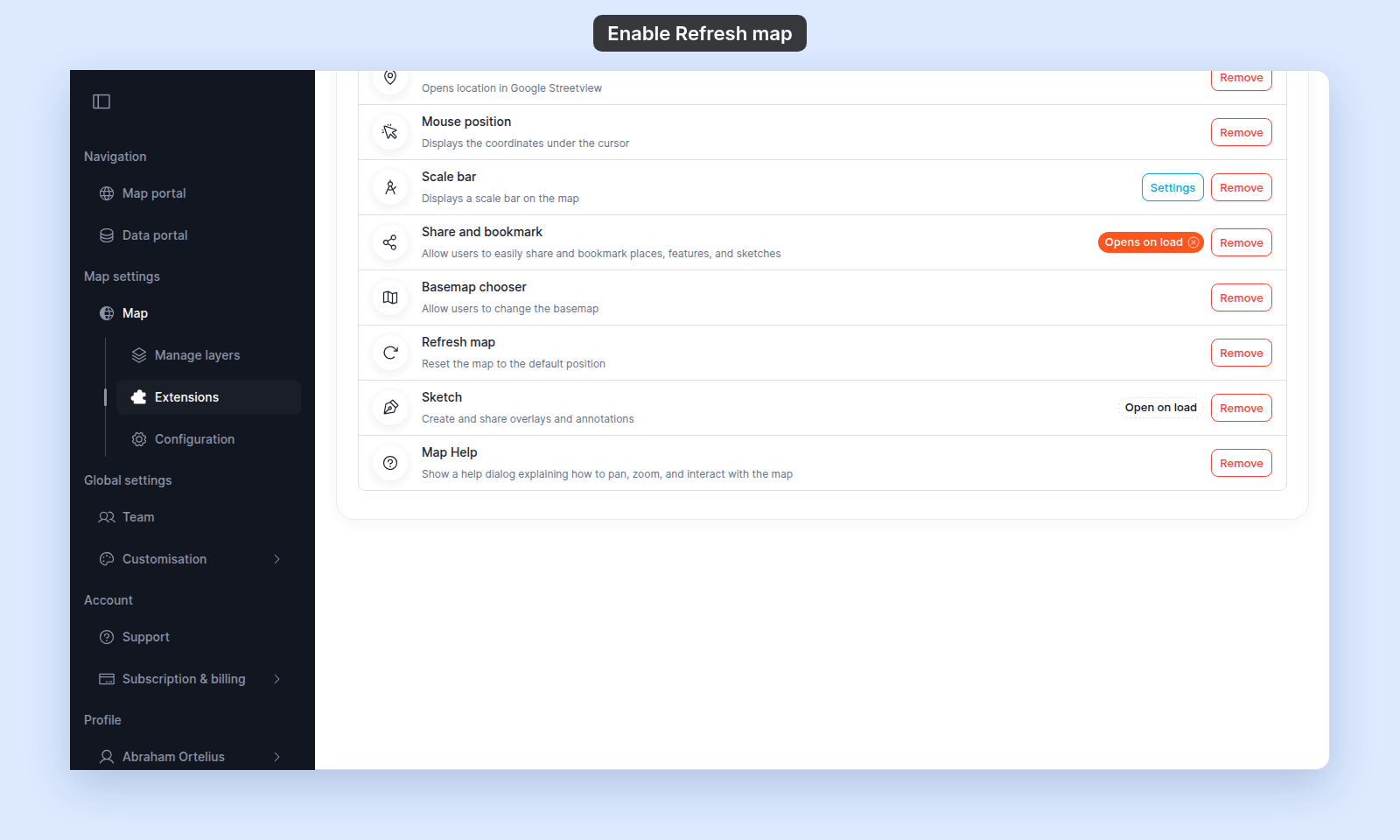
From the map’s admin sidebar, click Extensions. The Refresh map card is in the lower section of the list and, on new maps, already shows Remove.
Refresh map is on by default
If the card shows Add, click it to turn Refresh map back on. On a new map, the card already shows Remove; click Remove to turn it off.
Verify the result
Open the map in a viewer-state session (a new tab or incognito window). The Reset map button is in the toolbar at the top right of the map. Pan and zoom the map away from the initial view, then click the button. The map jumps back to the initial view.
Turning Refresh map off or back on
To turn it off, click Remove on the Refresh map card. To turn it back on, click Add on the card.
What this doesn’t cover
- Refreshing data — Refresh map is view-only. To reload features after a data update, viewers refresh the browser page (Ctrl/Cmd+R).
- Setting the “initial view” — that’s on the map’s
Configurationpage →Map details→Initial view. See How to set the initial map view. - Per-viewer favourites — Refresh map snaps to the saved initial view, not to a viewer’s last position or a bookmark. For named viewer bookmarks, see Share and bookmark.