

How to enable Street view on a map
Add Street view to a map so viewers can open Google Street View at a point they pick. Coverage depends on the location.
Street view opens Google Street View at a point the viewer picks on the map. It helps viewers compare ground-level imagery with the map. Add it from the map’s Extensions page. Coverage varies by location. Some rural areas and countries have little or no coverage.
See it on an example map
Open the Utilities Showcase. Click the Street View button above the zoom buttons. Move the crosshair to a place, then click Go. Google Street View opens in a new browser tab.
Before you start
- You need edit access to the map.
- Street view has no settings — there’s nothing to configure.
- Street View imagery is provided by Google. If a particular location has no Street View coverage, viewers see a “no imagery here” message from Google.
Open the Extensions page
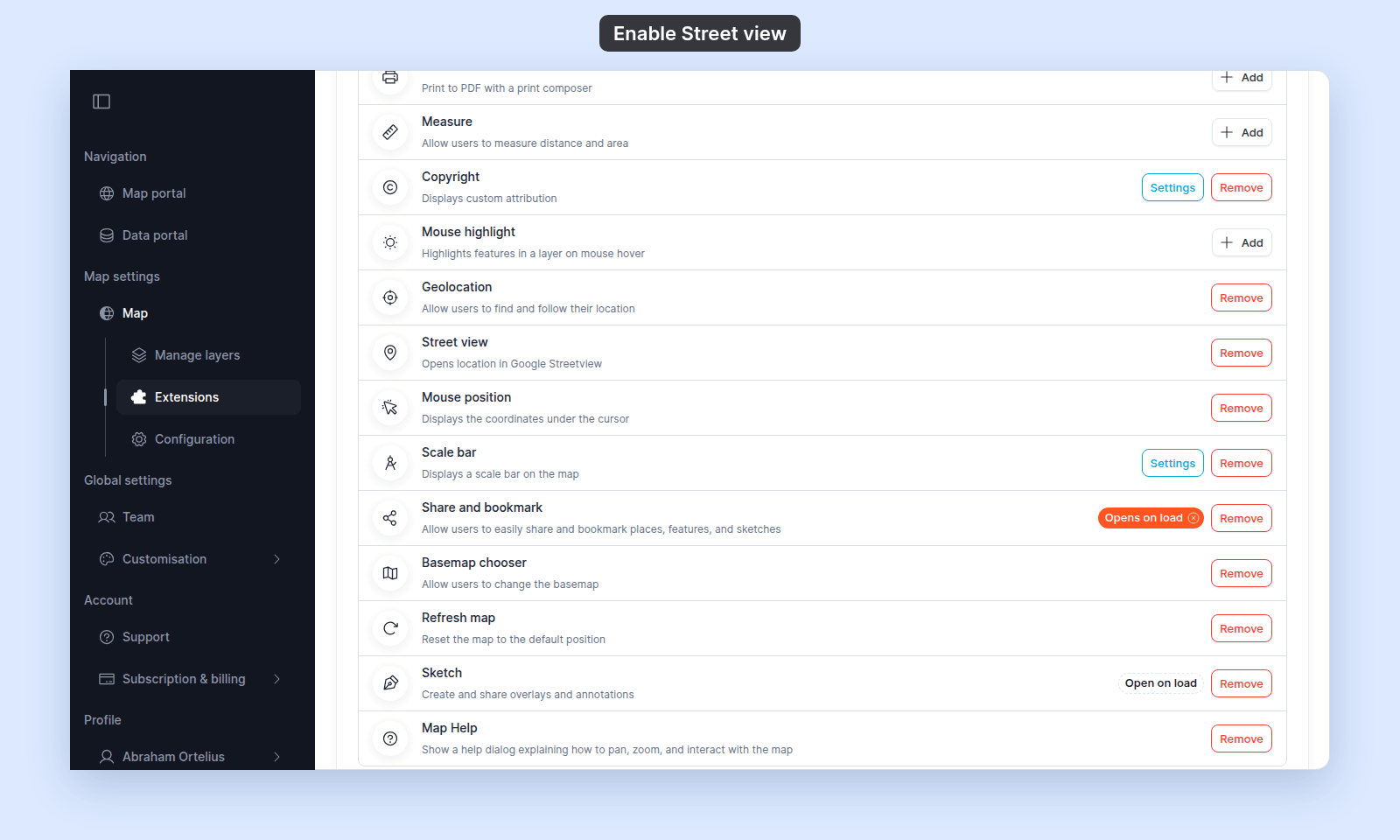
From the map’s admin sidebar, click Extensions. The Street view card is below Geolocation.
Enable Street view
Click the Add button on the Street view card. The card now shows a Remove button.
Verify the result
Open the map in a viewer-state session (a new tab or incognito window). Click the Street View button above the zoom buttons. A crosshair shows at the centre of the map.
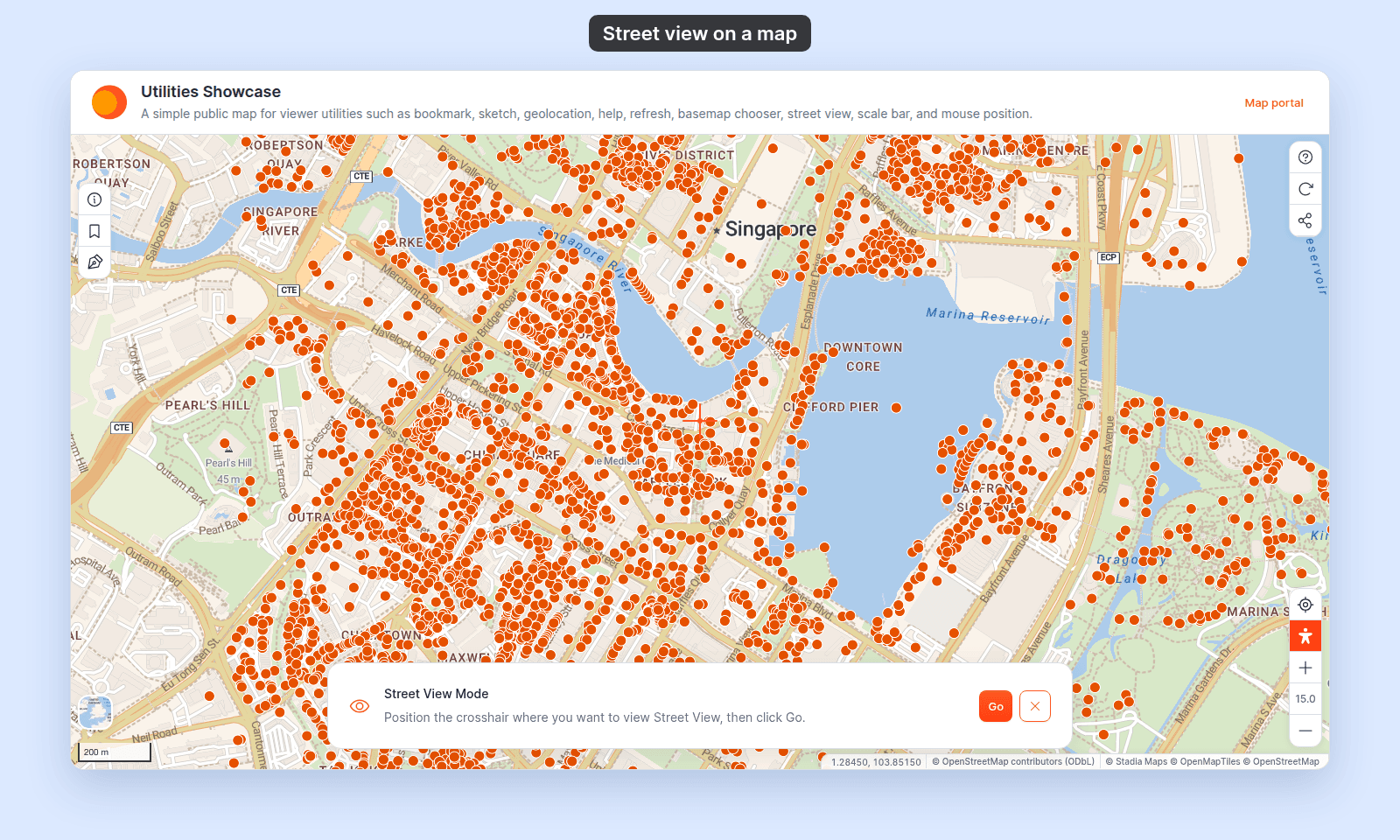
Move the map to put the crosshair where you want to look, then click Go. Google Street View opens at that point in a new browser tab. Click the close button on the panel to leave Street View mode.
If the button doesn’t appear, refresh the map. If Google shows no imagery, the point has no Google Street View coverage — try a more urban area to confirm the tool itself works.
Removing Street view
To turn it off, click Remove on the Street view card. The button is removed from the map for viewers.
What this doesn’t cover
- Custom imagery / 360 photos — Street view uses Google’s service only. There’s no support for embedding your own 360 photos or other third-party street-imagery services (e.g. Mapillary).
- Default Street View location — Street View opens where the crosshair is when the viewer clicks
Go. There’s no way to lock it to a specific landmark. - Embedding inside an iframe — Street View opens in a new tab. If the map is embedded in another site, that site’s iframe settings can stop new tabs from opening.