

How to reorder layers on the map
Drag layers up or down in the layer panel to change draw order. Layers higher in the panel draw on top, and labels always draw above all layers.
Drag a layer up or down in the layer panel to change its draw order. Layers higher in the panel draw on top of layers lower in the panel — the panel’s order is the map’s order.
Before you start
- The map must have at least two layers worth reordering. With one layer, draw order doesn’t matter.
- You need edit access to the map.
Open the layer panel
From the map toolbar, open Manage Layers to bring up the layer panel.
Drag and drop
Press and hold on a layer’s row, drag it to its new position, and release. The map redraws immediately with the new order — and the new order saves automatically.
The layer at the top of the panel draws on top of every layer below; the layer at the bottom draws first (and is therefore the most likely to be obscured by other layers). This includes raster and WMS layers. Here, the Land Cover raster is above the Contours lines in the panel, so it draws over them, and the roads at the top draw over both:
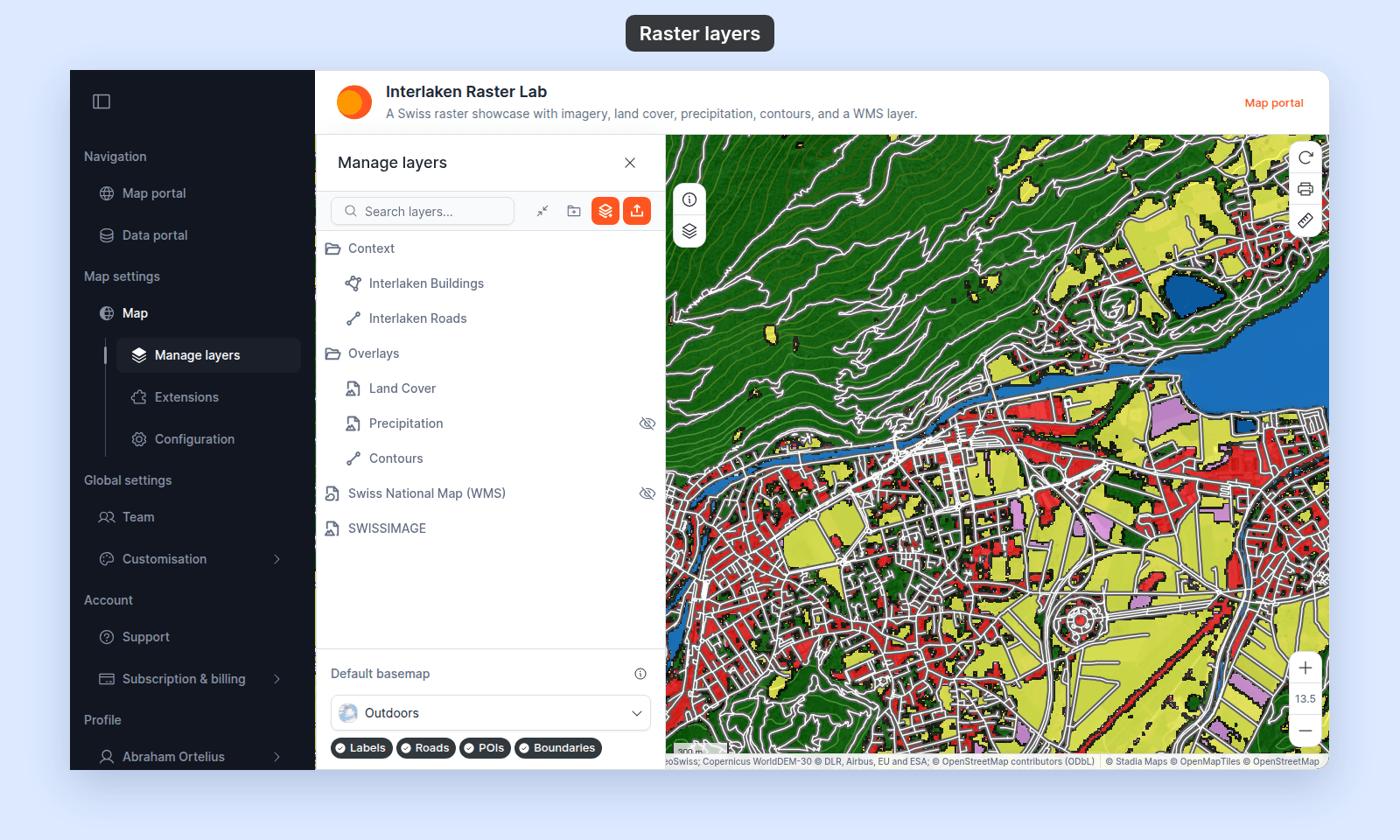
Labels are the one exception. Every layer’s labels draw above all layers, so the panel order never hides a label.
The stack shows the whole draw order for that map, from the labels on top to the basemap at the bottom:
Move a layer into a folder
Drag a layer onto a folder row. The folder highlights as a drop target, and on release the layer becomes a child of the folder. Inside the folder, you can drag the layer up and down to reorder relative to other folder children.
Move a layer out of a folder
Drag a layer from inside a folder to the area above or below the folder, between other root-level items. The layer becomes a root-level layer.
Pick the right order for overlapping layers
A few common patterns:
- Roads on top of areas. Polygon layers (parks, neighbourhoods) go below line layers (roads, transit). Otherwise the polygons obscure the lines.
- Points on top of everything else. Point layers (locations, incidents) go at the top. Otherwise the polygons or lines below cover them.
- Raster and WMS layers low in the panel. An image layer hides the layers below it. Put it under the layers you want to see, or lower its opacity.
- Heatmaps and clusters at the bottom. These are visual surfaces that work better as backdrops than overlays.
- Basemap stays at the bottom always. The basemap isn’t in the layer panel and can’t be reordered against layers — it always renders below every layer on the map.
When the order is wrong
If the map looks wrong:
- A polygon is hiding the points you uploaded → move the polygon layer down.
- A line is hidden behind a polygon → move the line layer up.
- A raster or WMS layer covers your other layers → move the raster or WMS layer down.
Drag, check the map, drag again.