

How to organise layers into folders
Create folders in the layer panel and drag layers into them. A folder's eye toggles all its layers at once. Folders are one level deep.
Folders in the layer panel group related layers (Demographics, Infrastructure, Field surveys). A folder’s eye toggles every layer inside at once. This helps when layers belong together. Folders are one level deep (no nested folders), and deleting one offers two options: move its layers to the root level, or delete the folder and its layers together.
See it on an example map
Open the World Atlas. The legend groups layers into the Reference and Thematic folders. The Thematic folder is off when the map opens. Turn a folder on to show the layers inside it.
Before you start
- The map must already have layers (or you should have a plan for what to put in the folders). Folders without layers don’t render anything on the map.
- You need edit access to the map.
Open the layer panel
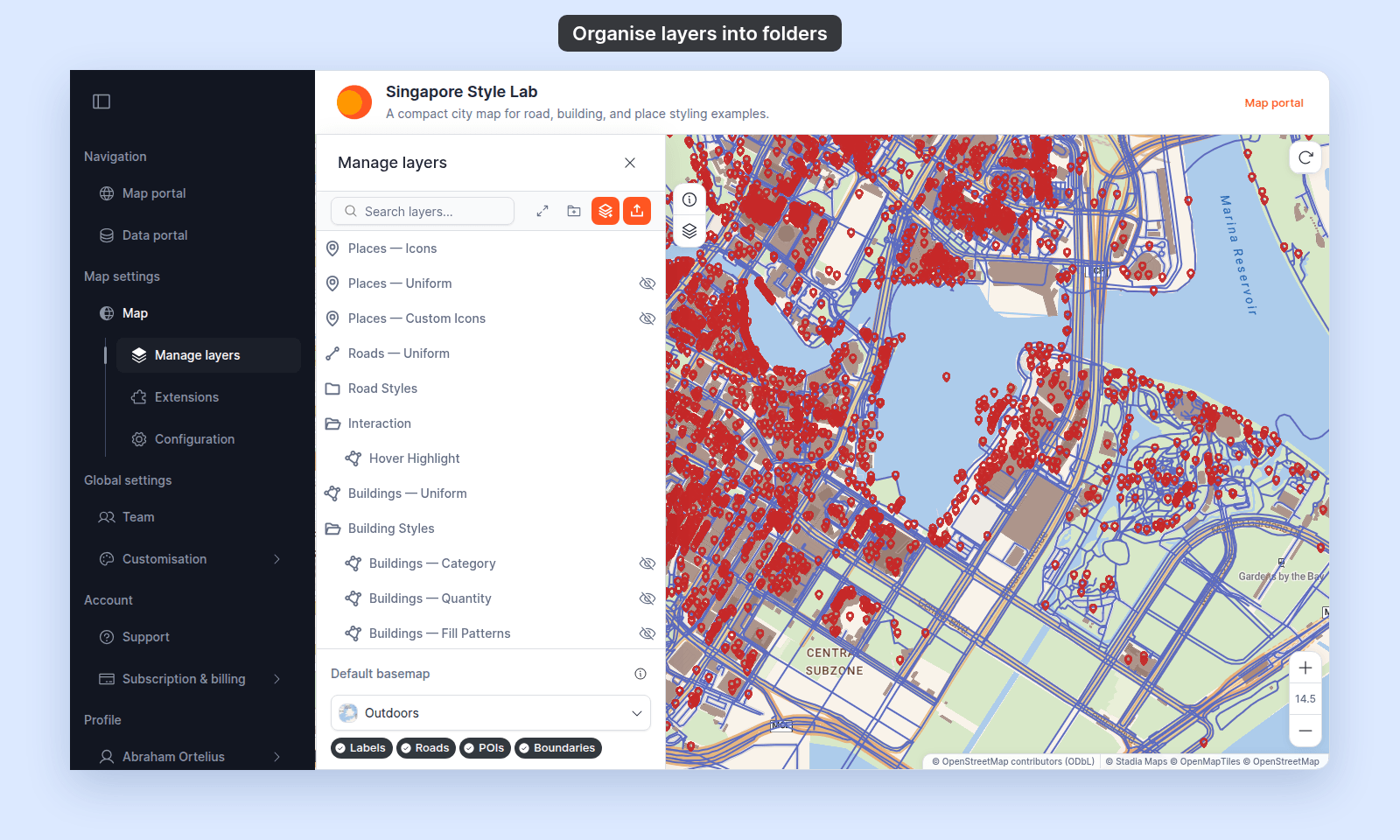
From the map toolbar, open Manage Layers to bring up the layer panel.
Create a folder
In the layer panel’s control bar, click the folder-plus icon (tooltip: Create new folder). A folder named New Folder is added to the layer list at once; there is no dialog. To give it your own name, rename it.
A few naming patterns that work well:
- Group by theme:
Demographics,Infrastructure,Environment. - Group by audience:
For internal review,For public viewers. - Group by source:
Census 2024,Field surveys.
Pick what helps you scan the panel; viewers see the same names in the legend if you have legend visibility enabled.
Move layers into a folder
Drag a layer from the layer list and drop it onto the folder row. The layer becomes a child of the folder.
To move a layer back to the root level, drag it out of the folder and drop it at the top or between other root-level items.
Layers can also be added directly into a folder when first created — see How to add a layer from your data library (use Add Layer in the folder’s More actions menu) or How to add a layer by importing data (use Upload Dataset in the same menu).
Expand and collapse a folder
Click the folder name or the folder icon to expand or collapse it. The control bar’s leftmost icon collapses or expands every folder at once.
Toggle every layer in a folder at once
Click the eye on a folder’s row to toggle the visibility of every layer inside. The change persists and applies to every viewer.
To set a simple starting view, hide detail layers by default. Viewers can expand the folder and turn them on when needed.
Rename a folder
Hover the folder’s row, click its More actions button (three dots), and pick Rename Folder.
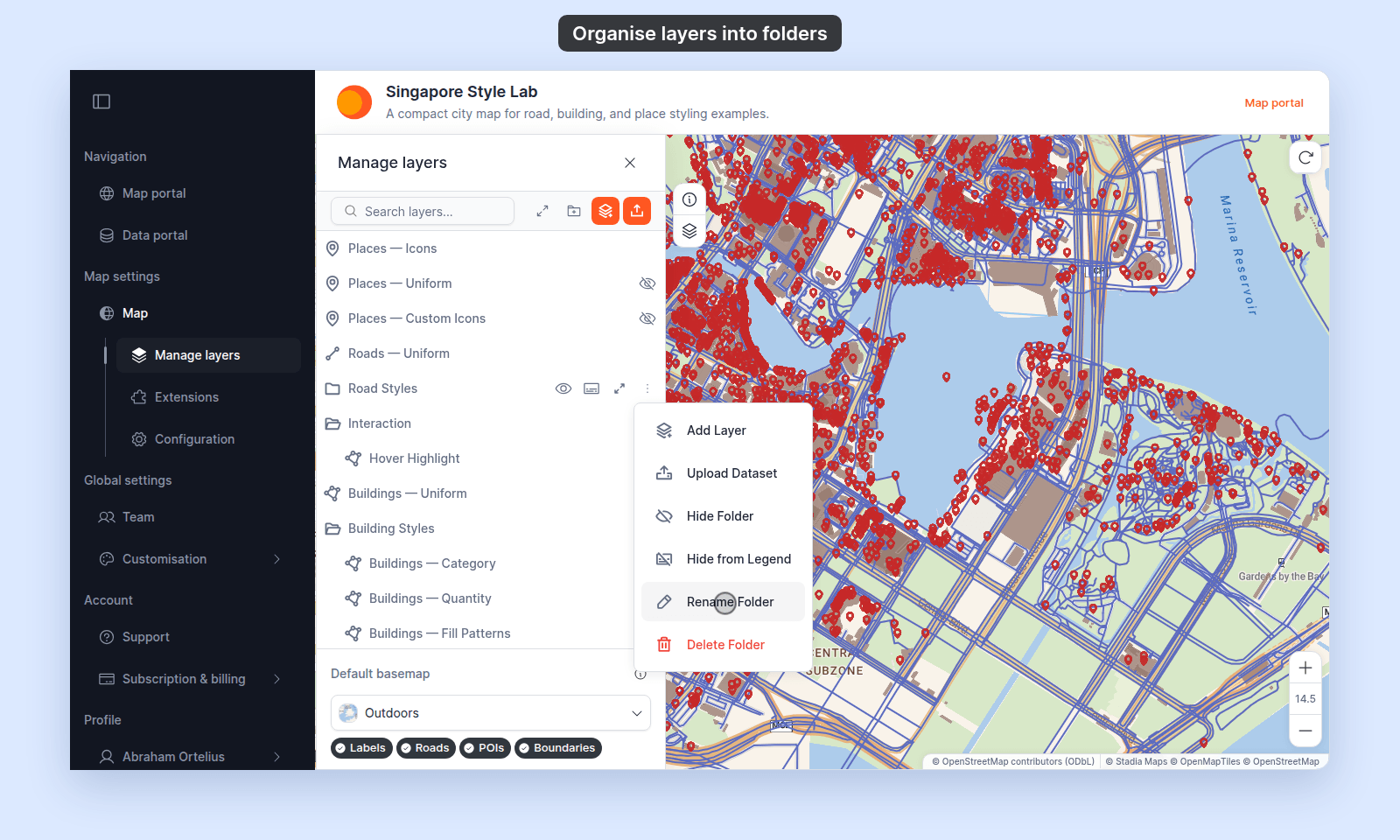
The dialog opens with the current name pre-filled. Edit the name and click Save Changes.
Delete a folder
In the folder’s More actions menu, pick Delete Folder. A confirmation dialog asks what to do with the layers inside.
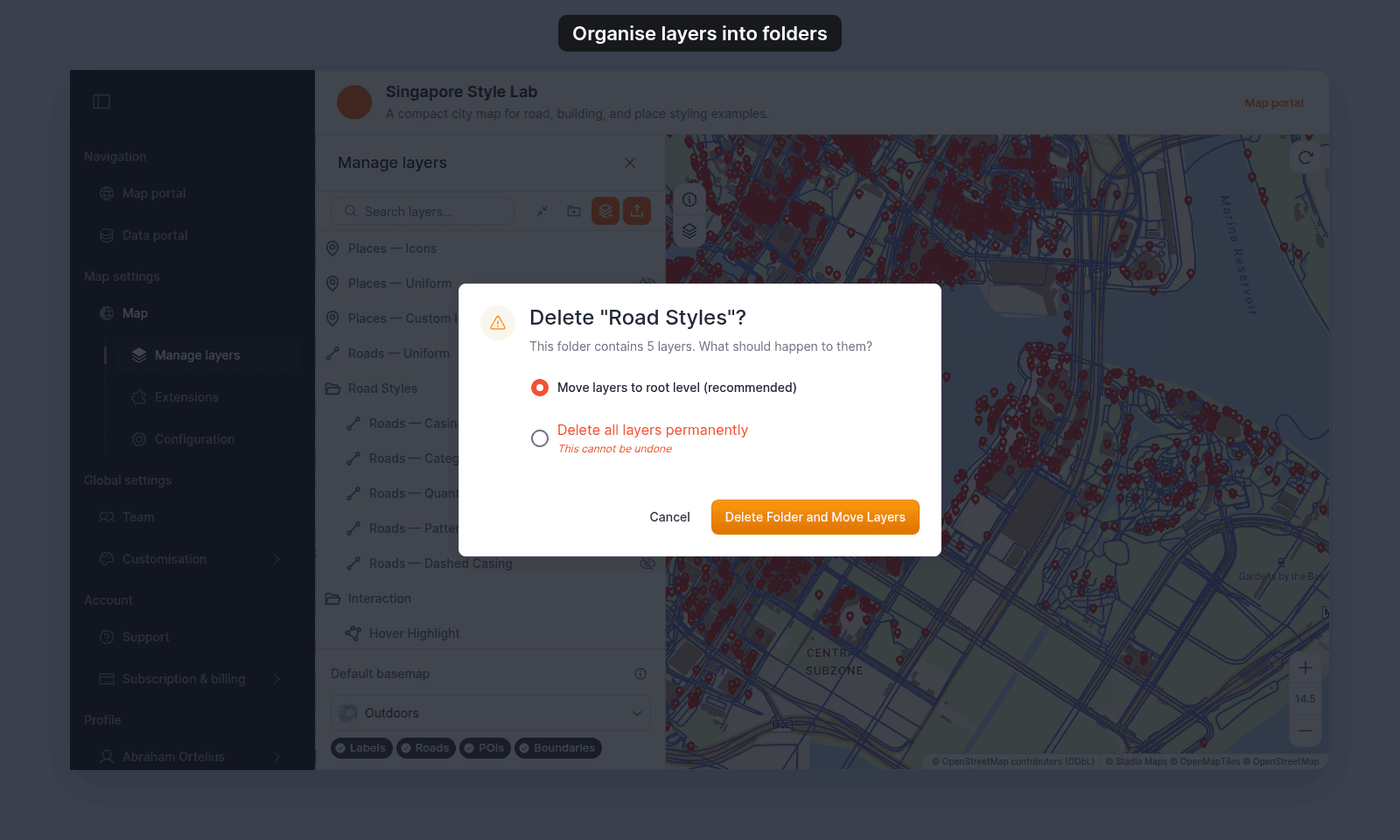
Move layers to root level— the folder is deleted; the layers stay on the map at the root level.Delete all layers permanently— both the folder and the layers inside are removed. The underlying datasets in your library are preserved.
Limits and constraints
Folders contain layers. Folders inside folders aren’t supported.