

How to add a layer from your data library
Open the Add layer from data library modal, find a dataset by search, filter, or sort, and add it to the map as a layer with one click.
Open the layer panel’s Add layer from data library modal, choose a dataset, and add it to the map. Clicking a dataset card creates the layer at once.
Before you start
- The dataset must already exist in your account library. If it’s not there yet, import it — the import flow lets you upload and add to the map in one step.
- You need edit access to the map.
- For a layer that should land in a specific folder, expand or create the folder first; you can use
Add Layerin the folder’sMore actions(⋯) menu so the new layer drops directly into the folder.
Open the layer panel
Open the map. From the map toolbar, open Manage Layers to bring up the layer panel.
Open the Add Layer modal
In the layer panel’s control bar, click the stack-plus icon (Add layer from data library). The modal opens with your account’s data library.
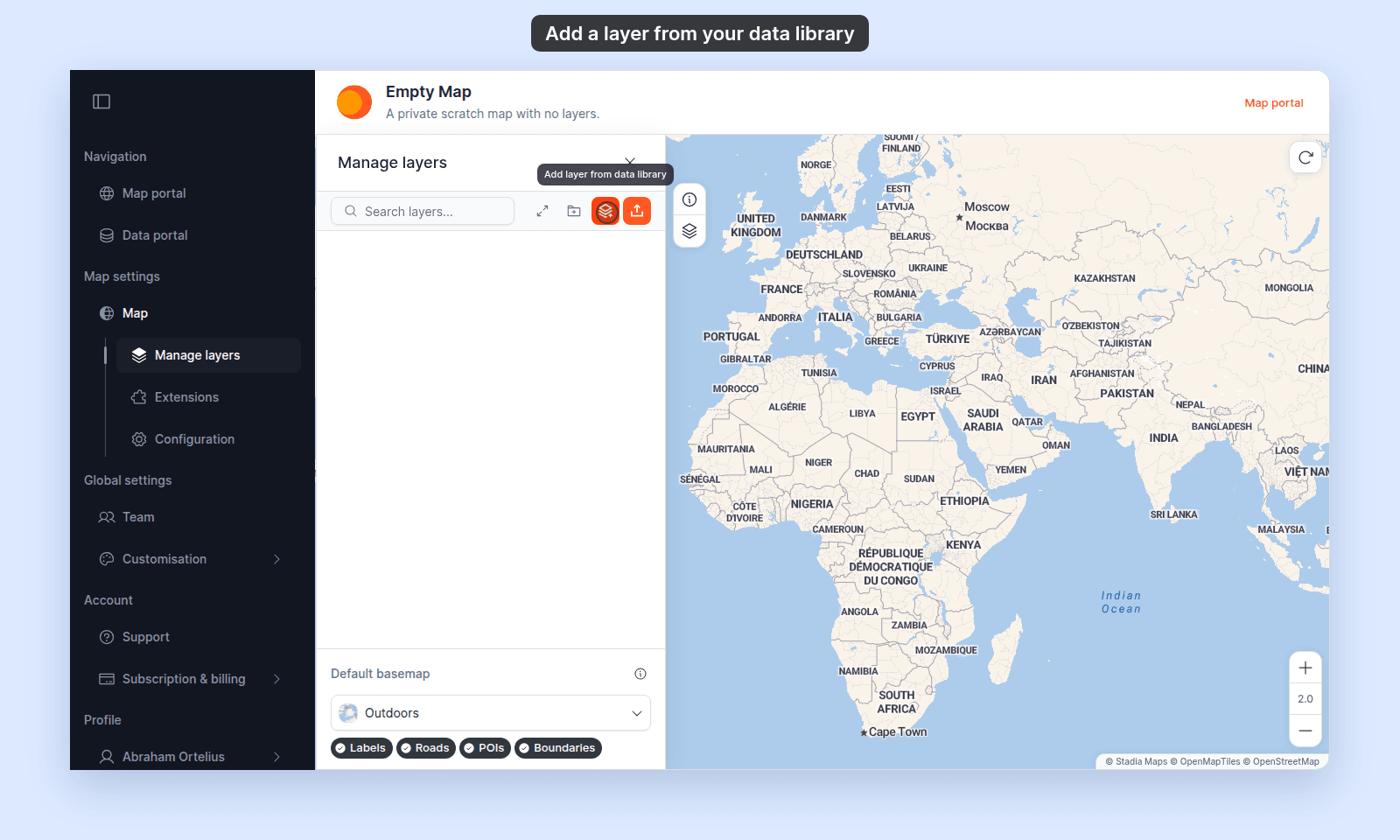
To add into a specific folder, point to the folder in the layer panel, click its More actions (⋯) button, and pick Add Layer. The modal opens the same way; the new layer will land inside that folder.
Find the dataset
The modal shows the data library as a grid.
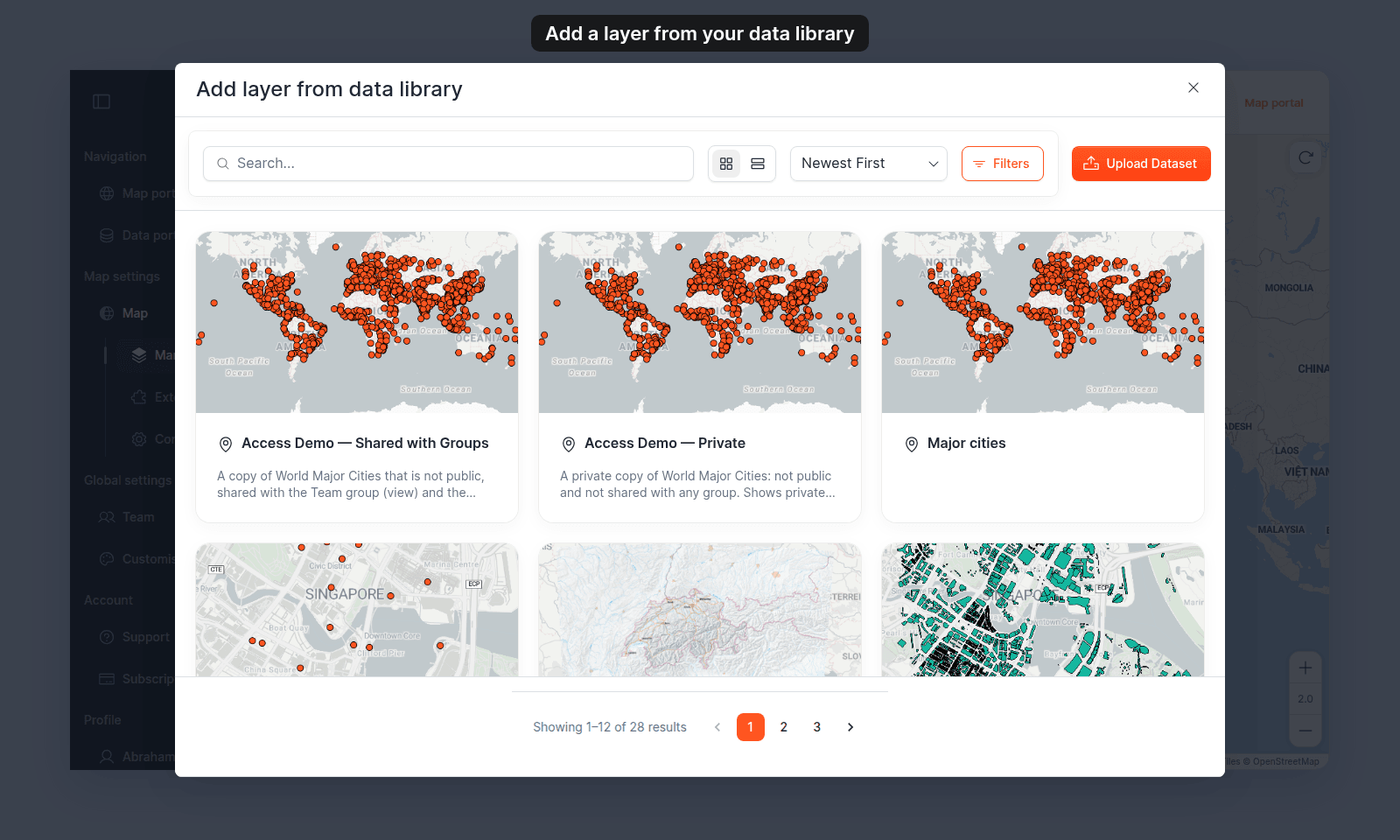
Use three controls to narrow the list:
- Search — searches dataset name, description, tags, creator, and format.
- Filters — refine by geometry (point, line, polygon, raster), category, access type, or file format.
- Sort — change the order. Default is
Createddescending (newest first).
Toggle between the card grid and a list view from the toolbar at the top of the modal — the list view shows more datasets per screen but smaller previews.
Add the layer
Click the dataset card (or list row). The modal closes, the layer appears in the layer panel (at the top of the list, or inside the folder you opened the modal from), and the new layer’s Style tab opens.
If the dataset is already on this map
The modal does not mark datasets that are already on the map. Clicking one again adds a second layer from the same dataset. If you didn’t mean to, remove the extra layer.
To get a second layer with the same style as the first, use Duplicate Layer in the existing layer’s More actions (⋯) menu instead.
If your dataset isn’t in the list
A few possibilities:
- The dataset hasn’t finished processing. Recently uploaded data takes a few seconds to appear in the library; refresh the modal.
- You don’t have access. Datasets owned by other accounts only appear if they’ve been shared with you. Check with the dataset owner. See How dataset access works in MangoMap for how dataset sharing works.
- It was archived or deleted. Check the data portal directly.
- A filter is hiding it. Clear all filters and the sort, then search by name.
What happens after the layer is added
The new layer:
- Appears at the top of the layer panel (or top of the target folder).
- Has default styling appropriate to its geometry — see How layer styling works in MangoMap for what to expect.
- Has its visibility set to
On(visible by default). - Has the default popup mode (
Default), which shows visible attributes from the Format tab. See How to use the default popup.
To customise the new layer’s look or behaviour, click its name to open the layer settings panel.