

How to add a layer by importing data
Import a file from the layer panel to add it to your data library and to the current map in one step. You need the Admin role and map edit access.
Importing a file directly from the layer panel uploads it to your data library AND adds a layer pointing at it to the current map — one workflow with two results — and the layer settings open straight to the Style tab once processing completes. Requires the Admin account role plus map edit access; same supported formats as standalone import.
Before you start
- The file must be in a supported format.
- You need edit access to the map and the
Adminrole on the account (required to import data). - For a layer that should land in a specific folder, create the folder first. Only the folder’s
Add Layerroute below puts the new layer in it.
Open the layer panel
From the map toolbar, open Manage Layers to bring up the layer panel.
Pick an entry point
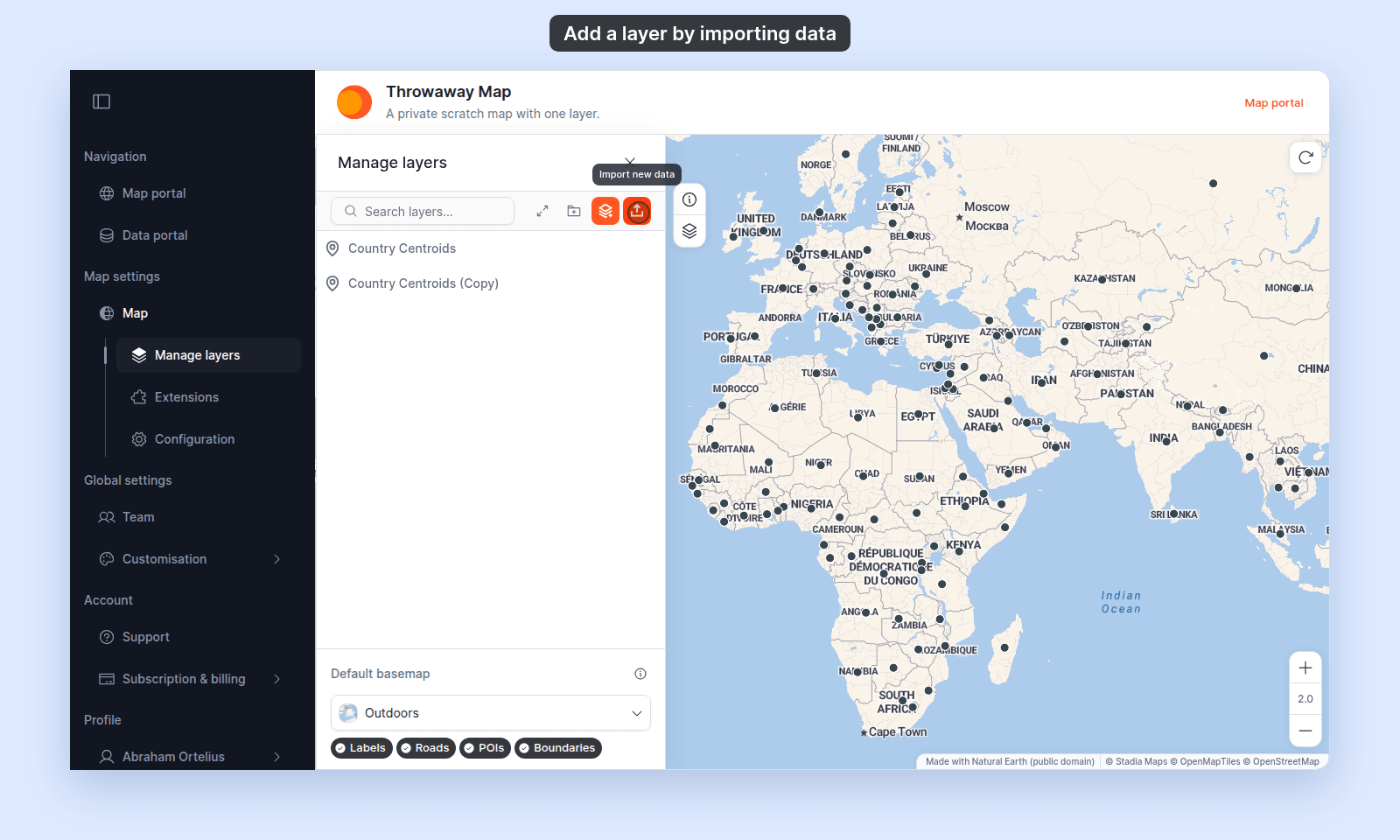
Three paths reach the import flow with the current map attached:
- Layer panel control bar →
Import new data(upload icon). The layer goes to the top level of the map. - Folder
More actions(⋯) menu →Upload Dataset. The layer also goes to the top level of the map, not into that folder. - Add layer modal →
Upload Dataset. The button is next to the search box. If you opened the modal from a folder’sMore actions(⋯) →Add Layer, the layer goes into that folder. From the stack-plus icon, it goes to the top level.
The flowchart shows where the new layer lands from each entry point:
Import the file
The import flow is documented in How importing data works in MangoMap. Pick the format-specific guide for your file type:
- How to import a CSV
- How to import a shapefile
- How to import a GeoJSON file
- How to import a KML file
- How to import a MapInfo TAB dataset
- How to import an Esri File Geodatabase
- How to import a GeoTIFF
- How to connect a WMS service
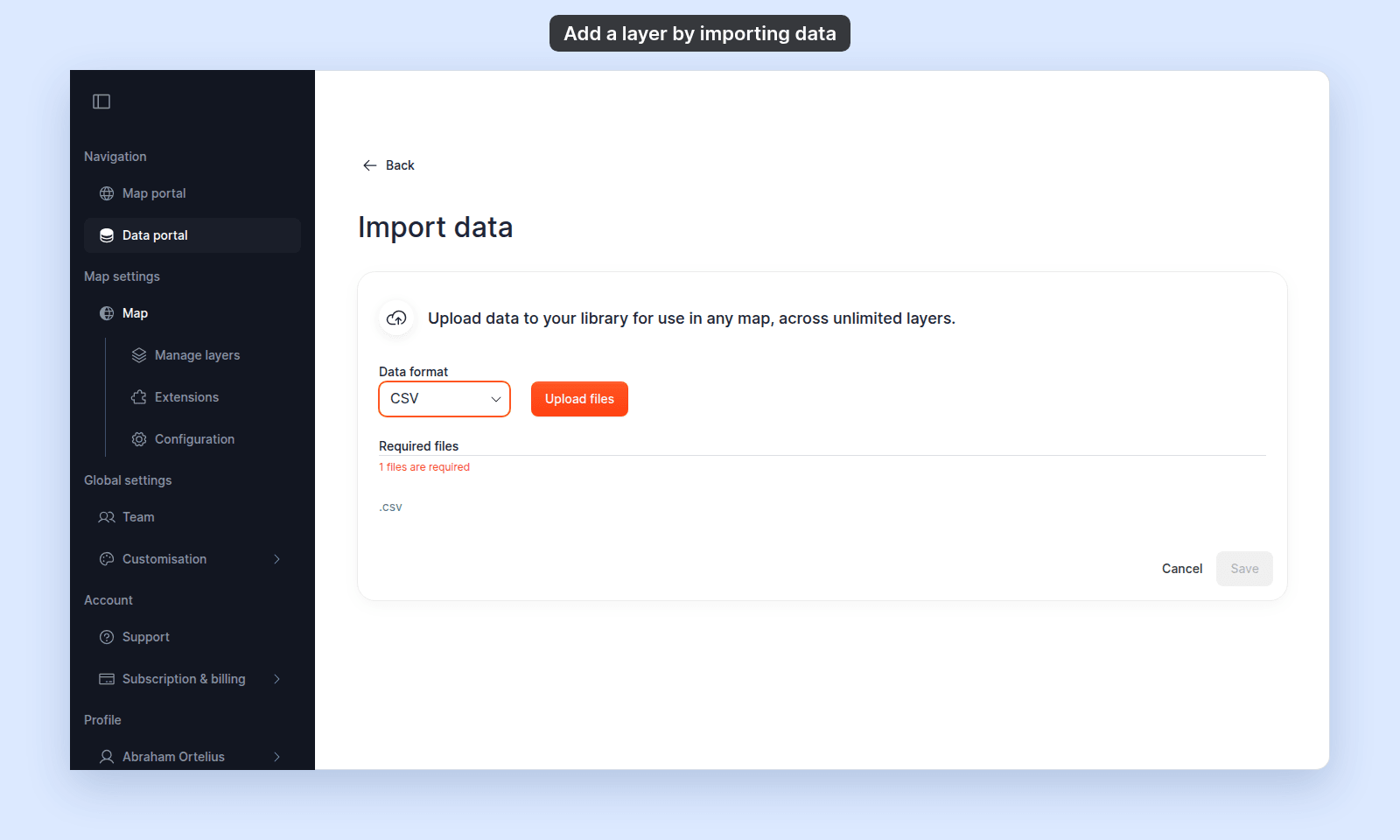
The flow is identical to importing without a map — pick the data format, drop the file(s), name the dataset, and click Save. The processing step shows the same Processing data… dialog.
What happens after the import finishes
When the upload and processing complete:
- The new dataset is added to your account’s data library — you can use it on other maps later.
- A layer pointing at the new dataset is added to the current map. If you started from the
Add layermodal opened from a folder, the layer lands in that folder. - The layer settings panel opens directly to the layer’s
Styletab so you can configure the look immediately.
If the import fails
The import flow handles its own error messages — see the format-specific how-to and the troubleshooting docs in Importing data. The most common failures:
- Storage limit reached
- CSV missing longitude or latitude column
- Shapefile missing files
- Unsupported coordinate system
If the import fails after the upload, the dataset isn’t added to the library and no layer is added to the map. Fix the underlying issue and try again.
Importing a dataset that already exists
If you import a file that’s a duplicate of an existing dataset (same name, same content), MangoMap creates a second dataset — it doesn’t deduplicate. The new layer points at the new dataset.
If you want to add an existing dataset to the current map without re-importing, use How to add a layer from your data library instead.