

How to import a shapefile
Import a shapefile by uploading its four loose files together: .shp, .shx, .dbf, and .prj. Do not upload a .zip. The .prj sets the coordinate system.
MangoMap reads a shapefile as four loose files: .shp, .shx, .dbf, and .prj. Upload them together, not as a .zip. The .prj defines the coordinate system and the import form requires it.
Before you start
- You need an account role of
Adminor above to import data. - Your shapefile must include all four files:
.shp(geometry),.shx(index),.dbf(attributes), and.prj(coordinate system). If your source tool didn’t export the.prj, see Troubleshooting below. - Each file must be 5 GB or smaller. The shapefile components are uploaded as separate files, so the limit applies to each one — typically
.shpis the largest.
Open the import page
From the Data page, click Import data. Or, from a map, open Manage layers and click Import new data. That opens the same page and adds the new dataset to the map as a layer.
Pick the format
In the Data format dropdown, select Shapefile.
Add the four files
Click Upload files and select all four files in the picker, or drag them onto the page. You can also add them in stages. MangoMap matches each file to its row by extension and uploads it in the background.
If a row shows File missing, that extension hasn’t been added yet. Click the Upload button on that row to add the missing file.
Name the dataset and save
When all four files are in, the Dataset name and Description fields appear. Wait until every progress bar is full and green before you save.
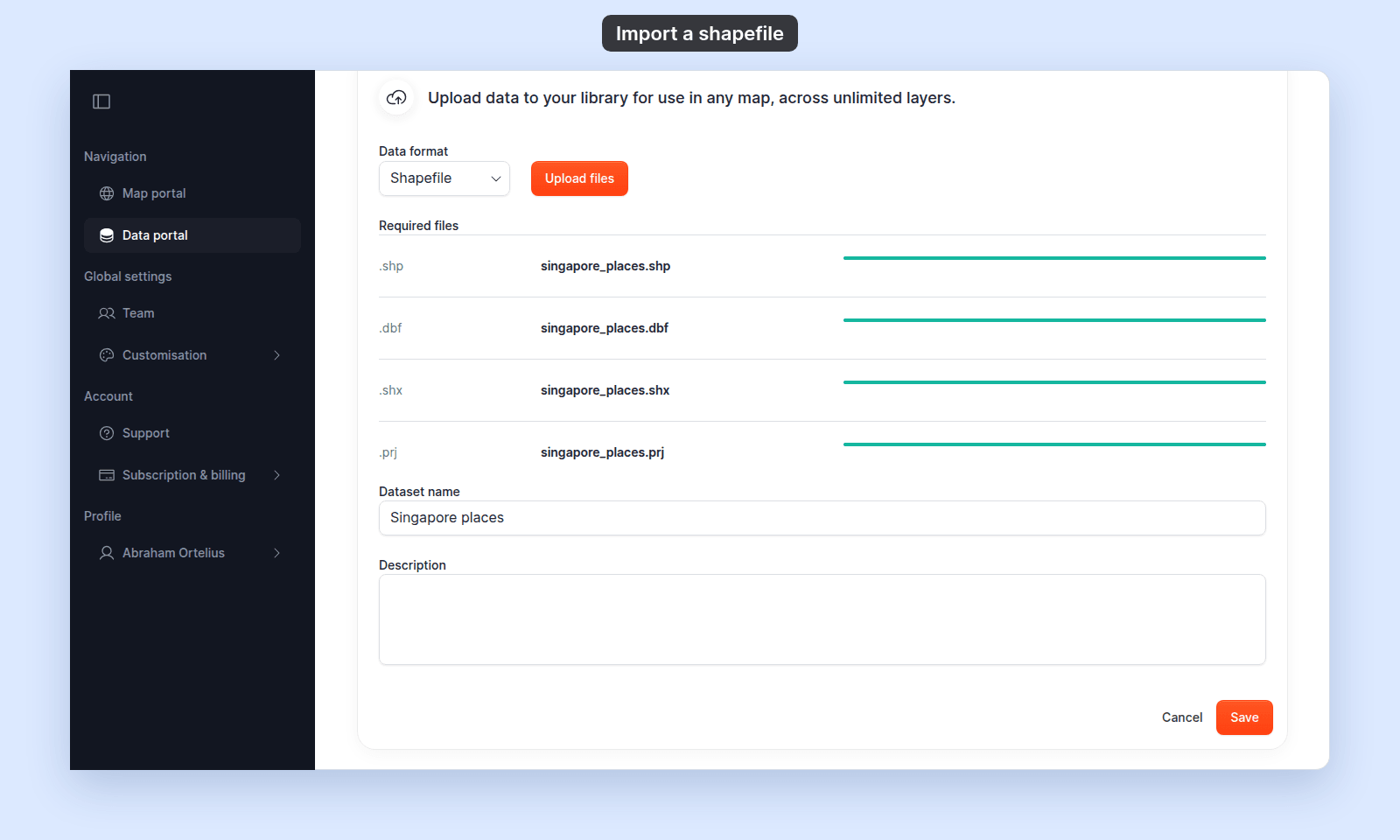
Dataset nameis required. MangoMap fills it in from the file name; change it to the name you want in your library and in map layer lists.Descriptionis optional. It shows on the dataset detail page.
Click Save. A Processing data… dialog appears while MangoMap reads the files. When processing finishes, you land on the dataset’s detail page (or back on the map, if you started from a map).
If your file is over 5 GB
5 GB is a per-file limit. If your .shp is over the limit, you can’t import the file as-is — clip it to a smaller area in QGIS or ogr2ogr first, or split it into multiple datasets by attribute.
If you only have a .zip
The Shapefile option in MangoMap expects the four loose files, not a zipped archive. Extract the .zip first, then upload the four files together. If the archive contains shapefiles for several layers, import each set separately.
Troubleshooting
“File missing” never goes away on one of the rows. The file with that extension hasn’t been uploaded. Make sure the filename actually ends in the right extension — some operating systems hide extensions, so what looks like roads may be roads.shp.txt. See Shapefile upload says “File missing”.
You don’t have a .prj file. MangoMap will not complete the four-file selection without it. Re-export the shapefile from your source tool with projection information, or set the layer’s CRS in QGIS and export it again.
Processing fails with Unsupported coordinate system. Your .prj declares a projection MangoMap can’t reproject from. Reproject the shapefile to EPSG:4326 or EPSG:3857 first. See Unsupported coordinate system.
Storage limit reached. Your account has run out of storage. See Storage limit reached when importing.