

Datasets and layers in MangoMap
A dataset is your data; a layer is that data on one map. One upload can feed many maps, and a dataset that a map uses cannot be deleted.
In MangoMap, your data and its map appearance are separate: a dataset is the data itself, and a layer is that data drawn on a particular map. This split explains why one upload can appear on many maps, why restyling one map leaves another unchanged, and why some datasets cannot be deleted.
A dataset is your data; a layer is that data on a map
A dataset is one copy of your data in the account library, in the Data portal. It holds the raw content — the rows and their attributes, and the geometry — and it belongs to the account, not to any one map. You create a dataset by importing a file; from then on it’s available to every map in the account.
A layer is a dataset placed on one specific map. The layer doesn’t hold a second copy of the data — it points back at the dataset and adds a set of presentation choices that apply only to that map: how the features are styled, what their popups show, how attributes are formatted and labelled, whether the layer is visible by default, where it sits in the draw order, which zoom levels it appears at, and whether it shows in the legend.
In short: the dataset is what; the layer is how it looks here.
One dataset, many layers
One dataset can be drawn on as many maps as you like, and each map’s layer styles it independently. The relationship runs one way: a layer always points at exactly one dataset, but a dataset can sit behind any number of layers across any number of maps — or none at all, while it waits unused in your library.
A dataset’s page in the Data portal lists the maps that draw it under Used in maps:
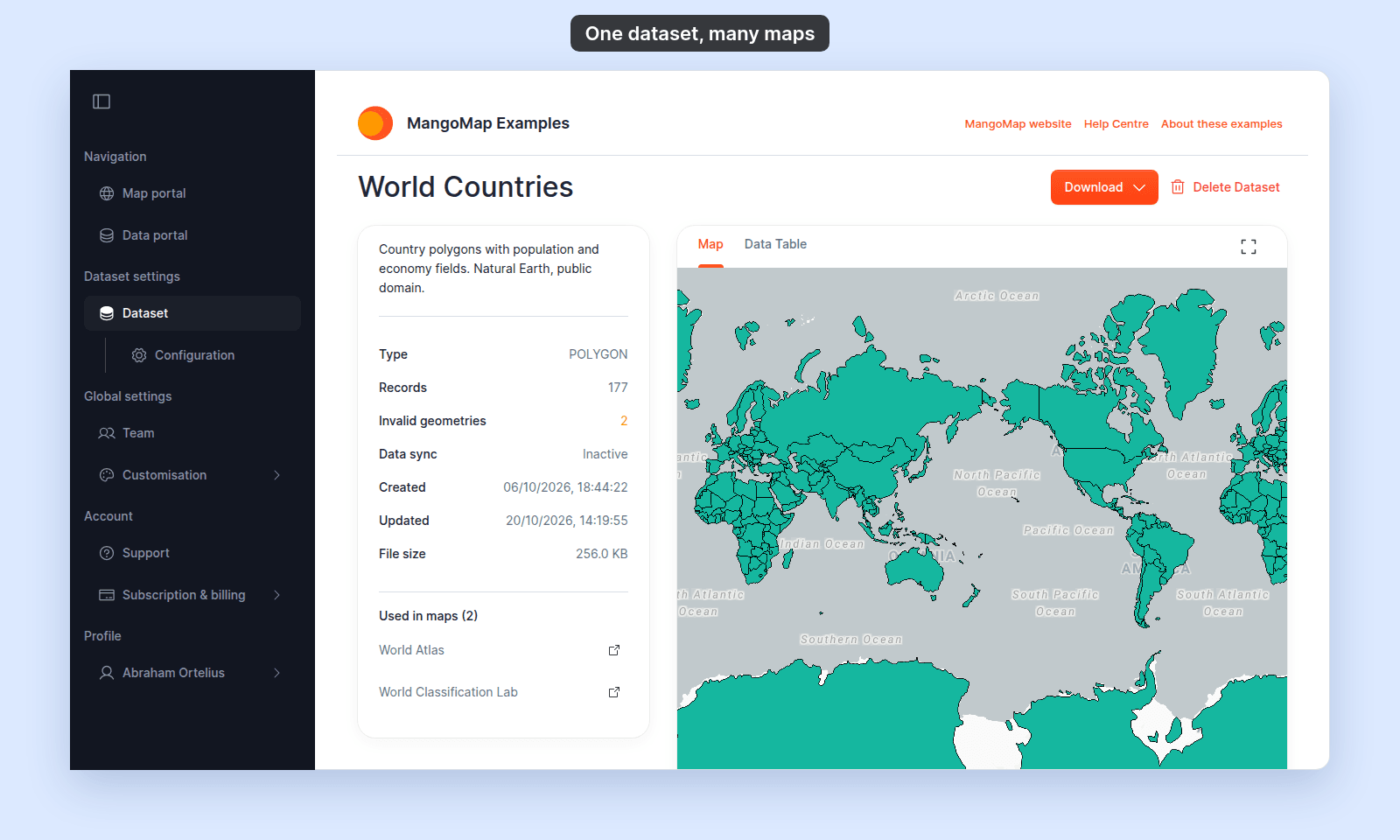
You can even put the same dataset on the same map twice. The Duplicate Layer action in the layer panel creates a second layer over the same dataset, copying the first layer’s settings so you can then style or filter it differently — handy when you want to show, say, the same parcels coloured by zoning in one layer and by value in another. See Layer panel controls.
What belongs to the dataset, and what belongs to the layer
Because one dataset can feed many layers, MangoMap keeps each property in the right place. Before you change something, check whether it lives on the dataset, which every map shares, or on one map’s layer:
The dataset owns everything about the data itself: the attribute columns and their values, the geometry, and the connection used to keep it current (file updates and sync). These are shared by every layer drawn from it.
The layer owns everything about presentation on its map: the style, the popup, attribute formatting, visibility, draw order, folder membership, zoom range, legend behaviour, and any filter applied to it. None of these are shared — they’re per-map.
Why the split matters
This split explains these results:
- Editing data changes it everywhere. Editing a feature’s attributes or geometry writes to the dataset, so every layer on every map that uses it shows the change the next time the map loads. See How feature editing works.
- Updating the file flows through to every layer. When you replace a dataset with a new file or sync it, the data changes for all its layers at once; their styling and popups stay exactly as you set them. See How data updates work.
- Restyling is local. Changing a layer’s colours, popup, or visibility affects that layer only. The same dataset on another map is untouched — that’s the whole point of keeping presentation on the layer.
- Removing a layer keeps the data. Deleting a layer takes it off that one map; the dataset stays in your library and any other maps using it are unaffected. See How to remove a layer from a map.
- You can’t delete a dataset that’s still in use. Because layers depend on it, MangoMap won’t delete a dataset while any layer references it — it tells you how many layers and maps still use the dataset and asks you to remove those layers first. This protects every map that draws on the data.
To change the geometry type, import the data again. See How importing data works.
Common confusions
“I restyled my data on one map — did it change my other maps?” No. Style lives on the layer, so it’s per-map. Other maps using the same dataset keep their own styling.
“I deleted the layer but the dataset is still there.” That’s expected — they’re independent. To remove the data itself, delete the dataset from the Data portal.
“Why won’t it let me delete my dataset?” A layer somewhere still uses it. Remove the layer (or layers) from the maps it names, then delete the dataset.