

CSV contains invalid characters
Fix the invalid-character error when you import a CSV. Clean the header row, save the file as UTF-8, and upload it again.
If import shows an invalid-character error, the header row of your CSV contains broken characters. Save the file as UTF-8 with a clean header row and upload it again.
The error appears after you click Save, in the Processing failed dialog:
The CSV file contains invalid characters. Please save it as UTF-8 and try again.
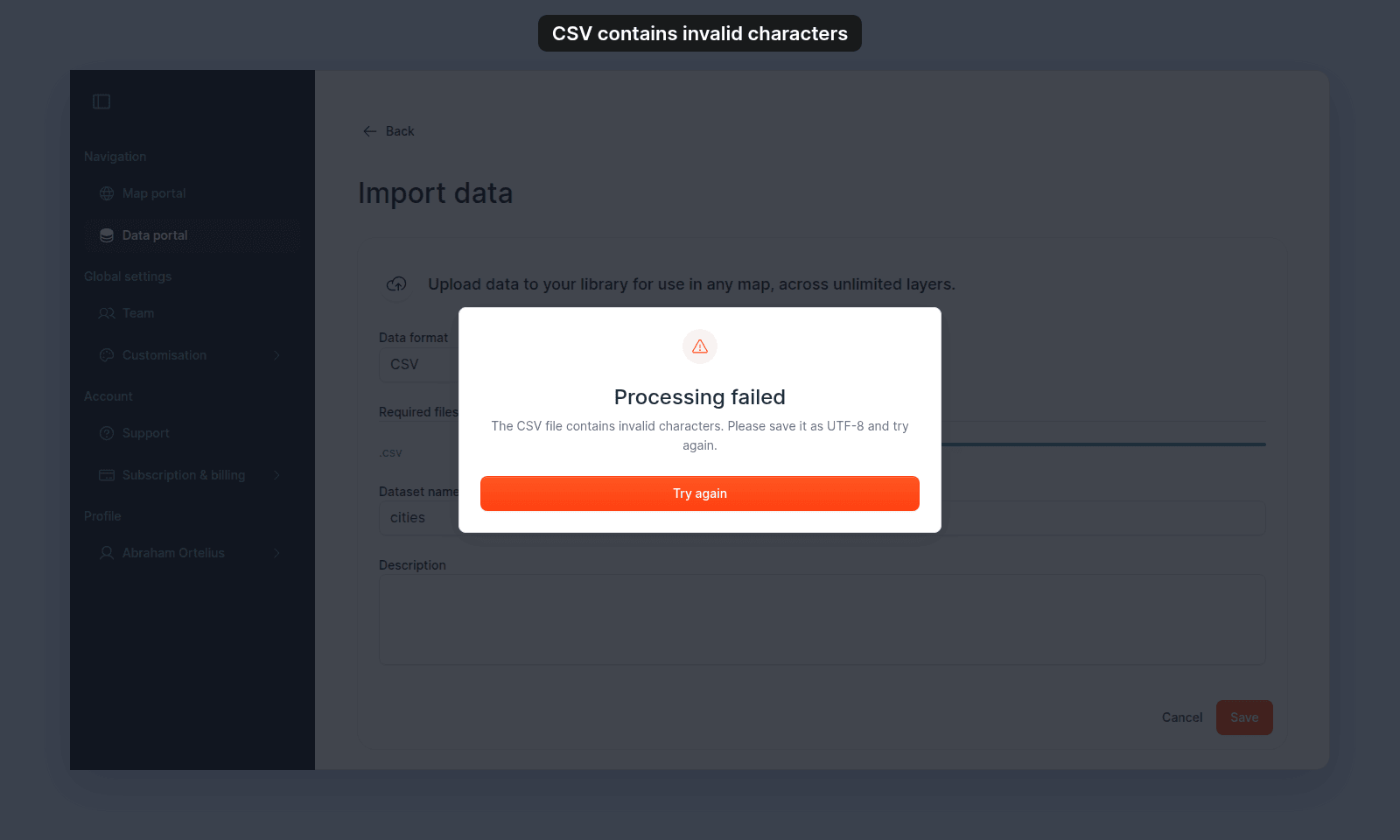
Most likely cause: the header row contains replacement characters
MangoMap checks the header row (the first line) for the replacement character �. This character is left behind when an earlier tool could not read the text and saved the file anyway. MangoMap cannot get the original characters back.
How to verify.
Open the file in a text editor and look at the first line. If you see � in a column name, you have found the cause.
Fix.
Retype the damaged column names in the first line, then save the file as UTF-8 and upload it again. If the same character is in the data rows, go back to the original source of the data and export it again as UTF-8.
Related problem: the file is in another encoding
MangoMap reads UTF-8 files. If a file is not valid UTF-8, MangoMap reads it as Windows-1252 (a common Excel default on Windows). This works for Windows-1252 files, but other encodings give a different symptom, not the invalid-character error:
| Encoding | What you see |
|---|---|
UTF-16 (UTF-16 LE, UTF-16 BE, Excel Unicode Text) |
Processing fails with Your CSV is missing a longitude column, although the column is in the file. |
| ISO-8859-2, Shift-JIS, and other non-Windows-1252 encodings | The import finishes, but accented or non-Latin text shows as the wrong characters. |
| UTF-8 with a few stray bytes near the top, from a copy-paste or a database export | The import finishes, but accented text shows as the wrong characters (for example, é for é). |
How to verify.
Open the file in a text editor that shows the encoding (VS Code shows the encoding in the bottom-right). If it shows an encoding other than UTF-8 or Windows-1252, you have found the cause.
Fix.
Save the file again as UTF-8:
-
Excel (Windows or macOS):
File → Save As → CSV UTF-8 (Comma delimited) (*.csv). Don’t use plainCSV— that uses the system encoding, not UTF-8. -
Numbers (macOS):
File → Export To → CSV → Advanced Options → Text Encoding: Unicode (UTF-8). -
LibreOffice Calc:
File → Save As, checkEdit filter settings, then choose character setUnicode (UTF-8). -
Google Sheets:
File → Download → Comma-separated values (.csv)— Google Sheets always exports UTF-8. -
Command line: run
iconv. ReplaceUTF-16with the encoding your text editor shows.$ iconv -f UTF-16 -t UTF-8 input.csv > output.csv
Upload the new file. If you already imported the file with the wrong characters, delete that dataset and import the new file.
If none of the above
Open the file in any UTF-8-aware editor (VS Code, Sublime Text), copy all the contents, paste into a new file, and save as data-fixed.csv with UTF-8 encoding. This creates a clean UTF-8 file.