

How to import a GeoTIFF
Import a GeoTIFF raster from a .zip archive. The raster needs coordinate-system information, and the archive must stay under the upload limit.
MangoMap imports a GeoTIFF from a .zip archive. The raster must include coordinate-system information, and the archive must be 5 GB or smaller. This format does not accept loose .tif files.
Before you start
- You need an account role of
Adminor above to import data. - The uploaded archive must end in
.zip. - The archive must be 5 GB or smaller.
- The GeoTIFF must be georeferenced — embedded coordinate-system information is required for MangoMap to place the raster correctly.
How to zip a GeoTIFF
Put only the .tif file in the zip. Leave out sidecar files such as .tfw or .aux.xml.
-
macOS / Linux: in a terminal, run:
$ zip imagery.zip imagery.tif -
Windows: right-click the
.tiffile and chooseSend to → Compressed (zipped) folder.
Open the import page
In the Data portal, click Import data. Or, from a map, open Manage layers and click Import new data to import directly into that map.
Pick the format and upload
In the Data format dropdown, select GeoTIFF. Click Upload files and select your .zip archive, or drag it onto the page. Wait until the progress bar is full.
Name the dataset and save
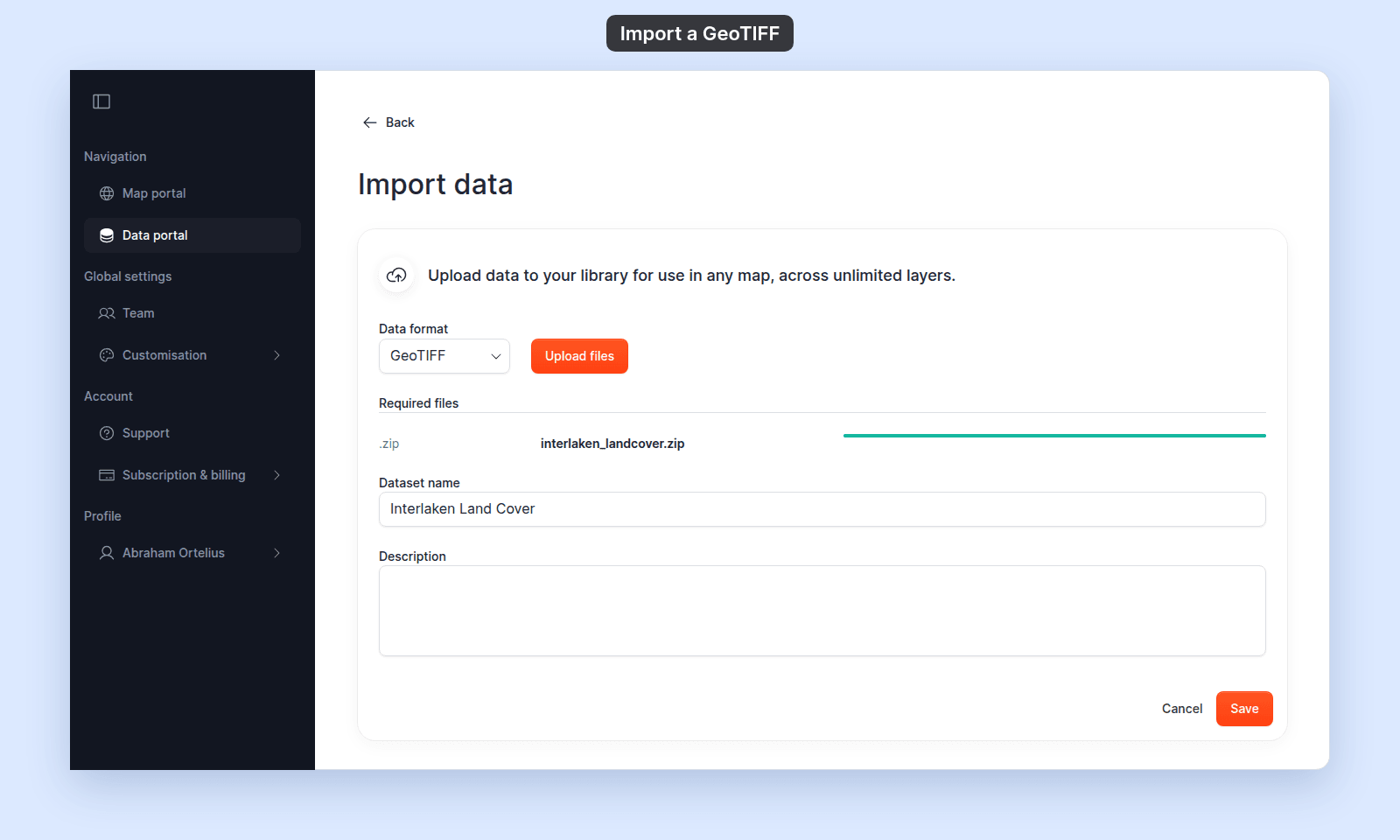
When the upload is complete, the name and description fields appear:
- Check the
Dataset name. MangoMap fills in the file name; change it if you want a clearer name. A name is required. - Optionally add a
Description.
Click Save. A Processing data… dialog appears while MangoMap unpacks the archive, reads the raster, and prepares it for the map.
Raster processing is heavier than vector processing — expect this to take longer than a comparably sized vector upload.
If your raster is over 5 GB
5 GB is a per-file limit on the .zip archive. If your GeoTIFF is over the limit, options include:
-
Compress the GeoTIFF — using LZW or DEFLATE can substantially reduce file size with no data loss.
-
Convert to a Cloud-Optimized GeoTIFF (COG) first with
gdal_translate -of COGand apply compression:$ gdal_translate -of COG -co COMPRESS=DEFLATE input.tif output.tifConverting only helps with the file-size limit, not processing time.
-
Tile and import in pieces if the area is naturally divisible.
Troubleshooting
Processing fails with Unsupported coordinate system. The GeoTIFF declares a projection MangoMap can’t reproject from. Reproject the raster to EPSG:4326 or EPSG:3857 first using gdalwarp -t_srs EPSG:3857 input.tif output.tif. See Unsupported coordinate system.
The raster has no spatial reference. A GeoTIFF without embedded CRS won’t georeference correctly. Add a CRS in QGIS (Layer → Set CRS) or gdal_edit.py -a_srs EPSG:4326 input.tif, then re-zip and upload.
Storage limit reached. Your account has run out of storage. See Storage limit reached when importing.