

How to connect a WMS service
Add layers from a WMS server with its HTTPS GetCapabilities URL. The data stays on the provider's server, so layer speed and uptime depend on it.
A WMS connection adds layers from another server without uploading files. The data stays on the provider’s server and refreshes when viewers open the map. Layer speed and uptime depend on that provider.
See it on an example map
Open the Interlaken Raster Lab. In the legend, turn on Swiss National Map (WMS). The map shows the Swiss national map, which comes from a WMS service.
Before you start
- You need an account role of
Adminor above to import data. - You need a GetCapabilities URL for the WMS, served over HTTPS. Most providers list this URL in their documentation; it usually looks like
https://example.com/geoserver/wms?service=WMS&request=GetCapabilities. - The WMS provider must allow your browser to connect (no IP allowlist, no authentication that the URL doesn’t already include).
Open the import page
In the Data portal, click Import data. Or, from a map, open Manage layers and click Import new data to add the WMS layers to that map.
Pick the format
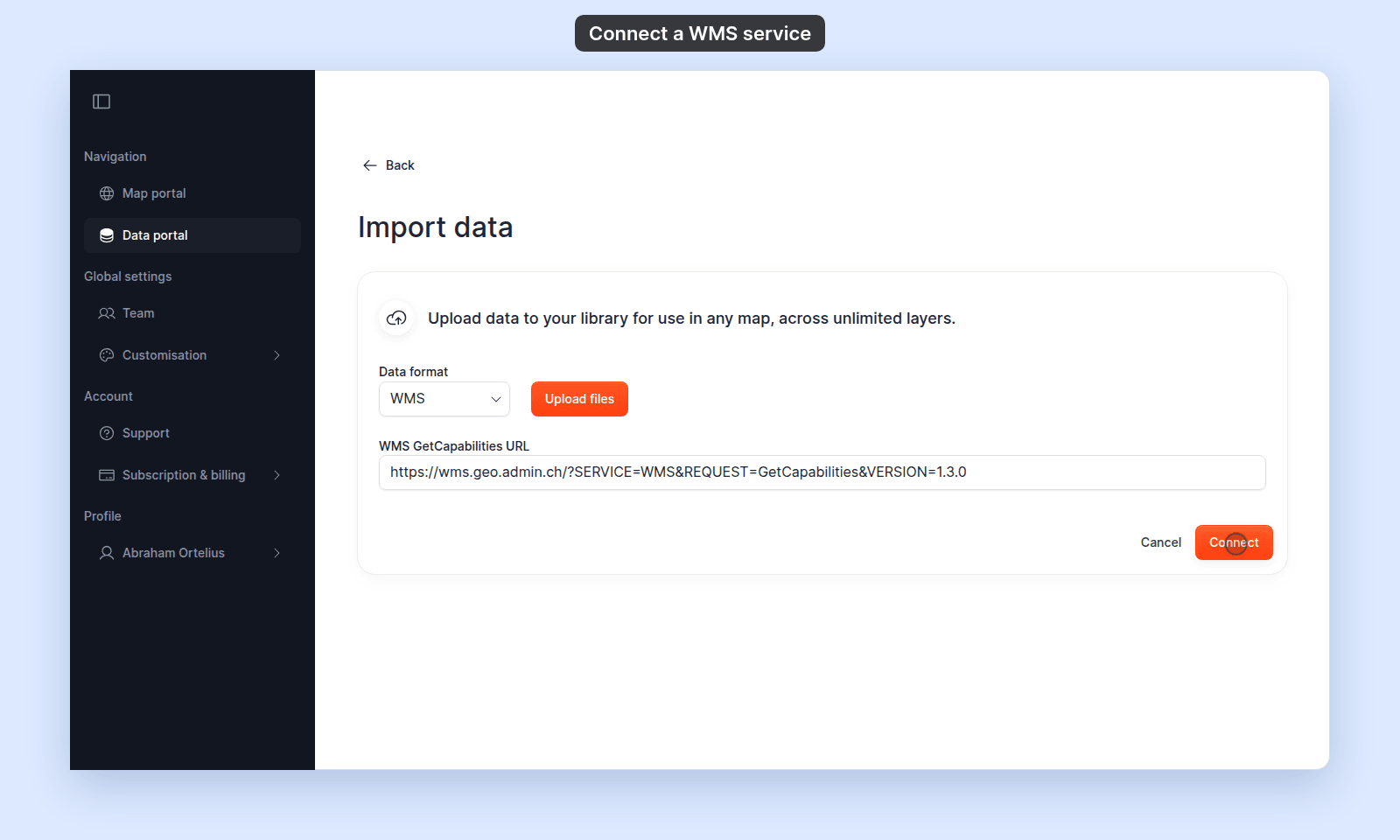
In the Data format dropdown, select WMS.
Connect to the service
Paste your GetCapabilities URL into the WMS GetCapabilities URL field and click Connect:
MangoMap shows the service summary and its layers.
Keep any extra parameters the provider gives you in the URL, such as map=… or an access key. MangoMap keeps them, so services that need them draw correctly.
If the URL is wrong, unreachable, or doesn’t return a valid capabilities document, you’ll see an alert reading “An error occurred while fetching or parsing the WMS data” with the underlying error. See WMS connection failed.
Select layers and import
The summary shows the service’s details on the left and its layers under Select layers to import. Tick each layer you want:
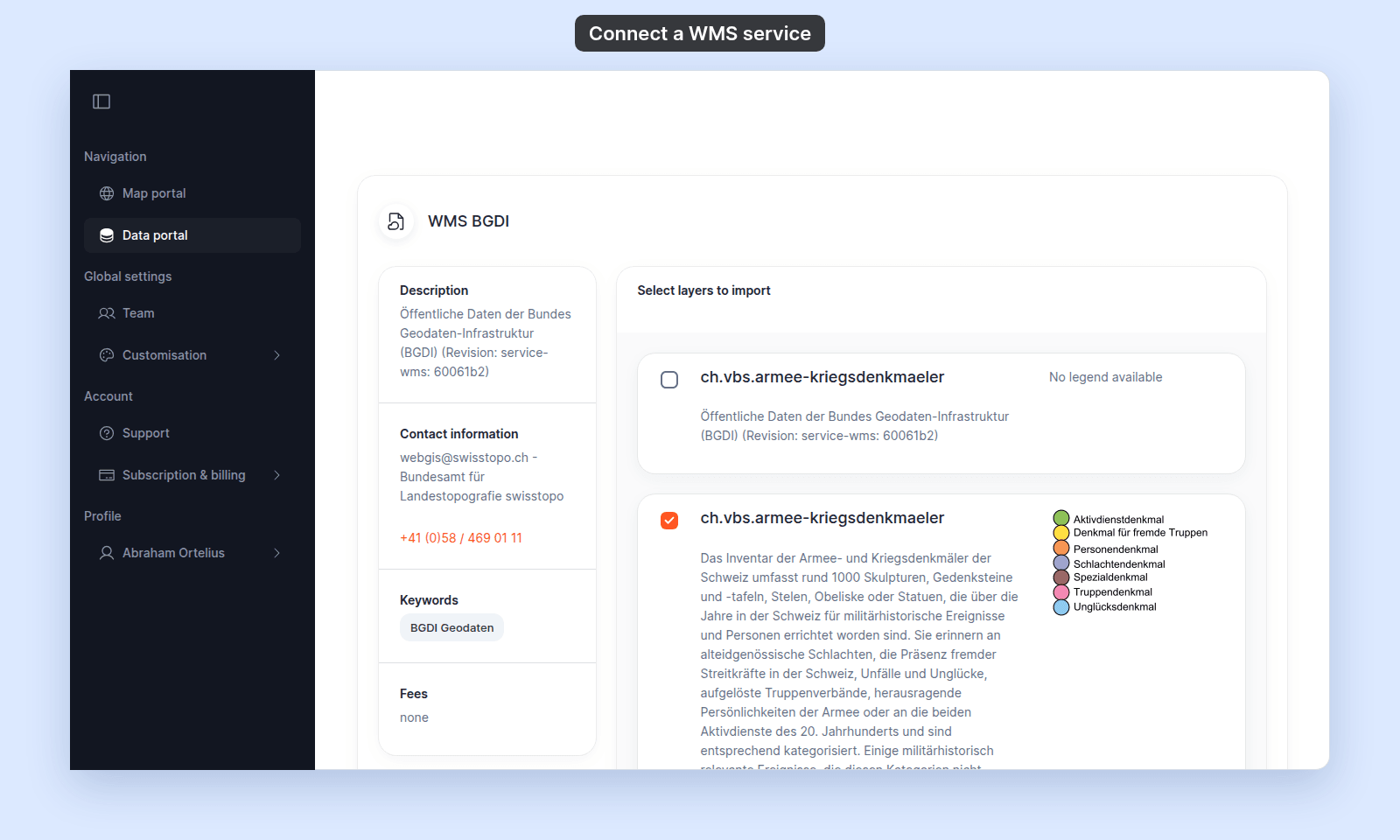
When you’ve chosen at least one layer, click import layers at the bottom of the page. A long service can list hundreds of layers; use your browser’s find (Ctrl+F or ⌘F) to go to a layer by name.
MangoMap creates a dataset (and, if you started from a map, a layer) for each selected WMS layer. Because the provider hosts the data, no upload progress bar appears.
How WMS layers behave differently from uploads
Compare where the data lives for an uploaded file and for a WMS layer:
- They live on the source server. MangoMap keeps only the URL, not a copy of the data. If the provider goes offline or rate-limits requests, the layer stops loading.
- They render as images, not features. You can’t click features for attributes, filter by value, or restyle individual points/polygons. Visual styling comes from the WMS itself.
- Performance depends on the provider. A slow WMS makes a slow MangoMap layer.
If you need clickable features, restyling, or offline-resilient maps, download the data and import it as a vector file (shapefile, GeoJSON) instead.
Troubleshooting
Only HTTPS URLs are supported. Your URL starts with http://. Most public WMS services support HTTPS — try replacing the scheme. If the provider only offers HTTP, you cannot import it.
“An error occurred while fetching or parsing the WMS data”. Several causes — see WMS connection failed.
The layer connects but nothing draws on the map. Often a coordinate-system mismatch. Many WMS services support EPSG:3857 (Web Mercator) directly; older services may not support it, and the layer will not draw. Confirm in the GetCapabilities response that the layer supports EPSG:3857.