

CSV missing longitude or latitude column
Fix the error that says your CSV is missing a longitude or latitude column. Rename the header to a recognised name and upload the file again.
If import reports a missing longitude or latitude column, the header row has no recognised coordinate name. Rename the column and upload the file again.
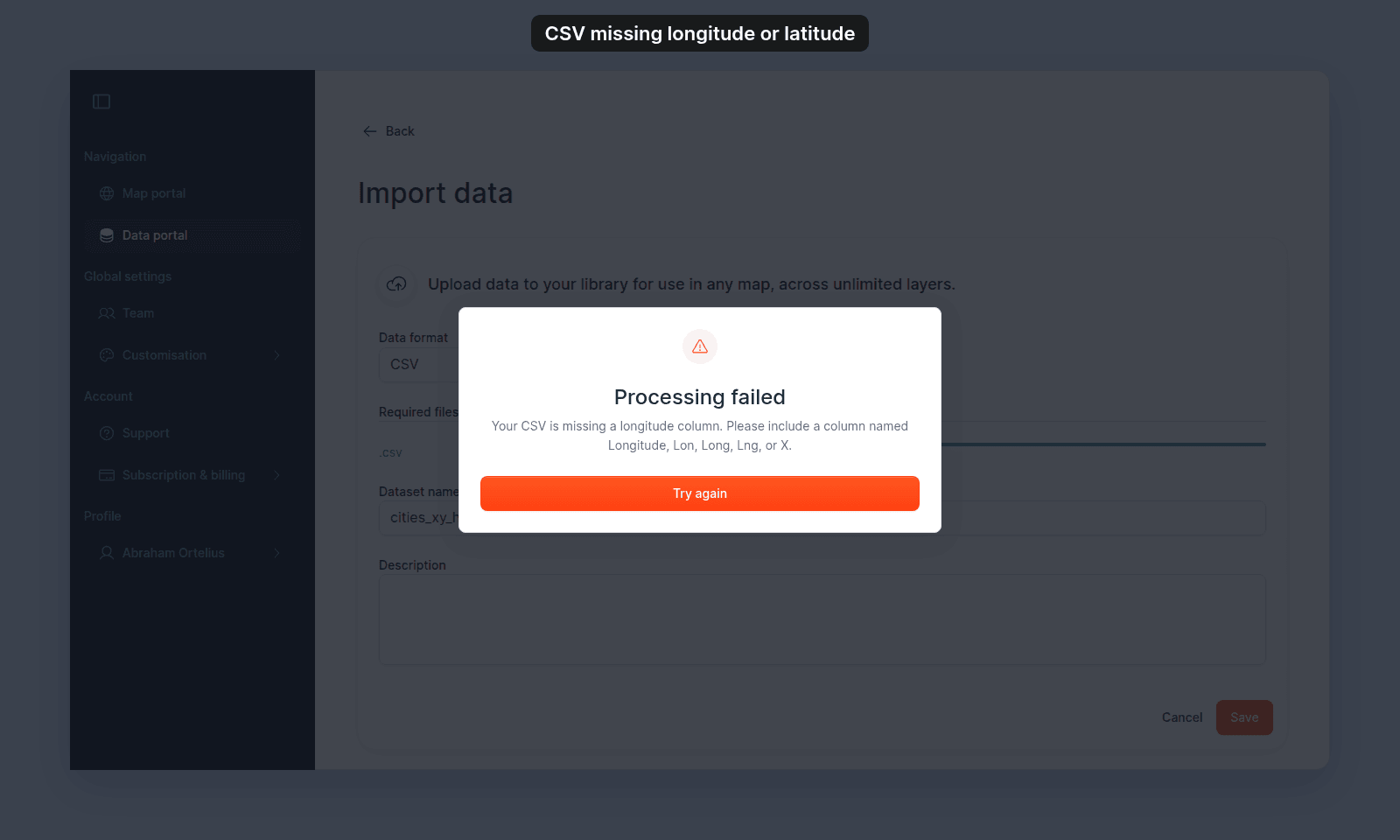
The error appears after you click Save, in the Processing failed dialog. The message names the column that is missing:
Your CSV is missing a longitude column. Please include a column named Longitude, Lon, Long, Lng, or X.Your CSV is missing a latitude column. Please include a column named Latitude, Lat, or Y.
Most likely cause: header name not recognised
MangoMap auto-detects the geometry columns by header name (case-insensitive). The error appears when the header row contains no column matching either list:
| Coordinate | Accepted column names |
|---|---|
| Longitude | Longitude, Lon, Long, Lng, X, Longtitude |
| Latitude | Latitude, Lat, Y |
Any other name — xcoord, lng_dd, easting, gps_x, etc. — won’t be detected.
How to verify.
Open the CSV and look at the first row. If the longitude/latitude columns are named anything other than the values above, that’s the cause.
Fix.
Open the file in a spreadsheet, rename the columns in the first row to one of the recognised names, save as CSV UTF-8, and re-upload. The simplest pair to use is Longitude and Latitude.
If you have many CSVs, a one-line script can rename headers in bulk — for example, in a terminal:
$ sed -i '1s/xcoord/Longitude/; 1s/ycoord/Latitude/' *.csvLess common: header row is on the wrong line
Some CSVs include a title or blank rows above the actual headers. MangoMap always reads the first line as the header. A title line gives this error. A blank first line gives The CSV file is empty or has no header row. Please add column headers and try again.
Fix.
Delete any rows above the real header so it sits on line 1.
Less common: addresses, not coordinates
If your CSV has Address and City columns but no longitude/latitude, this error is correct — there’s nothing to geocode against. MangoMap does not perform address geocoding during import.
Fix.
Geocode the addresses to longitude/latitude in another tool first, then re-upload. See How to import a CSV for the import flow once you have coordinates.
If none of the above
If the header names look correct but the error persists, check the file’s encoding. A UTF-16 file (Excel Unicode Text) gives this error even when the columns are named correctly. Save the file as CSV UTF-8 from a spreadsheet (Excel: Save As → CSV UTF-8 (comma delimited)). See CSV contains invalid characters.