

How to import a CSV
Turn a UTF-8 CSV with longitude and latitude columns into a point layer, one feature per row. The import does not geocode addresses.
MangoMap turns a UTF-8 CSV into a point layer, with one feature per row, when it includes longitude and latitude columns. The import does not geocode addresses, so the CSV must contain coordinates.
Before you start
- You need an account role of
Adminor above to import data. - The file must use UTF-8. MangoMap converts Windows-1252 files, but other encodings such as UTF-16 or ISO-8859 may cause an invalid-character error.
- The file must include a longitude column and a latitude column with one of the recognised header names below.
- The file must be 5 GB or smaller.
Recognised column headers
MangoMap auto-detects the geometry columns from the header row. Header matching is case-insensitive.
| Coordinate | Accepted column names |
|---|---|
| Longitude | Longitude, Lon, Long, Lng, X, Longtitude (common typo) |
| Latitude | Latitude, Lat, Y |
The two coordinate columns become each point’s location and are not kept as attributes. To keep them in the data table and popups, add a copy of each column with another name before you import. See CSV coordinate columns.
Any other column becomes an attribute on the resulting point feature.
Open the import page
From the Data page, click Import data. Or, from a map, open Manage layers and click Import new data to import directly into that map.
Pick the format
In the Data format dropdown, select CSV. The Required files list changes to one row: .csv.
Add the file
Click Upload files and select your CSV, or drag it onto the page. Wait until the progress bar next to the file name is full and green.
Name the dataset and save
When the file is uploaded, the Dataset name and Description fields appear. MangoMap fills in the name from the file name. Change it if you want, and add a description if you want one.
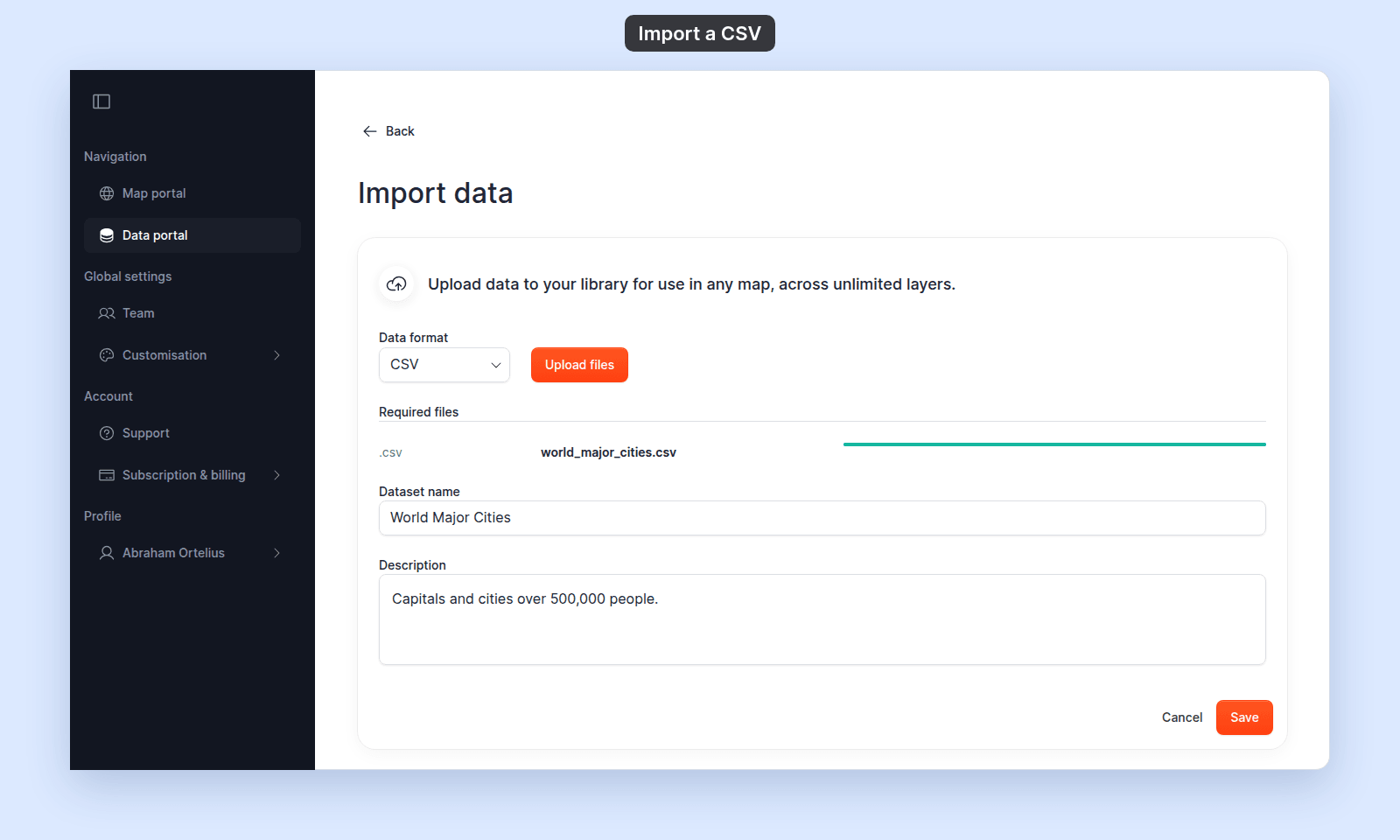
Click Save. A Processing data… dialog appears while MangoMap reads your file. If a column is missing, the dialog changes to Processing failed and shows the error message. When processing finishes, you land on the dataset page (or back on the map).
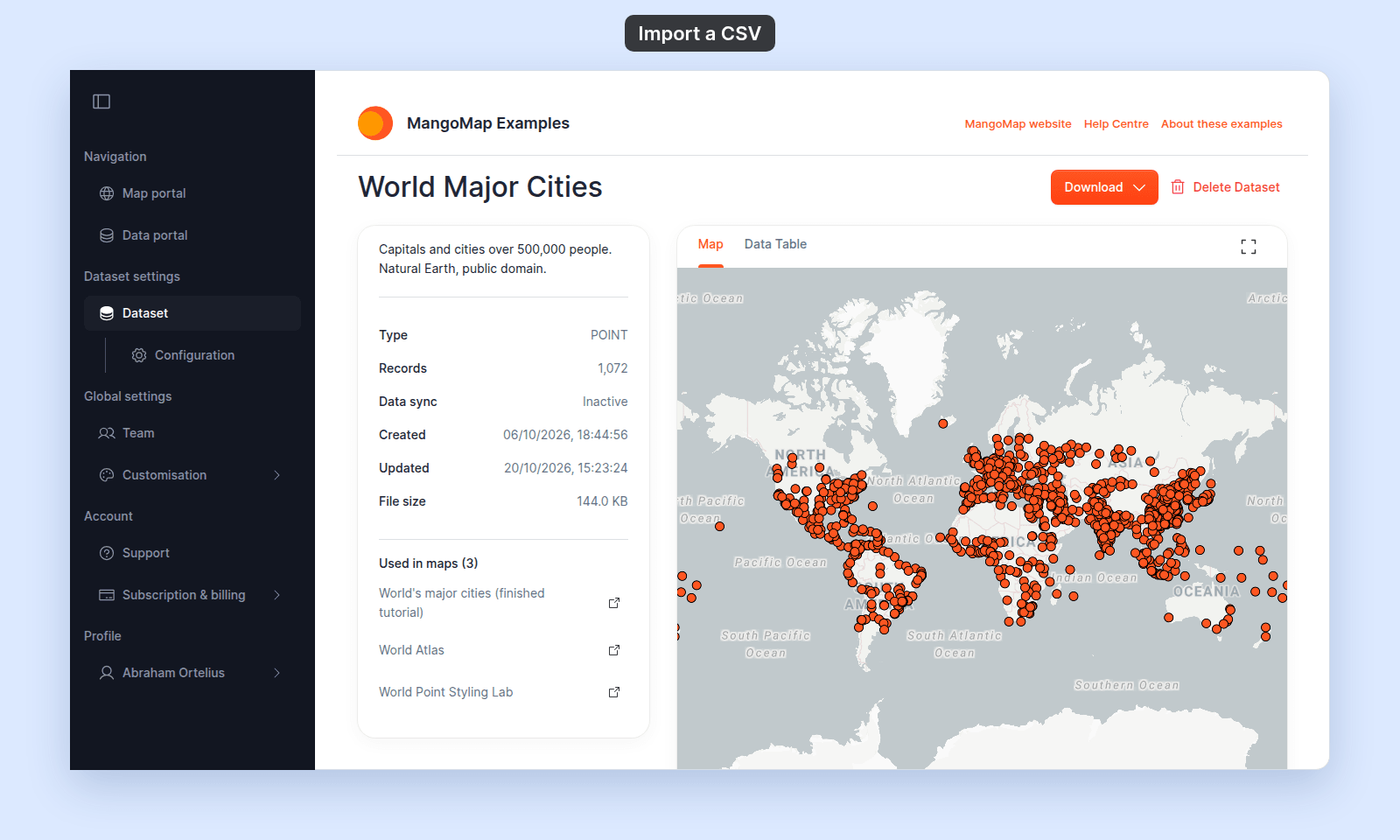
Check the result. The Type is POINT, Records is the number of rows in your file, and the map shows one point for each row.
If your CSV uses a different header name
MangoMap recognises specific header names — see the table above. If your file uses something else (for example, xcoord/ycoord), rename those columns to a recognised pair before uploading. The simplest fix is in a spreadsheet: open the file, edit the header row, save as CSV (UTF-8).
If your CSV uses a different delimiter
Files separated by semicolons or tabs are not recognised as CSV. Re-save the file with comma separators before uploading. In Excel, use Save As → CSV UTF-8 (comma delimited).
If your data has addresses, not coordinates
The Import data flow does not geocode. Convert addresses to longitude/latitude in another tool first (the Geocoding by Awesome Table add-on for Google Sheets is a common option), then upload the result.
Troubleshooting
“Your CSV is missing a longitude column” or “Your CSV is missing a latitude column”. Your header row doesn’t contain a recognised name. Rename the column to one of the values in the table above and re-upload. See CSV missing longitude or latitude column.
“The CSV file contains invalid characters. Please save it as UTF-8 and try again.” The file is in an encoding MangoMap can’t auto-convert. Re-save it as UTF-8. See CSV contains invalid characters.
“The CSV file is empty or has no header row. Please add column headers and try again.” Your file has no usable header. Add a header row as the first line and re-upload.
A column you expected to be numeric ended up as text. MangoMap infers types from the data. A column with any non-numeric value (including ones formatted with currency symbols or commas) becomes a text column. Strip formatting from numeric columns before upload.
Storage limit reached. Your account has run out of storage. See Storage limit reached when importing.