

How to import an Esri File Geodatabase
Import an Esri File Geodatabase as a .gdb.zip archive with the .gdb directory at the top level. Learn what to do with multiple feature classes.
Import an Esri File Geodatabase as an archive named something.gdb.zip. Keep the .gdb directory as the top-level entry in the archive. MangoMap does not detect a plain .zip of the directory contents.
Before you start
- You need an account role of
Adminor above to import data. - The uploaded file must be named
something.gdb.zip— the double extension is required. - The archive must contain the entire
.gdbdirectory and its contents. - The archive must be 5 GB or smaller.
How to zip a .gdb directory
A File Geodatabase appears in the file system as a folder named like roads.gdb containing many small files. To prepare it for upload:
-
macOS / Linux: in a terminal, run:
$ zip -r roads.gdb.zip roads.gdb -
Windows: right-click the
.gdbfolder, chooseSend to → Compressed (zipped) folder, then rename the resulting.zipto.gdb.zip.
Confirm that opening the archive shows the roads.gdb folder at the top level — not its contents loose.
Open the import page
From the Data page, click Import data. Or, from a map, open Manage layers and click Import new data to import directly into that map.
Pick the format and upload
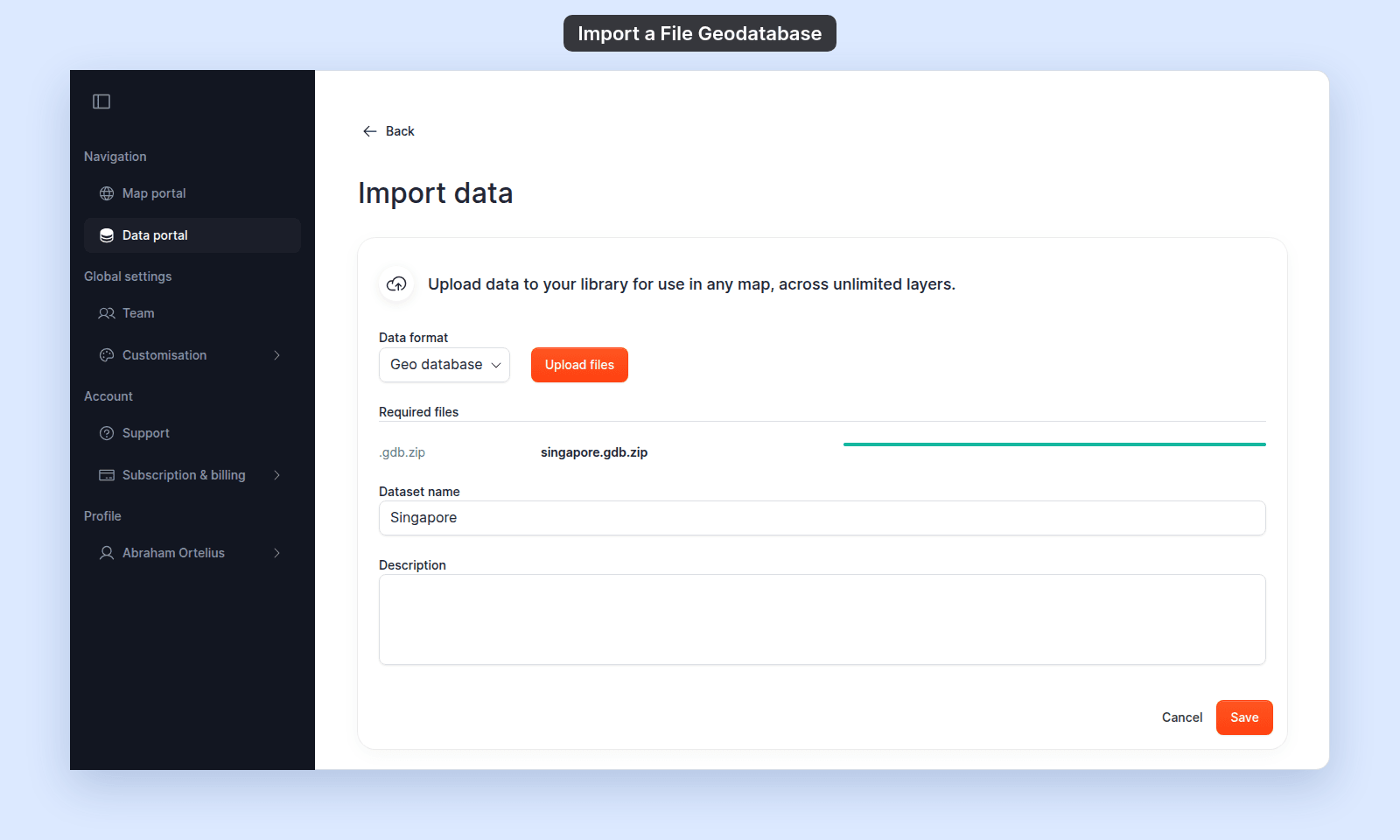
In the Data format dropdown, select Geo database. Click Upload files and select your .gdb.zip archive, or drag it onto the page. Wait until the progress bar is full and green.
Name the dataset and save
- Enter a
Dataset name. It is required, and MangoMap fills it in from the archive name. - Optionally add a
Description.
Click Save. A Processing data… dialog appears while MangoMap reads the geodatabase. Geodatabases are larger than most other formats, so processing may take longer.
If your geodatabase contains multiple feature classes
A single .gdb can hold many feature classes. MangoMap creates a separate dataset for each valid feature class in the archive — they all land in your library after the import completes. Large geodatabases can take longer to import. If you need only some feature classes, export them as shapefiles or GeoJSON first.
Troubleshooting
The upload is rejected with This data type is not currently supported. The file is named .zip, not .gdb.zip. Rename the archive so the full extension is .gdb.zip.
Processing fails with Unsupported coordinate system. A feature class inside the geodatabase declares a projection MangoMap can’t reproject from. Export the feature class to shapefile or GeoJSON, reproject to EPSG:4326, and re-import. See Unsupported coordinate system.
Storage limit reached. Your account has run out of storage. Geodatabases tend to be large; see Storage limit reached when importing.