

Shapefile upload says "File missing"
Fix a shapefile upload that shows File missing. Add the missing .shp, .shx, .dbf, or .prj file so the Save button turns on.
If a shapefile row shows File missing, MangoMap has not received that extension. Add the missing file to clear the alert. Until you do, 4 files are required shows under Required files and Save stays off.
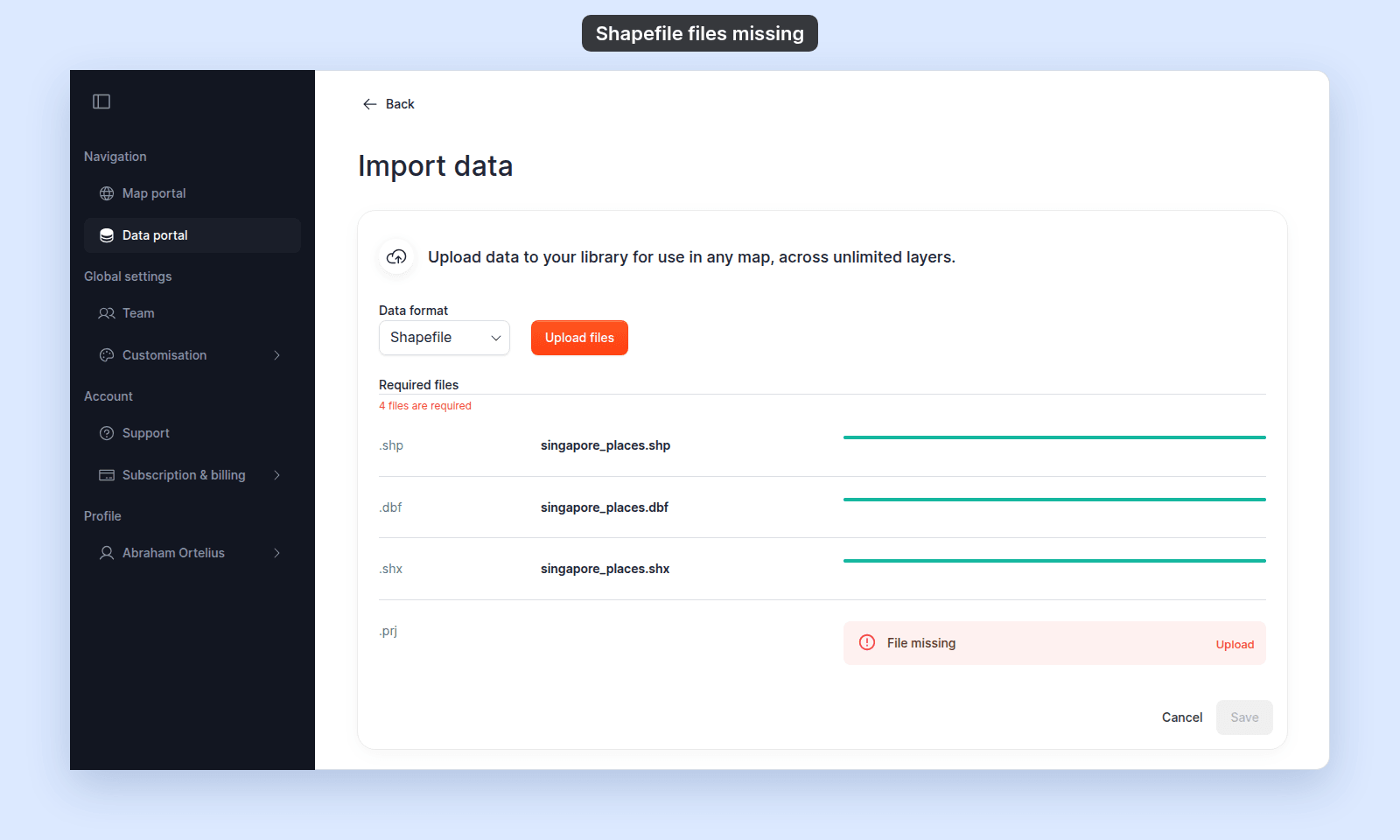
Most likely cause: one of the four files wasn’t included in the selection
A shapefile is four files: .shp, .shx, .dbf, .prj. MangoMap matches each uploaded file to its slot by extension. The most common cause is that the file picker included only some of the four files.
How to verify.
The row showing File missing names the missing extension. Check your source folder for a file with that extension.
Fix.
Click the Upload button on the File missing row to open the file picker again, and select the missing file.
Less common: filename has a hidden second extension
On macOS and Windows, file extensions are often hidden by default. A file that looks like roads may actually be named roads.shp.txt. MangoMap matches extensions on the literal filename, so a hidden extension confuses the match.
How to verify.
- macOS:
Finder → Settings → Advanced → Show all filename extensions. - Windows: in File Explorer,
View → Show → File name extensions.
If the file’s actual name doesn’t end in .shp, .shx, .dbf, or .prj, that’s the cause.
Fix.
Rename the file so it ends in the correct extension.
Less common: the source file truly doesn’t exist
Sometimes the source tool didn’t export all four files. The .prj is the most common one to be missing — older shapefile exports skip it.
How to verify.
Look in the source folder. If only three files are present, the missing file was never created.
Fix.
- No
.prj: open the shapefile in QGIS (Layer → Add Vector Layer), set the layer’s CRS, and re-export withLayer → Export → Save Features As → ESRI Shapefile. The new export will include a.prj. - No
.shx: regenerate the index withogrinfo -ro -al -so input.shp. GDAL automatically creates a.shxwhen reading a.shpwithout one (provided you have write access to the folder). - No
.dbf: the shapefile cannot be used without it. The dataset has no attribute table; re-export from the source tool.
If none of the above
Try uploading from a different browser, clearing the page, and selecting all four files at once. If the alert still appears, contact support with a directory listing showing the four file names.