

Storage limit reached when importing
Fix the Storage limit reached message when you import data. Delete unused data, upgrade your plan, or add storage in 50 GB steps.
If choosing a file on the Import data page opens a storage dialog, or an import fails with Storage limit reached., your account has reached its storage allowance. Delete unused data, upgrade your plan, or add storage in 50 GB steps, depending on your plan.
Most likely cause: you’ve used your full plan allowance
MangoMap checks your storage when you choose a file, before the upload starts. If the file does not fit in the space you have left, nothing is uploaded and a dialog opens. On Enterprise, it looks like this:
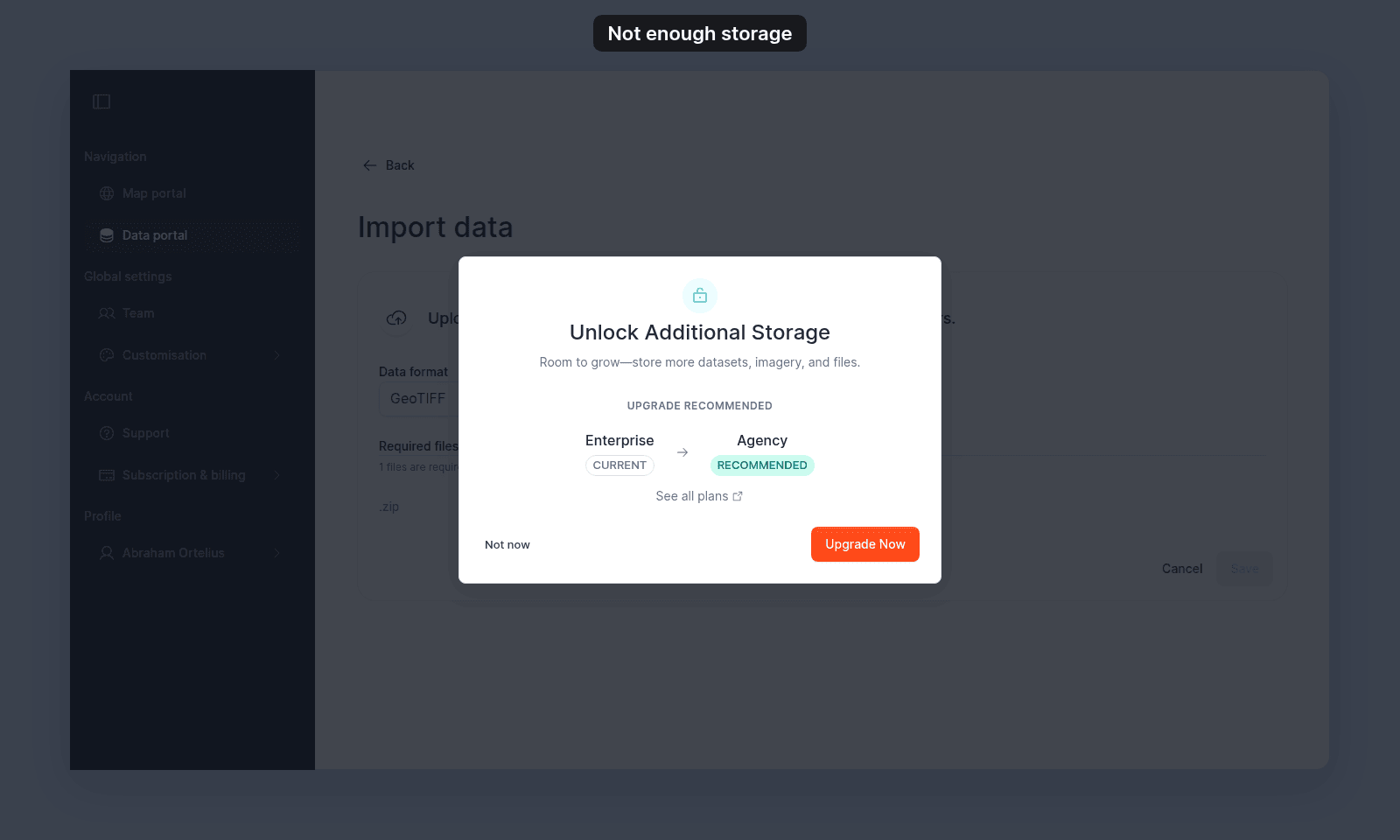
On Business, the dialog is titled Need more space? and shows your current usage and limit in GB.
Storage allowances by plan:
| Storage included | |
|---|---|
Business |
4 GB |
Enterprise |
8 GB |
Agency |
16 GB |
Fix.
Pick whichever applies to your plan:
Businessplan. Storage add-ons are not available on this plan. To get more storage, upgrade toEnterprise.Upgrade Nowin the dialog opens the subscription page withEnterprisepre-selected.Enterpriseplan. You can either upgrade toAgencyor buy a 50 GB storage add-on.Upgrade Nowin the dialog opens the subscription page withAgencypre-selected. To buy the add-on instead, add storage on that same subscription page.Agencyplan. Buy a 50 GB storage add-on.Upgrade Nowin the dialog opens the subscription page with the add-on pre-selected.
Less common: a single dataset is much larger than expected
If your usage jumped unexpectedly, a recent vector upload may take more space than its source file after MangoMap imports it. A raster counts at the size of the file you uploaded.
Fix.
Open the Data portal, sort by size, and review the largest datasets. Delete any you no longer need; the storage is freed immediately and you can retry the import.
Less common: the import fails with Storage limit reached.
The import stops with Storage limit reached. if your account is already over its allowance. You may have hit the limit on a previous import that completed in the background.
Fix.
Check the Data portal for any datasets created very recently. If your account is genuinely full, follow the plan-specific path above.
If none of the above
Contact support with the file you tried to import and your plan, so the team can check your storage usage against your allowance.