

How to hide a layer from the legend
Remove a layer's toggle from the legend viewers see while the layer still draws on the map. Use Hide from Legend on a layer or a whole folder.
Hiding a layer from the legend keeps it drawing on the map but removes its toggle from the legend list viewers see — useful for always-on context layers (project boundary, watermark) or for locking viewers out of toggling a key data layer off. The legend setting is independent of the visibility eye, so the two combine into four states (visible / in-legend, visible / hidden-from-legend, hidden / in-legend, hidden / hidden-from-legend); folders have the same option and hide every layer inside the legend at once.
Before you start
- The map must already have the layer. See How to add a layer from your data library if it’s empty.
- You need edit access to the map.
- Decide what you want viewers to control. Hiding a layer from the legend takes the toggle out of viewers’ hands; if they should be able to switch the layer on or off themselves, leave it in the legend.
Open the layer panel
From the map toolbar, open Manage Layers to bring up the layer panel.
Toggle the layer’s legend visibility
Hover the layer’s row in the panel and click its More actions button (three dots).
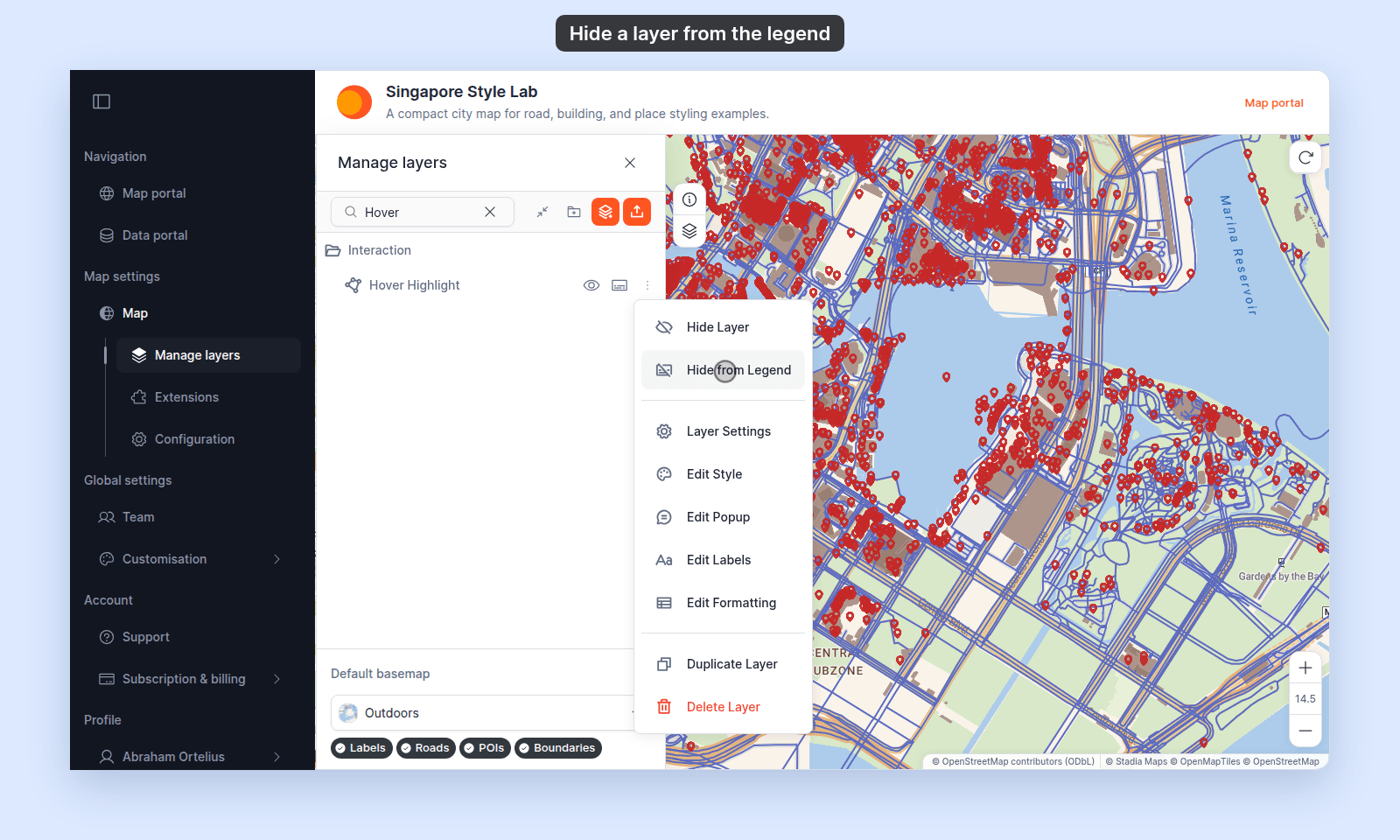
Pick one of:
Hide from Legend— the layer disappears from the legend on the live map. It still draws if its visibility eye is on; it doesn’t appear in the legend’s toggle list.Show in Legend— the layer appears in the legend (this is the default for new layers).
The change saves immediately. There’s no separate save step. A layer that is hidden from the legend keeps a crossed-out legend icon on its row.
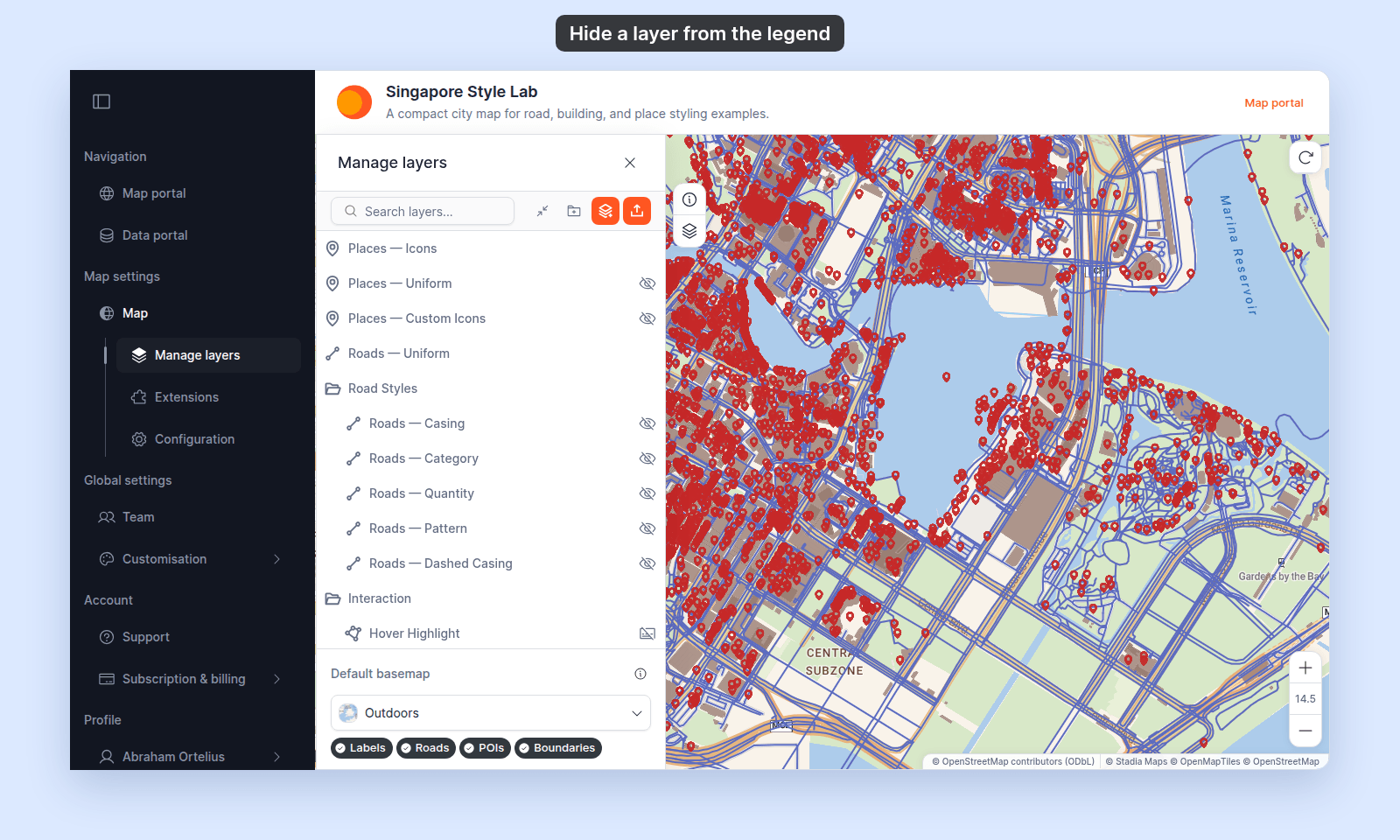
Hide a whole folder from the legend
Folders have the same option. In a folder’s More actions menu, pick Hide from Legend to remove the entire folder — and every layer inside — from the legend at once.
This is useful for groups of background layers (basemap-style overlays, reference grids, hidden detail layers) that should be present on the map but invisible to viewers as toggleable items.
How the four combinations work
The two settings are independent. Here’s what each combination does:
| Visible | In Legend | Result for viewers |
|---|---|---|
| On | On | Layer draws on the map. Toggle appears in the legend, set to On. Viewers can hide it. |
| On | Off | Layer draws on the map. No toggle in the legend. Viewers cannot hide it. |
| Off | On | Layer doesn’t draw. Toggle appears in the legend, set to Off. Viewers can switch it on. |
| Off | Off | Layer doesn’t draw. No toggle in the legend. Viewers can’t see or switch the layer. |
The “Off + Off” combination is a hard hide — viewers don’t see the layer or any way to enable it. Useful for staging layers you’ve added to the map but aren’t ready to expose yet.
The “On + Off” combination is the always-on overlay pattern — the layer is always part of the map’s appearance, and viewers can’t turn it off. Useful for boundary lines, watermark overlays, or contextual layers that are part of the design.
Common patterns
- Always-on context layer (visible: On, in legend: Off) — a country boundary, a project area outline, a watermark. Viewers always see it; viewers can’t toggle it.
- Staged-but-hidden (visible: Off, in legend: Off) — a layer you’ve added but haven’t finished setting up. Hidden from viewers entirely until you switch both back on.
- Toggleable detail (visible: Off, in legend: On) — additional context viewers can opt into. The legend toggle invites them to explore.
Verify by viewing the map
Open the map in a fresh tab (or sign out and view as a viewer would). Check the legend:
- Layers and folders with
Show in Legendappear as toggle items. - Layers and folders with
Hide from Legenddon’t appear at all — even if they’re drawn on the map.
Related
- How to set which layers show when the map first loads — the related but distinct
visibletoggle. - How the layer panel works in MangoMap — explains the panel-vs-legend visibility model.
- Layer panel controls
- How to organise layers into folders