

How to set which layers show when the map first loads
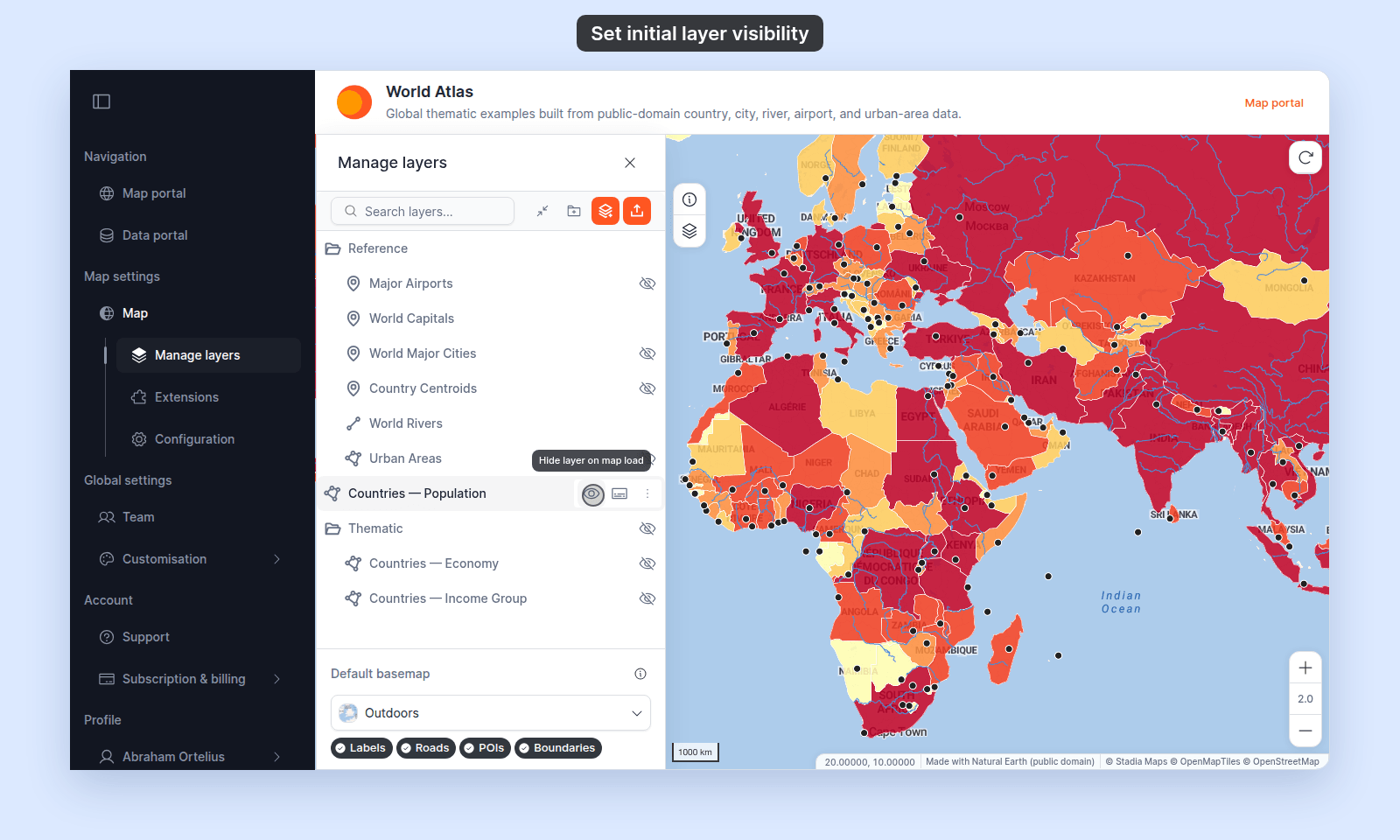
Use the eye icon in the layer panel to choose which layers viewers see when the map first loads. It saves at once, and viewers can still turn layers on.
Set a layer’s default visibility by toggling its eye in the layer panel. Viewers see the saved state when they first open the map. The toggle saves automatically — no separate confirmation.
See it on an example map
Open the World Atlas. Countries — Population, World Capitals, and World Rivers are on when the map opens. The Thematic folder and its layers are off until you turn them on in the legend.
Before you start
- The map must already have layers. See How to add a layer from your data library or How to add a layer by importing data if it’s empty.
- You need edit access to the map.
- Decide which layers should appear immediately and which should be off-by-default. A common pattern is to show the main data and hide reference or detail layers. Viewers can turn them on later.
Open the layer panel
From the map toolbar, open Manage Layers to bring up the layer panel.
Toggle the visibility eye
Each layer row has an eye icon on the right. Click it to toggle the layer’s visibility:
- Eye icon (open) → layer is visible by default. Viewers see it on map load.
- Eye-with-slash icon (closed) → layer is hidden by default. Viewers see it as off in the legend; they can turn it on themselves.
Toggle visibility for every layer in a folder
If you have layers organised into folders, the folder’s eye icon toggles every layer inside at once. Useful for hiding or showing a whole category of layers in one click.
Verify the default
Open the map in a fresh tab (or sign out and view the map as a viewer would). The visible layers should match what you saved. If a layer that should be visible isn’t showing, double-check the layer panel’s eye state — the saved value is what loads.
The session vs. saved distinction
The legend’s eye changes the view for the current viewer only. To change the default, use the eye in the layer panel.
Hiding a layer from the legend entirely
The visibility eye decides whether a layer draws by default. A separate setting decides whether the layer appears in the legend — and therefore whether viewers can toggle it themselves. The two are independent: you can have a layer that draws but isn’t toggleable, or a hidden layer that doesn’t appear in the legend list at all.
To hide a layer (or folder) from the legend, open its More actions menu (three dots) in the layer panel and pick Hide from Legend. See How to hide a layer from the legend for the full set of combinations and when each one fits.
Recommended patterns
A few patterns for common map types:
- Map for a quick overview: show 2–3 headline layers, hide the rest. Viewers see the story immediately and can drill in by toggling.
- Map as a reference tool: hide most layers by default. Viewers turn on what they need.
- Map for one specific story: show only the layer the map’s main subject. Hide context layers behind a folder that viewers can expand if curious.
- Map for a presentation: visible should match what you’ll talk about. Anything else stays off.
If a layer is visible in the panel but doesn’t appear on the map
Three common causes:
- Style hides every feature. A
Quantitystyle with no class breaks may render every feature transparent. Open the layer settings panel’sStyletab. - Zoom range hides the layer. A layer can be set to appear only at certain zoom levels. Zoom in and out to check, or see How to set the zoom range a layer is visible at.
- Empty geometry. The dataset has no features in the current map view. Pan to where the data should be.