

How to adjust raster or WMS layer opacity
Set how see-through a raster or WMS layer is with the opacity slider on the Style tab. Click Save Style to apply it. It is the only style control.
Open the raster or WMS layer’s Style tab, set the opacity, and click Save Style. Lower opacity lets the basemap show through.
See it on an example map
Open the Interlaken Raster Lab. In the legend, turn on Land Cover. The land cover colours are semi-transparent, so the aerial photos show through them.
Opacity is the only style control raster and WMS layers expose. Colour, classification, fill patterns, and outlines aren’t applicable — the source provides their colours and shapes.
Before you start
- You need edit access to the map.
- A raster layer (GeoTIFF / image) or a WMS layer on the map. Vector layers use a different set of controls — see the per-geometry references in Styling layers.
Open the Style tab
Click the raster or WMS layer in the layer panel to open its settings, then switch to the Style tab. The tab has an opacity slider and the layer’s Visibility zoom-range slider.
Drag the opacity slider
Drag the slider to the opacity you want, or type a percentage in the box next to it. The range is 0% (fully transparent) to 100% (fully opaque). Here, the Land Cover raster is at 70%, so the imagery below shows through it:
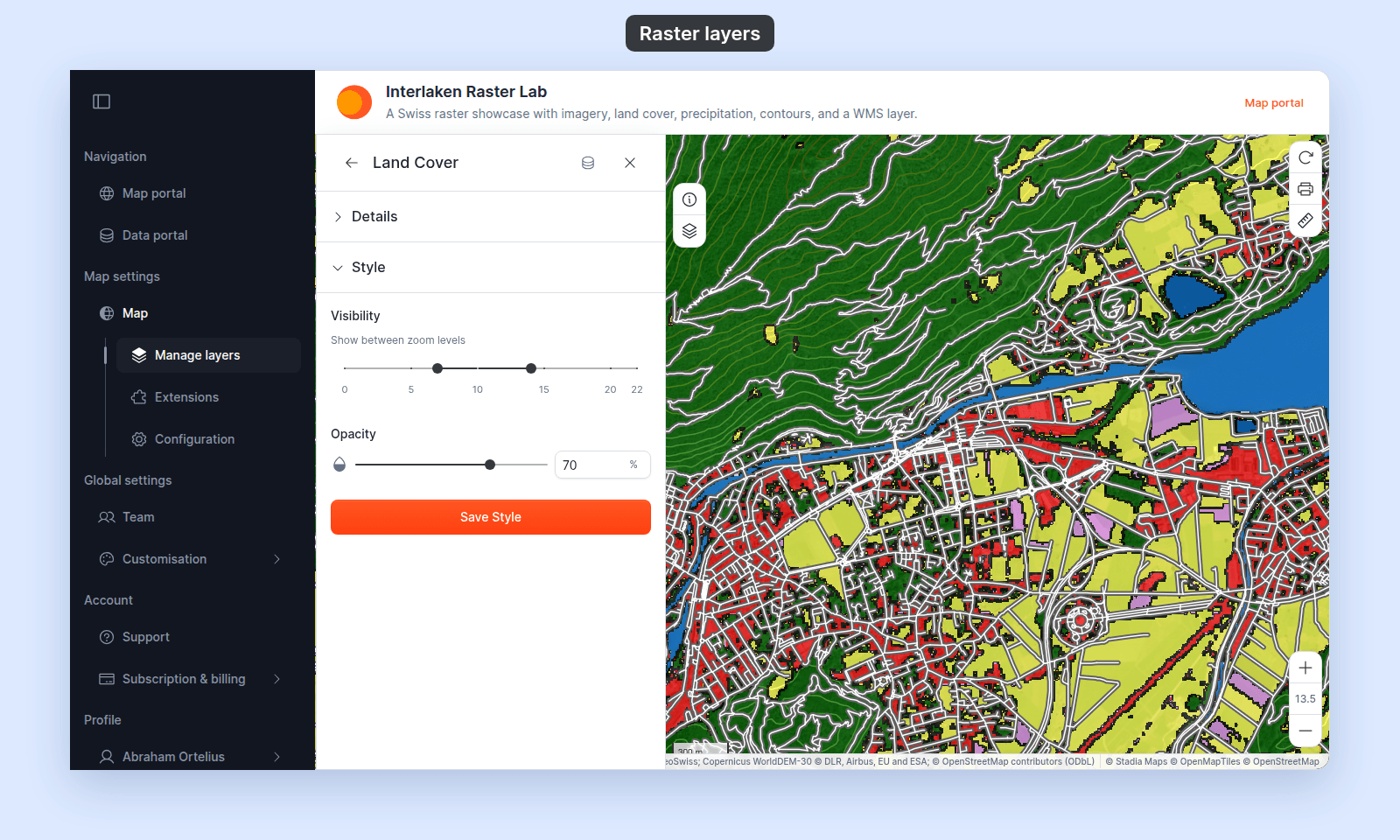
Common values:
100%— default; the raster fully covers anything underneath.70%–80%— a soft blend; basemap and raster both visible.40%–60%— strong basemap, raster as a tint.0%— invisible. The layer stays on the map (and in the legend) but renders nothing.
Hiding the layer is often clearer than setting opacity to zero — see Managing layers.
(Optional) Set the layer’s zoom visibility
The same Style tab has a Visibility slider for the zoom range the layer renders at. See How to set the zoom range a layer is visible at — the control behaves the same for raster and WMS as for vector layers.
Save
Click Save Style at the bottom of the panel.
If you close the layer settings or switch tabs without clicking Save Style, the opacity change is lost.
Verify the result
Pan or zoom the map to check the new opacity.
What this doesn’t cover
- Every raster and WMS style control — see Raster and WMS style controls.
- Vector layer styling — points, lines, polygons have their own how-tos. See the section index in Styling layers.
- Reprojecting or recolouring the raster — those happen at import or in source software (QGIS, GDAL), not in MangoMap. Re-import to change the underlying raster.
- WMS connection settings — see How to connect a WMS service for the import flow and WMS connection failed for connection issues.