

How to style line patterns and casing
Set a line layer's pattern, cap, join, and casing under More line settings on the Style tab, for example a dashed boundary or a cased route.
Line patterns (Solid, Dashed, Dotted) and a casing (a wider line drawn behind the main line) make a line layer readable on a busy basemap — pair a dark casing with a lighter line for a route style, or switch to Dashed for a boundary you want to suggest rather than assert. Open the layer’s Style tab, expand More line settings, and set Line pattern, Line cap, Line join, and the casing controls. Dashes, dots, and the gaps between them grow with the line width.
See it on an example map
Open the Singapore Style Lab. In the Road Styles folder, turn on Roads — Dashed Casing. Turn off Roads — Uniform. The roads show as yellow dashes, and each dash has a dark edge.
Before you start
- The layer must be a line layer.
- You need edit access to the map.
- Line pattern, cap, join, and casing controls live in the collapsible
More line settingssection — they apply globally to the layer (not per-feature), regardless of whether the colour driver isUniform colouror a field. - On a layer coloured by categories, each category can also have its own pattern. Picking a
Line patterninMore line settingssets every category to that pattern. To give one category its own pattern, see How to customise category and class break symbology.
Open the Style tab and expand More line settings
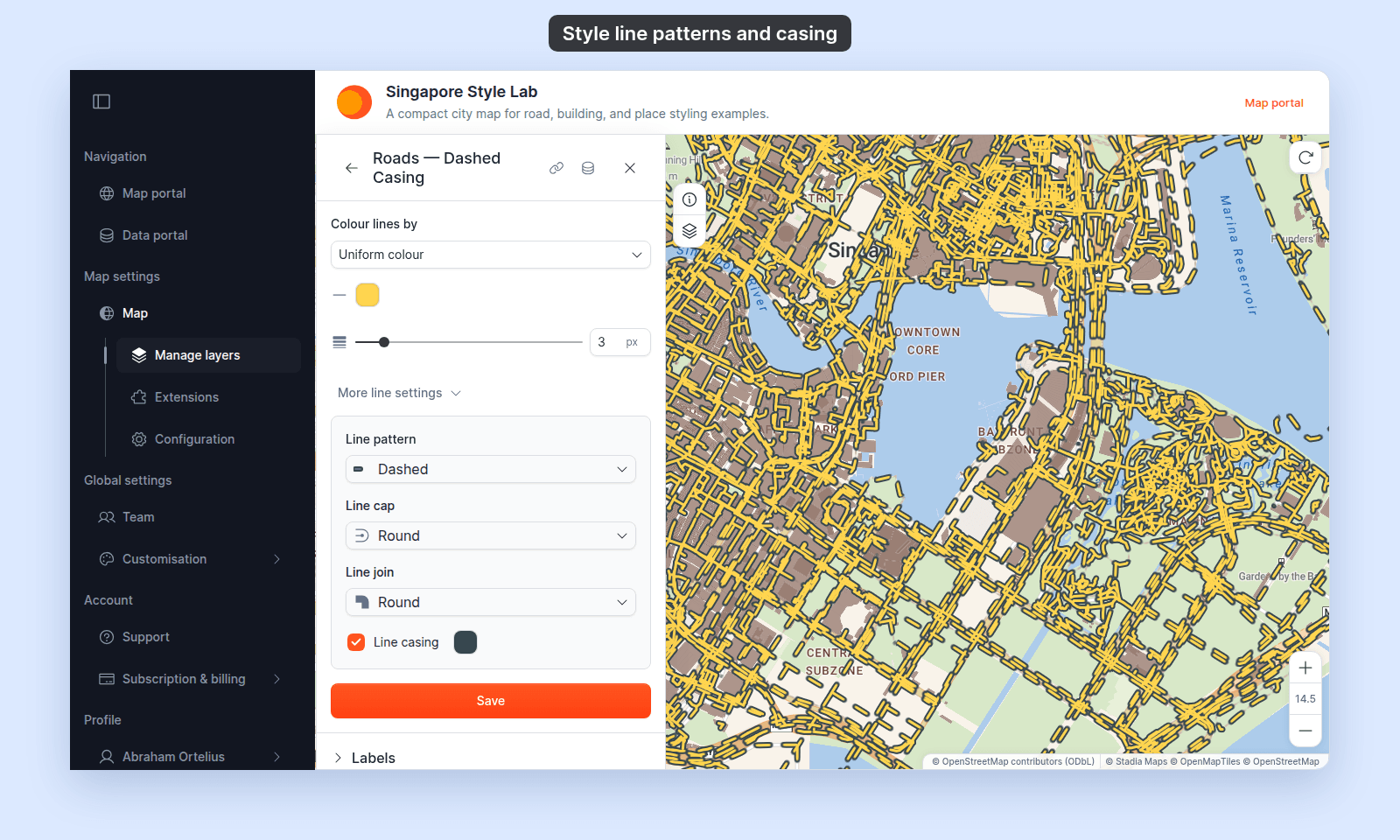
In the layer panel, select the line layer. Click the Style tab. Click More line settings to show the pattern, cap, join, and casing controls. Here they are on a dashed yellow road layer with a dark casing:
Set the line pattern
Line pattern controls the dash pattern of the main line. Pick from:
Solid— continuous line. Default.Dashed— dashed pattern.Dotted— dotted pattern.
Each choice in the list shows a preview of the pattern with your line cap and casing.
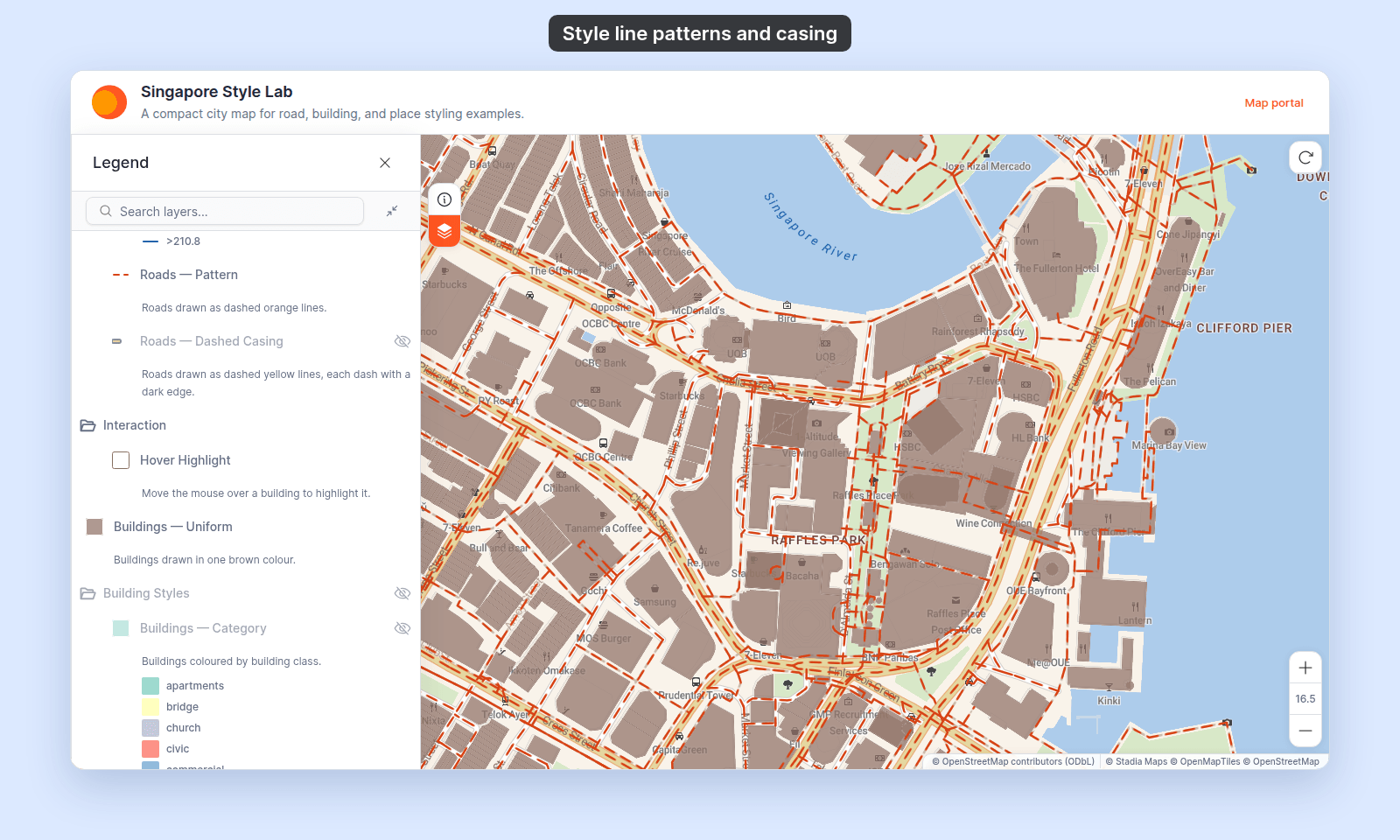
The pattern grows with the line width. Here is a Dashed road layer at 2.5 px:
Set the line cap and join
Two more dropdowns control how line endpoints and corners are drawn:
Line cap—Butt(squared at the endpoint),Round(rounded),Square(squared, extending past the endpoint by half the line width).Line join—Bevel(squared),Round(rounded),Miter(pointed).
The defaults work for most maps; change them when you want a specific aesthetic (Round cap + Round join for a softer feel; Square + Miter for a technical look).
On a Dashed or Dotted line, the cap shapes each dash or dot:
Roundgives dashes with rounded ends, and round dots.Buttgives dashes with square ends, and square dots.Squarelooks the same asButton a pattern. It extends the line ends only on aSolidline.
(Optional) Add a casing
The casing is a coloured outline drawn behind the main line, creating a contrast edge. The More line settings section has two controls:
Line casing— checkbox. Turns the casing on or off. Default: off.- Casing colour — picker, shown when casing is on. Typically the contrast colour: white on a dark line, dark on a light line. Default: black.
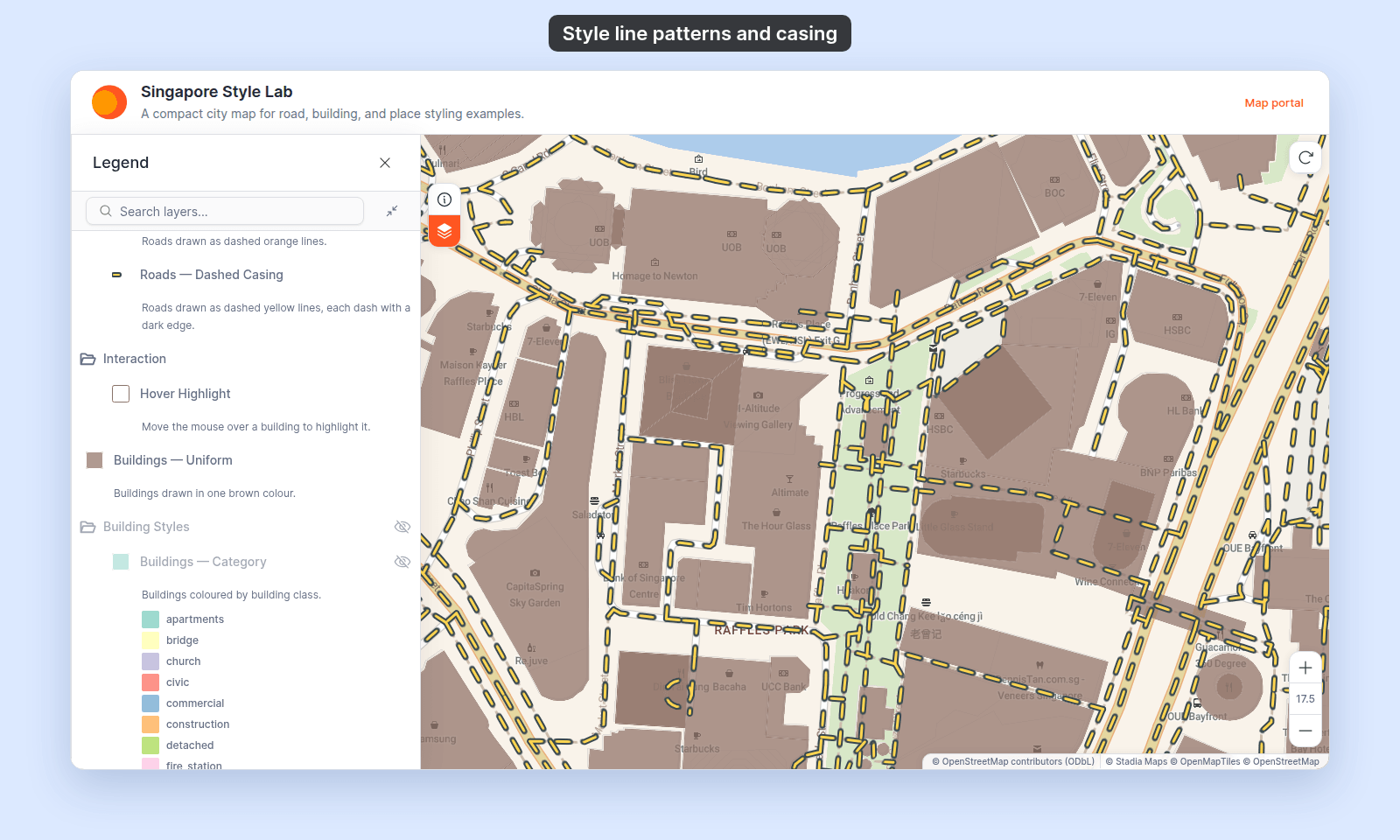
On a Dashed or Dotted line, the casing outlines each dash or dot, and the gaps stay open so the basemap shows through. Here is a 3 px Dashed yellow road layer with a dark casing:
A common route-style recipe:
Line colour#FFFFFF,Line width3,Line patternSolid.Line casingon, casing colour#000000.
That draws a white line with a black halo. Reads clearly on light, dark, or busy basemaps.
The casing is a fixed 2 px band on each side of the line, whatever the Line width — a wider line doesn’t get a proportionally thicker halo.
Save
Click Save at the bottom of the panel. The map redraws with the new pattern and casing.
Verify the result
Zoom in on the map and check the dashes or dots, their ends, and the casing. Open the legend: the layer’s swatch shows the same pattern, cap, and casing as the map. A printed map’s legend shows the pattern in the same way.