

Category and class break symbology reference
Every editable cell on a category or class break row, for point, line, and polygon layers: colour, pattern, marker, size, value, label, and visibility.
Every editable cell on a category or class break row, for point, line, and polygon layers. The rows are in the Style tab, under Customise categories or Customise Class Breaks. Each row sets the symbol for one category or class break, and the legend shows it. For a how-to walkthrough, see How to customise category and class break symbology.
Category and class break symbology is only available when the layer’s colour driver is set to a text field or a numeric field. It’s not available with the no-field option (Single colour or Uniform colour), Colour by zoom, or the Heatmap marker type.
| Point | Line | Polygon | |
|---|---|---|---|
| Colour driver | Colour markers by |
Colour lines by |
Fill polygons by |
| No-field option | Single colour |
Uniform colour |
Uniform colour |
| Row symbol settings | Marker type, fill colour, outline, marker size, rotation | Line colour, line pattern | Fill colour, fill pattern |
| Layer settings only | Size from a numeric field | Line width, casing, cap, join | Stroke, stroke colour, stroke width |
| Category reset menu | Reset all labels, Reset all symbology |
Reset colours, Reset labels |
Reset colours, Reset labels |
Common controls
These appear above the rows for every geometry.
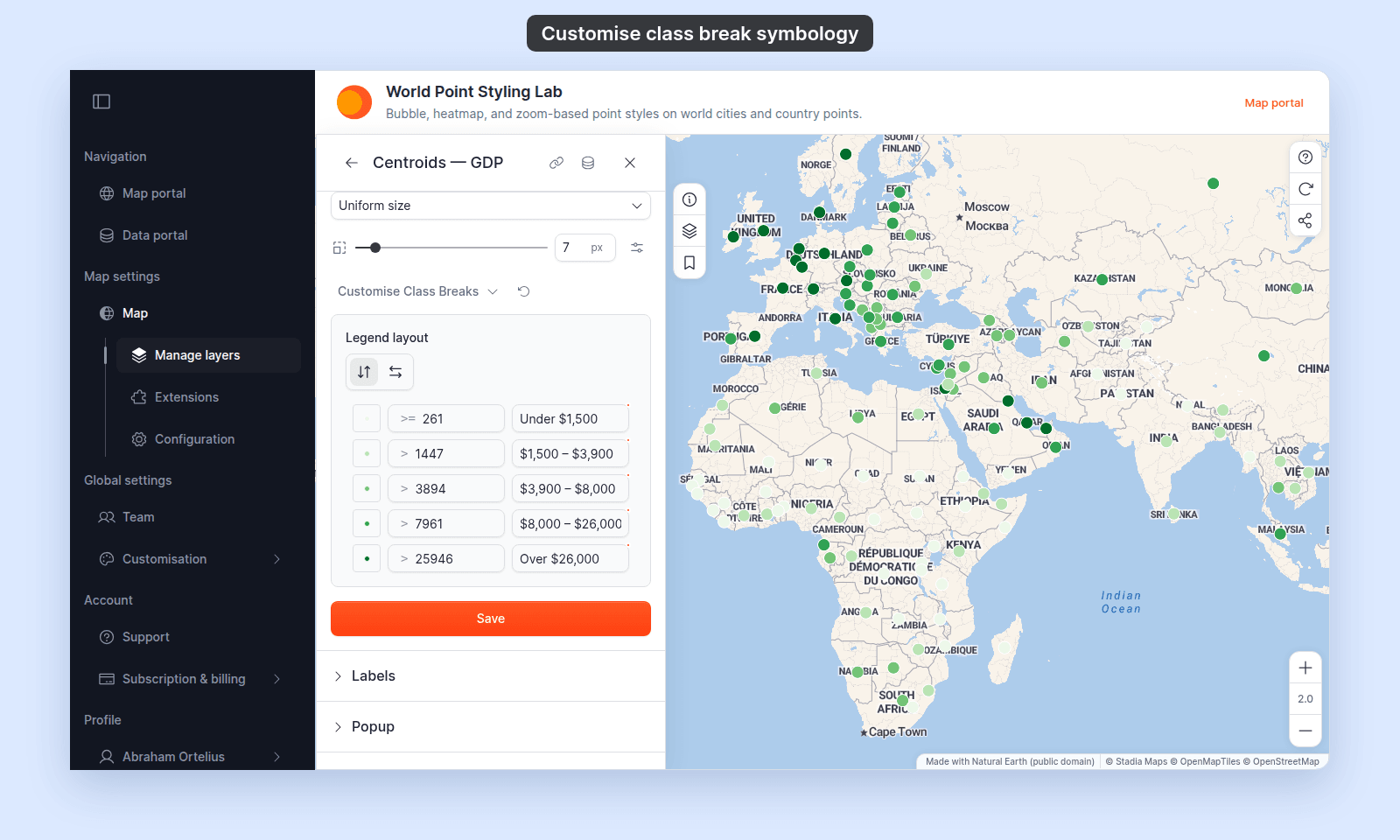
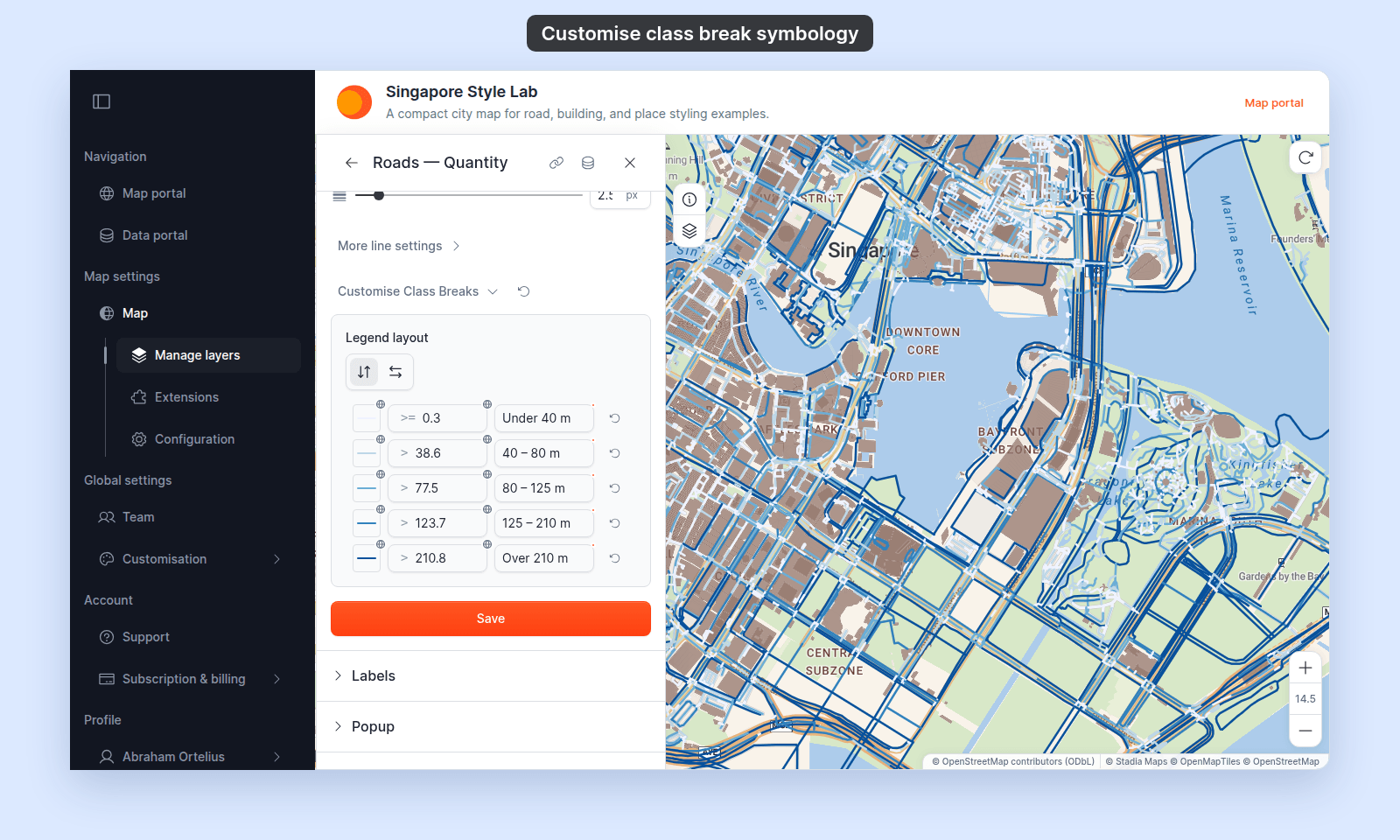
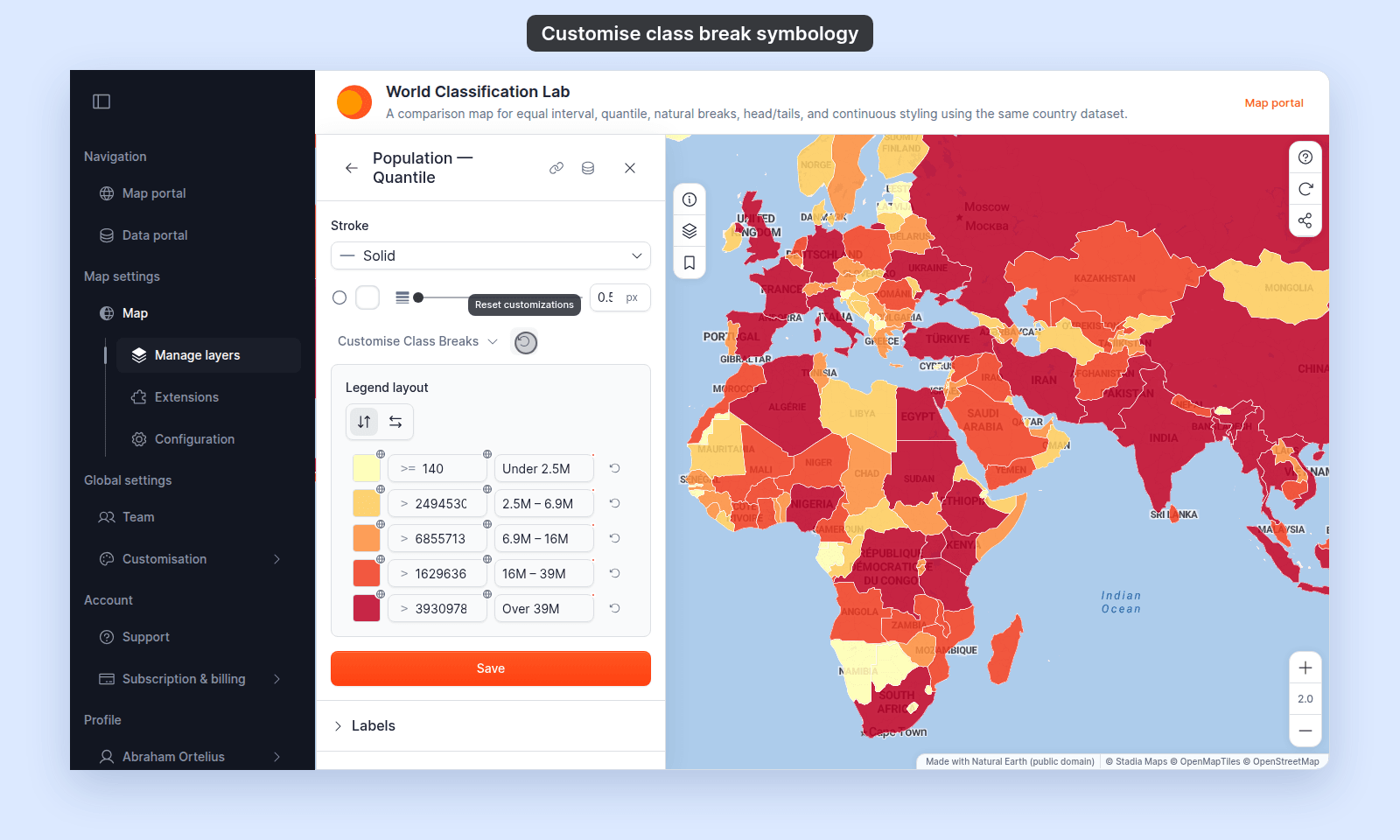
Customisation collapsible toggle
| Where | Below the colour scheme controls in the Style tab |
| Label (category style) | Customise categories: a text field, or a numeric field with Style as set to Categories |
| Label (class breaks) | Customise Class Breaks: a numeric field with Style as set to a class count |
| Toggle | Click to expand or collapse the rows |
Reset customisations
| Where | Next to the collapsible toggle, to the right of the chevron |
| Visibility | Only appears once rows in the panel have been customised |
| Label | Reset customizations (tooltip) on line, polygon, and class break panels. |
| Effect | Opens a menu of reset actions |
The menu’s actions depend on the panel and on which customisations are present:
- Line and polygon category panels:
Reset coloursandReset labels. Each asks for confirmation first. - Point category panel:
Reset all labelsandReset all symbology. Each asks for confirmation first.Reset all symbologyclears every per-row symbol change at once. - Class break panels (every geometry):
Reset rangesandReset labels, each followed by the number of customised rows. Each runs at once, with no confirmation. A colour picked in a row’s swatch doesn’t count as a customised colour for this menu. Reset it withReset to globalin the swatch settings or with the row’s reset icon.
Each action appears only when that kind of customisation exists. Each action changes only its own kind. For example, Reset colours doesn’t touch labels, values, visibility, or marker changes.
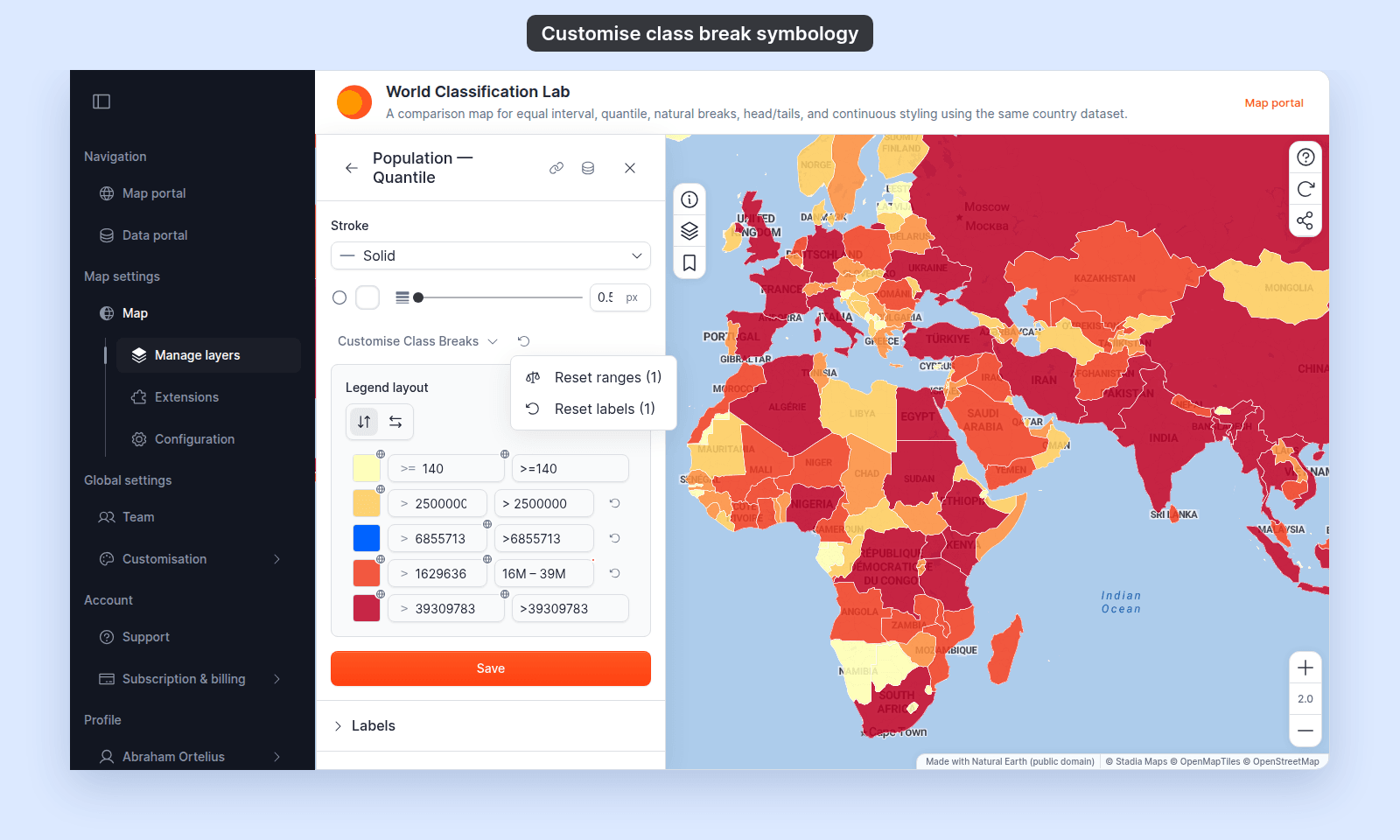
Legend layout
| Label | Legend layout |
| Where | Top of the expanded Customise Class Breaks panel. Category panels don’t have it. |
| Choices | Two icon buttons: vertical layout (tooltip “Show classes vertically in legend”) and horizontal layout (tooltip “Show classes horizontally in legend”) |
| Default | Vertical |
Which rows a category panel lists
A category panel has one row for each distinct value in the field. You can’t add or remove rows; hide a row instead.
- Up to 50 values get their own row. For numbers, these are the 50 lowest values; for text, the first 50 from A to Z.
- If the field has more values, one
Otherrow covers the rest. - If some features have no value, a
Nullrow covers them.
Row cells for every geometry
These cells are the same on point, line, and polygon layers. The symbol settings behind the swatch differ by geometry; see the sections below.
| Cell | Category rows | Class break rows | Notes |
|---|---|---|---|
| Swatch | Yes | Yes | Click to open the row’s symbol settings |
| Value | No | Yes | The lower bound of the class. The first row shows >= and the others show >. The class runs up to the next row’s value, so classes have no gaps. Features below the first row’s value do not draw. |
| Label | Yes | Yes | The legend text. A category label starts as the value. Changing a class break’s value resets its label to the default. |
| Eye icon | Yes | No | Hides the category from the legend and the map |
| Drag handle | Yes | No | Reorders the rows in the legend |
| Reset icon | No | Yes | Appears once the row is customised, on line and polygon layers only. Tooltip: Reset this class break to global settings. |
Reset to global |
Yes | Yes | In the swatch settings, once the row’s symbol is customised. Returns the symbol to the layer settings. |
Symbol settings — Point
| Setting | Default | Notes |
|---|---|---|
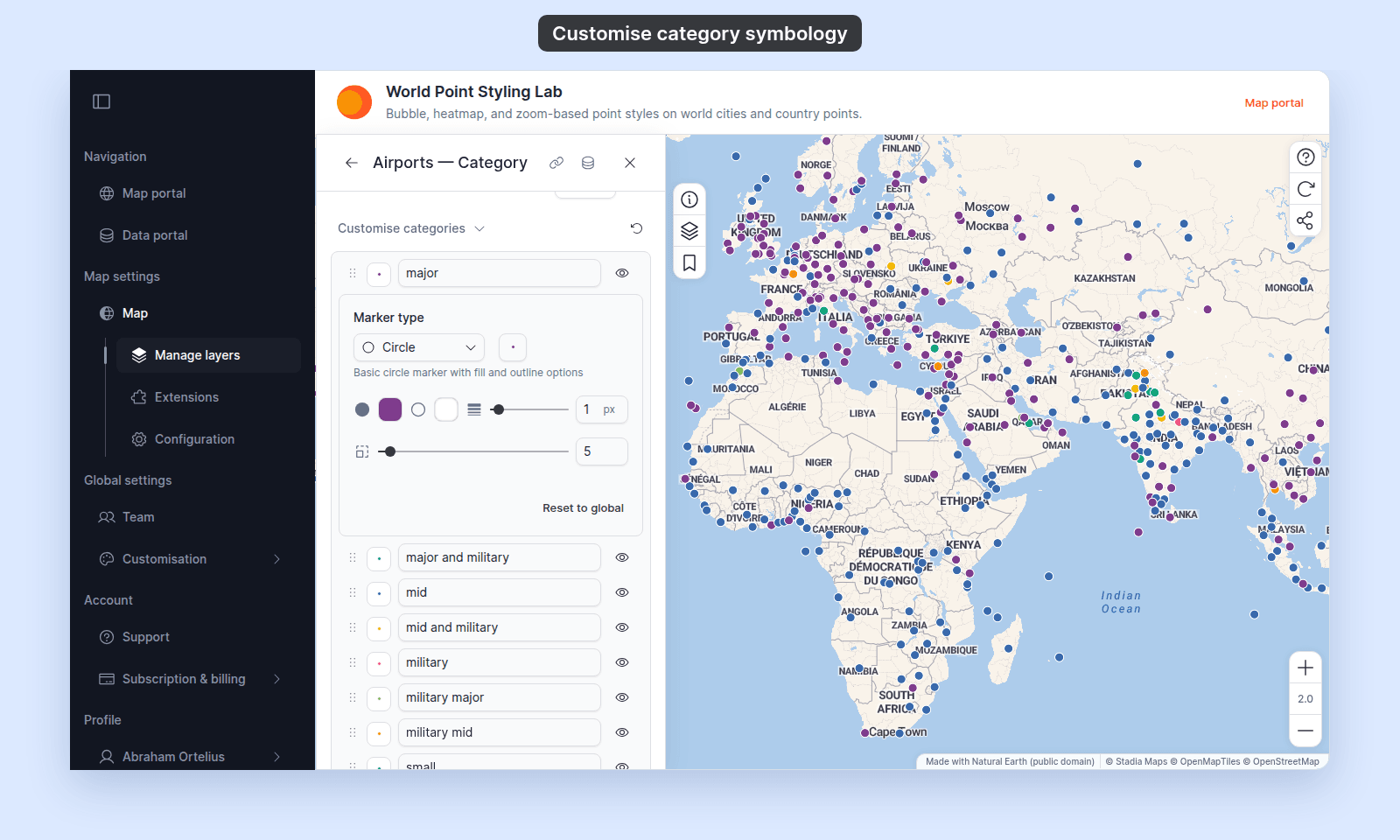
| Marker type | Layer marker type | Choices: Circle, Icon, Custom Icon. Each choice shows its own settings: an icon picker and rotation for Icon, a custom icon picker and opacity for Custom Icon. |
| Fill colour | From the colour palette | The picker’s transparency is the row’s opacity. It shows on the map for Circle and Icon rows. Custom Icon rows have no fill colour. |
Opacity (Custom Icon only) |
100% |
0–100%, with a slider and a number box. Replaces Fill colour for a custom icon. The layer’s opacity slider does not change it. |
Outline (Circle only) |
Layer outline | Outline colour, opacity, and width. Width range 0.5–5 px, step 0.5. |
| Marker size | Layer marker size | Slider, 2–50 px, step 1. A fixed pixel size for this row, separate from the layer’s Size markers by field. Hidden for Custom Icon rows, which follow the layer size. Disabled while the layer’s Vary size by zoom level is on; see below. |
Rotation (Icon only) |
Layer rotation | 0–360°, step 5° |
Marker size while zoom sizing is on
When Size markers by is Uniform size and Vary size by zoom level is on, the layer’s zoom stops set the size of every Circle row. The per-row size control is disabled and shows Size varies by zoom level — set on the layer's size control. Each row’s own size is kept and comes back when you turn zoom sizing off. Rows that use an Icon or Custom Icon marker keep their fixed size. See How to vary marker size by zoom level.
Symbol settings — Line
| Setting | Default | Notes |
|---|---|---|
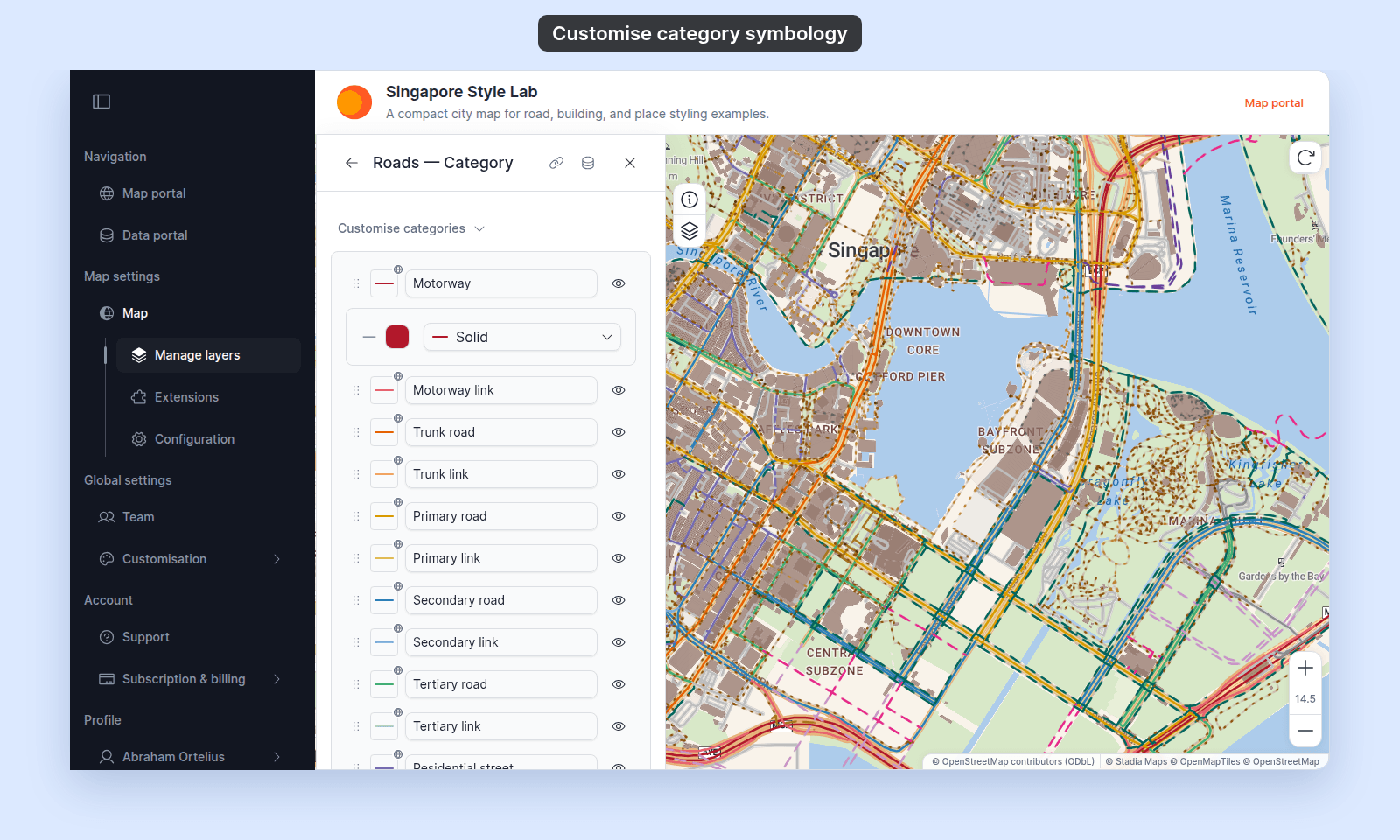
| Line colour | From the colour scheme | The picker’s transparency is the row’s opacity |
| Line pattern | Layer line pattern | Choices: Solid, Dashed, Dotted |
| Line width | Layer line width | Not set per row. Set it for the whole layer. Line width by a field is not available. |
| Casing | Layer casing | Not set per row. Turn it on and pick a colour for the whole layer. See How to style line patterns and casing. |
The row swatch shows the row’s colour and pattern with the layer’s line cap and casing. Picking a Line pattern for the whole layer in More line settings sets every category row to that pattern.
Symbol settings — Polygon
| Setting | Default | Notes |
|---|---|---|
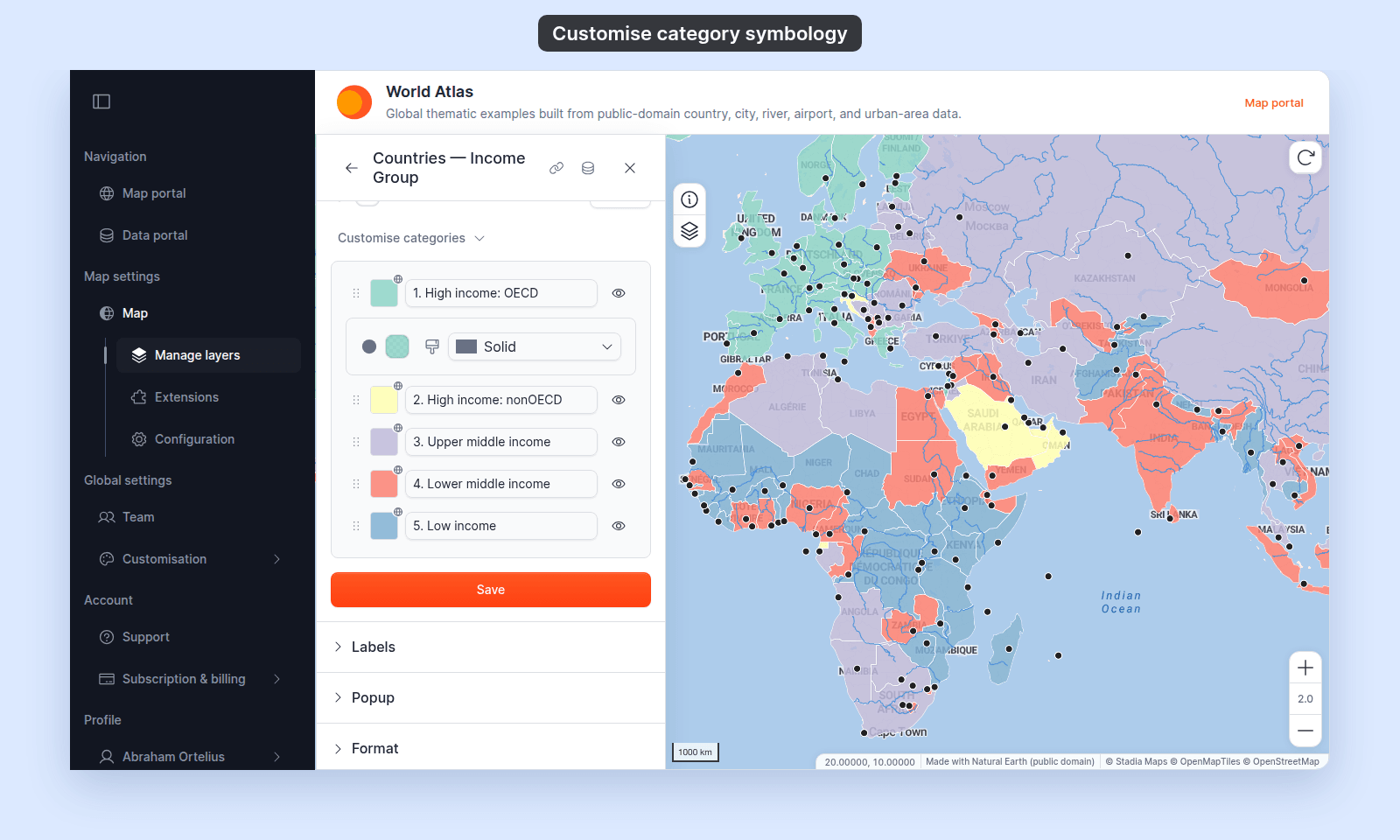
| Fill colour | From the colour scheme | The picker’s transparency is the row’s opacity |
| Fill pattern | Layer fill pattern | Choices: Solid, Vertical Line, Horizontal Line, Slash, Back Slash, Grid, Diagonal Grid, Dots, Filled Arrow, Open Arrow, None. Changing the layer fill pattern sets every row to it. See How to style polygon fill patterns. |
| Stroke | Layer stroke | Not set per row. Set Stroke (None, Solid, Dashed, or Dotted), stroke colour, and stroke width for the whole layer. |
Default labels
A class break label starts as the class’s lower bound with an operator: >= on the first row and > on every other row, such as >= 140 and > 2500000. Editing the label marks the row as customised. Reset labels reverts every customised class break label at once.
A category label starts as the value itself, including numeric codes such as 1.5. The number formats set in the layer’s attribute formatting don’t apply to category labels. Editing a label changes the text the legend shows, not the value it matches. Reset labels (line and polygon) or Reset all labels (point) reverts every customised category label, after a confirmation.
What this reference does NOT cover
- Layer controls: the colour driver,
Style as, the size driver (Size markers by), colour scheme, classification method, class count, fill colour, marker type, and zoom stops. They are above the rows. See How to style features by category, How to style features by quantity, How to size points by a number, and the per-geometry references in this folder. - Save behaviour: the
Savebutton at the bottom of the Style tab saves all of these. Raster and WMS layers useSave Style, and they don’t have categories or class breaks. See How layer styling works in MangoMap. - Reordering class breaks: class break rows follow their values and have no drag handle. Change the method or the class count instead.