

How to style polygon outlines
Draw a solid, dashed, or dotted outline around every polygon, and set its colour, transparency, and width. Works with every polygon style.
An outline draws a line around the edge of every polygon on the layer. Use it to separate polygons that share a fill colour, such as countries in the same income group, or to show boundaries over a busy basemap. Open the layer’s Style tab, set Stroke to Solid, Dashed, or Dotted, then pick a colour and a width. The outline works the same with every polygon style: one colour, categories, class breaks, or a continuous gradient.
See it on an example map
Open the Singapore Style Lab. Buildings — Uniform is on when the map opens. Each building has a thin white outline. Zoom in close to see it.
Before you start
- The layer must be a polygon layer. Lines have no outline; for a contrasting edge on lines, see How to style line patterns and casing.
- You need edit access to the map.
- A new polygon layer starts with
Strokeset toNone, so it has no outline.
Open the Style tab
In the layer panel, select your polygon layer. Click the Style tab.
Pick the stroke style
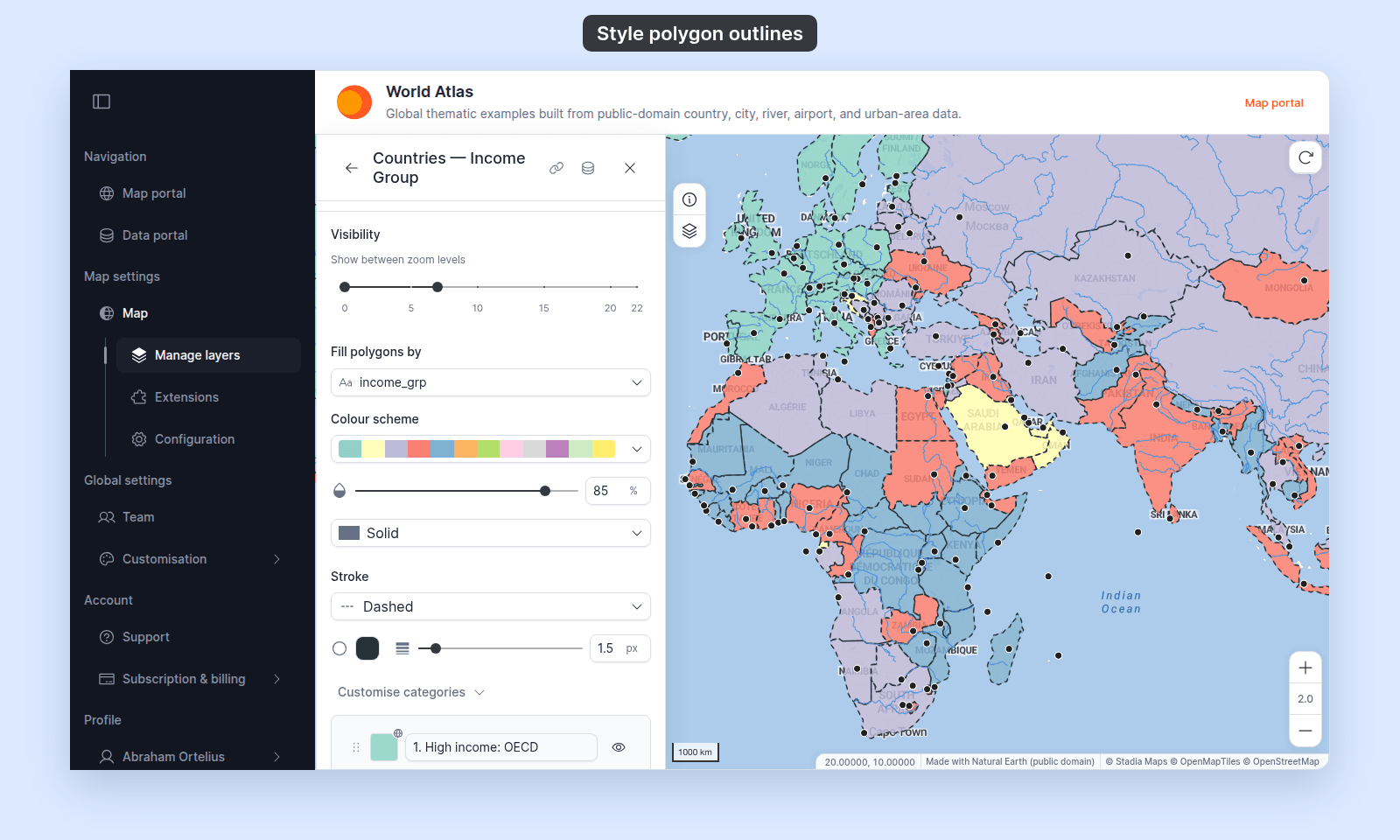
The Stroke dropdown is at the end of the polygon controls, after the fill settings. It is in the same place for every colour driver: Uniform colour or a field.
Pick one:
Solid— a continuous line.Dashed— a dashed line.Dotted— a dotted line.None— no outline. The colour and width controls go away.
Here Stroke is Dashed on a layer coloured by category, below its fill controls:
Set the colour and transparency
Click the Stroke colour swatch. Pick a colour, or type a hex value. The picker also sets transparency: lower it to let the fill and the basemap show through the outline.
The outline has one colour for the whole layer. It does not change by category or class break.
Set the width
Drag the Stroke width slider, or type a value in the box. The range is 0.5 to 10 px, in steps of 0.5 px. A new outline is 1 px wide.
Dashes, dots, and gaps grow with the width. At 0.5 px the outline is thin and its dots are tiny, so use 1.5 px or more for a Dashed or Dotted outline.
Save
Click Save at the bottom of the panel.
Verify the result
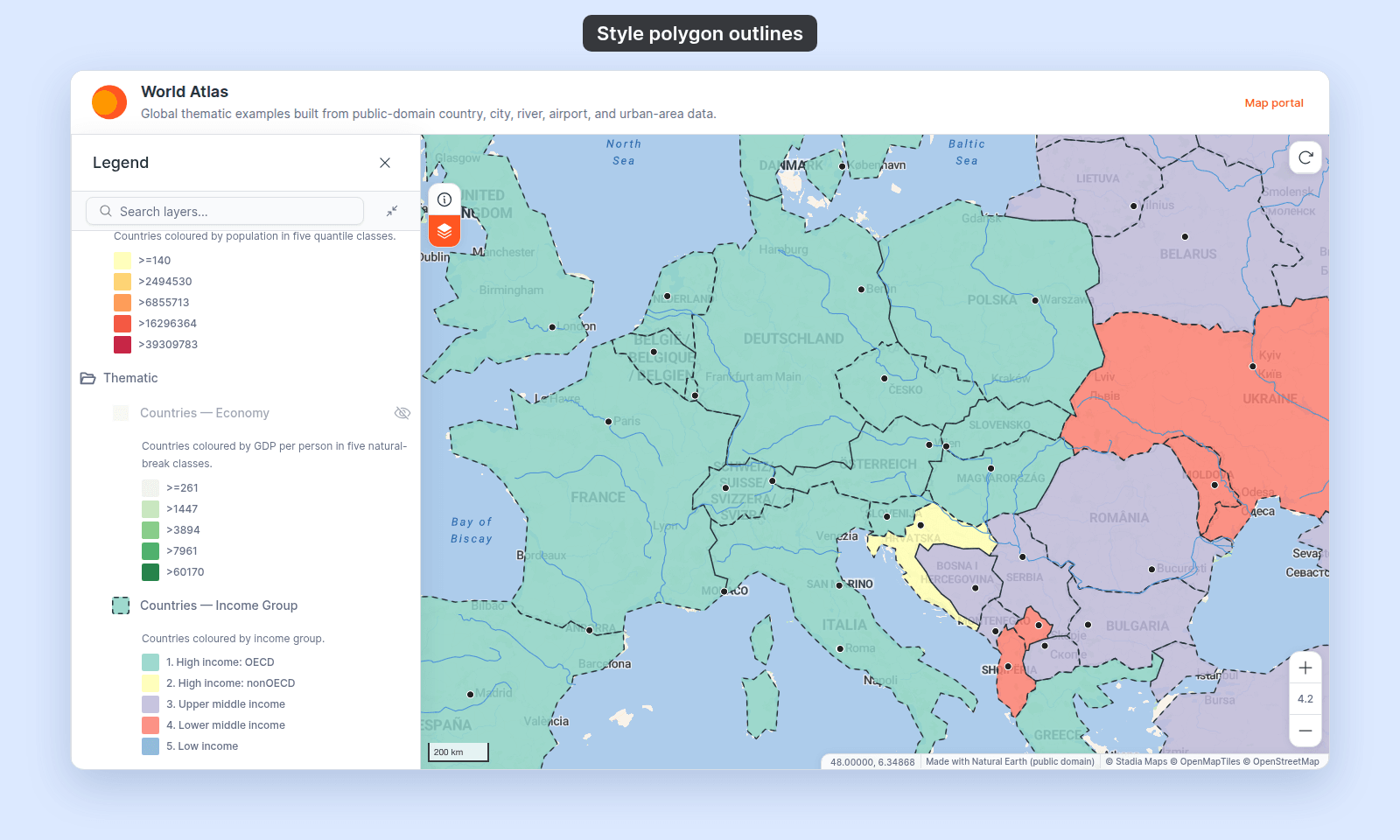
The map redraws with the outline on every polygon. In the legend, the symbol next to the layer name shows a Dashed or Dotted outline. The swatches for each category or class show the fill only. The legend does not show the outline’s width.
Common problems
No outline shows. Check that Stroke is not None, and that you clicked Save. Check the colour’s transparency in the picker; a fully transparent colour draws nothing.
Outlines merge into one dark mass when zoomed out. Small polygons, such as building footprints, are smaller than the outline at low zoom. Use a thinner outline, a lighter colour, or more transparency. You can also hide the layer at low zoom; see How to set the zoom range a layer is visible at.
A shared border looks thicker than the others. Each polygon draws its own outline, so where two polygons meet, two outlines lie on top of each other. With a transparent colour, shared borders look darker. Use an opaque colour for even borders.
What this doesn’t cover
- A different outline for each category or class break. The outline is the same for the whole layer. To set one category apart, change its fill colour or fill pattern; see How to customise category and class break symbology.
- Fill colour, transparency, and pattern. See How to set a uniform polygon style and How to style polygon fill patterns.