

Raster and WMS style controls
What the Style tab shows for raster and WMS layers: an opacity slider, the Visibility zoom range, and Save Style. Also why these layers cannot be restyled.
MangoMap does not restyle raster or WMS layers. Their Style tab shows an opacity slider and a Save Style button. This page documents what the tab does show and explains why these layer types behave differently from vector layers.
What the Style tab shows
Select a raster or WMS layer in the layer panel and open the Style tab. It has only an opacity slider, the Visibility zoom range, and Save Style. No message explains the limit.
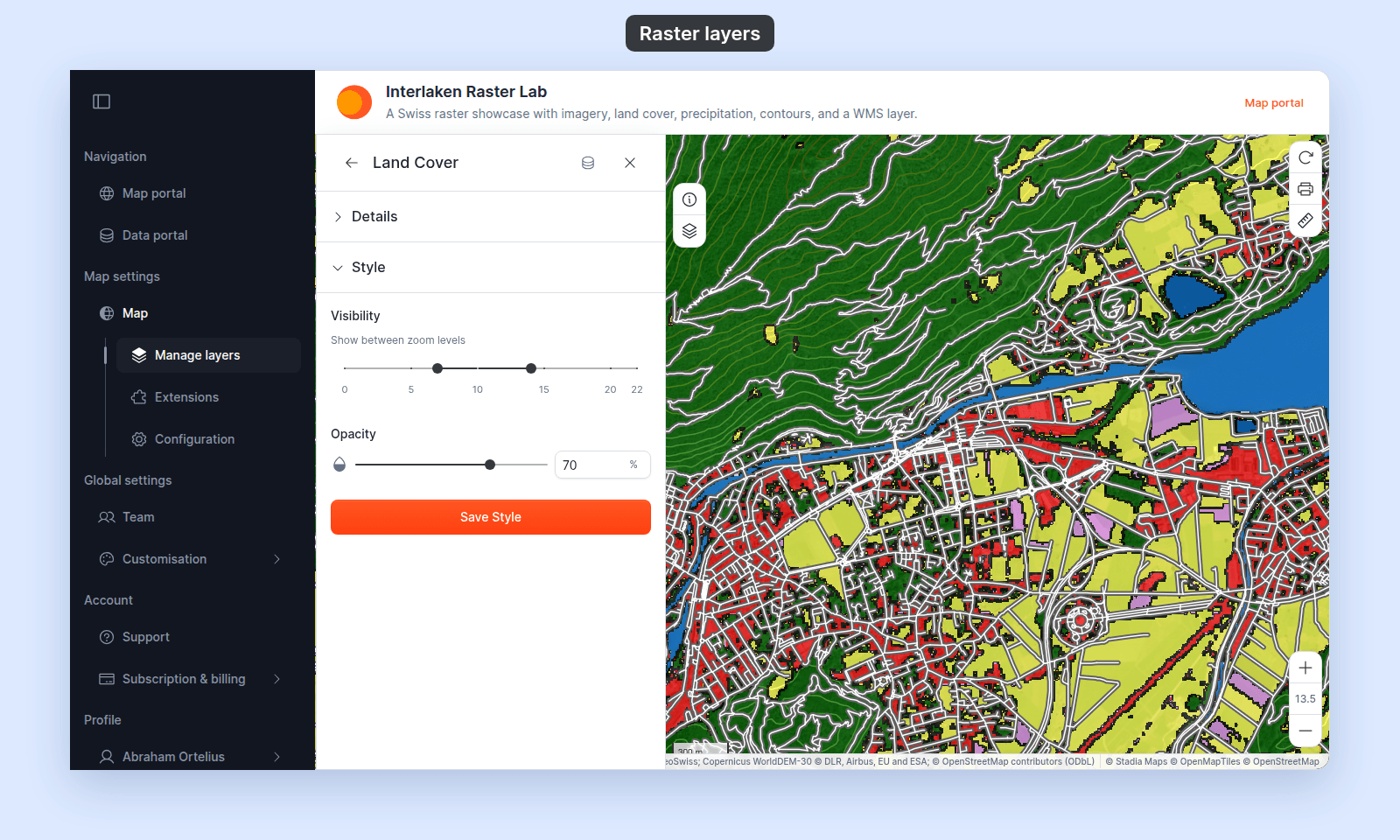
Why raster layers can’t be styled
A raster is a grid of pixels with fixed colour values, so it can’t be recoloured in MangoMap.
If you need different colours, the change has to happen before upload. Common pre-import options:
-
QGIS: open the raster, apply a render style, then
Right-click → Export → Save As → Rendered image. -
gdaldem: produce a coloured GeoTIFF from a single-band source. For example, this command applies a colour ramp to elevation data:
$ gdaldem color-relief input.tif palette.txt output.tif -
Pre-process to RGB: ensure the GeoTIFF you upload is already in the colour scheme you want.
After re-importing the recoloured raster, the new layer carries the new colours.
Why WMS layers can’t be styled
A WMS layer is drawn by the source server. The colours, line widths, and symbology decisions all live on the source server — MangoMap has no style controls for those source-rendered layers.
If you need different styling for a WMS layer, the change has to happen on the WMS provider’s server.
What you can adjust
A few layer-level controls live outside the Style tab and apply to raster and WMS layers:
- Layer name and description —
Detailstab. - Layer visibility — the eye icon in the layer list, not in the
Styletab.
Per-feature interaction (popups, attribute filtering) is also unavailable for these layer types. Raster and WMS layers have no feature attributes.