

How to set a uniform point style
Draw every point on a layer with the same marker, colour, outline, and size. Pick a marker type, set its controls, and click Save.
A uniform point style draws every feature on a point layer the same way, regardless of attributes. Open the layer’s Style tab, choose a marker type, configure the controls available for that marker, and click Save.
See it on an example map
Open the Singapore Style Lab. In the legend, turn on Places — Uniform. Turn off Places — Icons. Every place is an orange circle of one size.
Before you start
- The layer must be a point layer. For lines and polygons, see How to set a uniform style on a line layer and How to set a uniform style on a polygon layer.
- You need edit access to the map.
- Decide on a marker type:
Circle— a filled circle. Supports fill colour, outline (stroke), and size.Icon— a built-in pin / symbol picked from the icon library. Supports fill colour, size, and rotation.Custom Icon— an uploaded image you select via theSelect iconbutton. See How to upload a custom point icon.Heatmap— a density gradient instead of individual points. Not a uniform style; see How to make a heatmap from a point layer.
Open the Style tab
In the layer panel, select your point layer. Click the Style tab.
Pick the marker type
Marker type is the first dropdown in the Style tab. Pick Circle, Icon, or Custom Icon. Here it is on Circle, with the controls for a single colour below it:
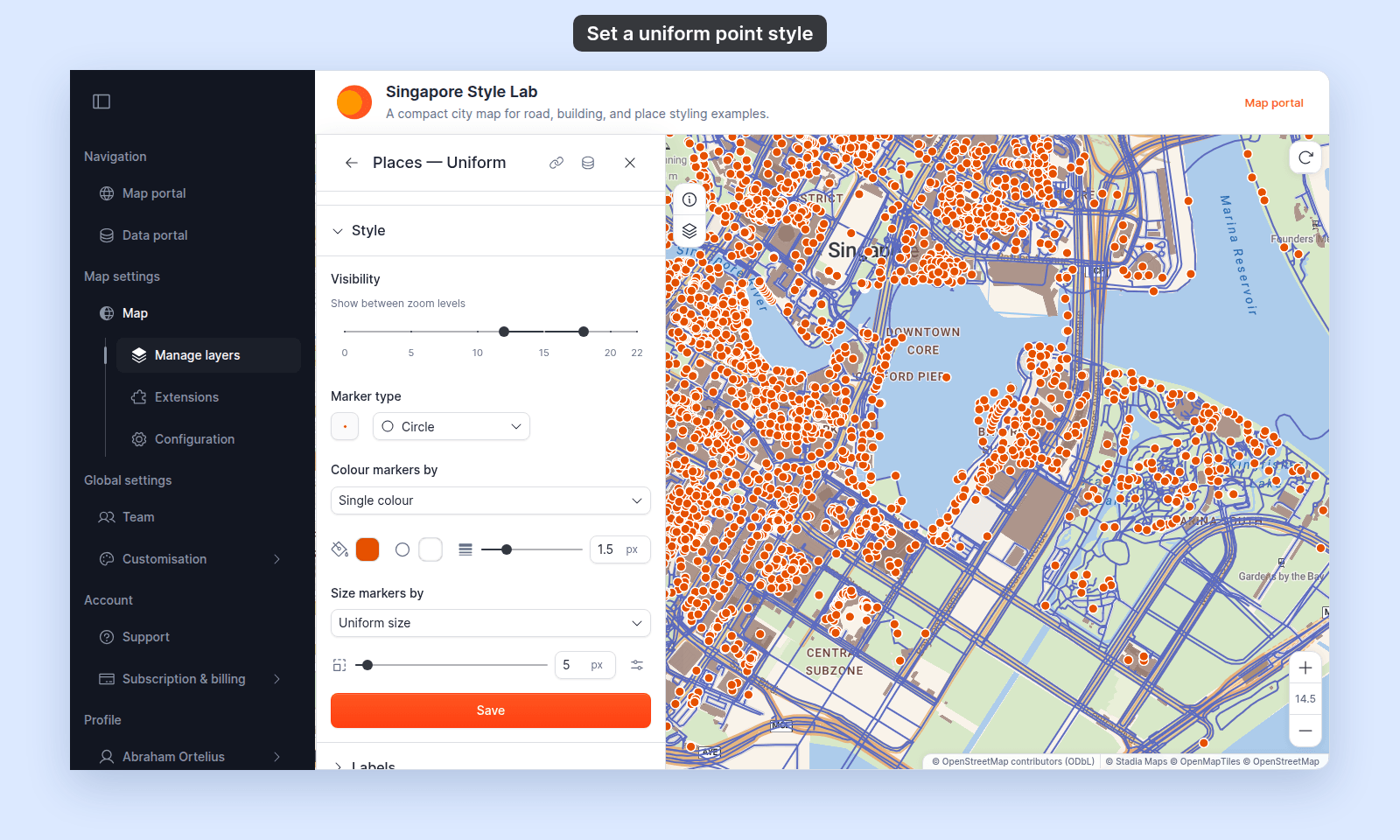
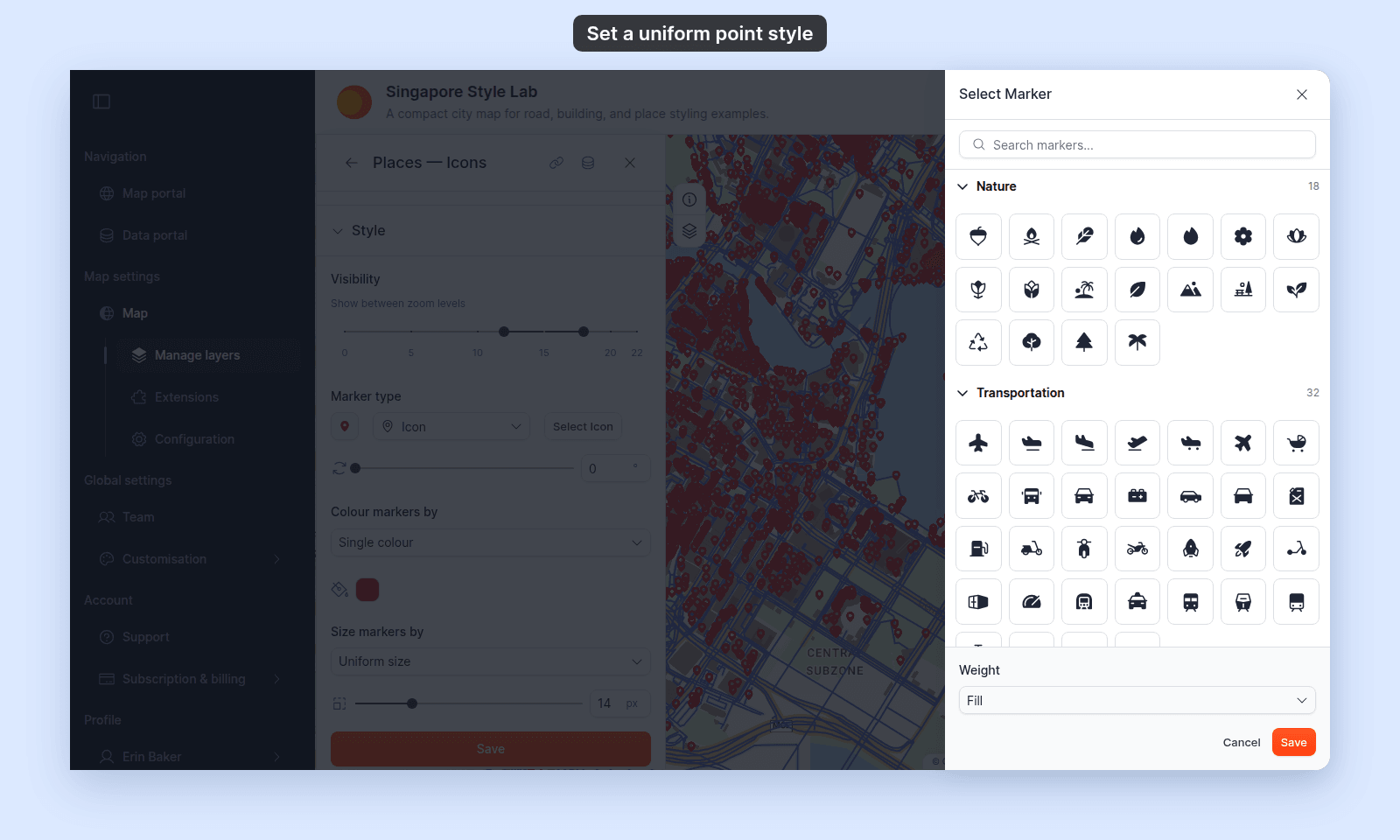
For Icon, click Select Icon next to the dropdown. The Select Marker drawer opens. Search or browse by category, pick an icon, and click Save in the drawer.
For Custom Icon, a Select icon button appears in the same place — click it to open the custom-icon drawer (with upload, replace, and delete affordances). See How to upload a custom point icon.
The marker preview to the left of the dropdown updates when you change a value.
Leave the colour driver on Single colour
The next control is Colour markers by. Default is Single colour — leave it there for a uniform style.
Picking a field instead turns the layer into a category- or quantity-driven style — see How to style features by category or How to style features by quantity. On Circle markers, Colour by zoom changes the colour as viewers zoom — see How to change marker colour by zoom level.
Pick a fill colour
Click the Fill colour swatch. Pick a hex value or a preset chip. The colour applies to every feature on the layer.
For Circle, the colour fills the circle. For Icon, it tints the built-in glyph. An uploaded Custom Icon uses the colours in the image itself.
Set opacity
For Circle and Icon, set the transparency in the Fill colour picker. These markers have no separate opacity slider for a single colour. Use lower opacity when markers overlap.
For Custom Icon, the picker is hidden. Use the Opacity slider or number box below Marker type instead, from 0 to 100%. Switching to Custom Icon sets the opacity to 100%. If you switch back to Circle or Icon, set the transparency again.
(Circle only) Configure the outline
When Marker type is Circle, an Outline colour picker and an Outline width slider (0–6 px) appear next to Fill colour. A thin dark outline helps light-coloured markers stand out on a bright basemap. Set the width to 0 for a pure-fill look.
The outline section is hidden for Icon and Custom Icon marker types — those don’t have a separate stroke.
(Icon only) Set rotation
For Icon marker type, a degree input lets you rotate the icon (range 0–360°, step 5°). Useful when the icon has a directional component (an arrow, a compass marker, a wind indicator). Rotation isn’t available for Custom Icon — the uploaded image is rendered as-is.
Set the size
For Circle and Icon, the size slider controls the marker diameter from 2–50 px. Leave Size markers by on Uniform size to use one size for every marker. You can instead choose a numeric field to make a proportional-symbol map; see How to size points by a number.
For Circle markers, the Vary size by zoom level button next to the slider makes markers grow or shrink as viewers zoom. See How to vary marker size by zoom level.
Size controls are hidden for Custom Icon. To change its global size or size-by field, configure the setting while Circle or Icon is selected, then switch back to Custom Icon. The setting remains applied.
Save
Click Save at the bottom of the panel. The map redraws with the new style.
If you switch tabs or close the panel before clicking Save, your changes are discarded. See Troubleshooting: my style change isn’t appearing on the map if the map doesn’t update.
Related
- Point layer style controls — the canonical list of every point control by marker type.
- How to upload a custom point icon — for the
Custom Iconmarker type. - How to make a heatmap from a point layer — for the
Heatmapmarker type. - How to size points by a number — size markers by a numeric field (proportional / bubble map).
- How to vary marker size by zoom level — circle markers that grow or shrink as viewers zoom.
- How to change marker colour by zoom level — circle markers that change colour as viewers zoom.
- How to style features by category — for one colour per text value or numeric code.
- How to style features by quantity — for graduated colour by numeric field.
- How to set the zoom range a layer is visible at
- How layer styling works in MangoMap