

Point layer style controls
Every point layer style control with its default and range: marker type, colour and size drivers, Style as, and zoom stops.
The Style tab for a point layer has three main pickers: Marker type, Colour markers by, and Size markers by. The marker type and the two drivers decide which other controls appear. This page lists every control with its default and range.
For the conceptual overview, see How layer styling works in MangoMap.
Marker type
| Default | Circle |
| Choices | Circle, Icon, Custom Icon, Heatmap |
| Where | First control in the Style tab |
Each marker type swaps the visible control set. Switching marker types resets marker-specific settings.
Zoom stops work on Circle markers only. Switching away from Circle deletes every zoom stop on the layer. If Colour markers by was Colour by zoom, it goes back to Single colour.
Colour markers by
| Default | Single colour |
| Choices | Single colour, Colour by zoom (Circle only), plus any text or numeric field on the dataset |
| Where | Below Marker type. Hidden when the marker type is Heatmap or Custom Icon. |
Single colourpaints every marker the same.Colour by zoomchanges the colour as the viewer zooms. See Colour by zoom.- A text field gives one colour per value.
- A numeric field adds the
Style asselect, which picks classes, a continuous gradient, or one colour per value.
Line and polygon layers call the no-field option Uniform colour. Points call it Single colour.
Style as
| Default | 5 classes |
| Choices | Continuous, Categories, 3 classes, 4 classes, 5 classes, 6 classes, 7 classes, 8 classes, 9 classes |
| Where | Below Colour markers by. Shown only when a numeric field is selected. |
Continuousmaps every value to a point on a colour gradient.Categoriesgives each distinct value its own colour, the same way a text field does. Use it for numeric codes such as zone numbers or years.3 classesto9 classessplit the values into that many class breaks.
Text fields have no Style as select. They are always styled as categories.
Each switch between Categories and a class or continuous mode builds a new list:
- Leaving
Categoriesdiscards every category customisation: colours, labels, hidden rows, and per-category markers. - Entering
Categoriesdiscards every class-break customisation. - The palette resets to the default for the new mode.
- Moving from
Categoriesto classes sets the classification method toNatural Breaks (Jenks).
Switching back does not restore the old customisations.
Size markers by
| Default | Uniform size |
| Choices | Uniform size, plus any numeric field on the dataset |
| Where | Below the colour driver. Hidden when marker type is Heatmap or Custom Icon. |
Uniform size draws every marker at the Marker size set below. A numeric field sizes each marker from its value. MangoMap maps values to sizes between a minimum and maximum; it has no size classes.
When a numeric field is chosen, the single size slider is replaced by a min–max range: a Minimum size and Maximum size input (each in px) with a dual-handle slider. Range 2–60 px; defaults min 4 → max 20; the two values stay at least 4 px apart. The smallest data value renders at the minimum size, the largest at the maximum.
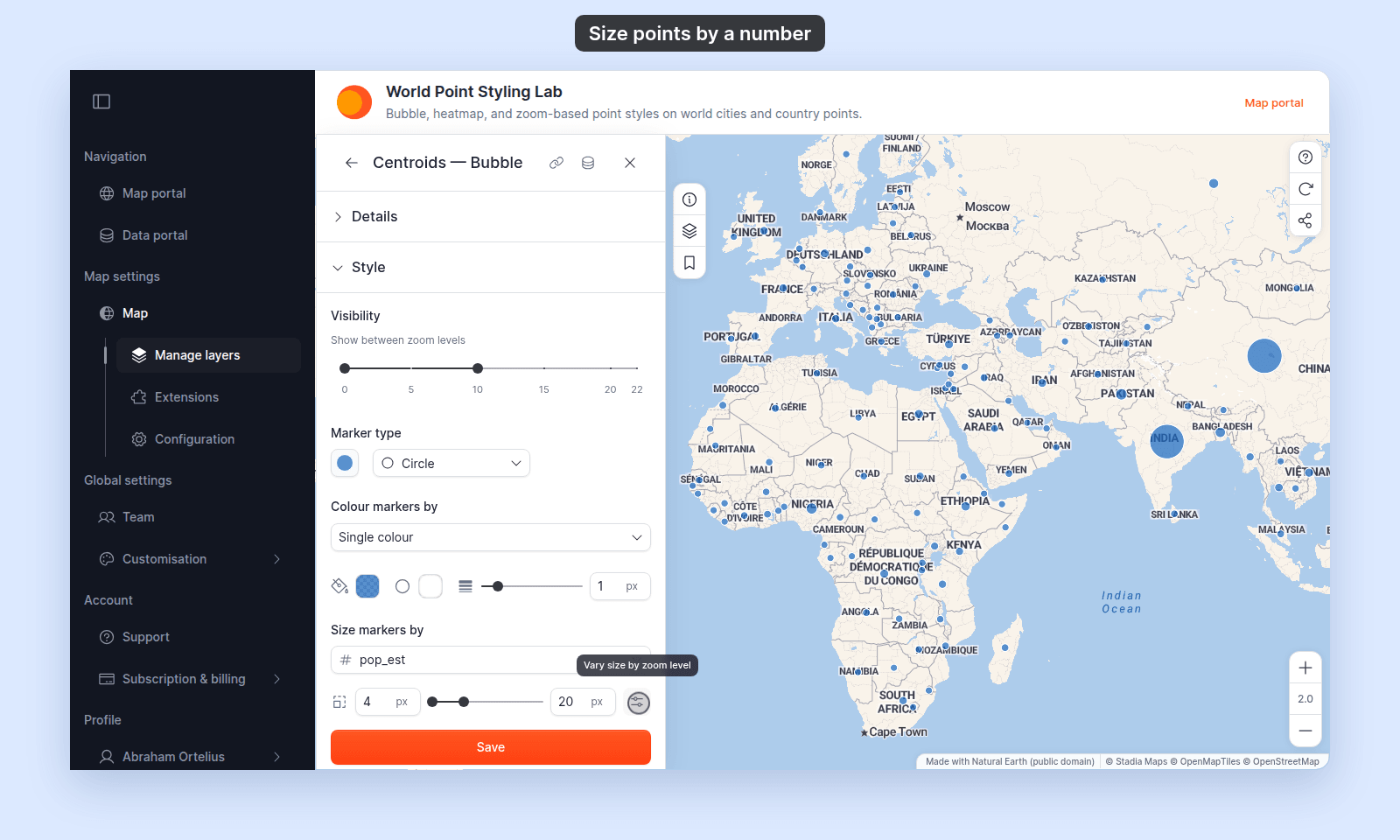
The size driver is separate from the colour driver, so one field can set colour and another can set size (see How to colour and size points by two fields). Sizing applies to Circle, Icon, and Custom Icon markers (not Heatmap), but the control is only visible while Circle or Icon is selected — a size field chosen there stays applied on the map after switching to Custom Icon. See How to size points by a number.
On Circle markers, both size modes also have a Vary size by zoom level button. See Vary size by zoom level.
Controls when Marker type = Circle
Fill colour
Shown when Colour markers by is Single colour. Default: #2196F3 (blue) with 80% opacity. The picker’s transparency setting is the marker opacity; there is no separate opacity slider.
Hidden with Colour by zoom, where the zoom stops set the fill. The value is kept, and it comes back when you pick Single colour again.
Outline colour and Outline width
Shown when Colour markers by is Single colour. Hidden with Colour by zoom, where each stop sets its own outline. See Outlines on stops. The values are kept, and they come back when you pick Single colour again.
Outline colour |
Colour picker with transparency |
Outline width |
0–6 px, step 0.5 px. Set 0 for no outline. |
Marker size
Slider in pixels. Default 8 px; range 2–50 px, step 1 px. This is the Uniform size control — shown when Size markers by is Uniform size. To size markers by a field instead, use the Size markers by driver above.
While Vary size by zoom level is on, the slider is replaced by the text Size varies by zoom level and the zoom stops.
Vary size by zoom level
| Where | Icon button next to Marker size, or next to the min–max range when Size markers by is a field |
| Shown | Circle markers only |
| Turn off | Click the same button. Its tooltip changes to Reset to fixed size while zoom sizing is on. |
Each zoom stop pairs a zoom level with a value. Between two stops, the size changes gradually. Below the first stop, markers keep the first stop’s value. Above the last stop, they keep the last stop’s value.
| Setting | With Uniform size |
With a size field |
|---|---|---|
| Value column | Size, in px |
Scale, shown as ×1.0 |
| Value range | 3–40 px, step 1 | ×0.2–×3.0, step 0.1 |
| Default stops | Zoom 1 and zoom 12. With the default 8 px marker: 4 px and 8 px. | Zoom 1 at ×0.5; zoom 18 at ×1.5 |
| Number of stops | 2–6 | 2–6 |
| Zoom range | 1–22, step 0.5 | 1–22, step 0.5 |
With a size field, each stop’s scale multiplies both Minimum size and Maximum size at that zoom. The ratio between the smallest and largest markers stays the same at every zoom.
Curve
| Default | 1 |
| Range | −3 to 4, step 0.1 |
At 1, the size changes at a steady rate between stops. Above 1, most of the change happens near the higher-zoom stop. Below 1, most of the change happens near the lower-zoom stop.
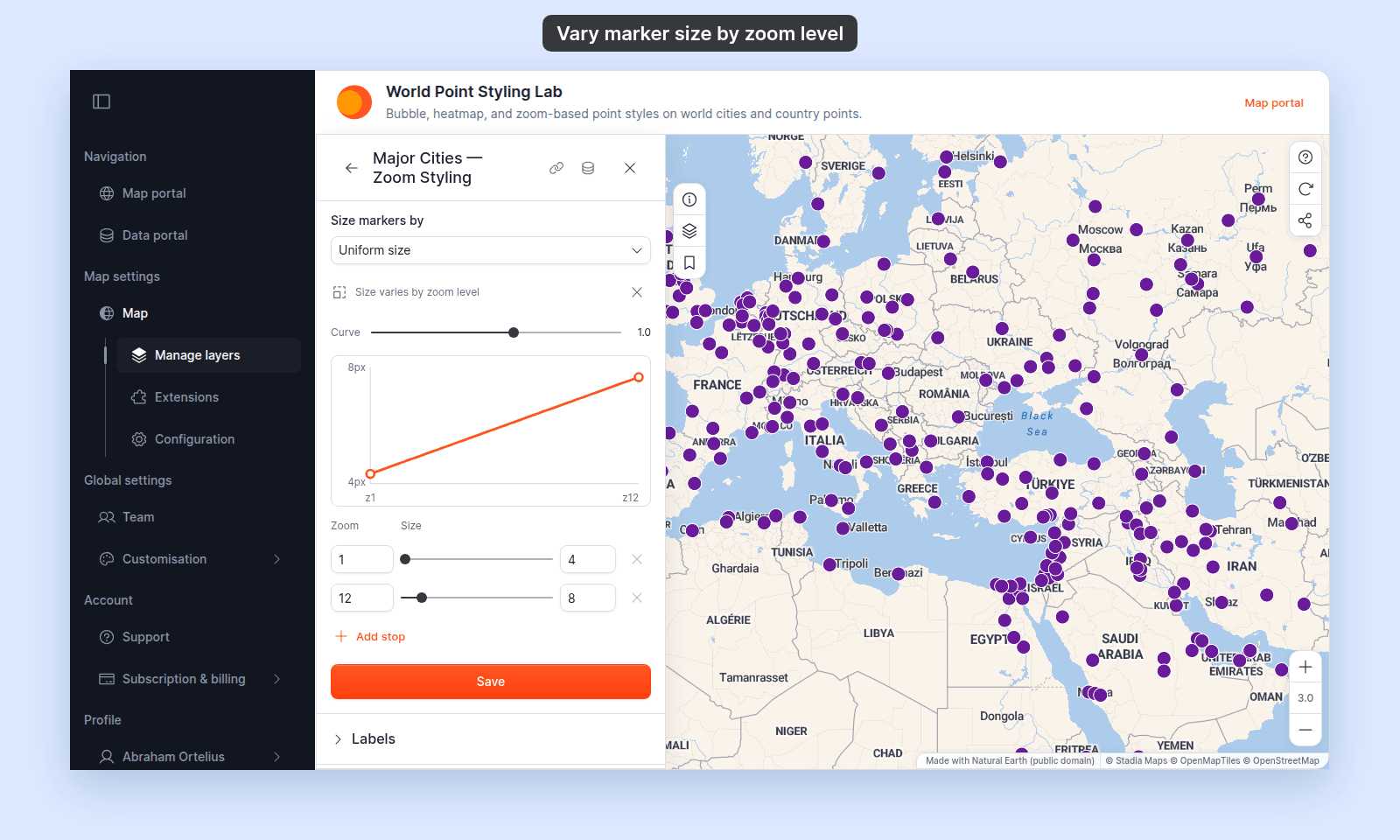
Stop rows
| Control | Effect |
|---|---|
Zoom box |
Sets the stop’s zoom level. Stops stay at least 0.5 zoom apart and in order. |
| Value slider and box | Sets the size or scale at that zoom |
Remove stop |
Deletes the stop. Disabled at 2 stops (tooltip Minimum 2 stops). |
Add stop |
Adds a stop halfway between the last stop and zoom 22, with the last stop’s value. If the last stop is at zoom 22, the new stop goes into the widest gap. Disabled at 6 stops (tooltip Maximum 6 stops). |
With categories or class breaks
When Colour markers by is a field and Size markers by is Uniform size, zoom sizing replaces each row’s marker size. The per-row size control is disabled and shows Size varies by zoom level — set on the layer's size control. The row sizes are kept and come back when you turn zoom sizing off. Rows that use an Icon or Custom Icon marker keep their fixed size.
Legend
Zoom sizing does not change the legend. A Uniform size layer keeps a fixed-size swatch. A size-field layer keeps its size key, labelled with field values.
Colour by zoom
| Where | Colour markers by → Colour by zoom |
| Shown | Circle markers only |
| Number of stops | 2–6 |
| Zoom range | 1–22, step 0.5 |
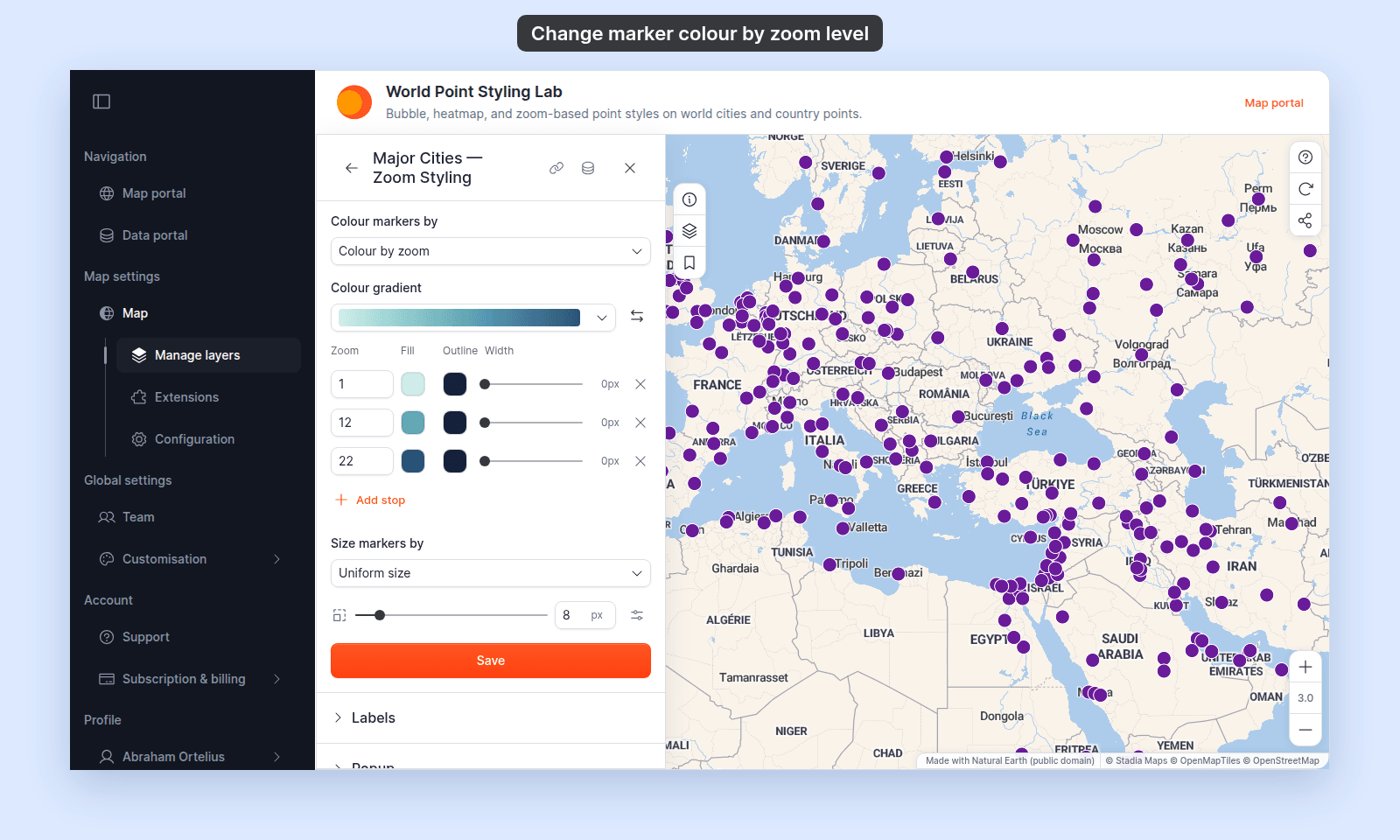
| Default stops | Zoom 1, 12, and 22, coloured light to dark from the Teal gradient |
Colours blend smoothly between stops. Below the first stop, markers keep the first stop’s colour. Above the last stop, they keep the last stop’s colour.
Colour by zoom can’t be combined with a colour field, because both use the Colour markers by dropdown. It works with every size setting: Uniform size, Vary size by zoom level, and a size field. Picking Single colour or a field discards the stops. Picking Colour by zoom again starts from the default stops.
See How to change marker colour by zoom level.
Colour gradient and Reverse colour ramp
Colour gradient lists sequential and diverging gradients. Picking one spreads the stops evenly between the first and last stop zooms and recolours them from the gradient. Reverse colour ramp flips the order of the colours.
Changing any stop’s Fill makes the ramp custom, and the dropdown shows a custom entry.
Stop rows
| Control | Range | Effect |
|---|---|---|
Zoom |
1–22, step 0.5 | The stop’s zoom level. Stops stay at least 0.5 zoom apart and in order. |
Fill |
Colour picker with transparency | The marker colour and opacity at that zoom |
Outline |
Colour picker with transparency | The outline colour at that zoom |
Width |
0–8 px, step 0.5 | The outline width at that zoom |
Remove stop |
— | Disabled at 2 stops (tooltip Minimum 2 stops) |
Add stop |
— | Disabled at 6 stops (tooltip Maximum 6 stops) |
How Add stop and Remove stop place stops depends on the ramp:
- Gradient ramp: the stops are spread evenly again between the first and last stop zooms, and recoloured from the gradient. Custom zoom positions are lost.
- Custom ramp:
Add stopsplits the widest gap and takes the blended colour at that zoom.Reverse colour rampflips the colours and keeps the zooms.
Outlines on stops
With Colour by zoom, the stop rows are the only outline control. Each stop draws its own outline, and the layer’s Outline colour and Outline width are not used. A stop with a Width of 0px draws no outline at that zoom. The outline colour and width blend between stops, as the fill does.
Legend
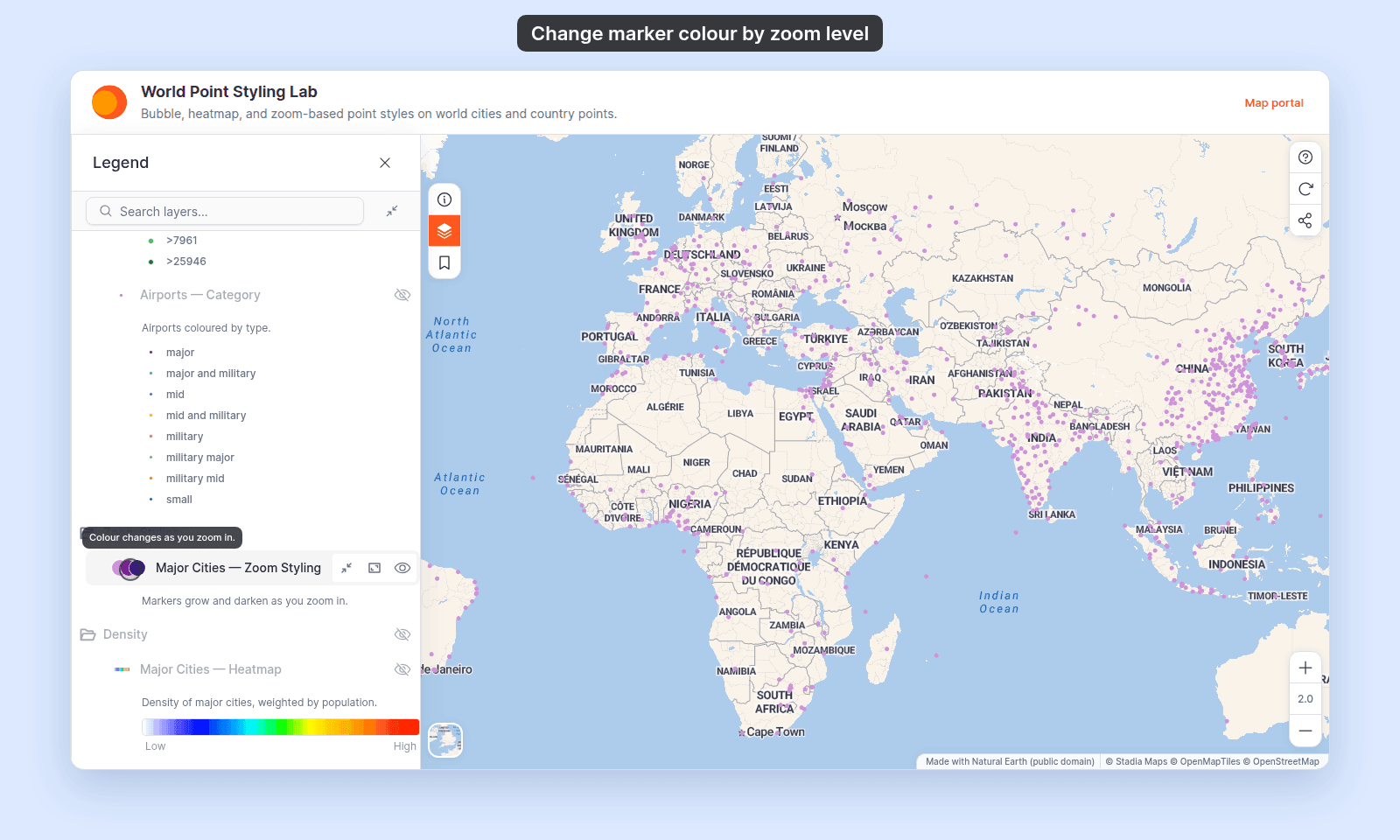
The legend shows a row of overlapping circles, one for each stop in zoom order. A circle has an outline only when its stop’s Width is above 0px. Its tooltip reads “Colour changes as you zoom in.” The same row appears in the map legend and in the printed legend.
Controls when Marker type = Icon
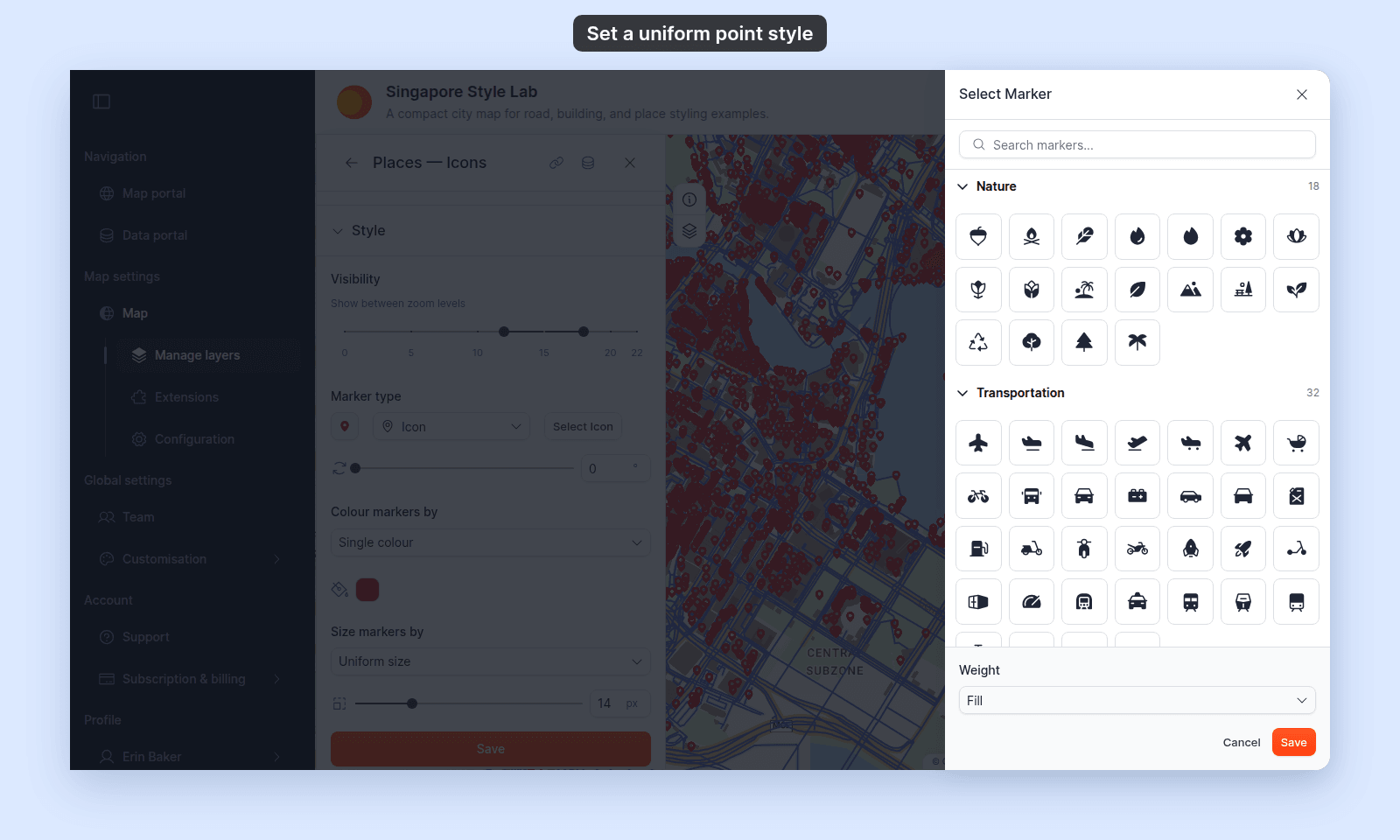
Select Icon button
Opens the built-in icon library drawer to pick a glyph. The picked icon shows in the marker preview swatch to the left of the dropdown.
Fill colour
The icon glyph is tinted with this colour when the colour driver is Single colour. The picker’s transparency setting is the icon opacity.
Marker size
Slider in pixels. Zoom sizing is not available for icons.
Rotation
| Default | 0° |
| Range | 0–360°, step 5° |
| Where | Next to the Marker type dropdown |
Rotates the icon glyph. Use it for directional symbols such as arrows or compass markers. Rotation applies to Icon only — Custom Icon doesn’t expose a rotation control.
Controls when Marker type = Custom Icon
Select icon button
Opens the Select Custom Icon drawer, where you upload icons and use each icon’s Update from file and Delete actions. See How to upload a custom point icon.
(All other style controls except Opacity — fill colour, outline, rotation, and the size controls including Size markers by — are hidden while Custom Icon is selected; the uploaded image supplies the appearance. A size-by field configured before switching to Custom Icon stays applied on the map; to change it, switch back to Circle or Icon, adjust, and switch again.)
Opacity
| Default | 100% |
| Range | 0–100%, with a slider and a number box |
| Where | Below Marker type |
Sets how see-through the icon is, on the map and in the legend. Switching Marker type to Custom Icon sets it to 100%. Switching back to Circle or Icon does not bring back the old transparency. Set it again in the Fill colour picker.
Controls when Marker type = Heatmap
See Heatmap style controls for the full Heatmap controls (gradient, weight by, radius, intensity, and opacity). Colour markers by is not used in Heatmap mode.
Controls when colour driver = Single colour
Fill colour, with transparency for opacityOutline colourandOutline width(Circleonly)
Controls for a category style
A category style comes from a text field, or from a numeric field with Style as set to Categories.
Colour palette
Palette selector applied across the categories in list order. If there are more categories than colours in the palette, the colours repeat.
Opacity
Slider, 0–100%. Moving it changes every category except those with custom symbology. A row with a Custom Icon marker keeps its own opacity. Set it in that row’s Opacity control.
Categories
MangoMap builds one category for each distinct value in the field:
- Up to 50 values get their own row. For numbers, these are the 50 lowest values; for text, the first 50 from A to Z.
- If the field has more values, one
Otherrow covers the rest. - If some features have no value, a
Nullrow covers them.
You can’t add or remove categories. Hide a row instead.
Customise categories collapsible
Expand to edit each category’s colour, label, visibility, drag order, and per-row marker overrides. The transparency set in a row’s colour picker shows on the map for Circle and Icon markers. A Custom Icon row has its own Opacity control instead. See Category and class break symbology reference.
Controls for a quantity style
A quantity style comes from a numeric field with Style as set to Continuous or a class count.
Style as
See Style as. A new numeric style starts at 5 classes, not Continuous.
Classification method
| Default | Natural Breaks (Jenks) |
| Choices | Equal Interval, Quantile, Natural Breaks (Jenks), Head/Tails |
| Where | Shown only for a class count (not Continuous) |
Note: point layers label the heavy-tail method Head/Tails. Line and polygon layers label the same method Head/Tail Breaks. The algorithm is identical. See Classification methods for by-quantity styling.
Colour palette and Reverse colour ramp
Palette selector with a Reverse colour ramp icon button. The selector is labelled Colour palette for class counts and Colour scheme for Continuous.
Opacity
Slider, 0–100%. Moving it sets every class to this value, except a class with a Custom Icon marker.
Customise Class Breaks collapsible
Per-break colour, range, label, visibility, and marker overrides. See Category and class break symbology reference.
Save button
| Label | Save |
| Where | Bottom of the Style tab |
The Style tab doesn’t auto-save. Your changes apply only when you click Save. Closing the panel or switching tabs discards every unsaved change. See Troubleshooting: my style change isn’t appearing on the map.
Related
- How to set a uniform style on a point layer
- How to vary marker size by zoom level
- How to change marker colour by zoom level
- How to style features by category
- How to style features by quantity
- How to make a heatmap from a point layer
- How to size points by a number
- How to upload a custom point icon
- Heatmap style controls
- Category and class break symbology reference
- Classification methods for by-quantity styling
- How layer styling works in MangoMap