

Heatmap style controls
Every Heatmap control on a point layer's Style tab, with defaults and value ranges: colour gradient, weight, radius, intensity, and opacity.
Setting Marker type to Heatmap on a point layer replaces individual points with a smoothed density gradient — denser areas appear hotter, sparse areas fade. This page lists every control in the Heatmap controls with defaults and value ranges. Heatmap is point-only — line and polygon layers don’t have a marker-type picker.
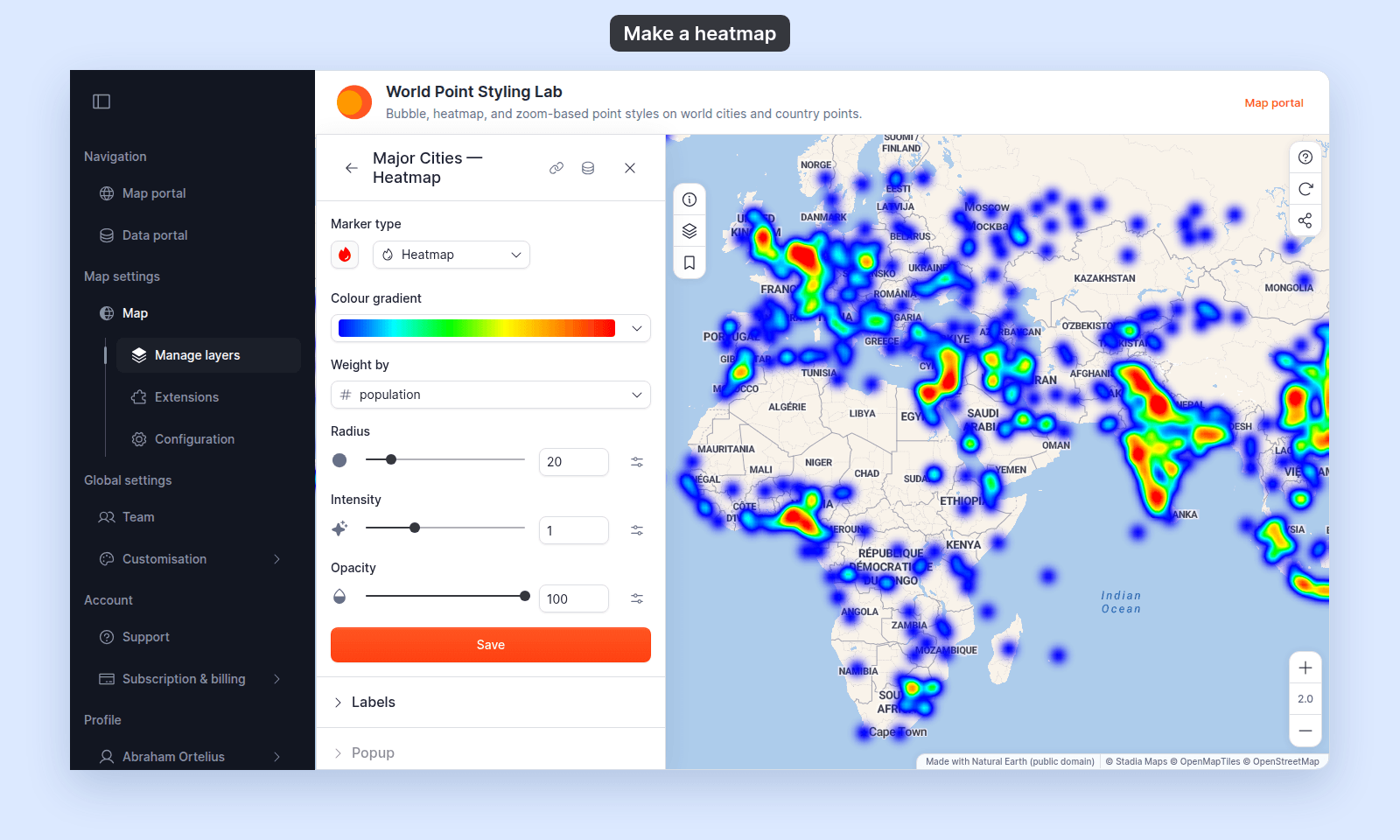
For when to use Heatmap vs. uniform circles vs. colour-by-numeric on points, see Planning a thematic map in MangoMap.
Colour gradient
| Default | Hot |
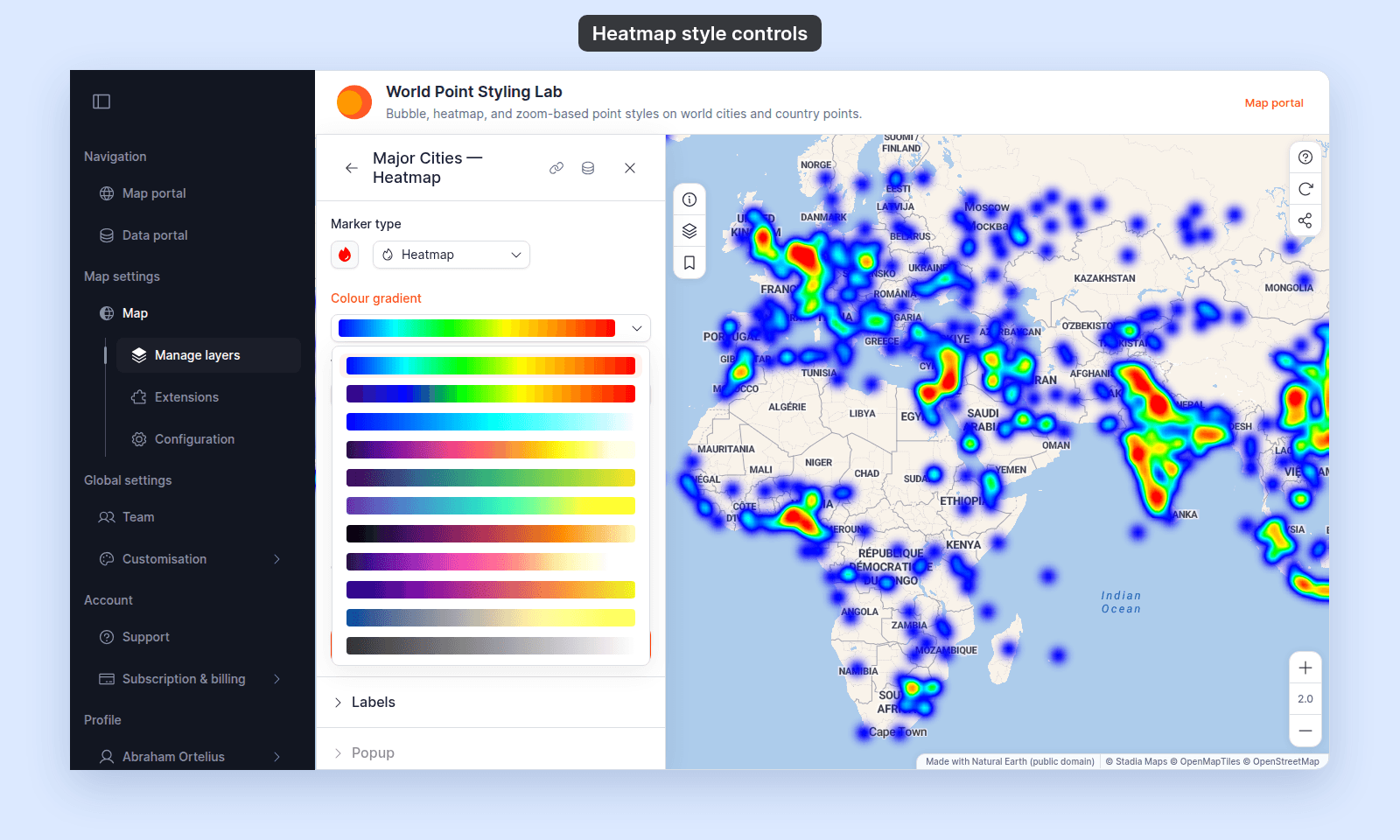
| Choices | Hot, Rainbow, Cool, Inferno, Viridis, Viridis (Esri), Magma, Magma (Esri), Plasma, Plasma (Esri), Cividis, Grayscale, Hot to Cold, Pink to Magenta, Blue to Yellow, Deep Blue to White, Brown to Yellow, Teal to Lime, Purple to Yellow, Magenta Glow, Ocean Blue, Periwinkle, Gold, Copper, Warm Copper, Slate to Lime, Lavender to Yellow, Rose to Yellow, Sky Blue, Soft Periwinkle, Olive to White, Sand to Cream |
The colour ramp from low density (left) to high density (right). Click a preset to apply it. The list shows each gradient as a swatch, without its name, in the order of the table above.
Weight by
| Default | Equal weight |
| Choices | Equal weight, plus any numeric attribute on the layer |
Drives the contribution of each point to the density gradient. With Equal weight, every point contributes the same — density depends only on how many points fall in an area. With a numeric field selected, points with larger values contribute more, so a sparse area of high-value points can appear hotter than a dense area of low-value ones.
If the layer has no numeric fields, only Equal weight is available.
Radius
| Default | 20 px |
| Range | 5–100, step 0.5 |
| Unit | Pixels |
The radius around each point that contributes to the heat at that location. Larger radius makes the gradient smoother and broader; smaller radius keeps individual points more distinct.
Intensity
| Default | 1 |
| Range | 0.1–3, step 0.1 |
| Unit | Multiplier |
Multiplies the heat contribution of every point. Increase to make dense areas brighter; decrease to fade them.
Opacity
| Default | 100% |
| Range | 0–100%, step 1% |
The opacity of the entire heatmap layer. Useful when overlaying on a busy basemap.
Vary by zoom level
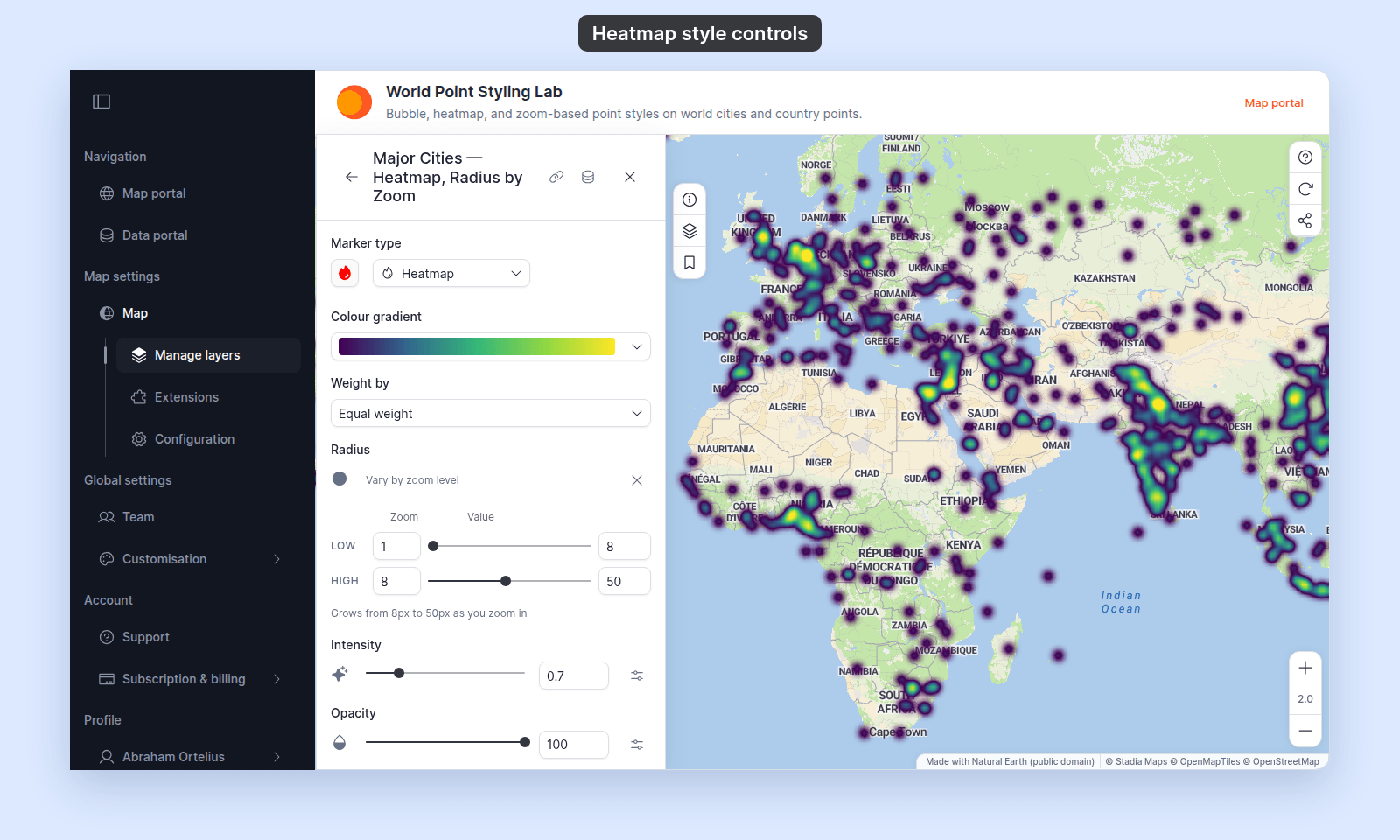
Radius, Intensity, and Opacity each have a Vary by zoom level button at the end of their row. Click it to set a value at a low zoom and a value at a high zoom. The heatmap changes smoothly between them as viewers zoom. Click the button again (its tooltip is now Reset to fixed value) to go back to one value, which keeps the high-zoom value.
Edit the Zoom and Value boxes to change them. The low zoom stays below the high zoom.
Save button
| Label | Save |
| Where | Bottom of the Style tab |
The Style tab doesn’t auto-save. Your changes apply only when you click Save. Closing the panel or switching tabs discards every unsaved change. See Troubleshooting: my style change isn’t appearing on the map.
Tuning notes
A few practical patterns:
- Sparse data, narrow zoom range: increase
Radiusso the heatmap reads as a continuous gradient rather than dots with halos. - Dense data: decrease
Intensityso dense areas don’t saturate to the maximum gradient colour. - Comparing categories on the same map: a heatmap doesn’t show categories. If you need to compare two categories’ densities, use two heatmap layers with different gradients (one warm, one cool). The
Densityfolder of the Singapore Point Styling Lab does this with police stations inHotand hospitals inCool.