

How to vary marker size by zoom level
Make circle markers grow or shrink as viewers zoom the map, using up to six zoom stops. This is scale-dependent sizing for point layers.
Turn on Vary size by zoom level, and circle markers change size as viewers zoom: small at country level, larger at street level. It works only on Circle markers, and switching the layer to another marker type deletes your zoom stops.
See it on an example map
Open the World Point Styling Lab. In the legend, turn on the Zoom Styling folder. This also turns on Major Cities — Zoom Styling. Turn off the Size and Colour folder, then zoom in. The markers grow. In the Two Fields folder, Major Cities — Population, Zoom Scaled is the saved version of the scale stops on a sized layer.
Before you start
- The layer must be a point layer with
Marker typeset toCircle.Icon,Custom Icon, andHeatmapmarkers can’t vary their size by zoom. - You need edit access to the map.
- Decide roughly how big markers should be when the map is zoomed out and when it’s zoomed in. For typical zoom levels, see How to set the zoom range a layer is visible at.
Open the Style tab
In the layer panel, select your point layer. Click the Style tab.
Turn on zoom sizing
- Check that
Size markers byis set toUniform size. - At the end of the marker size row, click the
Vary size by zoom levelbutton.
If Size markers by is set to a field, see “If you also size markers by a field” below.
The size slider is replaced by a list of zoom stops. A zoom stop is a zoom level and the marker size at that zoom. You start with two stops. With the default 8 px marker, that is 4 px at zoom 1 and 8 px at zoom 12.
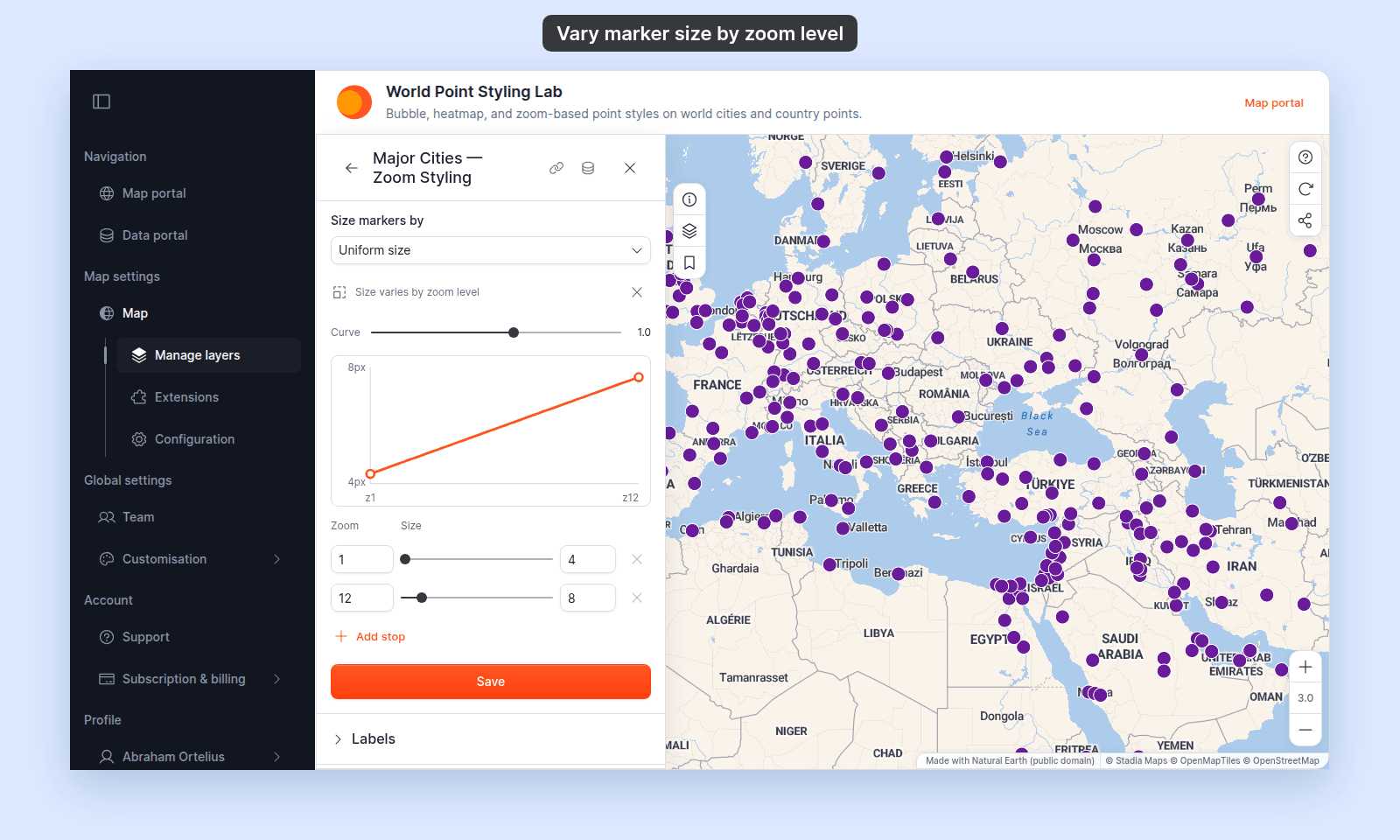
Set the size at each stop
For each stop:
- Type the zoom level in the
Zoombox. Use a value from 1 to 22, in steps of 0.5. - Drag the slider to set the marker size, from 3 to 40 px.
To add a stop, click Add stop, then set its zoom and size. To remove a stop, click its Remove stop button. A layer needs at least 2 stops and can have up to 6.
Stops stay in zoom order, at least 0.5 zoom levels apart. A zoom that is too close to a neighbouring stop moves to the nearest allowed value when you leave the box.
Between two stops, the marker size changes gradually. Zoomed out past the first stop, markers keep the first stop’s size. Zoomed in past the last stop, markers keep the last stop’s size.
(Optional) Shape the curve
The Curve slider sets how quickly the size changes between each pair of stops. The chart shows the result, with a dashed line for a steady change.
1(the default) — the size changes at a steady rate.- Above 1, up to 4 — the size changes slowly at first, then quickly near the higher zoom.
- Below 1, down to −3 — the size changes quickly near the lower zoom, then levels off.
The chart below shows three stops: 4 px at zoom 6, 20 px at zoom 12, and 40 px at zoom 14. It compares a Curve of 1 with a Curve of 2, and shows the size staying fixed before the first stop and after the last.
Save
Click Save at the bottom of the panel. Zoom the map in and out between your first and last stop to check the marker sizes.
If the map doesn’t update, you probably didn’t click Save. See Troubleshooting: my style change isn’t appearing on the map.
If you also size markers by a field
When Size markers by is set to a numeric field, the same button scales the whole size range with zoom. Each stop holds a Scale value instead of a size in pixels:
- At
×1.0, markers use theMinimum sizeandMaximum sizeyou set. - At
×0.5, both sizes are halved at that zoom. At×2.0, both are doubled. - The range is
×0.2to×3.0. The default stops are×0.5at zoom 1 and×1.5at zoom 18.
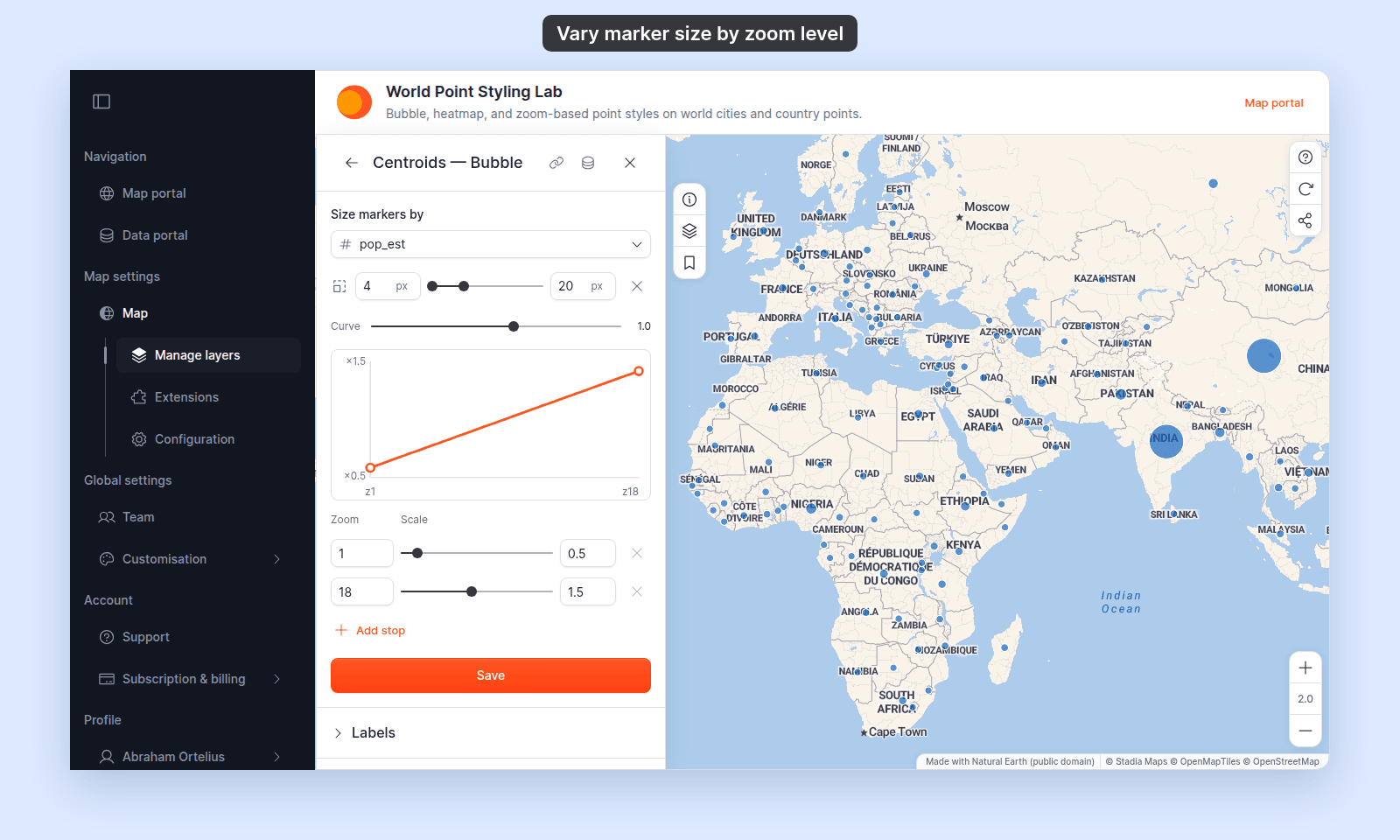
A saved layer with three scale stops, so markers draw at less than half size at world scale and twice their size by zoom 9:
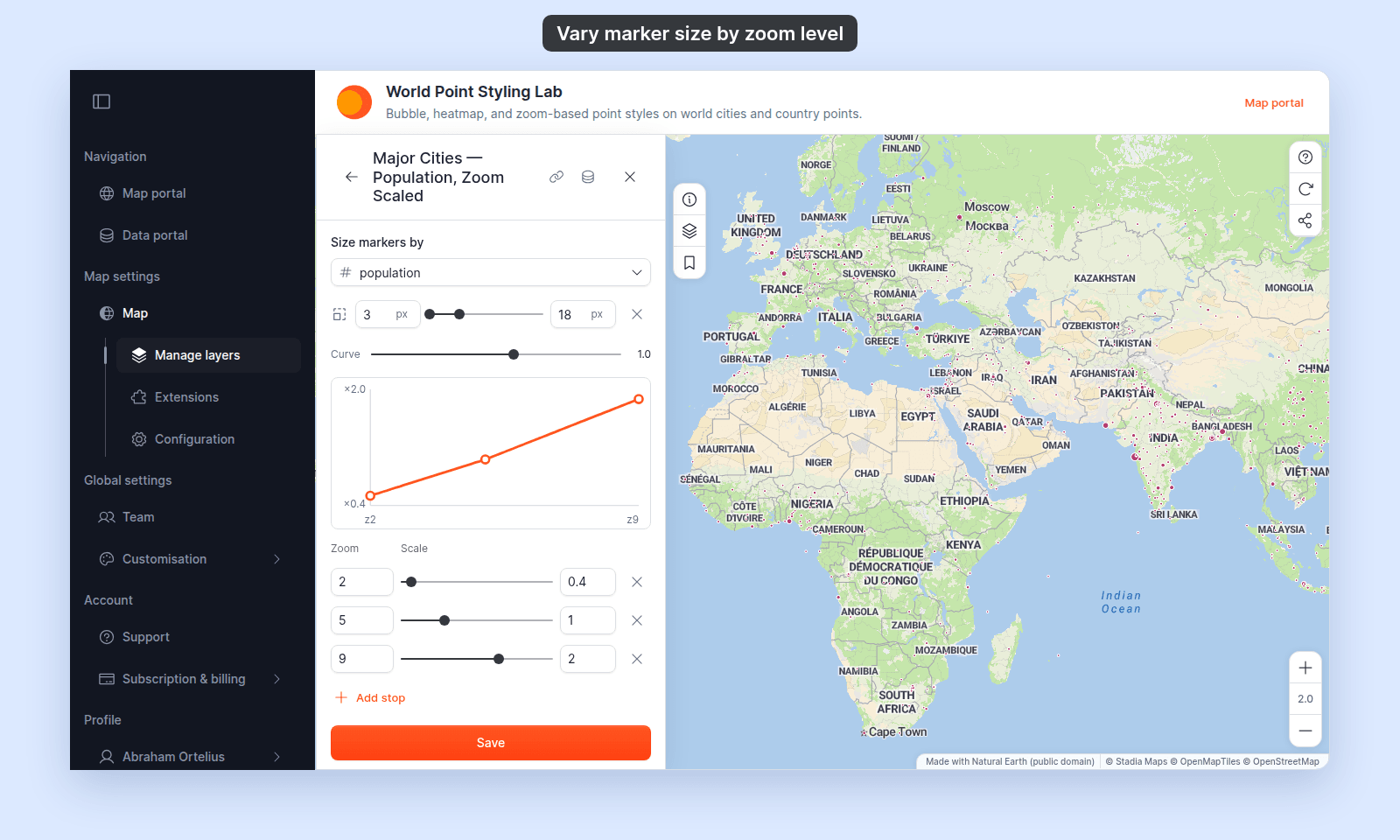
Small values still draw smaller than large values at every zoom. The size key in the legend doesn’t change with zoom. See How to size points by a number for the size range itself.
If the layer uses categories or class breaks
Zoom sizing replaces the marker size you set for each category or class. While zoom sizing is on, the per-row size controls in Customise categories and Customise Class Breaks are greyed out. MangoMap keeps your per-row sizes and uses them again when you turn zoom sizing off.
Rows that use an Icon or Custom Icon marker keep their fixed size. Only circle markers change size with zoom.
Turn zoom sizing off
- Click the
Reset to fixed sizebutton at the end of the marker size row. - Click
Save.
Markers go back to the fixed size they had before, and the zoom stops are deleted.
What viewers see in the legend
The legend doesn’t show the size change. A layer with one marker size keeps a fixed-size swatch in the legend at every zoom.
Troubleshooting
The Vary size by zoom level button is missing. Set Marker type to Circle.
I changed the marker type and my zoom stops are gone. Switching away from Circle deletes every zoom stop on the layer, for size and colour. It also sets Colour markers by back to Single colour. If you haven’t clicked Save, close the layer settings to discard the change. Otherwise, switch back to Circle and set the stops again.
Add stop is greyed out. The layer already has 6 stops. Remove a stop first.
Markers are the same size at every zoom. Check that you clicked Save, and that your stops have different sizes. Outside the first and last stop, the size stays fixed.
Related
- How to change marker colour by zoom level — use it with zoom sizing on the same layer.
- How to size points by a number
- How to set the zoom range a layer is visible at — hide a layer outside a zoom range instead of resizing it.
- How to set a uniform style on a point layer
- Point layer style controls
- How layer styling works in MangoMap