

How to add a calculated value to a custom popup
Calculate a value for each feature in a custom popup from its attributes. Build an equation in the editor, set decimal places, and check it in the preview.
Equations in a custom popup calculate a value for each feature from its attributes. They do not store the result on the layer. Click Insert equation in the popup editor and type an expression like {population} / {area} in the modal; the equation runs when the popup opens. Equations here run on a single feature only — layer-wide aggregations (sum, avg, etc.) belong in the Query or Proximity Analysis report tools.
See it on an example map
Open the Popup Media & Logic Lab. In the legend, turn on Planning Areas — Equations. Click an area. Its popup shows Population density and Aged 65 and over, calculated when the popup opens.
Before you start
- The popup type must be
Custom. See How to write a custom popup template. - The attributes you want to compute on must exist on the layer. Numeric attributes work for arithmetic; non-numeric attributes can be referenced but won’t compute usefully.
- An equation shows a number only. To show text based on an attribute, use conditional content.
- For full formula syntax (operators, edge cases), see Calculator formula syntax. The same syntax is used here.
Open the equation editor
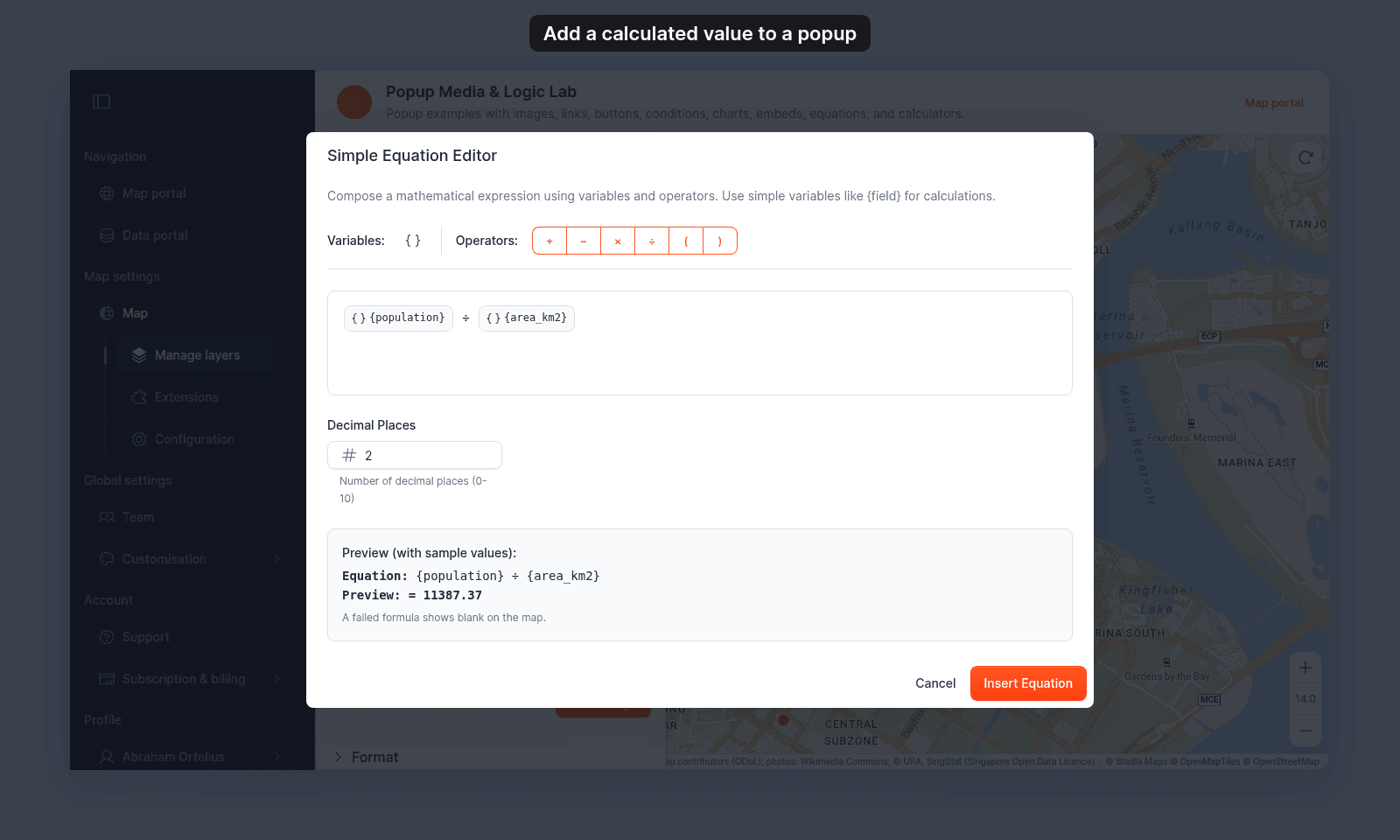
In the Custom popup editor, place the cursor where you want the computed value. Click Insert equation in the toolbar. The Simple Equation Editor opens.
Insert variables
Click the variable button in the modal’s toolbar. A list of every attribute on the layer opens. Click an attribute to insert it as {field_name} at the cursor.
You can also type the variable directly into the editor — {population} works the same as inserting via the button.
Insert operators
The Operators buttons insert +, −, ×, ÷, and parentheses at the cursor.
The buttons cover only the basic operators. Because the editor is a free-text field, you can also type modulo (%), exponentiation (^), unary negative (-{field}), and functions like round(...), floor(...), min(...), and abs(...) directly. For the complete list, see Calculator formula syntax; for worked examples, see How to use operators and functions in equations.
Type or insert until your expression is complete:
{population} / {area}Set decimal places
The Decimal Places field below the editor controls how many digits appear after the decimal point in the rendered result. Default is 2. Range is 0–10.
To add thousand separators, such as 12,508 in place of 12508, end the formula with .toLocaleString(): round({population} / {area}).toLocaleString(). For thousand separators and a fixed number of decimals, add both methods: ({population} / {area}).toFixed(2).toLocaleString() shows 12,508.28. See Format the result.
The setting is per-equation. If your popup has multiple equations, each one carries its own decimal-places setting.
Verify with the preview
The Preview (with sample values) panel calculates the equation the same way as the popup. It uses the values of one sample feature from the layer, and updates as you type.
If the equation fails for the sample feature, the preview shows the reason in red, such as Field not found: {aera} or Division by zero. In the popup, an equation that fails stays blank. The preview checks one feature only, so check the result on the map too. For every message, see Preview messages.
Insert the equation
Click Insert Equation to confirm. The modal closes and the equation appears in the popup template wrapped as a chip.
The chip shows the expression inside #{...}#. To change the equation, hover over the chip and click Edit equation. To remove it, click Delete equation.
Moving from v3? In v3, you typed equations into the popup as #{...}#. In v4, typed #{...}# stays as plain text and does not calculate. Click Insert equation and type only the expression, such as {population} / {area}.
Mix equations with text and other variables
A single popup can mix plain text, {field_name} variables, and equations. For example, to show Population density: 52.4 people/km²:
- Type
Population density:. - Click
Insert equation, type{population} / {area}, and clickInsert Equation. - Type
people/km².
Add more lines the same way, such as an Area in acres: line with the equation {area} * 0.000247.
Save the popup
After inserting equations, click Save Changes at the bottom right of the editor.
When to use an equation vs. a Calculator popup
The equation extension shows a computed value as part of the popup template — viewers see the result immediately when they click a feature.
A Calculator popup adds user input. Viewers fill in a form, click a button, and the popup computes a result combining their inputs with feature attributes. Use a Calculator when the calculation depends on something the viewer types in.
See How to build a calculator popup for the Calculator workflow.