

How to embed an iframe in a custom popup
Place an external web page in a custom popup with the Insert iframe button. Use one embed for every feature or a different embed for each one.
An iframe places an external web page inside a custom popup, such as a map, a dashboard, or a report viewer. Click Insert iframe in the popup editor and paste the page’s embed URL or its full embed code. The address must be an https:// page on another site, so you cannot embed a MangoMap map in a popup.
See it on an example map
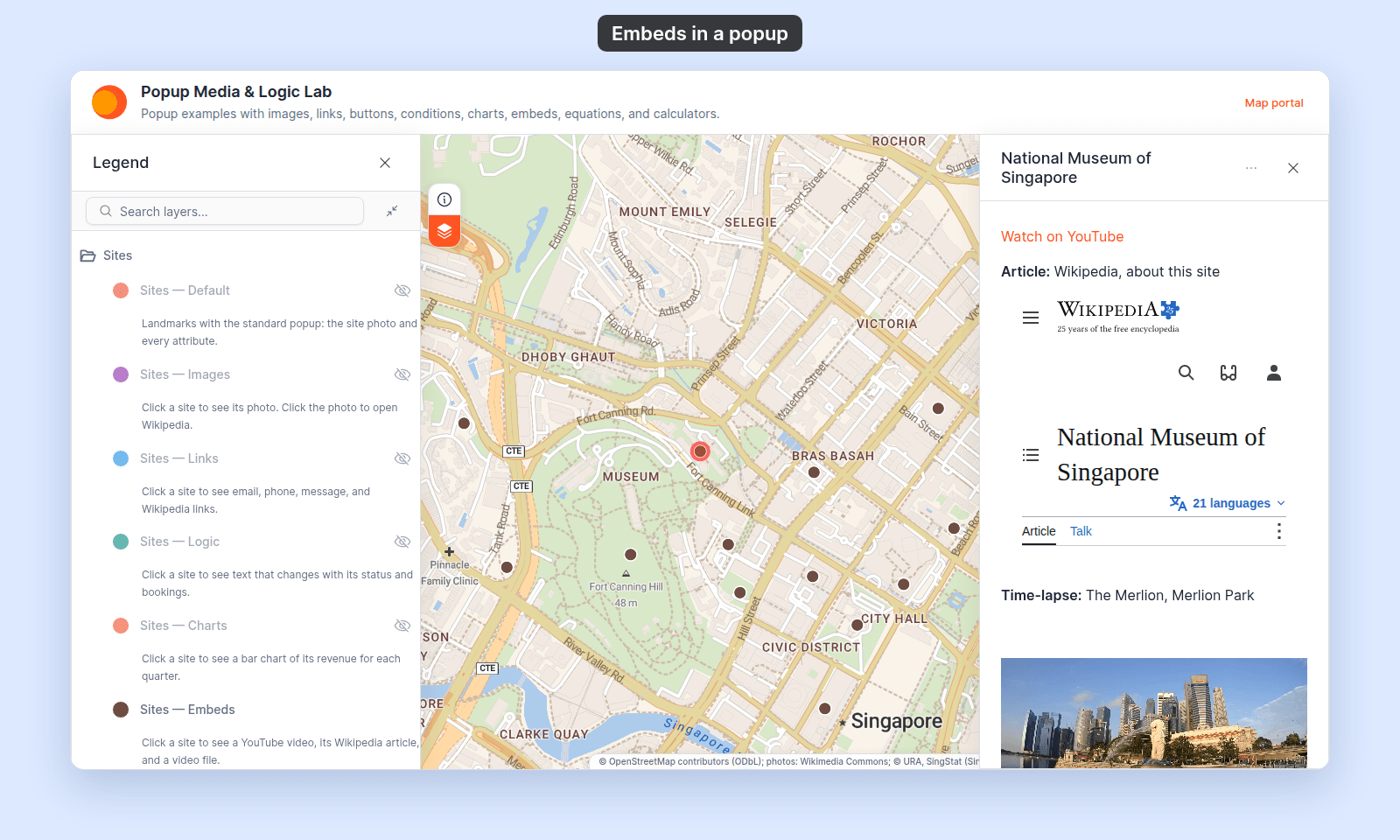
Open the Popup Media & Logic Lab. In the legend, turn on Sites — Embeds, then click a site. Its popup shows the site’s Wikipedia article in an iframe.
Common uses
- A chart or a report from another service, one for each feature. For example, a soundings report for each survey point, or a timeline chart for each site. The other service hosts the page, and the layer stores the page’s ID. See Use a different embed per feature.
- One dashboard or page for the whole layer. See Use the same embed for every feature.
Photos and PDFs
To show a photo or open a PDF for each feature, you don’t need an iframe:
-
A photo for each feature — use
Insert imagewith a variable, such as{photo_url}. See How to add an image to a custom popup. -
A PDF for each feature, such as a permit, a report, or a data sheet — add a link or a button whose address holds a variable. Each feature’s link opens its own PDF in a new tab:
https://example.com/reports/{report_id}.pdfIf an attribute already holds the full address of the PDF, use only that variable, such as
{report_url}. See Add a hyperlink and How to add an interactive button to a custom popup.
Don’t embed a PDF in an iframe. Chrome does not show a PDF inside a popup’s iframe.
Before you start
- The popup type must be
Custom. See How to write a custom popup template. - You need the embed URL for the content. For most services, this is different from the page URL. Google Maps, Tableau, OpenStreetMap, and similar tools give an embed URL or embed code in their share dialog.
- The other site must allow embedding. Some sites (banks, social media, login-walled apps) block it. Those pages do not load in a popup.
Insert an iframe
In the Custom popup editor, place the cursor where you want the embed. Click Insert iframe in the toolbar.
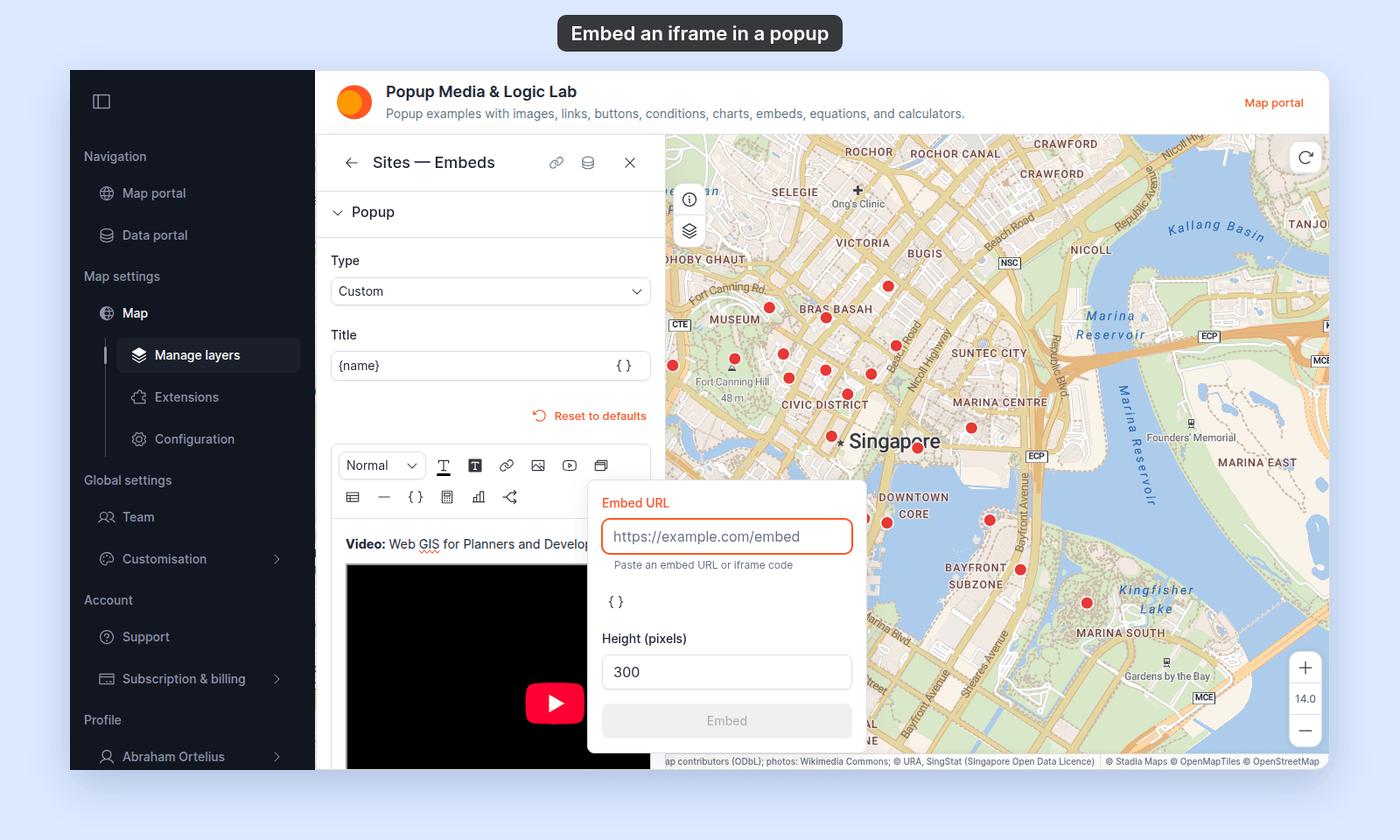
Paste the embed URL or the full <iframe> code into Embed URL. From embed code, MangoMap keeps only the address and the height.
Set Height (pixels) if you want the embed taller or shorter. The width always fills the popup.
Press Enter or click Embed. The editor shows the embedded page at the cursor. An address that ends in .mp4 or .webm becomes a video player instead. See How to embed a video file in a custom popup.
If the dialog refuses the address
The dialog accepts only an https:// address on another site. It refuses an http:// address, a MangoMap page, and a page on the map’s own site:
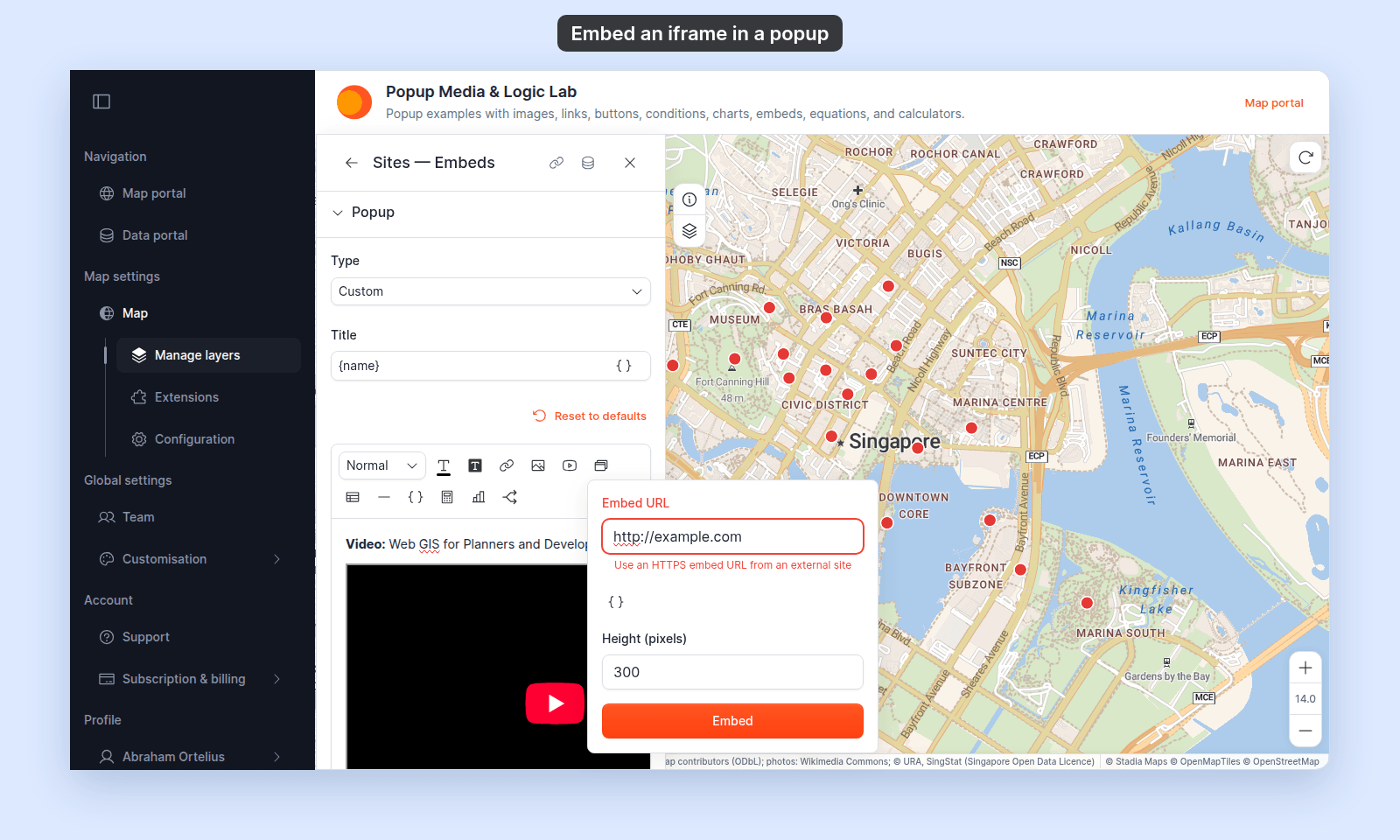
Copy the https:// embed URL from the other site’s share dialog and paste that.
Use the same embed for every feature
Paste a fixed URL into the field. The same page shows in every feature’s popup. Use it for a dashboard or a resource that applies to the whole layer.
Use a different embed per feature
To show a different page for each feature, put {field_name} variables in the address. Click Insert simple variable in the dialog to add one at the cursor, or type it.
For example, each site in this layer has its own Wikipedia article. The wikipedia_slug attribute holds the end of the article’s address, such as National_Museum_of_Singapore. This embed shows each site’s article:
https://en.wikipedia.org/wiki/{wikipedia_slug}A common use is a chart or a report that another service makes for each feature, such as a soundings report for each survey point, or a timeline chart for each site. The other service hosts the page. The layer stores only the page’s ID, and the address puts it in:
https://charts.example.com/soundings/{survey_id}For a photo or a PDF, see Photos and PDFs.
The editor cannot load an address that still has variables in it. It shows a dashed box with Embed: and the address instead:
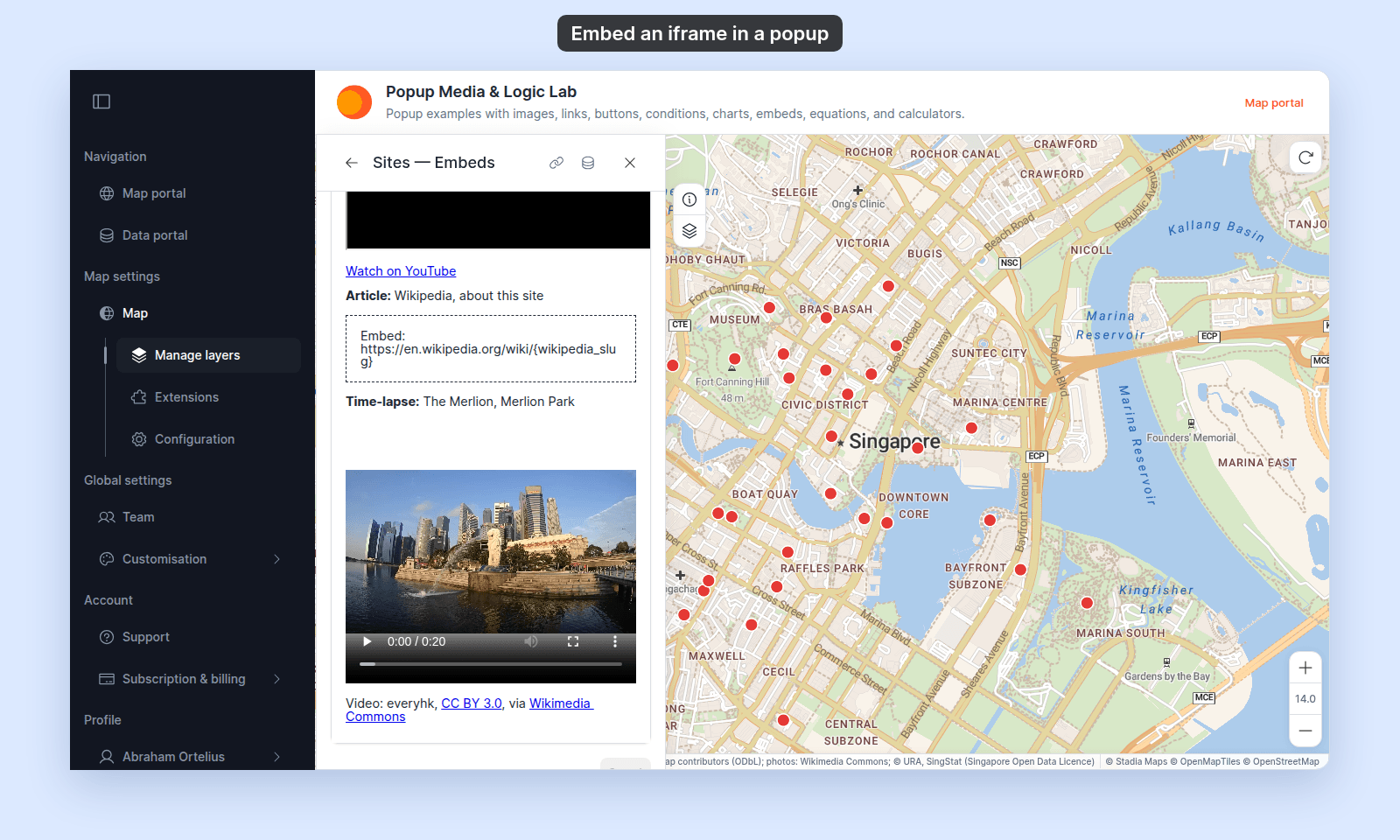
When the popup opens, each variable takes the feature’s raw value, not the value as formatted on the Format tab.
The address must start with the fixed part, such as https://charts.example.com/soundings/{survey_id}. If an attribute holds the page’s full address, such as chart_url, you cannot insert {chart_url} on its own today. The dialog shows Failed to construct 'URL': Invalid URL.
Check the embed
Save the popup, then click a feature on the map. The page loads in the popup:
When an embed doesn’t show
- A variable is empty. If any variable in the address has no value for a feature, that feature’s popup leaves the embed out. The rest of the popup still shows.
- The address is blocked. An
http://address, a MangoMap page, or a page on the map’s own site is removed from the popup with no message. This also happens to older popups that embedded a MangoMap map. - The other site refuses to be embedded. The frame stays empty or shows that site’s error page. Test the embed URL with a real feature after you save.
Save the popup
After inserting the embed, click Save Changes at the bottom right of the editor.