

How to write a custom popup template
Design one popup layout for every feature on a layer, with text, links, images, and per-feature values. Set Type to Custom to start.
A custom popup is a designed template that every feature renders with its own values substituted in — layout, headings, branding, images, tables, and links stay consistent across the layer while {field_name} variables fill with each feature’s data. Open the layer’s Popup tab, set Type to Custom, and design the template in the text editor.
See it on an example map
Open the Singapore Popup Studio. The Sites — Custom Template layer is on when the map opens. Click a site. Its popup shows a photo, a status line, a table, a revenue chart, and contact links.
Before you start
- The layer must be a vector layer (point, line, or polygon).
- Plan what’s going in the popup. Custom popups render the same template for every feature, so the design choices apply across the whole layer.
Open the Popup tab
In the layer panel, click the Popup tab.
Set Type to Custom
In the Type dropdown, select Custom.
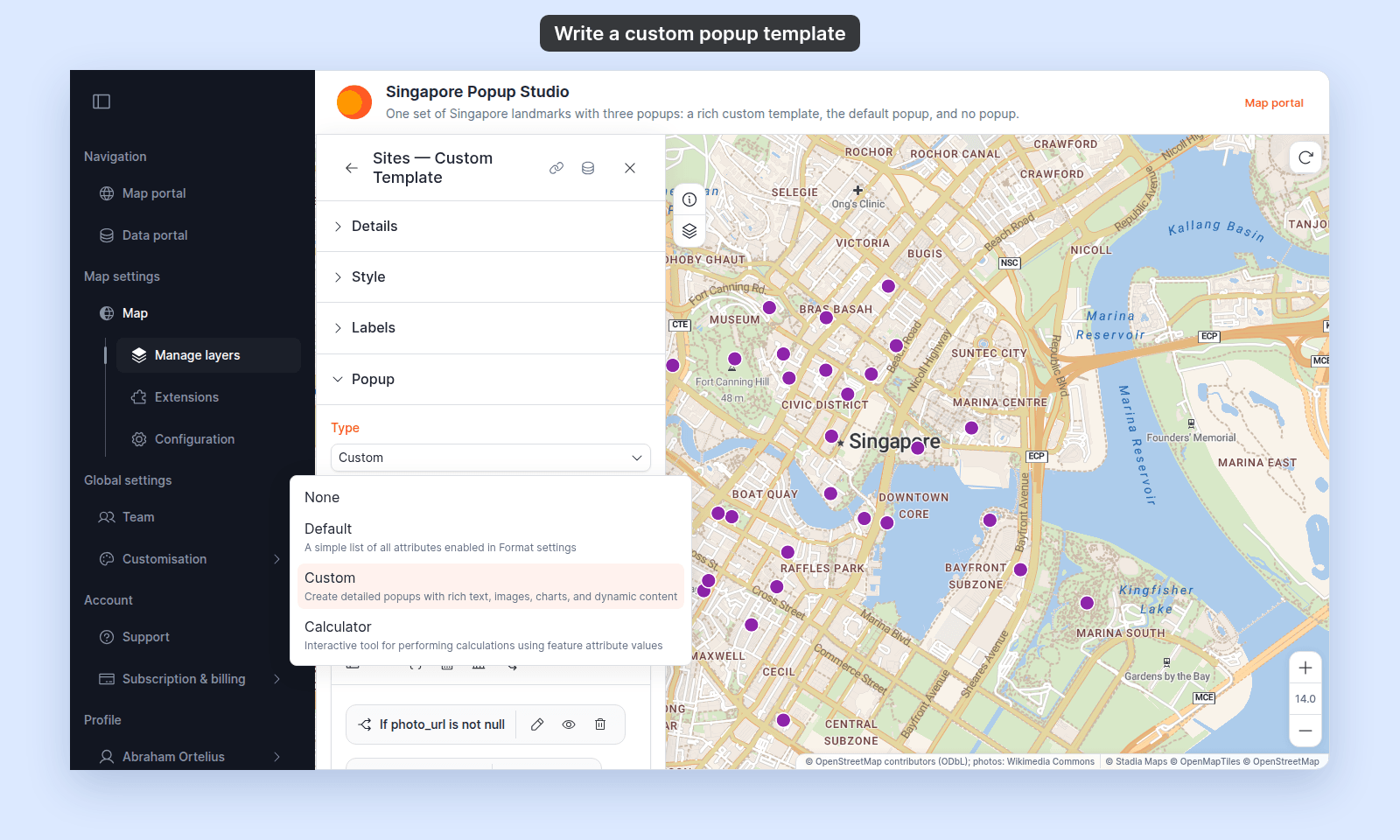
The popup editor opens below the dropdown, pre-filled with an auto-generated template that lists every attribute on the layer.
(Optional) Set the Title
The Title field above the editor sets the popup header. It accepts text and {field_name} variables. Click Insert simple variable at the right edge of the field to insert a variable; for example, {name} makes the title show the feature’s name value.
Format text with the toolbar
Hover over a toolbar button to see its name. These toolbar controls format text:
Font— pickNormalor a heading level fromH1toH6.Text colourandBackground colour— colour pickers for the selected text.Insert horizontal rule— add a divider line.
Two more menus appear inside the editor as you work:
- Select some text to show
Bold,Italic,Strikethrough,Bullet list,Ordered list,Align left,Align centre,Align right, andJustify. - Click an empty line to show
Heading 1,Heading 2,Heading 3,Bullet list, andOrdered list. The menu opens below the cursor. It does not open on a line that holds a chip.
The rest of the toolbar adds richer content: Set link, Insert image, Insert YouTube video, Insert iframe, Insert table, Insert simple variable, Insert equation, Insert chart, and Insert conditional. See the how-tos linked below.
Add a hyperlink
- Select the text you want to link.
- Click
Set link. TheAdd Linkdialog opens. - Leave
Link typeset toWeb link. - Type or paste the
URL. - Click
Add Link.
If you type a web address without https://, such as example.com, the dialog adds it when you save. A web link opens in a new tab, unless you clear Open in new tab.
Links accept {field_name} variables in the URL, so each feature can link to its own page or file. For example, to link each feature to its own PDF report:
https://example.com/reports/{report_id}.pdfIf an attribute holds the full address, such as {report_url}, use only that variable.
To start an email, a phone call, or a text message instead, set Link type to Email, Phone, or SMS. See How to add an email link to a custom popup and How to add a call or message link to a custom popup.
To turn the link into a button, tick Display as button in the same dialog. See How to add an interactive button to a custom popup.
Save your changes
Click Save Changes at the bottom right of the editor.
The editor doesn’t auto-save. If you navigate away with unsaved changes you lose them, so save after each meaningful edit.
Reset to the auto-generated template
If you’ve made changes you want to throw away, click Reset to defaults above the editor. A dialog asks you to confirm.
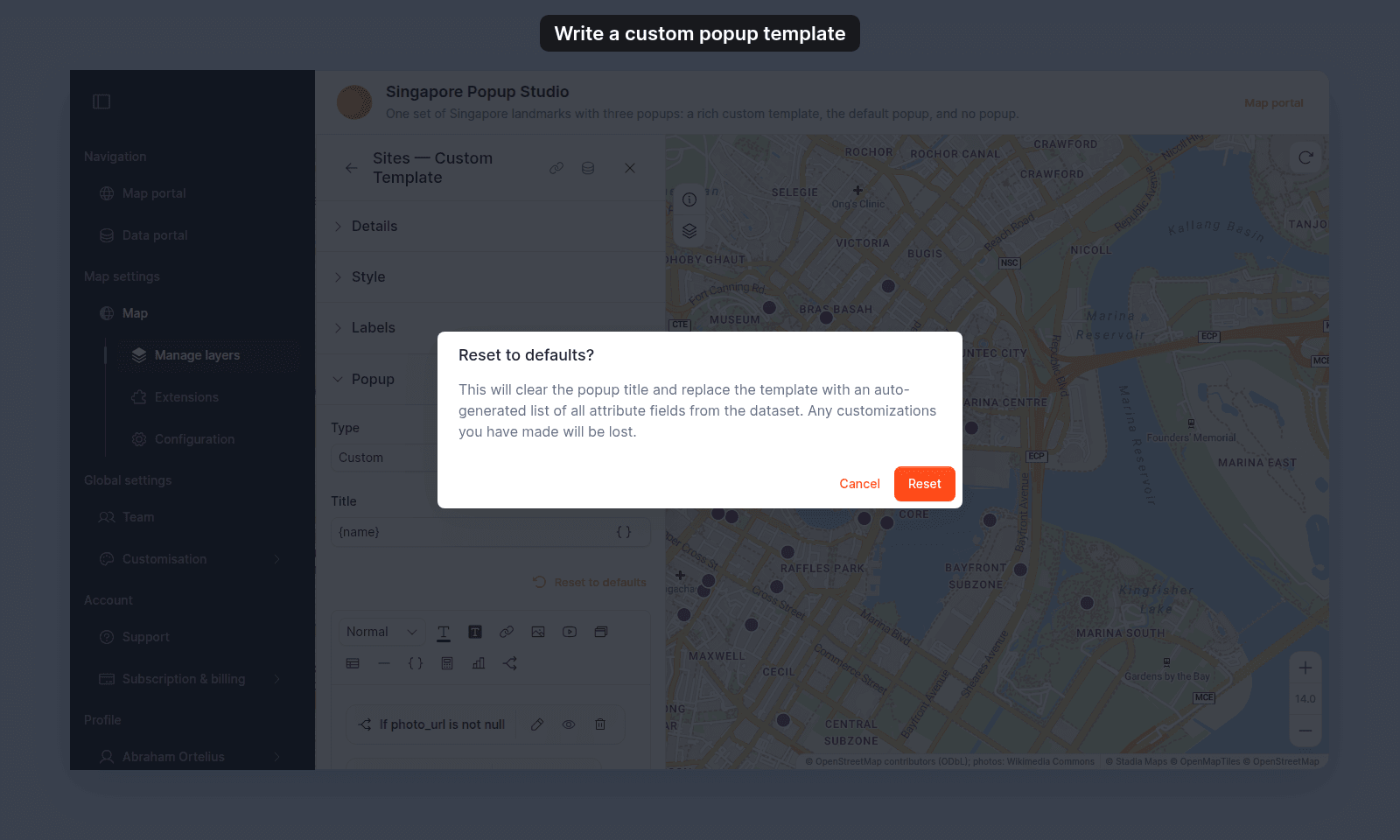
Click Reset to clear the title and regenerate the template from the layer’s current attribute list. The reset updates the layer immediately — there’s no separate Save Changes step after reset.
Preview the popup
Open the map and click a feature on the layer. The popup renders the template with that feature’s attribute values substituted into any variables.
What to read next
The basic editor covers text. For everything else, head to the per-content-type how-tos:
- How to insert attribute values into a custom popup —
{field_name}variables. - How to add an image to a custom popup
- How to add a table to a custom popup
- How to embed a YouTube video in a custom popup
- How to embed an iframe in a custom popup
- How to embed a video file in a custom popup
- How to add dynamic content to a custom popup — equations, charts, conditionals, interactive buttons.