

How to build a calculator popup
Build a calculator popup that gives viewers a form and combines their inputs with each feature's attributes. Set up the title, input fields, and formula.
A calculator popup gives viewers a form, then combines their inputs with each feature’s attributes. Examples include Total fertiliser needed for this field and Travel time along this route. Open the layer’s Popup tab, set Type to Calculator, and complete three steps: title and button text, input fields, and formula; inputs are referenced as {form_1}, {form_2} etc. in the formula, alongside layer attributes via {field_name} — the same syntax as the equation extension.
See it on an example map
Open the Popup Media & Logic Lab. In the legend, turn on Planning Areas — Calculator. Click an area. Type a number in Application rate (kg/ha) and click Calculate to see the total fertiliser.
Before you start
- The layer must be a vector layer (point, line, or polygon).
- Plan the inputs and formula before opening the wizard. Clear inputs make later changes easier.
- For full formula syntax, see Calculator formula syntax. The wizard’s Step 3 uses the same syntax. For worked operator and function examples, see How to use operators and functions in equations.
Open the Popup tab
In the layer panel, click the Popup tab.
Set Type to Calculator
Click Type, then click Calculator.
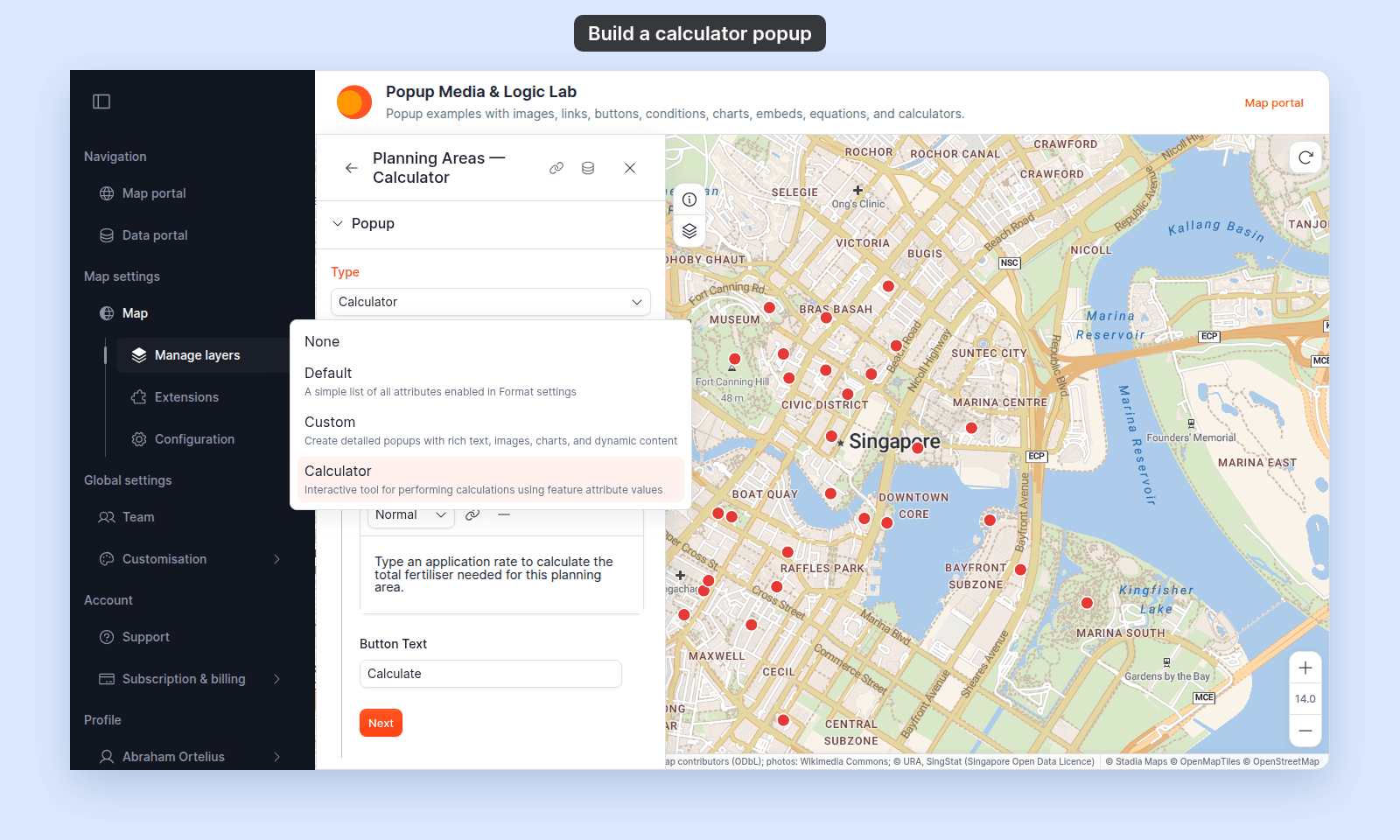
A wizard with three steps appears below Type:
- Step 1 — Title, Description & Button Text
- Step 2 — Input Fields
- Step 3 — Calculation Formula
Click any step heading to open it. You can complete the steps in any order. The changes in a step save when you click Next, another step heading, or Save.
(Optional) Set the Title
Above the wizard, the unified Title field gives the calculator popup a header. It accepts text and {field_name} variables. For per-feature titles, insert a variable using the button at the right edge of the field.
Step 1 — Title, Description & Button Text
This step configures the calculator’s header content as viewers see it.
Description & Instructions
Describe the calculator’s purpose and how to use it. You can use paragraphs, headings, bold, italic, lists, links, and horizontal rules.
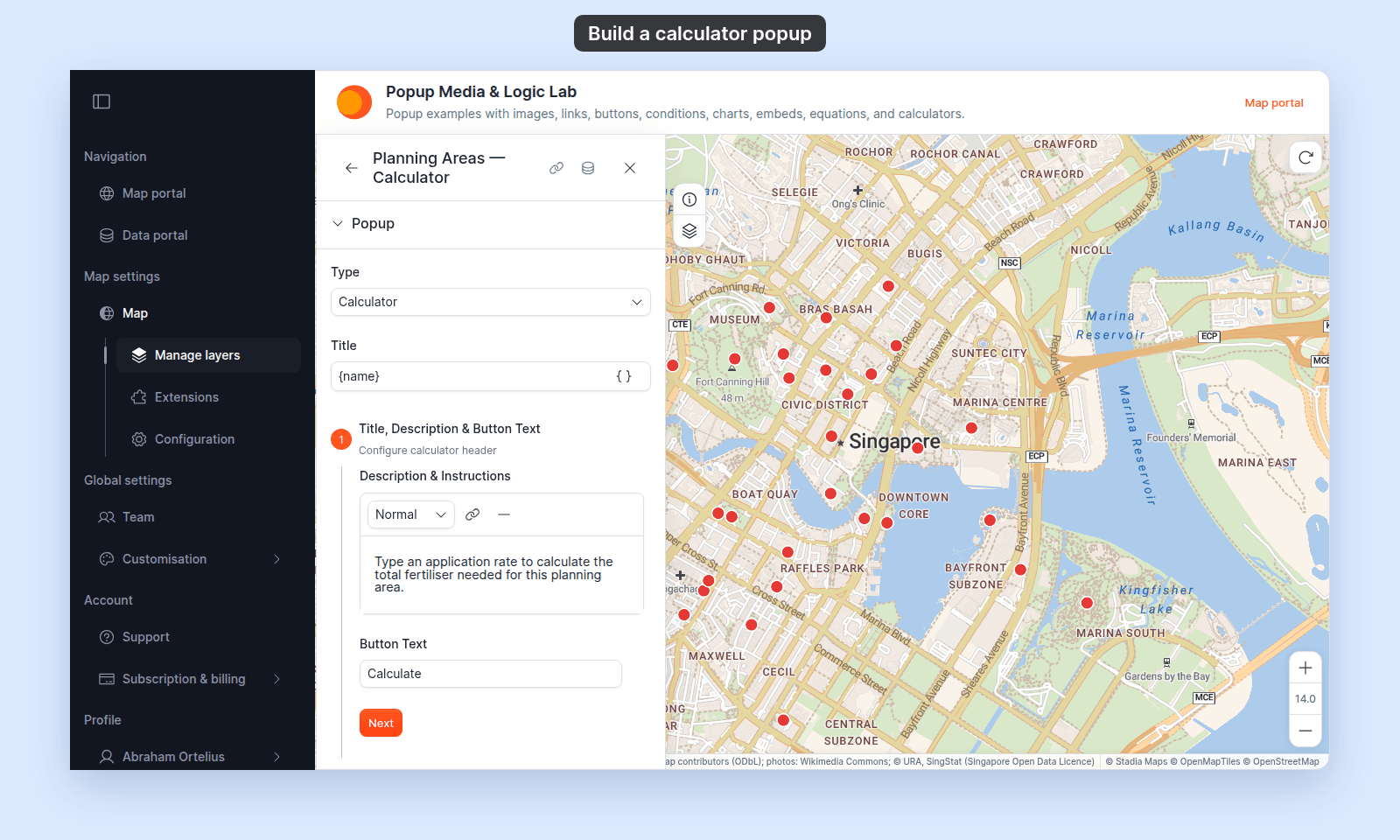
On a new calculator, the default content is Enter calculation instructions.... Replace it with something specific:
“Enter the field area in hectares and the desired application rate. The calculator returns the total fertiliser needed.”
Button Text
The label on the button viewers click to compute the result. Default: Calculate.
Choose text that matches the calculator’s purpose:
Calculate TotalEstimate Travel TimeCompute Yield
Step 2 — Input Fields
This step sets up the form fields viewers will fill in.
Add fields
The wizard starts with one form field. Use the Add Field button at the top right of the field list to add more. Each field gets an auto-incrementing ID — form_1, form_2, form_3, and so on. The ID shows in a monospace chip next to each field’s row.
Label each field
Type the label viewers will see in the form — for example, Field area (ha) or Application rate (kg/ha).
Every field needs a label. While a label is empty, you cannot click Next:
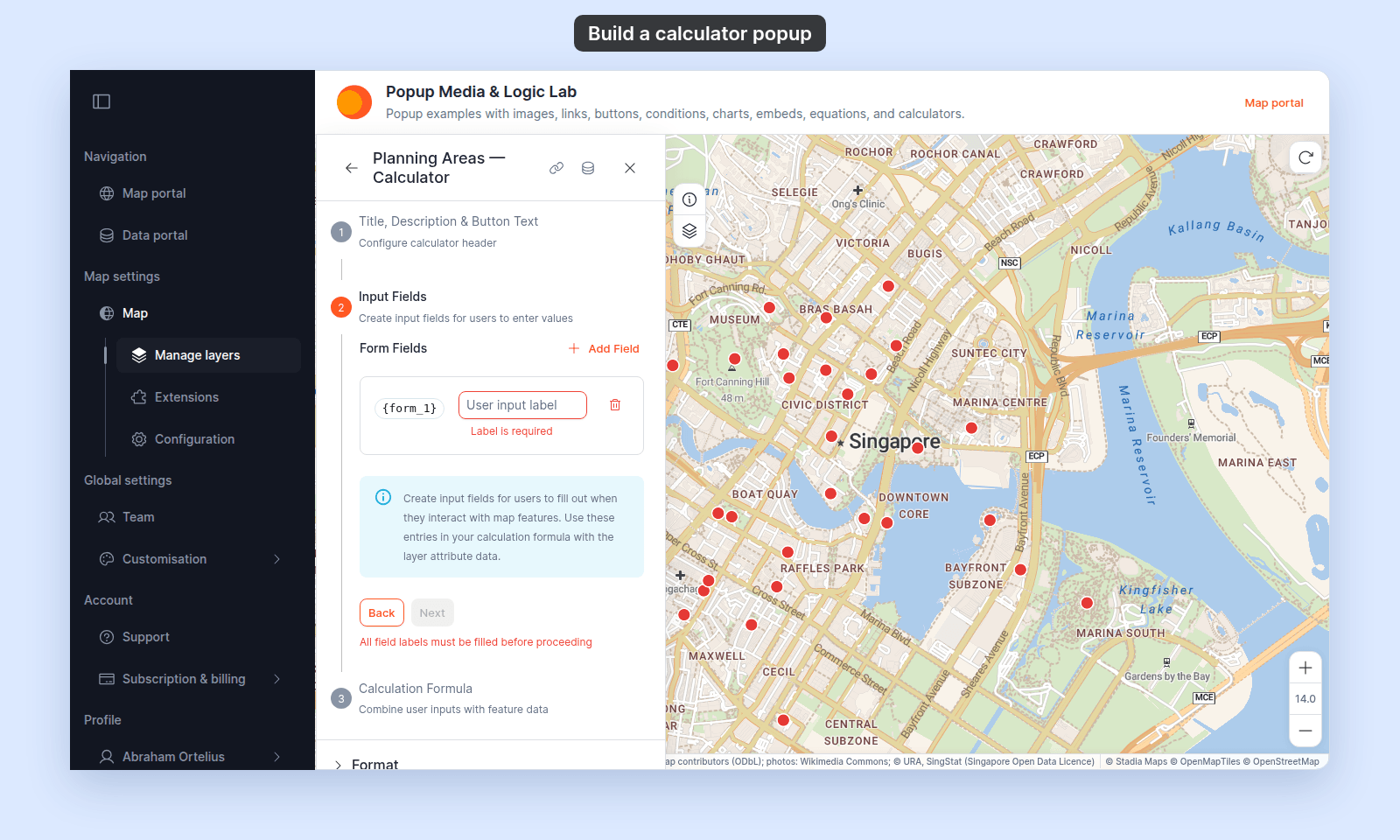
Field types
Form fields always show as numeric inputs to viewers — the calculator’s formula expects numeric values, so text or select-list inputs aren’t supported.
Remove a field
The bin icon next to each field deletes it. The last remaining field can’t be removed (the bin button is disabled when there’s only one).
Reference fields in your formula
The chip next to each label shows the variable to use in Step 3:
- The first field is
{form_1}. - The second is
{form_2}. - And so on.
Step 3 — Calculation Formula
This step writes the formula that turns inputs and feature attributes into the result.
Write the formula
The formula editor accepts:
- Layer attributes —
{field_name}references any attribute on the layer. The variable insertion button lists them. - User inputs —
{form_1},{form_2}, etc., matching Step 2’s fields. The user-input variable insertion button lists them. - Equations — click
Insert equationand type the calculation in the equation editor.
The formula runs for each feature, so it cannot use layer-wide functions such as sum or avg. For aggregations across a set of features, use the Query or Proximity Analysis report tools.
A typical formula shows Total fertiliser: <result> kg:
- Type
Total fertiliser:. - Click
Insert equation, type{area} * {form_1}, and clickInsert Equation. - Type
kg.
This runs for each feature: the feature’s {area} (in whatever the layer stores) multiplied by the user’s {form_1} input (the application rate).
Save
Click Save at the bottom of Step 3. The full calculator settings save to the layer. To revisit any step, click its heading; the wizard re-opens that step’s content for editing.
How it renders for viewers
When a viewer clicks a feature on the map, the calculator popup shows:
- The title (if set).
- The description and instructions from Step 1.
- The form fields from Step 2 — each with its label.
- The
Button Textbutton from Step 1.
After the viewer clicks the button, the description and the form are replaced by the result of Step 3’s formula and a Recalculate button.
Recalculate brings the form back, empty, so the viewer can try other values.
Closing the popup clears the form and the result. If the viewer clicks another feature while a result shows, the popup keeps that result, which belongs to the first feature. Click Recalculate to get an empty form for the new feature.
Verify the calculator
Open the map and click a feature. Fill in the form, click the button, and check the result against your expectations.
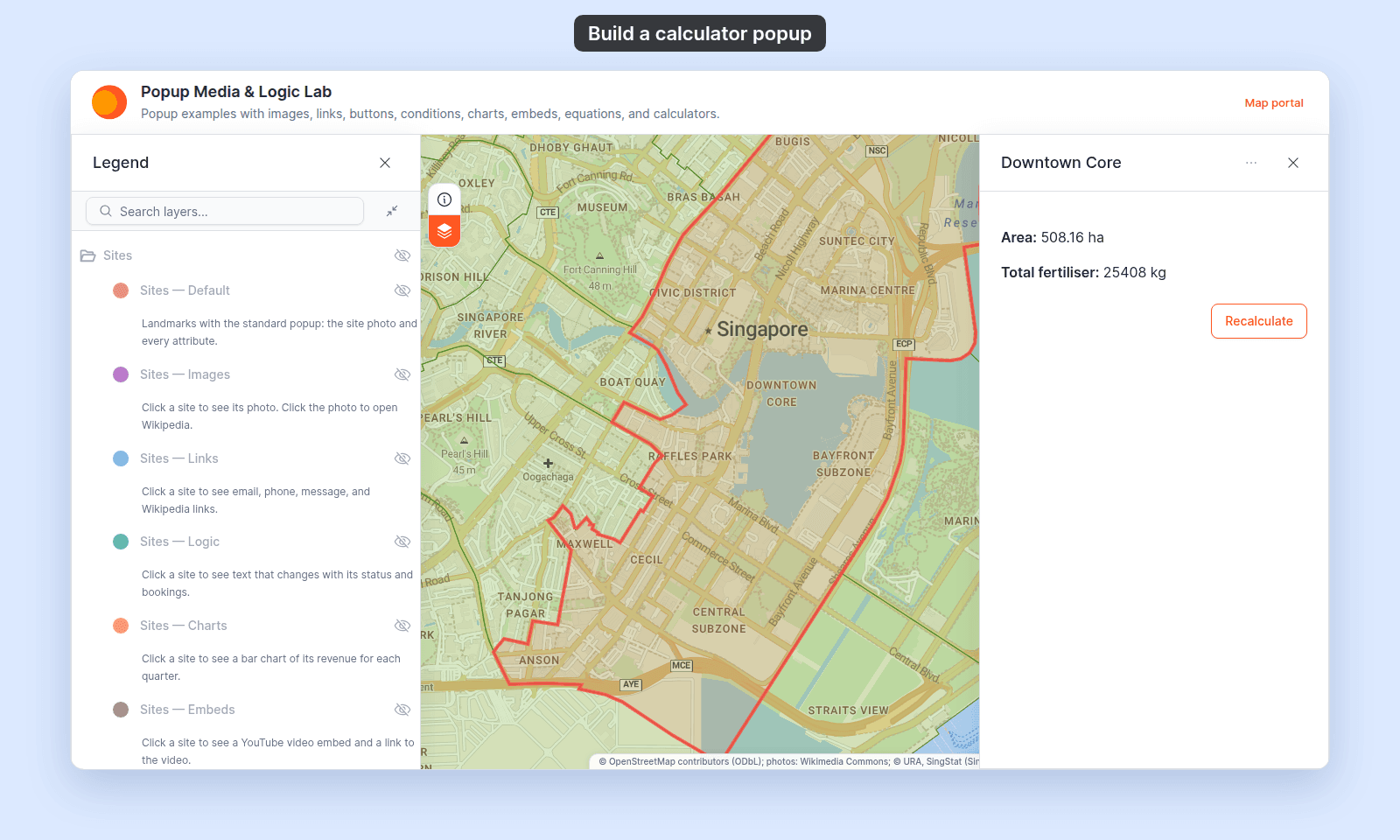
If the result is wrong:
- Recheck the formula in Step 3 (especially attribute names and operator precedence).
- Recheck that user input fields are referenced correctly (
{form_1}, notform_1). - Use the equation editor’s
Previewto test small parts of the formula in isolation.
When to use Calculator vs. an equation in a Custom popup
Calculator popups are interactive — the result depends on what the viewer types in. Use them when:
- The calculation requires user input (rates, durations, multipliers the viewer brings).
- The output is the point of the popup, not a side detail.
For static calculations (a ratio, a derived measure that’s the same for every viewer), use the equation extension in a Custom popup. See How to add a calculated value to a custom popup.