

How to add an email link to a custom popup
Add a link to a custom popup that starts an email in the viewer's email app, sent to one address or to each feature's own address, with a subject.
Add an email link to a custom popup, and viewers can click it to start an email in their own email app, with the address and subject filled in. A feature with no email address still shows the link, so hide the link on those features with a conditional.
See it on an example map
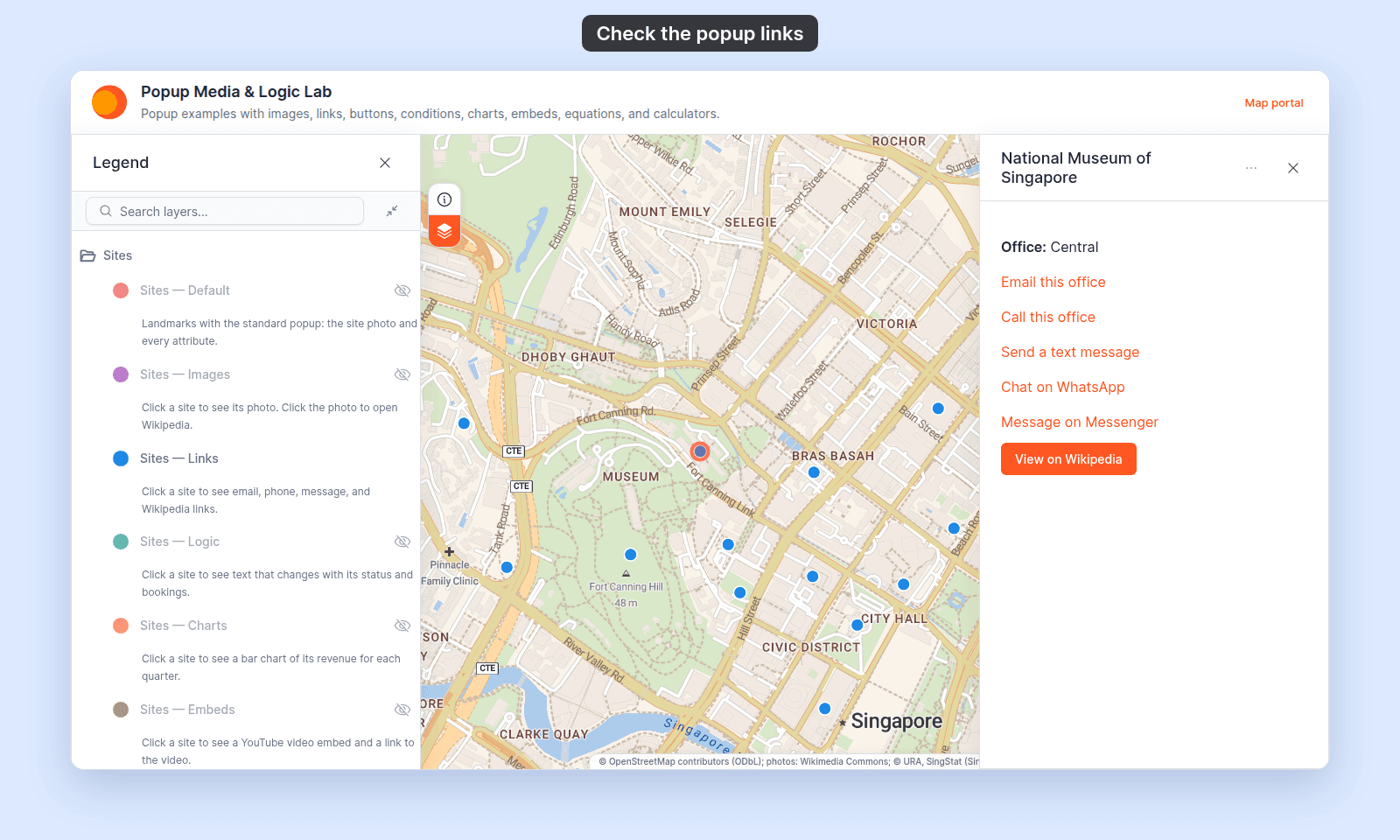
Open the Popup Media & Logic Lab. In the legend, turn on Sites — Links and turn off Sites — Default. Click a site. Its popup shows an Email this office link.
Before you start
- The popup type must be
Custom. See How to write a custom popup template. - For a different address on each feature, the dataset needs an attribute that holds the email address. To add one, add a column to your source file and update the dataset from the file.
Use one address for every feature
- In the Custom popup editor, place the cursor where you want the address.
- Type the email address, for example
sales@example.com. - Type a space.
The address becomes an email link. Every feature’s popup shows the same address. To add a subject or a message, click the link, click Edit, and follow Add a subject or a message.
Use a different address for each feature
Each value in the attribute is one email address:
| office | |
|---|---|
| Central | central+sg-0001@example.com |
| South | south+sg-0002@example.com |
- In the Custom popup editor, place the cursor where you want the link.
- Click
Set linkin the toolbar. - Set
Link typetoEmail. - Click
Insert simple variableat the end of theEmail addressfield. - Choose the attribute that holds the address.
- In
Link Text (optional), type the words viewers click, for exampleEmail this office. - Click
Add Link.
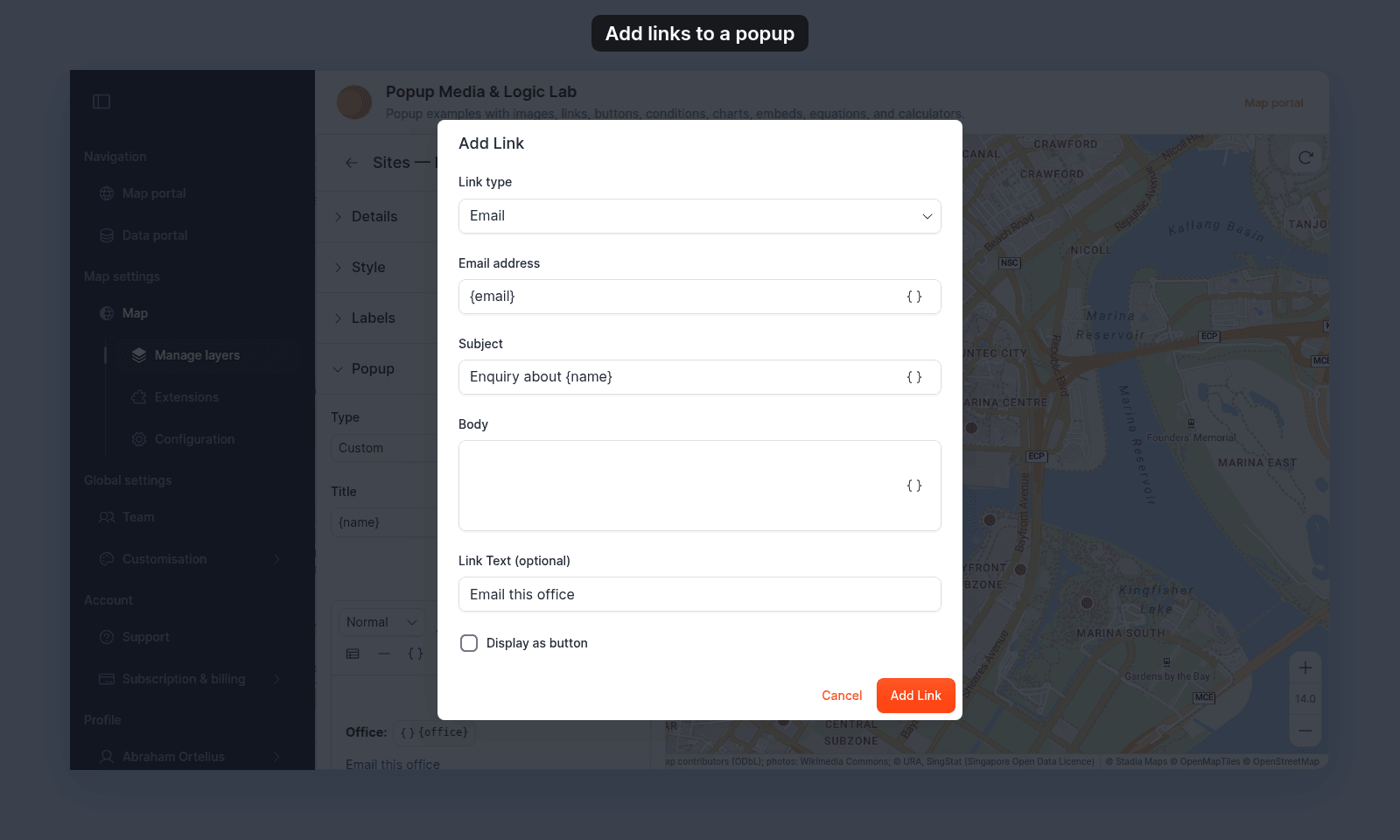
Always fill in Link Text (optional). If you leave it empty, the popup shows the link itself, such as mailto:{email}, as the link text.
If the attribute already holds a complete email link that starts with mailto:, insert it the same way. The link still works. Leave Subject and Body empty, because the stored link carries its own.
Add a subject or a message
In the same dialog, type the subject in Subject and the message in Body. Type plain text, with line breaks if you want them. MangoMap encodes the spaces and punctuation for you.
Subject and Body each have their own Insert simple variable button, so the email can name the feature:
Enquiry about {name}You can also paste a complete email link, such as mailto:sales@example.com?subject=Opening%20hours, into the Email address field. The dialog takes the subject and the message out of the link and puts them in Subject and Body.
If some features have no email address
When the attribute is empty, the link still shows, but the email it starts has no usable address. Wrap the link in a conditional that shows it only when the attribute has a value.
Check the link
Click Save Changes at the bottom right of the editor. Click a feature on the map, then click the link. A new email opens in the viewer’s default email app, with the address, subject, and message filled in.
In this example popup, Email this office is the email link:
If the dialog shows an error
Enter a valid email address.TheEmail addressfield holds something that is not one email address, such as a name or two addresses. Type one address, or insert a variable.This link type is not supported.The field starts with a kind of link that popups do not support, such asftp:. Popup links can be web, email, phone, or text message links only.
Related
- How to add a call or message link to a custom popup
- How to add an interactive button to a custom popup — to show the email link as a button
- How to insert attribute values into a custom popup
- How to show or hide content based on a feature’s attributes
- Popup tab controls — every field in the
Set linkdialog - How to update a dataset from a file — to add the email address column