

How to disable popups on a layer
Set the Popup type to None so clicks on a layer's features open no popup. Your saved popup settings stay, and you can turn popups back on later.
When Popup type: None is selected, viewers see the features but clicks open no popup. Hover popups also stay off. Open the layer’s Popup tab and set Type to None. This hides the popup without deleting its saved configuration; if you later switch back to Default, Custom, or Calculator, the saved settings are still there unless you reset them.
See it on an example map
Open the Singapore Popup Studio. In the legend, turn on Sites — No Popup and turn off Sites — Custom Template. Click a site. No popup opens.
Before you start
- The layer must be a vector layer (point, line, or polygon). Raster and WMS layers don’t have a Popup tab — popups are inherently disabled for those.
- Disabling popups doesn’t hide the layer or its features. The features still draw, get styled, and respond to filters; they don’t open a popup on click.
Open the Popup tab
In the layer panel, select the layer. Click the Popup tab.
Set Type to None
In the Type dropdown, select None. The tab then shows only the type selector.
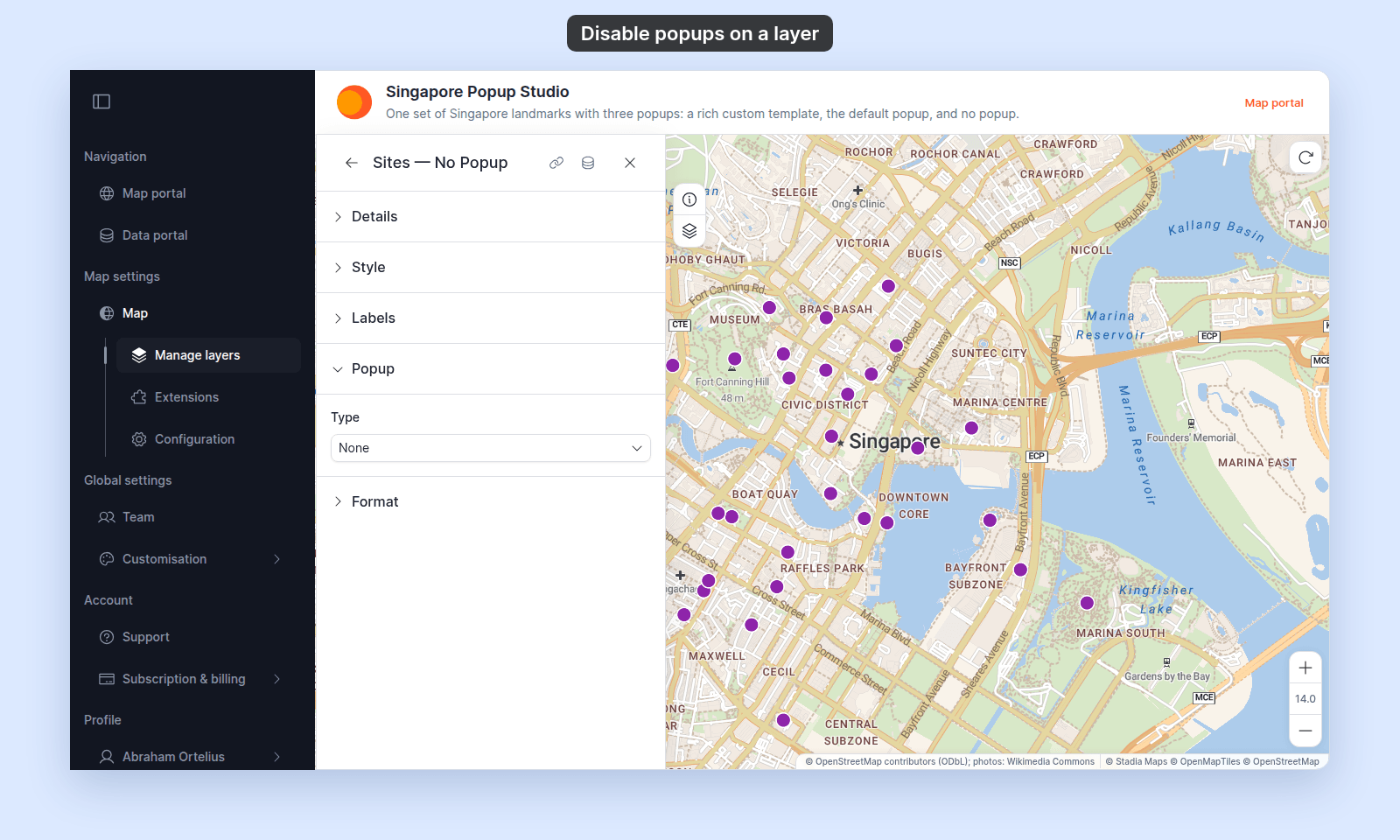
The change saves automatically when you pick a new type — there’s no separate save button on this path.
If you want to re-enable popups later
Pick a different value from the Type dropdown (Default, Custom, or Calculator).
If your layer should still respond to clicks
None removes the popup but the layer still works with filters, selection, and styling. If you need a layer that’s truly non-interactive, the closest alternative is to use it as a basemap layer rather than a regular vector layer.