

How to add an image to a custom popup
Show one image on every feature, or a different image for each feature, in a custom popup. Use a public HTTPS URL or paste an image from the clipboard.
A custom popup can use one image for every feature or a different image for each feature through a {field_name} URL variable. Click Insert image in the popup editor and enter a public HTTPS URL in the Add Image dialog; missing or broken URLs render as a broken-image icon, so wrap variable-driven images in a conditional when some features have no photo. You can also paste an image from the clipboard, but an external HTTPS URL works better for repeated use.
See it on an example map
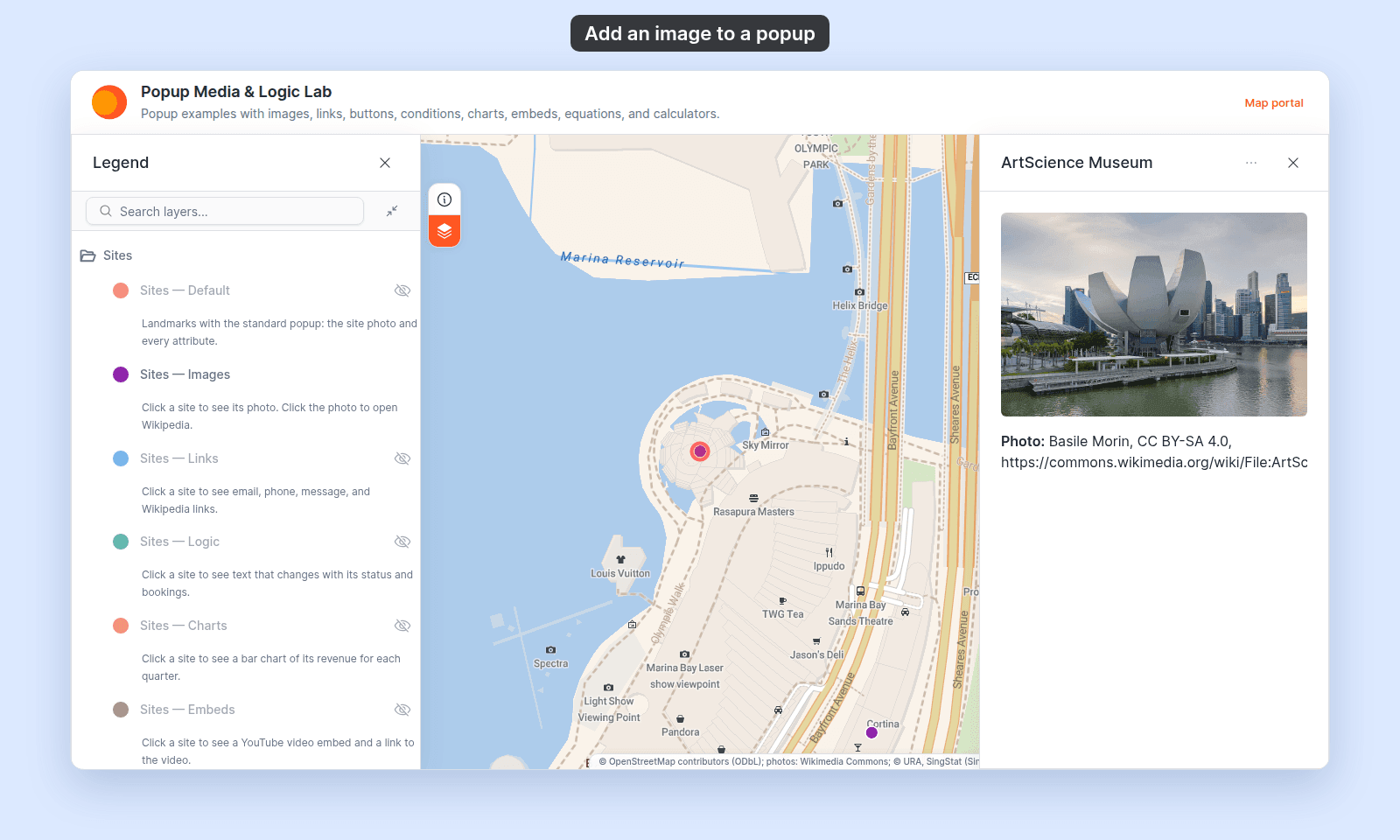
Open the Popup Media & Logic Lab. In the legend, turn on Sites — Images and turn off Sites — Default. Click a site. Its popup shows a photo of that site.
Before you start
- The popup type must be
Custom. See How to write a custom popup template. - Have your image source ready. The recommended source is a public HTTPS URL — MangoMap doesn’t host popup images for you. Clipboard paste also works as a fallback (see below).
- Per-feature images need an attribute on the layer that holds the image URL or a piece of the URL you can interpolate.
Insert an image
In the Custom popup editor, place the cursor where you want the image to appear. Click Insert image in the toolbar.
The Add Image dialog opens. It has these fields:
Image URL— the image source. Required. ClickInsert simple variableat the end of the field to insert a{field_name}variable from the layer’s attributes.Alt Text (optional)— text read by screen readers and shown if the image fails to load.Width (px)andHeight (px)— both default toAuto. Set one or both to fix the size; leave both atAutoto use the image’s natural dimensions.Link URL (optional)— if set, viewers can click the image to open this URL. ClickInsert simple variableto insert a variable. The link must start withhttp://orhttps://. If it doesn’t, or a variable in it has no value for a feature, that feature’s image shows without a link.Open link in new tab— appears once you enter a link URL. When on, the link opens in a new browser tab, so the map stays open.
Click Add Image to insert the image at the cursor.
Paste an image from the clipboard
You can also paste an image directly from your clipboard into the popup editor — copy a screenshot, hit paste, and the image appears inline.
Clipboard images work, but for anything you’ll use more than once, or any image that varies per feature, host the image with an HTTPS URL and use the Image URL field instead.
Use the same image for every feature
Paste a static URL like https://example.com/logo.png into the URL field. The same image renders on every feature’s popup.
Useful for branding (a logo at the top of every popup), legends, or icons that don’t change across the layer.
Use a different image per feature
To show a different image per feature, the layer must have an attribute that holds either the full image URL or a portion you can use to construct the URL.
If the layer has an attribute photo_url containing full URLs:
{photo_url}Insert that as the image source — the variable substitutes per feature, so each feature shows its own image.
For example, this popup uses {photo_url}. When a viewer clicks ArtScience Museum, the popup shows the photo of that site:
If the layer has an attribute slug you can use to build a URL pattern:
https://example.com/photos/{slug}.jpgUse that as the image source — same idea, with the variable interpolated into the URL.
Edit an inserted image
Click an inserted image to open a small menu above it. Hover over a button to see its name:
Edit image— opens theEdit Imagedialog, so you can change the URL, alt text, width, height, or link. ClickUpdate Imageto apply.Set auto width— setsWidth (px)andHeight (px)back toAuto, which restores the image’s natural size.Align left,Align centre,Align right— position the image in the popup. The active alignment is highlighted.Delete image— removes the image from the popup template.
Use Edit image for anything in the dialog. Use the alignment and auto-width buttons for quick changes in place.
What happens when the image URL is missing or broken
If the variable in the URL is missing or empty, the popup shows a broken-image icon where the image should be.
To handle missing images gracefully, wrap the image in a conditional that only renders when the attribute is present. See How to show or hide content based on a feature’s attributes.
Save the popup
After inserting and adjusting the image, click Save Changes at the bottom right of the editor.