

How to add an interactive button to a custom popup
Add a button to a custom popup that opens a per-feature web page, such as a Wikipedia article, or starts an email, a phone call, or a text message.
An interactive button opens a web page for the current feature, or starts an email, a phone call, or a text message. Examples include View on Wikipedia, Open booking, and Email this office. Click Set link in the popup editor, tick Display as button, choose the Link type, and set a label plus a target like https://en.wikipedia.org/wiki/{wikipedia_slug}. The button cannot run scripts or map actions, and it uses raw attribute values. If the source attribute is not set, the placeholder stays in the link, so wrap the button in a conditional when some features won’t have a target.
See it on an example map
Open the Popup Media & Logic Lab. In the legend, turn on Sites — Links and turn off Sites — Default. Click a site. Its popup ends with a View on Wikipedia button.
Before you start
- The popup type must be
Custom. See How to write a custom popup template. - For per-feature button targets, the layer must have an attribute that holds a full URL, or a part of one such as an ID, an email address, or a phone number.
Insert a button
- In the Custom popup editor, place the cursor where you want the button.
- Click
Set linkin the toolbar. TheAdd Linkdialog opens. - Tick
Display as button. The dialog title changes toAdd Button. - Choose the
Link type. - Fill in the fields.
- Click
Add Button.
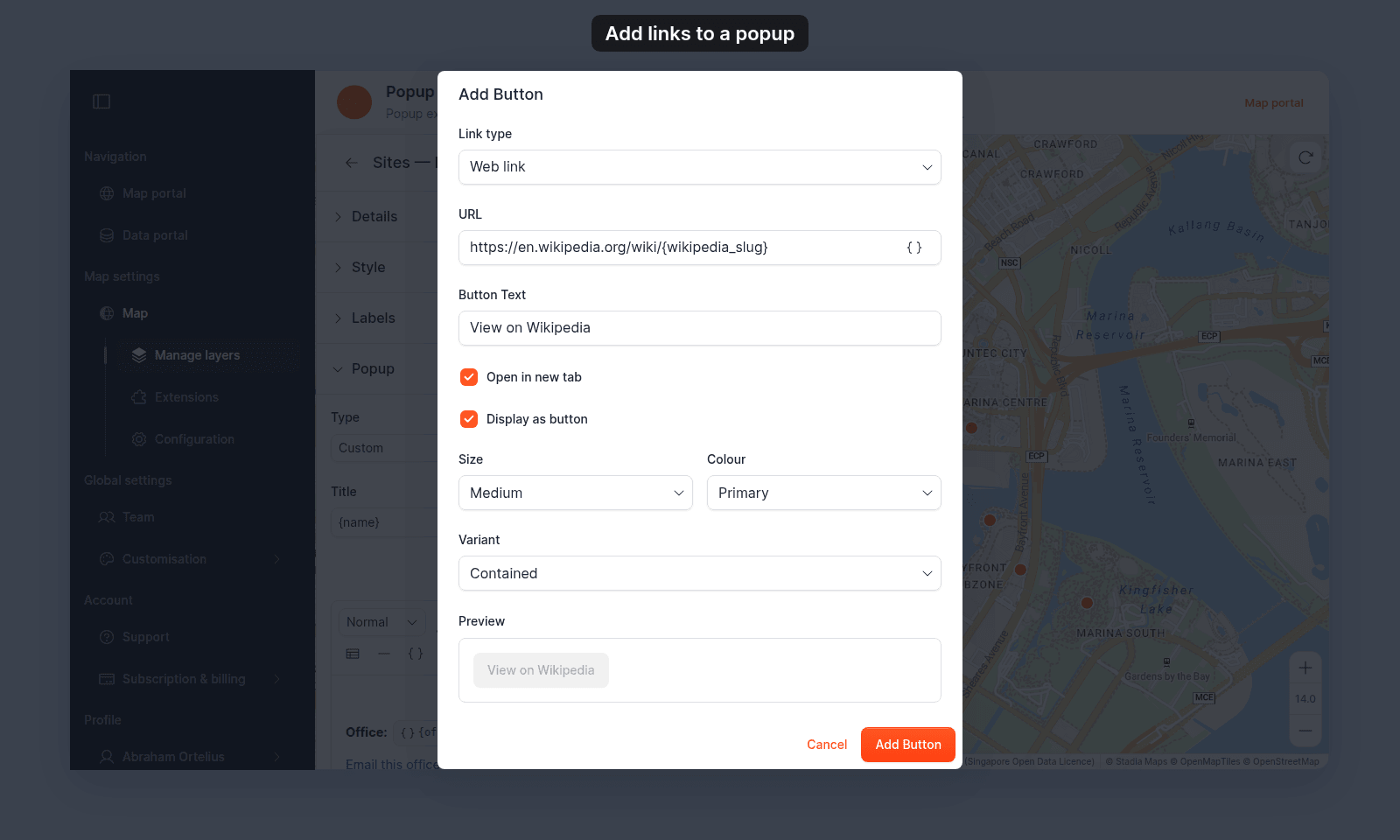
The dialog has these fields:
Link type—Web link,Email,Phone, orSMS. Default:Web link. The next field changes to match it. For the email, phone, and text message types, see How to add an email link to a custom popup and How to add a call or message link to a custom popup.URL,Email address, orPhone number— the button’s target. Required. While it is empty, theAdd ButtonorUpdate Buttonbutton changes toRemove Button. To insert a{field_name}variable from the layer’s attributes, clickInsert simple variableat the end of the field.SubjectandBody— shown only forEmail. The email’s subject and message. Both accept{field_name}variables.Button Text— the label viewers see. Supports{field_name}variables for per-feature labels.Open in new tab— checkbox, shown only forWeb link. Ticked by default on a new button. When ticked, the page opens in a new browser tab so the map stays open. When cleared, the page replaces the map in the current tab.Display as button— checkbox. When ticked, the item is a styled button and the styling fields appear.
When Display as button is ticked, three styling fields appear:
Size—Small,Medium, orLarge. Default:Medium.Colour—Primary,Secondary,Success,Error,Warning,Info. Default:Primary.Variant—Contained,Outlined, orText. Default:Contained.
A Preview panel shows the button before you insert it.
Use a clear action label: View on Wikipedia, Open booking, View source, Download report.
If you want a plain text link instead
Leave Display as button cleared. The text field is then Link Text (optional), and there are no styling fields. If you leave Link Text (optional) empty, the link itself becomes the link text. Click Add Link to insert it.
Edit an inserted button
The editor treats a button as one block, so you can’t type into it. Change its label and settings in the dialog:
- Click the button in the editor. A small menu appears above it.
- Click
Edit. TheEdit Buttondialog opens with the current values. - Change the fields you need.
- Click
Update Button.
The same menu has Visit and Unlink. Visit opens a web link in a new tab, or starts the email, call, or text message on your own device. It does not fill in variables, so a target with {field_name} opens with the variable name in it. Unlink deletes the button.
Align the button
Click the button in the editor, then pick Align left, Align centre, Align right, or Justify in the menu above it.
Use variables in the URL
If the layer has an attribute holding the full URL, reference it directly:
{wikipedia_url}If the layer has only a slug or ID, build the URL pattern:
https://en.wikipedia.org/wiki/{wikipedia_slug}If each feature has its own PDF, such as a permit or a report, build the PDF’s address the same way:
https://example.com/reports/{report_id}.pdfVariables in the URL substitute per feature. Each feature’s button opens its own target. Variables work the same way in Email address, Subject, Body, and Phone number.
Use variables in the label
You can put variables in the label too:
View {name} on WikipediaEach feature’s button shows its own label. Useful when the action depends on the feature’s name or category.
Pick the right colour and variant
The Colour options match standard interface tones:
Primary— main action; use sparingly so it stands out.Secondary— supporting action.Error— destructive action; rare in popups.Success— positive confirmation.Info— informational; matches the help tone.Warning— cautionary.
Variant controls fill style:
Contained— solid filled button. Most prominent.Outlined— bordered button with a transparent fill. Quieter.Text— text only, no border. Minimal.
Pick Contained for the primary action of the popup; Text for secondary links that shouldn’t compete for attention.
Open in a new tab vs. same tab
The Open in new tab checkbox controls where a Web link button opens its page.
For external links, leave Open in new tab ticked so viewers keep their map. Clear it only when the button is meant to take the viewer away from the map.
Email, Phone, and SMS buttons have no Open in new tab checkbox. They start the email, call, or text message in the viewer’s app, and the map stays open.
A button replaces the map instead of opening a new tab
Popup buttons follow the Open in new tab setting. Some older buttons have Open in new tab cleared, so they now open their page in the same tab, and the page replaces the map.
To fix a button:
- Click the button in the editor.
- Click
Edit. - Tick
Open in new tab. - Click
Update Button. - Click
Save Changes.
What happens when the target is malformed
A button works only when its target is one of these:
- A web address that starts with
http://orhttps://, or a domain such asexample.com - An email, phone, or text message link
- A path on the same site, such as
/about
Any other target does nothing when clicked.
A target with a variable that is not set keeps the placeholder, so the button can open a broken target. To avoid showing buttons that lead somewhere unexpected, wrap the button in a conditional keyed on the source attribute being non-null.
Save the popup
After configuring the button, click Save Changes at the bottom right of the editor. Verify by clicking a feature on the map. The button shows your label, and clicking it opens the right target for that feature.