

How to insert attribute values into a custom popup
Show each feature's own attribute values in a custom popup with variables such as {population}. Insert them from the toolbar or type them in.
Attribute variables let each feature show its own value — Population: {population} reads Population: 1,247 on one feature and Population: 3,490,238 on the next, formatted per the layer’s Format tab. Click Insert simple variable in the popup editor toolbar (or type {field_name}) to insert one; variables substitute the value only (not the alias label), and missing or empty attributes render as blank, so wrap variables in a conditional when some features have no value.
See it on an example map
Open the Popup Media & Logic Lab. In the legend, turn on Planning Areas — Values. Click an area. Its popup shows that area’s Population, Area, and Last updated values.
Before you start
- The popup type must be
Custom. See How to write a custom popup template for the basic flow. - The attributes you want to insert must exist on the layer. Check the layer’s attribute list (visible on the
Formattab).
Insert a variable in the editor
In the Custom popup editor, place the cursor where you want the value to appear. Click Insert simple variable in the toolbar. The button shows only when the layer has attributes.
The editor opens a list of the layer’s attributes. Click the attribute to insert. The variable appears in the editor as a chip, so you can tell it apart from plain text:
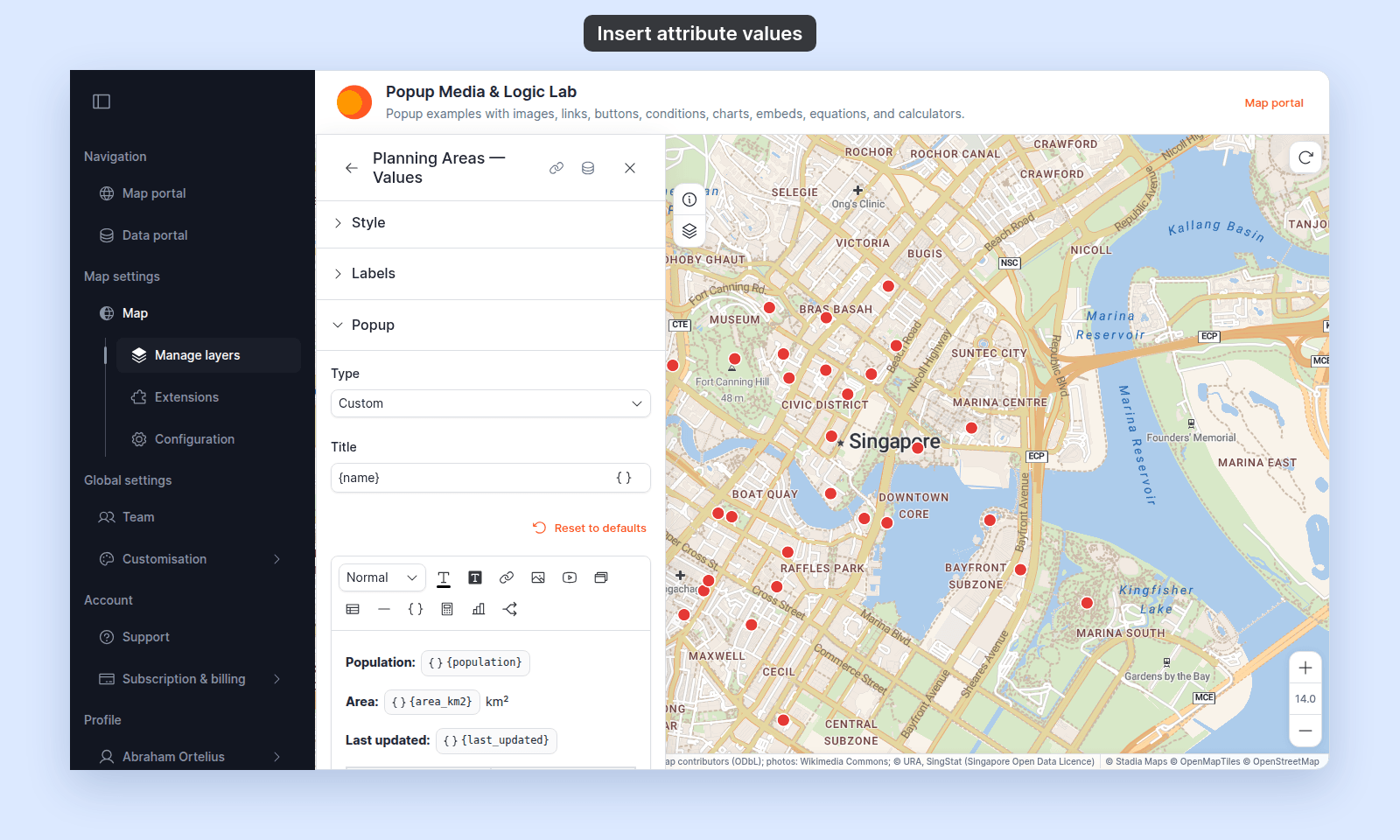
You can also type the variable directly: type { followed by the field name and }. The editor recognises the syntax and renders it as a variable chip.
To change a variable, hover over its chip and click Edit variable. The list of attributes opens. Click another attribute. To remove the variable, click Delete variable.
To type between two chips, click the gap between them. For example, type - between {book} and {page} to show {book}-{page}.
Insert a variable in the popup Title
The Title field above the editor accepts variables too. Click Insert simple variable at the right edge of the field, then pick the attribute. The variable goes in at the cursor position.
Variables in the title work the same way as variables in the body — they substitute per-feature at render time.
How values render
When the popup opens for a specific feature, MangoMap substitutes each {field_name} with that feature’s value for the attribute. The substitution respects the Format tab:
- The format (
Number,Currency,Date & Time,Measurement) controls how the value displays.12345.6789becomes12,345.68if you’ve setNumber → Floatwith two decimals, or12,346if you’ve setNumber → Rounded. - The alias does not affect the substitution — variables substitute the value, not the label. If you want a label next to the value, type the label text in the editor next to the variable:
Population: {population}. - The visibility eye does not affect variable substitution. A variable resolves even if the attribute is hidden in the default popup.
For attributes without a format set, the raw value is substituted as text.
Variables in URLs and other attributes
Text in the popup shows the value with its format from the Format tab. Addresses and equations use the raw value instead:
Variables work inside attribute strings on other content too:
- Link URLs —
https://example.com/{slug}makes each feature’s link target unique. Links use the raw value, not the format from the Format tab. A button’s text uses the formatted value, like text in the editor. - Email and phone links — in the
Set linkdialog,{email}inEmail address,Subject, orBody, and{phone}or{sms}inPhone number. See How to add an email link to a custom popup and How to add a call or message link to a custom popup. - Image sources —
{photo_url}puts a per-feature image in the popup. Images use the raw value. See How to add an image to a custom popup. - Embed addresses —
https://www.youtube.com/embed/{video_id}inInsert YouTube video, orhttps://en.wikipedia.org/wiki/{wikipedia_slug}in anInsert iframeaddress. Embeds use the raw value. If a variable is empty, the popup leaves that embed out. See How to embed an iframe in a custom popup. - Equation expressions —
{population} / {area}in the equation editor references attributes inside an inline calculation. Equations use the raw values as numbers, and round the result to the equation’sDecimal Places. Insert the equation withInsert equation. See How to add a calculated value to a custom popup.
Mix variables and plain text
A typical popup combines plain text (the labels) with variables (the values):
Population: {population}
Area: {area_km2} km²
Last updated: {last_updated}
Plain text renders as-is. Variables substitute per feature. The format on each attribute decides the display — population formatted as Number → Rounded shows 12,345; last_updated formatted as Date & Time → Long format shows Sat 09 May 2026.
What happens when a variable can’t resolve
A variable that points at a missing attribute, or to an attribute whose value is empty for the current feature, renders as blank.
If you see a blank value unexpectedly:
- Check that the variable name matches an actual attribute on the layer.
- Check the feature you clicked actually has a value for that attribute. Some features may have empty values where others don’t.
- For computed values, check the equation extension — see How to add a calculated value to a custom popup.
If you change the format on the Format tab
Format changes take effect immediately in the popup. You don’t need to re-save the popup template — variables resolve to the current format every time the popup opens.