

How to show or hide content based on a feature's attributes
Show different popup content for each feature, from its attribute values: text, images, buttons, tables, charts, or a second condition.
A conditional shows different content in a custom popup for each feature, based on that feature’s attribute values. You set a condition, such as bookable equals true or photo_url is not null, and choose what the popup shows when it is true and when it is false.
See it on an example map
Open the Popup Media & Logic Lab. In the legend, turn on Sites — Logic and turn off Sites — Default. Click a few sites. The Status and Bookings text changes from site to site, and a photo shows only when the site has one.
Each branch can hold much more than a line of text:
- Rich content: formatted text with headings, colours, and lists, plus field values, links, images, buttons, tables, charts, and equations. A site with a photo can show it with a booking button; a site without one can show a short note instead.
- A second conditional: test another value, for if, else-if, else logic.
- A field’s value, or nothing, so the whole section disappears.
Click Insert conditional in the popup editor to build one in three steps: Condition, Output, and Test.
Before you start
- The popup type must be
Custom. See How to write a custom popup template. - Decide what attribute drives the condition before opening the wizard. Conditionals work on attribute values — you’ll need to know which field and what comparison.
Open the conditional builder
In the Custom popup editor, place the cursor where the conditional content should appear. Click Insert conditional in the toolbar.
The Conditional Expression builder opens. It has three steps: Condition, Output, and Test. This example shows the Condition step for bookable equals true:
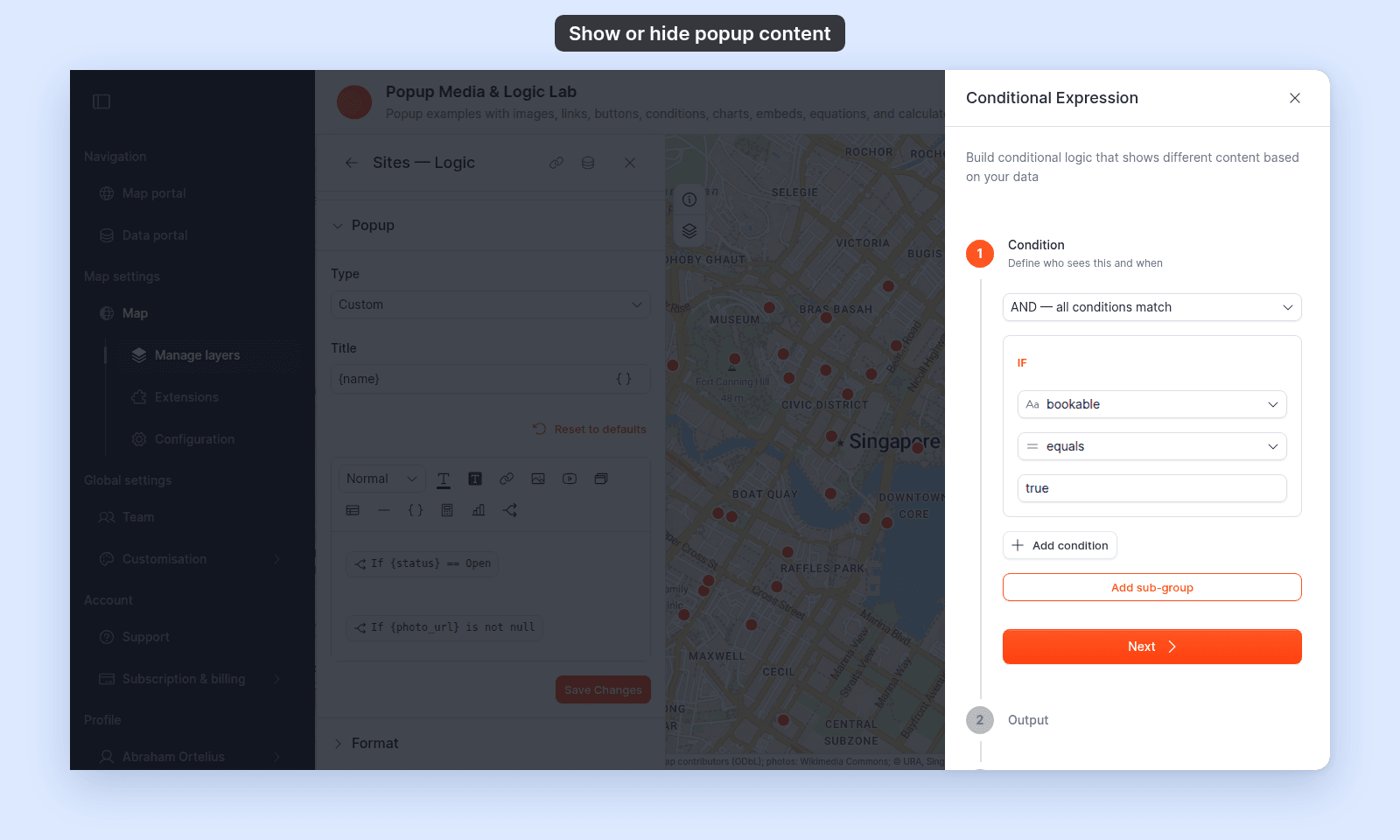
Click any step to open it. You can complete the steps in any order.
Step 1 — Condition
Set up the comparison that decides whether the conditional section renders.
The wizard lets you build a condition like “bookable equals true” or “population is greater than 10000”. Each comparison has three parts:
- Field — the layer attribute to test.
- Operator — the comparison.
- Value — what to compare against.
Available operators (as they appear in the dropdown):
| Operator | Meaning |
|---|---|
equals |
Field value matches the given value |
does not equal |
Field value is anything other than the given value |
is greater than |
Field value is numerically larger |
is less than |
Field value is numerically smaller |
is at least |
Field value is greater than or equal to |
is at most |
Field value is less than or equal to |
is null |
Field has no value for this feature |
is not null |
Field has any value for this feature |
Click Add condition to add more conditions. The list above the conditions sets how they combine:
AND — all conditions match— the default. A feature matches only when every condition is true.OR — any condition matches— a feature matches when at least one condition is true.
Click Add sub-group to add a group of conditions with its own AND or OR. For example: status equals Open AND a sub-group of bookable equals true OR phone is not null. A sub-group cannot hold another sub-group.
Click Next to advance to Step 2.
Step 2 — Output
Choose what the popup shows when the condition is true, and when it is false. The panel shows both branches at once. For each one, pick a Content Type:
- Field — one attribute’s value, with its formatting from the Format tab. Pick the field in
Select Field. - Rich Content — an editor with its own toolbar, almost the same as the popup editor. See What a Rich Content branch can hold.
- Conditional — a second conditional. See Nest a second conditional.
- Nothing — no content. Use it on the false branch to hide the whole section when the condition fails.
Each branch starts at Please select.... Pick a content type for both before you go on.
What a Rich Content branch can hold
The Rich Content editor has the same tools as the popup editor, so a branch can be a complete popup section:
| Content | What it does in a branch | How to |
|---|---|---|
| Text and formatting | Headings, bold, italic, colours, alignment, lists, quotes, and dividers. | Write a custom popup template |
| Field values | Insert simple variable adds a {field_name} that shows the feature’s value. |
Insert attribute values |
| Links | Web, email, phone, and text-message links, with {field_name} in the address. |
Add call or message links |
| Images | One image for all features, or {photo_url} for each feature’s own image. |
Add images |
| Buttons | A button that opens a page or starts an email, call, or message. | Add interactive buttons |
| Tables | A table of labels and field values. | Add tables |
| Charts | A bar or pie chart of the feature’s number fields. | Add charts |
| Equations | A number calculated from the feature’s fields, such as {revenue} / 12. |
Add equations |
The branch editor also has Insert YouTube video, and the video plays in the popup. See How to embed a YouTube video in a custom popup. A branch has no Insert iframe button, so it cannot hold a web page or a video file.
Click Next to advance to Step 3.
Step 3 — Test
The Test step runs the condition on up to 5 sample records from the layer’s dataset, one record at a time. For each record you see:
- Each rule, with the record’s value and a
TRUEorFALSEchip. - With more than one rule, a
Combined (AND):orCombined (OR):chip for the rules together, and a line for each sub-group. Output:— the content this record would show in the popup.
Click Previous sample and Next sample to step through the records. The counter, for example Sample 2 of 5, shows where you are.
If a record gives the wrong result, click back to Step 1 to adjust the condition.
When you’re satisfied, save the conditional. The wizard closes, and the conditional shows as a chip in the popup editor, such as If {bookable} === true. With more than one condition, the chip ends in AND ... or OR .... To change the conditional, hover over the chip and click Edit conditional. To remove it, click Delete conditional.
Nest a second conditional
Set Content Type to Conditional on either branch to test a second value. A second builder opens, with its own Condition, Output, and Test steps, and its branches take the same content types: field, rich content, or nothing. Its Condition step has the same AND/OR select and Add sub-group.
This gives you if, else-if, else logic in one block. For example: if status equals Open, show opening hours and a booking button; else if status equals Under review, show a note; else show nothing.
You can nest one level only: inside the second conditional, Content Type has no Conditional choice. To test more values, place separate conditionals one after another in the popup editor.
How it renders per feature
The diagram follows one feature through a conditional whose false branch holds a second conditional:
Common patterns
Hide a section when an attribute is empty. Condition: field_name is not null. True branch: the content. False branch: Nothing.
Show a photo only when the feature has one. Condition: photo_url is not null. True branch: rich content with an image whose Image URL is {photo_url}. False branch: Nothing, so no broken-image icon shows.
Show a note for more than one value. Set the group to OR — any condition matches. Conditions: status equals Closed and status equals Under review. True branch: rich content with a note that the site is not open. False branch: Nothing.
Show a booking button only where booking is open. Condition: bookable equals true. True branch: rich content with a line of text and a button that links to https://example.com/book/{slug}. False branch: rich content that says how to ask instead.
Show a chart only when there is data. Condition: q1_revenue is not null. True branch: rich content with a bar chart of the quarterly fields. False branch: Nothing.
Show different content for different categories. Condition: category equals "A". True branch: rich content for category A. False branch: a second conditional that checks for category B, with category B’s content in its true branch and the content for every other category in its false branch.
Save the popup
After saving the conditional in the wizard, click Save Changes at the bottom right of the popup editor to commit the change to the layer.
Troubleshooting
The Test step says sample records could not be loaded. MangoMap couldn’t fetch records to test with. You can still save the conditional. Check it afterwards by clicking features on the map.
The Test step says the dataset has no records to test against. The layer’s dataset is empty. Save the conditional, and check it on the map once the dataset has features.