

How to add a table to a custom popup
Insert a table in a custom popup to show attribute pairs in rows and columns. Fill cells with labels and variables, then edit and style the table.
A table in a custom popup puts attribute pairs in rows and columns, such as Population | 1,247 and Area | 3.2 km². Click Insert table in the popup editor to insert a 3×3 grid and fill cells with labels and {field_name} variables; Use tables for five or more pairs. For two or three, a plain **Label:** {value} line is easier to read.
See it on an example map
Open the Popup Media & Logic Lab. In the legend, turn on Planning Areas — Values. Click an area. Its popup shows a table of residents by age group.
Before you start
- The popup type must be
Custom. See How to write a custom popup template. - Plan the table shape before inserting. The default is 3 rows × 3 columns with a header row; the editor lets you add or remove rows and columns afterwards.
Insert a table
In the Custom popup editor, place the cursor where you want the table. Click Insert table in the toolbar.
The editor inserts a 3-row × 3-column table with a header row. The cursor lands in the first cell.
Fill cells with content
Click into any cell and type. Cells accept everything the rest of the editor accepts:
- Plain text and basic formatting (bold, italic, headings within cells, lists).
{field_name}variables that substitute per feature.- Inline links and images.
- Equations, inserted with
Insert equation.
Hover over a chip in a table cell to see its full text.
A typical attribute-pair layout uses the first column for labels and the second for variables:
| Label | Value |
|---|---|
| Population | {population} |
| Area | {area_km2} km² |
| Last updated | {last_updated} |
This table of residents by age group has labels in the first column and variables in the second:
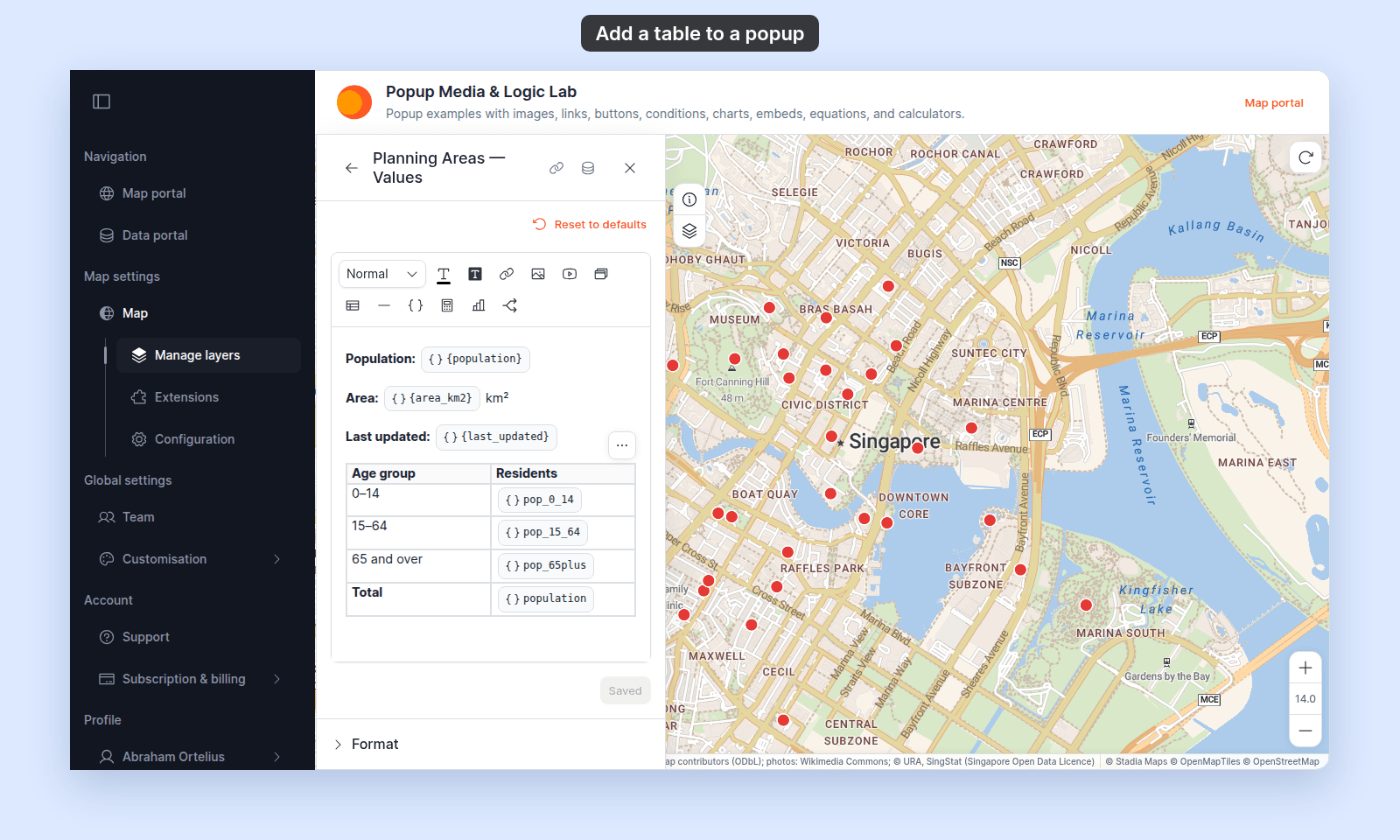
When the popup opens for a specific feature, the variables substitute with that feature’s values.
Edit an inserted table
To open the table menu, click in the table. Then click Table options (⋯) at the top-right corner of the table, or right-click a cell. The menu has four entries:
- Column Operations — submenu with
Add Column Before,Add Column After,Delete Column, andToggle Header Column(turns the current column into a header column, or back into a regular one). - Row Operations — submenu with
Add Row Before,Add Row After,Delete Row, andToggle Header Row(turns the current row into a header row, or back into a regular one). - Hide table outline — a toggle that removes the visible cell borders, useful for label-value layouts where you want aligned content without the tabled appearance.
- Delete Table — removes the entire table from the popup template.
To close the menu, press Esc or click outside it.
Style the table
You cannot set table styles per popup. Set cell colour with the text and background colour controls.
What happens to empty cells
Empty cells render as empty space. A {field_name} that resolves to a missing or empty value renders as empty content in that cell. Wrap variables in a conditional if you want to hide a row when the value is missing.
Save the popup
After laying out the table, click Save Changes at the bottom right of the editor.