

How to add a call or message link to a custom popup
Add links to a custom popup that start a phone call, a text message, a WhatsApp chat, or a Messenger chat, with a different number for each feature.
Add a link to a custom popup, and viewers can click it to start a phone call, a text message, a WhatsApp chat, or a Messenger chat. Phone and text message links work best on a phone: on a computer, they open only if the computer has an app set up for calls or messages.
See it on an example map
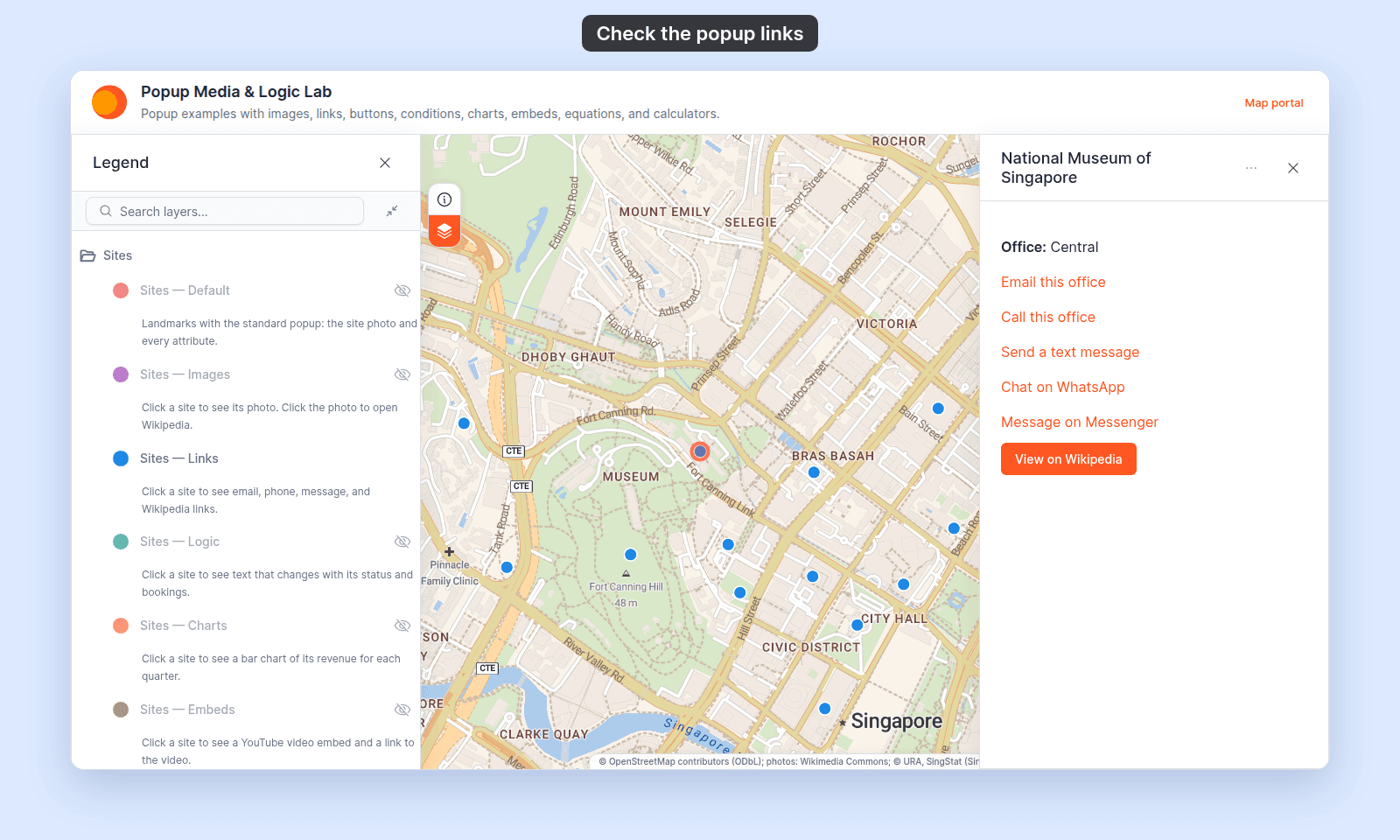
Open the Popup Media & Logic Lab. In the legend, turn on Sites — Links and turn off Sites — Default. Click a site. Its popup shows Call this office, Send a text message, Chat on WhatsApp, and Message on Messenger links.
Before you start
- The popup type must be
Custom. See How to write a custom popup template. - For a different number on each feature, the dataset needs an attribute that holds the number. To add one, add a column to your source file and update the dataset from the file.
Add a phone call link
Write each number in full international format, with the + and the country code, so the link works from any country. Spaces, brackets, and dashes are fine, because the link keeps only the digits and the +:
| office | phone |
|---|---|
| Central | +65 4014 6038 |
| South | +65 4012 2604 |
- In the Custom popup editor, place the cursor where you want the link.
- Click
Set linkin the toolbar. - Set
Link typetoPhone. - Click
Insert simple variableat the end of thePhone numberfield. - Choose the attribute that holds the number.
- In
Link Text (optional), type the words viewers click, for exampleCall this office. - Click
Add Link.
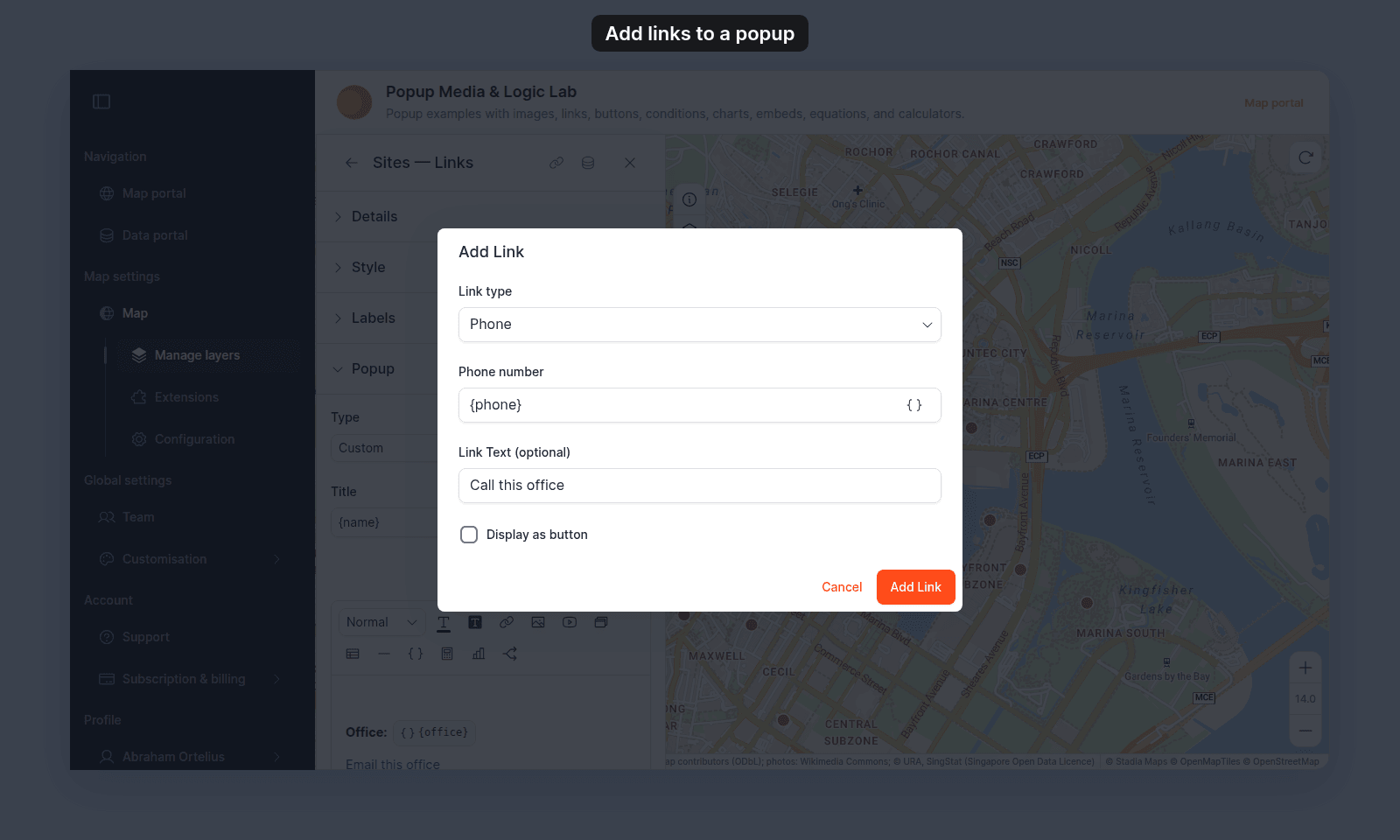
For one number on every feature, type the number in Phone number instead, for example +65 4012 2604.
Always fill in Link Text (optional). If you leave it empty, the popup shows the link itself, such as tel:{phone}, as the link text.
If the attribute already holds a complete link that starts with tel: or sms:, insert it the same way. The link still works.
Add a text message link
Follow the phone call steps, set Link type to SMS, and insert the attribute that holds a mobile number:
| office | sms |
|---|---|
| Central | +65 4957 0006 |
| South | +65 4957 0156 |
On a phone, the link opens the messages app with the number filled in.
The SMS link type has no message field. To fill in a message, paste a complete text message link into the Phone number field, with the message in URL encoding:
sms:{sms}?body=Please%20call%20me%20backThe dialog does not show the message, and you lose it if you change Link type.
Add a WhatsApp link
A WhatsApp link is https://wa.me/ followed by the phone number in full international format. Write the number as digits only, with no +, spaces, brackets, or dashes. For example, +65 4957 0156 becomes 6549570156. A number with spaces, such as one that works in a Phone link, does not work here.
- In the Custom popup editor, place the cursor where you want the link.
- Click
Set linkin the toolbar. - Leave
Link typeset toWeb link. - In the
URLfield, typehttps://wa.me/. - Click
Insert simple variableat the end of theURLfield. - Choose the attribute that holds the digits-only number. The URL is now like
https://wa.me/{whatsapp_number}. - In
Link Text (optional), type the words viewers click, for exampleChat on WhatsApp. - Click
Add Link.
For one number on every feature, type the complete URL instead, for example https://wa.me/6549570156.
To start the chat with a message, add ?text= and the message in URL encoding after the number:
https://wa.me/{whatsapp_number}?text=Hello%2C%20I%20have%20a%20questionAdd a Messenger link
A Messenger link is https://m.me/ followed by the username of a Facebook Page. Follow the WhatsApp steps, and type https://m.me/examplepage in the URL field. For a different Page on each feature, insert the attribute that holds the username, as in https://m.me/{facebook_page}.
If some features have no number
When the attribute is empty, the link still shows, but it does not start a call or message to a real number. Wrap the link in a conditional that shows it only when the attribute has a value.
Check the links
Click Save Changes at the bottom right of the editor. Click a feature on the map, then click each link. Check that each one opens the right app with the right number.
In this example popup, Call this office, Send a text message, Chat on WhatsApp, and Message on Messenger are the call and message links:
If the dialog shows an error
Enter a valid phone number.ThePhone numberfield holds letters or other characters that are not part of a phone number. Type digits, with an optional+at the start, or insert a variable.Web links cannot contain spaces.A WhatsApp or Messenger URL has a space in it. Remove the space, or write it as%20in a message.
Related
- How to add an email link to a custom popup
- How to add an interactive button to a custom popup — to show a call, message, or chat link as a button
- How to insert attribute values into a custom popup
- How to show or hide content based on a feature’s attributes
- Popup tab controls — every field in the
Set linkdialog - How to update a dataset from a file — to add the phone number column