

How to add a chart to a custom popup
Add a bar or pie chart to a custom popup so each feature draws its own chart from several numeric attributes, and learn when a chart is the right choice.
A chart in a custom popup lets each feature draw its own bar or pie from its values — a four-quarter revenue bar chart that’s different for every site, or a category-breakdown pie that’s unique per feature. Click Insert chart in the popup editor and pick Bar Chart or Pie Chart, then tick the numeric attributes that supply the data; charts need at least two comparable numeric attributes, and for a single value a plain {field_name} line scans faster.
See it on an example map
Open the Popup Media & Logic Lab. In the legend, turn on Sites — Charts and turn off Sites — Default. Click a site. Its popup shows a bar chart of that site’s revenue for each quarter.
Before you start
- The popup type must be
Custom. See How to write a custom popup template. - The layer must have multiple numeric attributes that belong together. A chart needs more than one value per feature — a single attribute won’t form a meaningful chart.
- Plan which chart type fits: bar charts compare categories side by side; pie charts show proportions of a whole.
Open the chart configuration
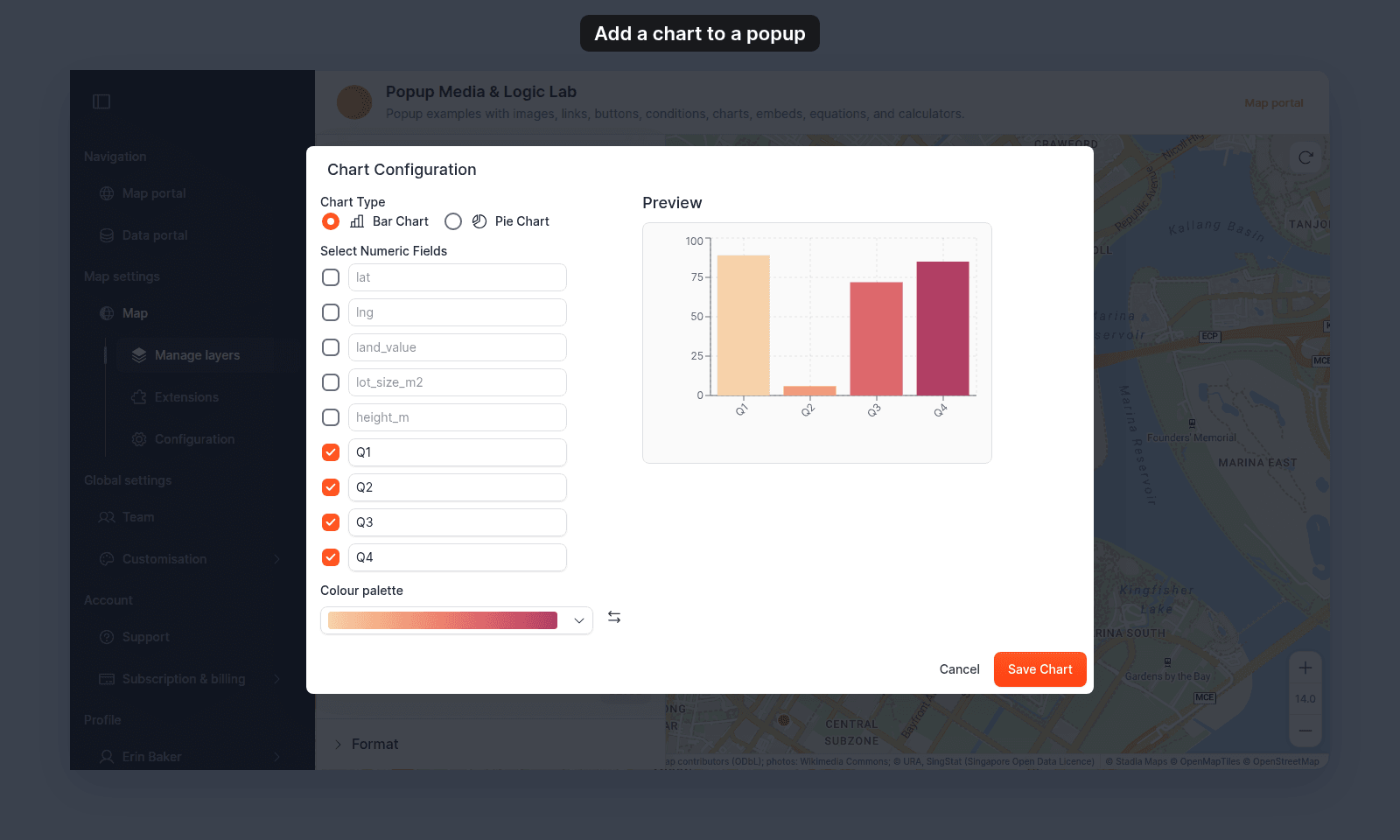
In the Custom popup editor, place the cursor where you want the chart. Click Insert chart in the toolbar. A Bar Chart block appears in the editor. On the block, click Configure chart (the pencil) to open Chart Configuration.
Pick the chart type
Under Chart Type, choose:
- Bar Chart — vertical bars, one per selected attribute. Good for comparing similar measures.
- Pie Chart — circular slices, sized by attribute value. Good for parts-of-a-whole.
These are the only two chart types available.
Pick the attributes that supply the data
Under Select Numeric Fields, every numeric attribute on the layer appears as a row with a checkbox and an editable label. Tick the attributes that should become bars or slices.
The label defaults to the attribute’s underlying name and is what the viewer sees next to each bar or slice. Overwrite it in the row to show a friendlier name — St perimet becomes Site perimeter, for example. Labels apply to both Bar Chart and Pie Chart.
The list order matches the layer’s attribute order. You can’t reorder rows.
For example, on a layer with quarterly revenue attributes (q1_revenue, q2_revenue, q3_revenue, q4_revenue), tick all four to produce a chart with four data points per feature — one per quarter, labelled with whatever you’ve typed in each row.
Insert the chart
The Preview updates as you tick fields and edit labels. It draws the chart with made-up sample values, not your data.
When the configuration looks right, click Save Chart. The chart block in the popup editor keeps the configuration. Each feature’s values show when its popup opens.
How values render per feature
A missing value shows as zero.
When a chart is the right choice
Use charts when:
- The data is naturally comparative (quarters, categories, before/after).
- A reader benefits from seeing the relative sizes quickly.
- Multiple attributes share a unit (all revenue, all percentages, all counts).
For one or two values, a plain {field_name} line is faster to scan and easier to format.
When a chart isn’t the right choice
Skip charts when:
- The values aren’t comparable (mixed units, mixed scales).
- You only have one value per feature.
- The popup is already busy with other content.
For trends across a numeric range (population over time as a single line), pure attribute display works better than coercing the data into a bar chart.
Save the popup
After inserting the chart, click Save Changes at the bottom right of the editor. Verify by clicking a feature on the map — the chart should render with that feature’s data.