

How to embed a YouTube video in a custom popup
Play a YouTube video inside a custom popup. Use one video for every feature, or a video ID field to show a different video for each feature.
A YouTube embed plays a video inside a custom popup. Use one video for every feature, or a field that holds each feature’s video ID for a different video per feature. A field that holds the full YouTube link does not work.
See it on an example map
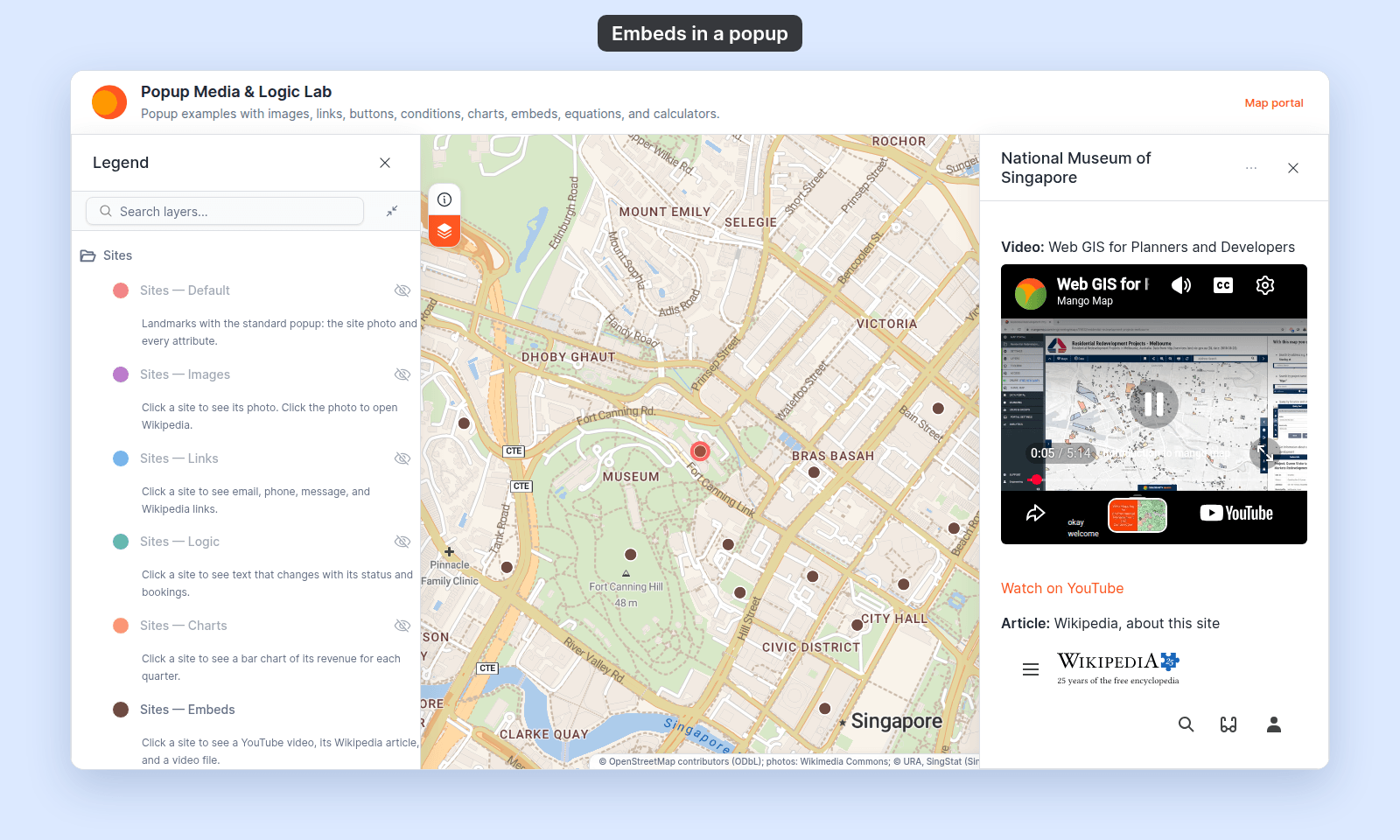
Open the Popup Media & Logic Lab. In the legend, turn on Sites — Embeds and turn off Sites — Default. Click a site. A site that has a video shows a YouTube player in its popup.
Insert YouTube video handles YouTube only. For Vimeo, Wistia, or another video host, use Insert iframe with that host’s https:// embed URL. See How to embed an iframe in a custom popup. For a video file, see How to embed a video file in a custom popup.
Before you start
- The popup type must be
Custom. See How to write a custom popup template. - You need the public YouTube link of the video, such as
https://www.youtube.com/watch?v=M2ngoZDer6A. - For a different video per feature, the layer needs an attribute that holds the video ID: the part after
watch?v=, such asM2ngoZDer6A.
Insert a video
In the Custom popup editor, place the cursor where you want the video. Click Insert YouTube video in the toolbar.
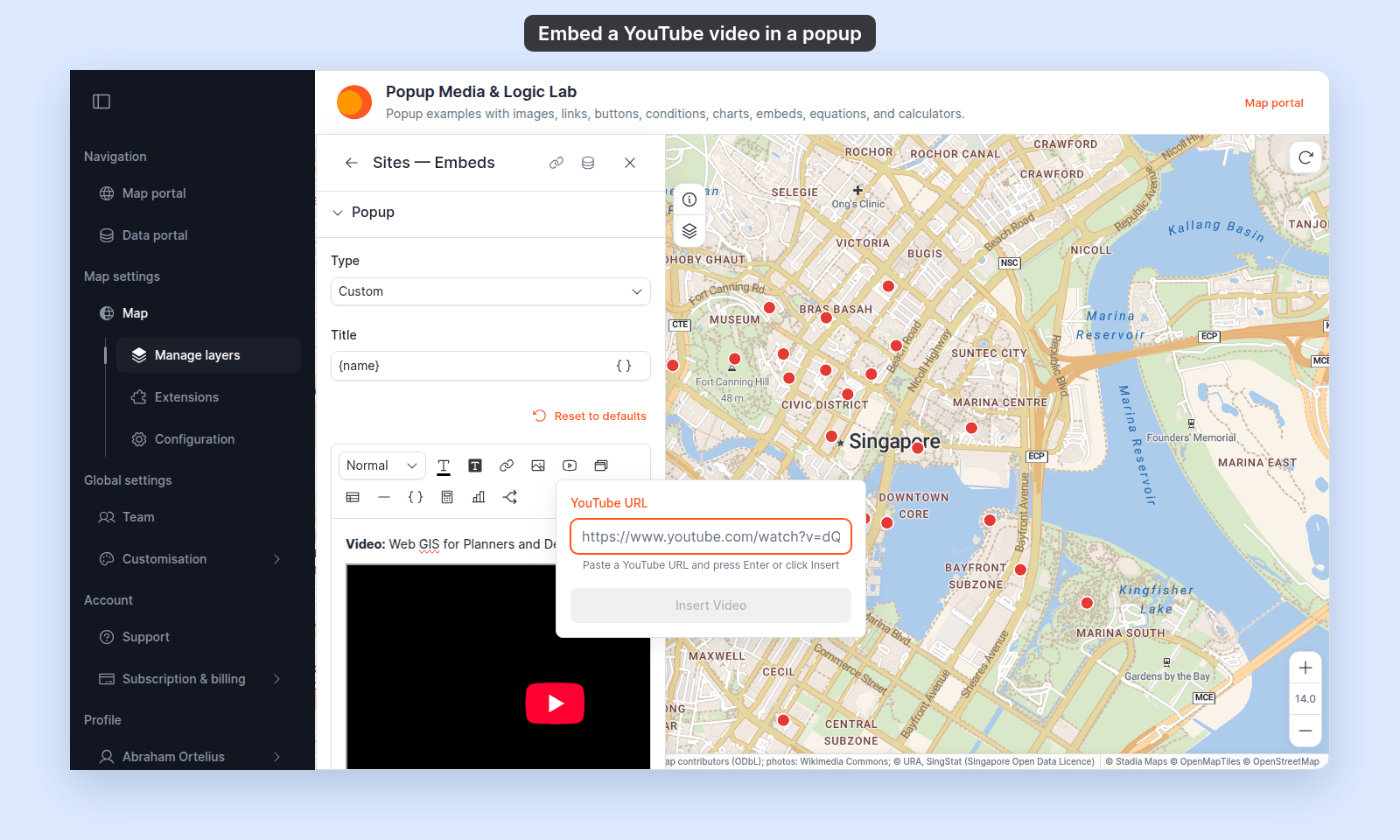
Paste the URL and press Enter (or click Insert Video). The editor shows the player at the cursor.
Use the same video for every feature
Paste the video’s YouTube link, such as https://www.youtube.com/watch?v=M2ngoZDer6A. The editor changes it to YouTube’s embed address. The same video plays in every feature’s popup.
Use this for an overview or training video for the whole layer.
Use a different video per feature
If the layer has an attribute video_id with the ID of each feature’s video, type this into the field:
https://www.youtube.com/embed/{video_id}The YouTube dialog has no Insert simple variable button, so type the variable. Use the /embed/ form:
https://www.youtube.com/watch?v={video_id}inserts an empty player.- A link field on its own, such as
{video_url}, inserts nothing.
The editor cannot fill the variable, so its player has no video. The popup fills in each feature’s ID.
Check the video
Save the popup, then click a feature on the map. The video plays in the popup:
When a feature has no video
If the {video_id} attribute is empty for a feature, that feature’s popup leaves the player out. The rest of the popup still shows. You do not need a conditional to hide it.
Save the popup
After inserting the video, click Save Changes at the bottom right of the editor.