

How to create a map
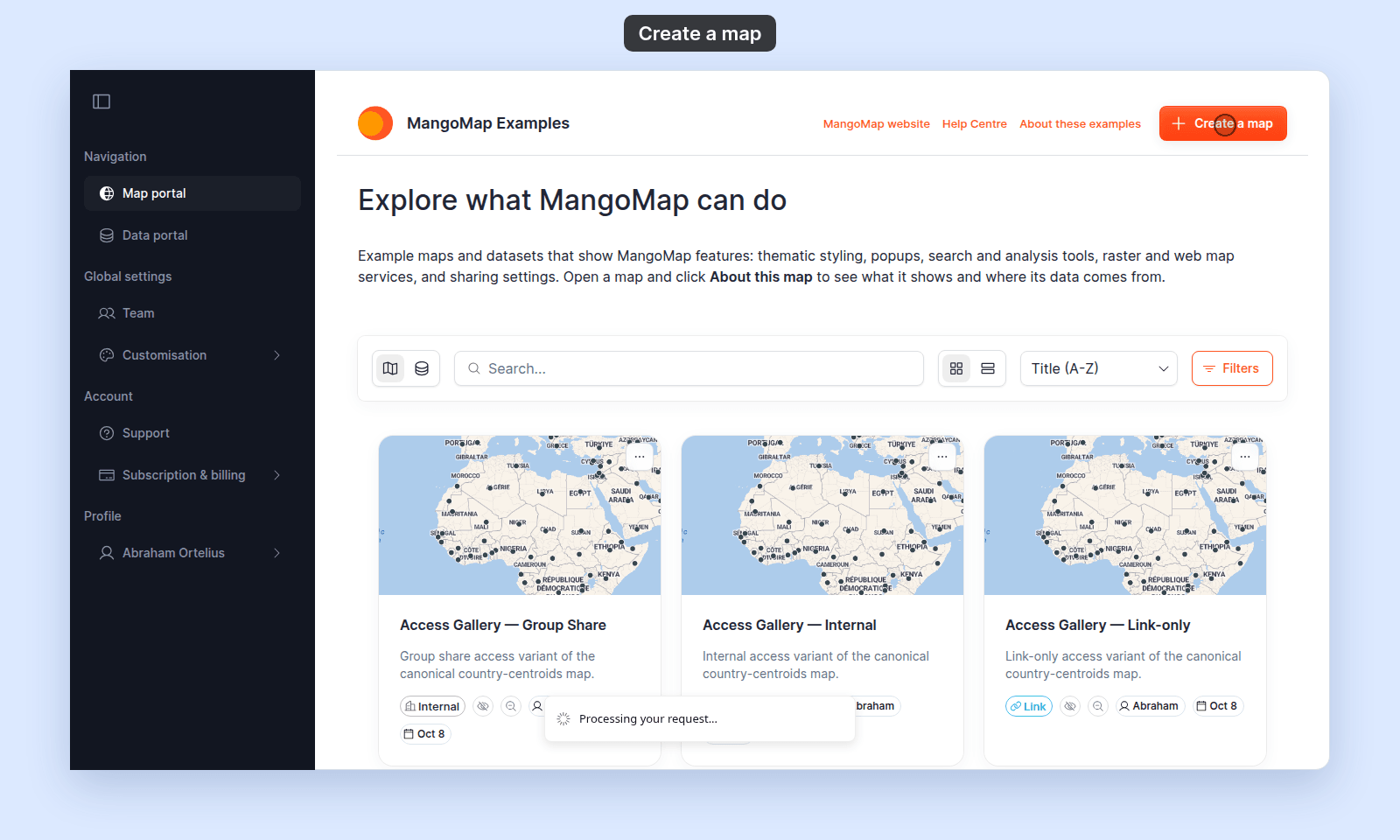
Create a new private map from the portal with the Create a map button. It opens in the editor as Untitled Map. You need the Owner or Admin role.
Creating a map from the portal creates an Untitled Map and opens the editor. You can then add data and style it. Your account owns the map, and it starts private. Only you and permitted account members can see it until you publish it.
Before you start
- You need to be signed in with the
Create mappermission. This is available to the Owner and Admin roles. Editor and Viewer roles do not see the button. See Account roles reference. - You need to be under your account’s map limit. The portal shows a dialog explaining your upgrade options if you’ve reached it — see What happens at the map limit below.
Click Create a map
The Create a map button is at the right end of the portal header (a plus icon).
Clicking it:
- Creates a new map titled
Untitled Mapin your account. - Opens the new map in the map editor.
Set up your new map
Once you’re in the editor, the typical first steps are:
- Open
Map settingsand replaceUntitled Mapwith a real title. See How to set the map title and description. - Add your first layer. See How to add a layer from your data library or How to add a layer by import.
- Style the layer. See Styling layers.
- Publish the map when you’re ready. See How to publish a map to the web.
The full new-map walkthrough is in Quickstart: build your first map.
What happens at the map limit
If your account has reached its map limit when you click Create a map, the portal opens a dialog instead of creating the map. The dialog explains your account’s plan limit and offers the upgrade or add-on path appropriate to your plan:
- Business plan — the dialog offers an upgrade to Enterprise.
- Enterprise or Agency plan — the dialog offers an
Additional mapsadd-on, or an upgrade to a higher plan if applicable.
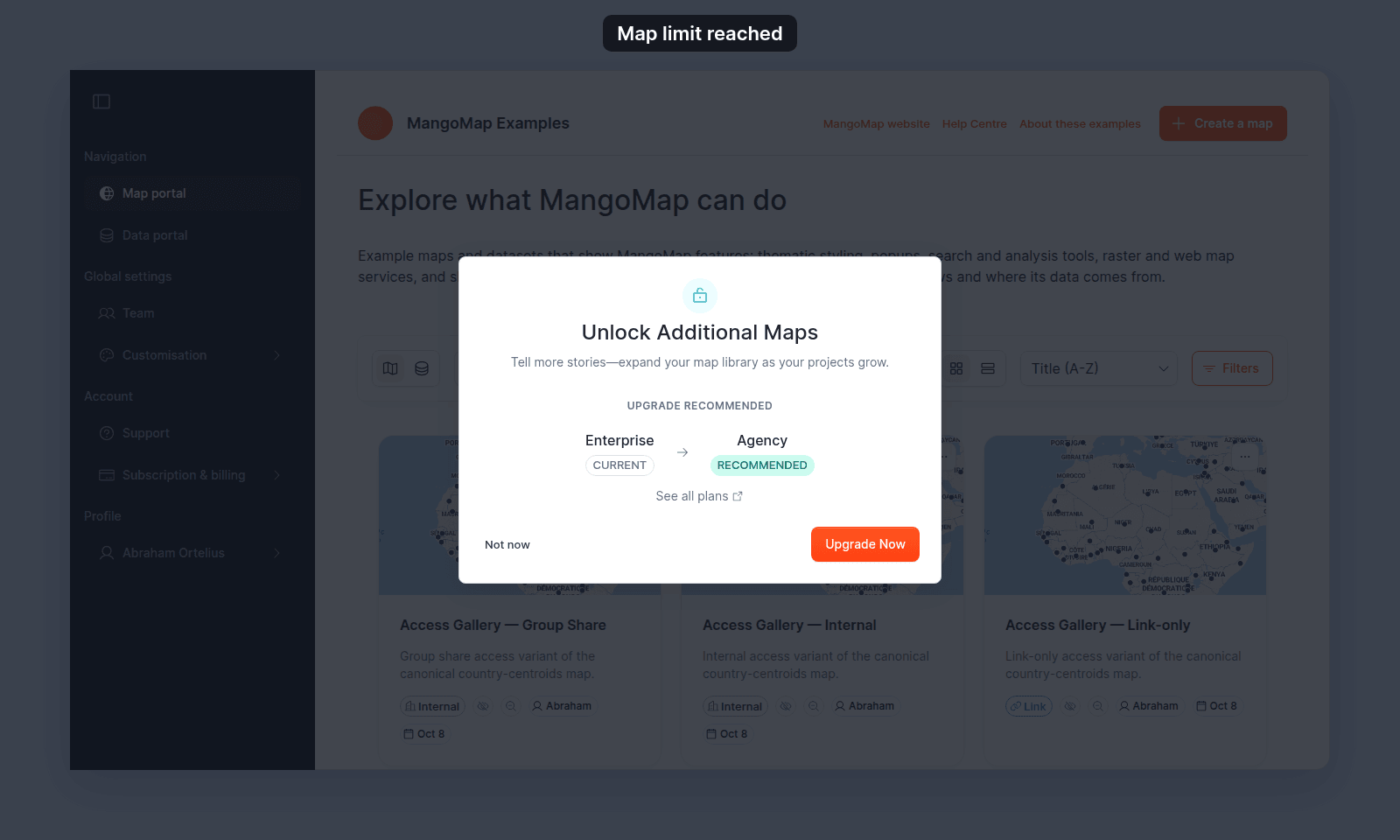
Click Upgrade (or the equivalent action in the dialog) to go to subscription settings. Close the dialog to stay on the portal — no map is created.
Related
- Quickstart: build your first map — five-minute end-to-end walkthrough.
- Maps portal reference — every control on the page.
- How portals work in MangoMap — what the portal is.
- How to publish a map to the web — the next step once your map is ready.
- Account roles reference — which roles can create maps.